SE-DesktopConstructor

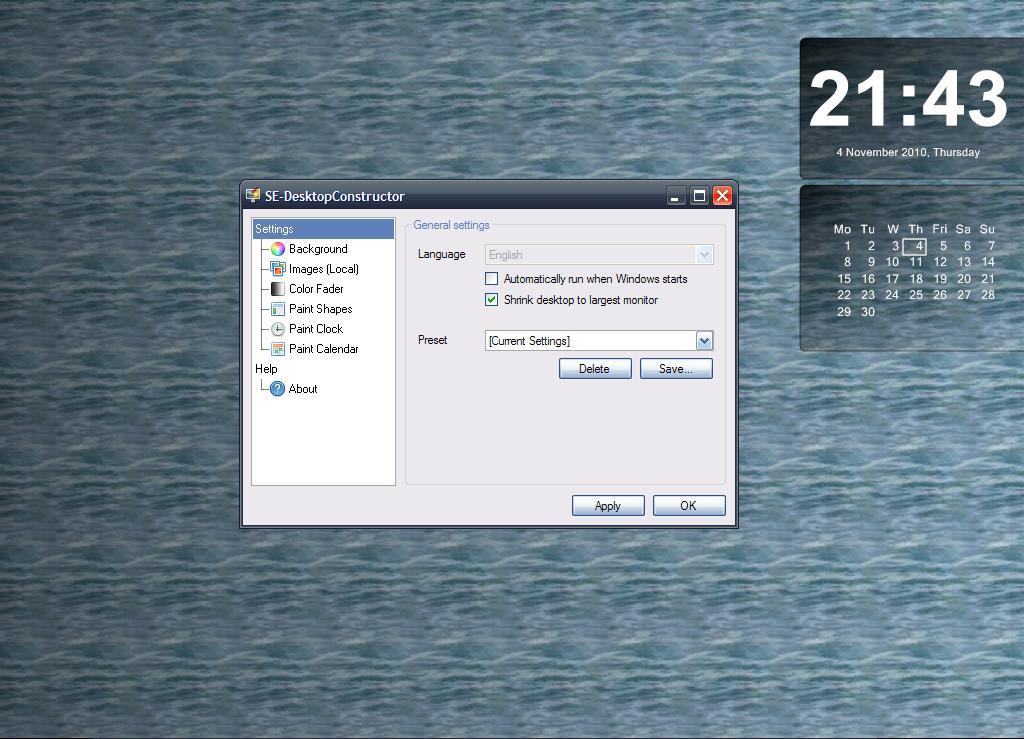
SE-DesktopConstructor is a simple no-install tool that help you customize your desktop and add a few extras to it.

SE-DesktopConstructor lets you to change your wallpaper in minute to day increments. A wallpaper folder comes with the program where one can use the default pictures or gradients that come with SE-DesktopConstructor, add one’s own pictures to that folder or just use another folder altogether. There is a color fader available to play around with the wallpaper and for example to make it seem brighter or dimmer in different regions. Using paint shapes one can add shapes (ellipse, rectangle or round rectangle) with customizable colors and borders to the wallpaper itself so as to create a virtual desktop area where a number of icons may be grouped together.

SE-DesktopConstructor also features a set of clocks and calendars in different shapes and formats which can be positioned anywhere on the desktop with their own customizable colors and fonts.

SE-DesktopConstructor is an attractive addition to a PC and runs on Windows 2000 and all later versions, it is also portable.


neoSearch is a lightweight, 531KB download, option in the array of computer search utilities. Upon launch it takes a minute or more, depending on system size, to index the drive(s) so that it can present search results almost instantaneously. With neoSearch search results are presented and updated in real time when the user starts typing.

neoSearch’s options include adding system folders to it’s indexing, because it ignores those folders by default, including and excluding any number of folders from it’s indexing and therefore its search results and a scheduler for future indexing which includes a ‘manual’ option.

neoSearch suffers from a few drawbacks that are all by design, they are:

The program delays its own launch, when first opened and not when already running in the background, by asking for an update check and somewhat bizarrely makes the user wait five seconds if the update check is refused.
The program’s executable is placed in the system’s Application Data folder (alongside its index database) and so the program has no presence in the Program Files folder.
Only the first six search results are presented immediately and there is no scrolling to see additional results. An extra click (pressing Enter or on the magnifying glass icon) is required to open the full search results in a new window.

neoSearch is capable of indexing shared folders over a network, supports wildcards and works on Windows XP, 2003, Vista, 2008 and 7.


Nimi Places is described by its author as

Simple way to organize and keep important folders on desktop

Nimi Places does things a bit differently, in practice or in theory an empty desktop devoid of any icons would use Nimi Places to assign movable or drag-able regions of it to important or often used folders. In other words Nimi Places creates opaque or transparent areas or windows where the contents of a folder will remain or become visible when needed. Nimi Places is, in a way, creating visual and somewhat workable shortcuts to folders while at the same time keeping the desktop clean.
After running the program and left clicking the tray icon one can add places by clicking the + sign and choosing folders to create places for. Nimi Places allows most normal file operation inside these ‘places’. Copy and pasting and renaming file to name two. However it seems none of moving or dragging and dropping work or are buggy, indeed a few of the other operations listed on the Nimi Places page are not available or unworkable in the version I downloaded.
Nimi Places is lightweight and very interesting. At its most basic it does a good job creating a new desktop experience. It is, however missing help or a clear explanation (perhaps there is a pro-version?) and even its “HD streamed video clip” – available on the home page linked at the beginning of this post – shows features that are not available or not possible to do on an XP machine.


Krento is described by its author as

Krento is an application manager and widget engine for Microsoft Windows

Krento is a lightweight launcher that is not too unlike Radian featured earlier here. Upon installation a circular set of ‘stones’ and a ‘pulsar’ appear on the desktop (see image above). The pulsar which fades into the desktop if the mouse is away from it offers one way to activate the stones or the main interface of Krento. By right clicking on each segment or stone of the program it can be changed to one of the pre-configured settings like the ability to show, in the center of the program interface, the current time, IP address or to shut down the computer. Alternatively stones can be configured to open programs with command line parameter support. Win+C is the default keyboard method of opening the program, this and other settings, for example to activate Krento via the mouse, are available in the program’s option (right click the tray icon). Using the Ctrl key with any one of F1 to F12 keys is the keyboard method of opening each of the 12 stone targets (the stones are numbered as seen in the image above).

Krento supports and includes many skins and is compatible with Rocket Dock and Object Dock skins as well, as explained here. One point to note is that as with any program with mouse and keyboard shortcuts this can interfere with other programs’ settings but since the defaults can change Krento of course remains useful.

Krento requires the .Net Framework (2.0) and works with Windows XP, Vista and 7.


I have been using PowerPro for years. It is the grandfather of all launchers, utilities and lots more. There is so much that can be done with it. To list all its features would take pages and additionally its scripting capabilities make it almost limitless. It does have a learning curve and since it has existed for years it perhaps does not rank as the most intuitive. Over the years it has slowly evolved however and offers so much.

Just to name a few, very few, of what it can do

  • Watch the clipboard
  • Watch recent documents and more importantly recent apps used
  • All kinds of Windows operations like shutdown and minimize
  • Virtual desktops
  • Scheduler
  • Creating bar and menus

For anybody who is not familiar with PowerPro, it really is the most complete freeware. Be sure to follow the links on the program’s site to the Yahoo! groups listed.


Pitaschio, not Pistachio!, is described by its author as

Pitaschio is a freeware which makes it convenient to use Microsoft Windows

Pitaschio is a utility that enables a user to automate many tasks or to simply be more efficient with the keyboard and the mouse. At the same time it can be perhaps too much since for example upon launch it disables a few things, notably the Windows key and the option to maximize a window. These behaviours can of course be turned off in its settings but nevertheless they are perhaps not the most needed of default actions. Some other keys that can be disabled include F1, Insert and Caps Lock. The latter is perhaps most relevant as many prefer to use the shift key when capitalized letters are required.

Pitaschio Freeware

Some of the features in the Configuration section of Pitaschio can be seen in the image accompanying this review. They include the following:

  • ‘Snap’ makes sure windows are placed side by side, and not overlapping, on the screen.
  • ‘Place a window only in the screen’ restricts the move and resize options so that no part of a window can move out of screen view.
  • ‘Use small icons’ reduces icon sizes both on the desktop and inside Windows Explorer
  • ‘Send to under-cursor-window’ is one of the more interesting settings. It allows the mouse wheel to operate (scroll) the window it is positioned on and not the foreground window.
  • ‘Parent folder by double click’ creates a pseudo-breadcrumb effect where double clicking an empty area in Windows Explorer opens the parent folder.

The Windows settings or section work on any open windows (which are always listed in the text area near the top of the settings window (see image)). Among others, one can minimize and hide windows, make them transparent, resize them and bring them to the foreground.

The Mouse shortcuts settings, accessible through the program’s system tray icon, provides a long list and choices affecting the desktop, title bar and task bar. Many options are included like, but not limited to, Show Desktop, Open Task Manager, Toggle Topmost State and others. Each option is assigned to key combinations like double click and shift+double click.

Disabling the keyboard and/or the mouse is one additional helpful feature of Pitaschio. It is beneficial because it can prevent a child or pet accidentally entering characters onto a document and it makes cleaning the keyboard and mouse easier too.

Pitaschio’s manual page has a fuller explanation of each setting but using the program itself may be enough as well.

It is possible to add the names of programs that do not work or one does not want to be affected by Pitaschio to the Ignore.txt file that resides in the program’s folder. Since Pitaschio happens to not require an installation its folder can reside anywhere. It should run on Windows 2000, XP and Vista (it is not tested on Windows 7).


In this series of posts called New Version News I will highlight some of the newer versions of freeware downloads reviewed earlier on RGdot.com.

Caderno, the notepad replacement and alternative reviewed here is at version 2.10 now. Some notable and new features include the following:

  • Code folding.
  • A better and more complete UTF (UTF-16) support.
  • The portable version that was in the works earlier. Also an U3 version, the format that is especially created for USB flash drives.

Dexpot has reached version 1.5, it was originally reviewed here, and offers a number of interesting and useful features like the following:

  • The Dexcube plug-in, for some 3D effects features.
  • The SevenDex plug-in, to make maximum use of the the taskbar on the new Windows 7.
  • Task switcher and desktop switcher, which increases access and efficiency in using applications that reside on different desktops.
 

Radian is described by its author as

Radian is a simple radial application launcher


Radian

When Radian is launched it starts with what it calls design mode, which is also accessible any time by right clicking or double clicking its system tray icon. This startup briefly slows the system while the program searches and indexes its pre-configured shortcuts, described below. In design mode Radian’s circular or radial interface is divided into 4 quadrants (see image). Each quadrant can be configured, using its corresponding wheel icon residing near the center of the circle, to hold chosen shortcuts and their respective icons. Three of the four quadrants are pre-configured to show desktop items, quick launch items and the recent documents entries. The fourth quadrant is called custom and any file or shortcut can be dragged to any of its regions. Right clicking on any of the individual regions also allows for the creation of custom shortcuts.

After design mode is done Radian stays in the tray and can be activated by clicking and holding down the right click button any where on the screen. Then the second, third or  fourth quadrants can then be made visible by moving the mouse in a circular fashion while still holding down the right click button.

Radian is one launcher that certainly needs getting used to but it is a different and original looking download.


DragTargets is a desktop tool that is similar to DropIt featured here on RGdot.com.


DragTargets

DragTargets makes the task of moving or copying files more efficient by providing an interface that acts as alternative of opening instances of Windows or alternative Explorers and then navigating to a particular folder.
When installed DragTargets presents a small window on the desktop, right clicking the window one can browse to a drive or folder and create a new dragtarget. After a new dragtarget is created any files dragged and dropped into the interface or target will copied to that destination or chosen folder. The default action here is to copy the files but checking the small square (see image) at the bottom of the program interface changes the action to move instead of copy.

Additionally, clicking on any of the saved targets opens the destination folder so targets are also alternative shortcuts to folders and drives on the computer.


DropIt is a small portable download that helps manage the process of moving, copying and organizing files and folders. When installed DropIt adds a floating image or icon on the system desktop. Dragging and dropping files or folders over or into the icon moves or copies the files or folders into a configurable destination.

DropIt

Right clicking on the floating image one can access the program Settings where one can choose to move or copy files when using DropIt and to activate the feature which treats folders in the same way as it does files.

Managing the main settings of the program is done via the same right click but instead choosing the Manage option. Here one can use the Search File button to find a file with the extension (*.jpg for example) one wants to work with or type the extension in the small box to the immediate right of the Search File button. After doing that one should press the Folder button to browse to the folder where the *.jpg (or other) files will be moved (or copied) to when ‘dropped’ on the DropIt icon. The chosen extension will then appear in the far right Extension List box. There after one can edit the association or setting for each file extension by highlighting it and editing the settings that appear in the Edit Associations area.
DropIt is a useful tool for cleaning up the desktop or indeed any other folder.

© 2012 RGdot Suffusion theme by Sayontan Sinha