Commands in Demand provides a collection of tools and shortcuts to make it a centralized all purpose utility.

Commands in Demand

Of note is that every time the program starts there is an error that it is “unable to add hot key Ctrl+Alt+S” (see image), in its help file this hot key combination is described as:

…always reads the Clipboard contents (from any of its section you are working with, and even if its window is not visible), by pressing the Ctrl+Alt+S keys’ combination from your keyboard

Going down the program’s sections Commands in Demand includes the following:

It can kill unrepsonsive or other tasks, remove idle processes, copy text from any system error message, restart Windows Explorer, open task manager and kill a print job.

Next is a section to manage Windows Explorer with buttons to open subfolders, go one level up or deeper, minimize or restore windows, keep the active window on top, resize the active window, add transparency to it and more.

A Clipboard section that can read clipboard items, save them to a text file among others.

A multi-page Desktop section to show or hide desktop icons, use a screen magnifier, an on screen keyboard, capture active or other areas of the screen and gain access to Windows 7′s GodMode control panel.

The Devices section has shortcuts to Device Manager, open and close optical drives and safely remove USB.

Files and Folder has a text file joiner, hash checksum calculator, a list alphabetizer tool ( that can import text files or work with manually entered  text) and a few more shortcuts.

Graphics has a color picker, EXIF viewer and image convertor.

Icons can extract icons from files, hide and show desktop icons and refresh them too.

Internet has the shortcut to a translator, HOST file editor and additionally a shortcut to Google and Neave flash maps and another to search using any of 12 search engines.

Memory and CPU has live CPU and memory usage meters and an ‘Instant memory cleaner’ button.

Miscellaneous features a calendar that can calculate days between dates and a few ‘stress killing’ games.

Network has the shortcut to the Network Connections window and a tool to create Network and TCP/IP statistics reports.

System is another multipage section with shortcuts to the command prompt (normal and colored console), system folders plus an operating system ID report with common info like version, processor type, Windows product ID and more.

SysTray can mute/unmute sound, hide/show clock and a few others.

Taskbar can add transparency to the task bar and hide/show it.

Text and Editing has the join files and online translation shortcuts and two potentially useful tools to separately convert Unicode and ASCII texts between upper and lower case.

Windows Applications is simply a collection of shortcuts to things like Regedit, Task Scheduler, Character Map and others.

The Shutdown Panel has the reboot, standby, logoff , hibernate, shutdown and monitor off buttons.

Commands in Demand

The Tools of Mine section is basically a launcher where the user can add any shortcut and run it (see image above).

Commands in Demand (Version: 12.2 tested) is freeware, one zip file that doesn’t require installation and should run on Windows XP and newer.


PC Wizard (Version: 2010 1.961 as of this post) is a freeware from the same developers as CPU-Z, the popular CPU information utility. PC Wizard provides a lot of information about its host PC.

PC Wizard

Upon startup, which takes a few seconds, the Hardware section is first.

Hardware has 12 sections for System Summary, Mainboard, Processor, Video, I/O ports, Drivers, Printers, Devices, Multimedia, Network, Power Status and finally Voltage, Temperatures and Fans. The information available are specs for system manufacturer, Direct X, PCI slot, Open GL, disk drives, Twain devices, UPnP, audio and video codecs, network card and connection, battery status, if applicable, and lots more.

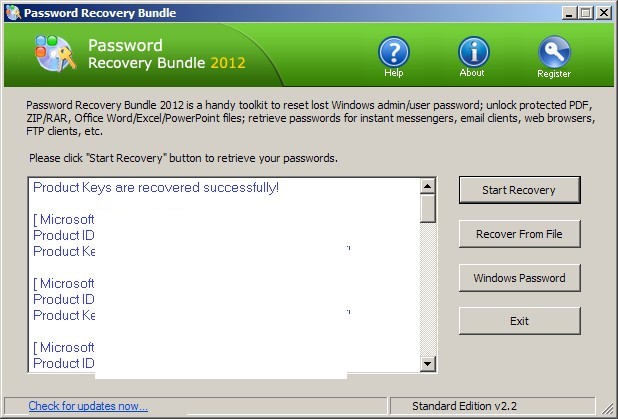
The Configuration section features information on Windows serial number, system uptime, default browser, default email client, control panel, desktop appearance, running processor and threads, DLL files, OLE applications, Microsoft components, fonts, Windows updates installed, uninstall info, startup info, file extensions, Window security status, services, .NET Framework and also a passwords section. Interestingly passwords detected one old and one current MSN (Live) Messenger password on the PC tested!

The System Files section has viewers for boot.ini, system.ini, event logs, internet explorer cookies and history and a section on environment variables such as system paths, architecture and more.

Resources section has IRQ info and a network sniffer with a list of IPs, ports and their state (listening, established, etc.)

The Benchmark section has tools for various memory, processor and video tests and a global performance benchmark test to do them all together.

Each section is printable and highlighted entries can be captured by the clipboard. The Tools menu has extras for enabling processor monitoring and gathering overclock information. PC Wizard is by no means the fastest program. Some info, like the DLL list for example, take a bit more than a few additional seconds to gather and present.

PC Wizard

PC Wizard is available in both portable and installer versions and should run on all Windows versions. As always with benchmark and system profile utilities some information may not be available if they are not supported either by the software or if they are not present on the host system.


System Information is a system profile and information utility. It presents the gathered information in a tabbed interface divided into System Info, Drive Info, Memory Info, Network Info, Installed Programs, Hardware Devices and Printers and Faxes.

System Information

System Info is an overview of the computer with Windows version, manufacturer, CPU type and speed and screen resolution. Drive Info has the specifications of the hard disk such as manufacturer, size, number of partitions, sector size and more. Memory Info has the RAM amount, total memory (including virtual) available and used. Network Info shows the network adapter type, machine name and MAC address. Installed Programs has a list of all programs, .NET framework, Adobe Acrobat and Internet Explorer versions installed. Hardware Devices is much like Windows’ device manager with a tree view showing processors, USB controllers and others (see image). Additional information on the devices is available when they are highlighted. Printers and Faxes provides information on peripherals and others like Microsoft XPS Document Writer and as the hardware tab before it additional info and properties are shown on the right hand side.

The generic name of the program is sure to confuse. System Information requires .NET Framework 2.0 and should run on Windows 2000 and newer.


System Spec (Version: 3.05 as of this post) is a system information utility that has some of the most comprehensive and complete set of information available. The initial screen provides a general system profile with the likes of Windows to BIOS version (see image) but there is lots more.
System Spec

System Spec divides the information it gathers into sections. These are, Personal Info, Memory Info, Display info, Disk Info, CD/DVD Info, CPU Info, BIOS Info, Internet, Installed Programs, Network, Printers, Sound, USB, Date and Time, Input Devices, Windows Version Info, Developer Info and USB Drives. A bit about the aforementioned sections follows.

Personal Info. Windows username, install date, version, key and others.

Memory Info. Total RAM, RAM speed, memory (RAM + virtual) totals, page file size and others.

Display info. Monitor type, refresh frequency, GPU type, all resolutions supported by the graphics card and more.

Disk Info. Hard disk size, (any) SMART info and file system flags.

CD/DVD Info. Info on all optical devices installed including manufacturer, product ID and read and write speeds.

CPU Info. A usage meter, CPU manufacturer, family, code name, voltage, clock speed, cache size and lots more.

BIOS Info. BIOS identifier, version and date.

Internet. Internet Explorer version, start page and other browsers detected. Explorer favorites and history.

Installed Programs (see image below) is more impressive than most. A list of all programs installed, shortcut to uninstallers, installed location, date. Information on publishers and help info/URL if available.

System Spec

Network. A list of networks and network devices such as network adapter and if available a list of computers on the network.

Printers. A list of attached printers.

Sound. Sound card info and specs, a tone generator, shortcuts to system sounds, mixer settings and buttons to test speakers.

USB. Number of USB controllers and info on any USB devices attached.

Date and Time. Current time, time zone, system up time,  UTC (Coordinated Universal Time), daylight savings start and end dates and more.

Input Devices. Information on the keyboard and mouse such as the type of mouse (number of buttons) and more.

Windows Version Info. Root folder, service pack, 32 or 64 bit and a bit more.

Developer Info. Java version, .NET version(s), ODBC drivers and IIS version among others.

USB Drives. This section information that is already accessible in the section on attached devices.

System Spec also features a whole set of commands and system shortcuts to control the system. Everything from shortcuts to safely remove USBs, start the run box, Windows Explorer, Task manager, Group Policy and hiding the taskbar (System menu). An on screen keyboard, System File Checker, Device Manager, Defrag, Scan Disk and Sys Edit (Programs menu). Standby Monitor, Eject CD and Mute Speakers and Microphone (Hardware menu).

The File menu can save information to a CSV or HTML file and also print a selection. The Edit menu offers to save selected specs to the clipboard but this didn’t work in tests.

System Spec is a freeware portable download and works on Windows versions going back to Windows 98.


HWM BlackBox (Version: 2.3 as of this post) is a hardware or system information and profile builder. Much like others of its kind it takes a few seconds upon startup to gather information.

The interface is tabbed and divided into Processor, Memory, Graphics, System and Benchmark. The Processor tab has information on number of cores, speed, cache and technology (90nm, etc.), bus speed, voltage, temperature and also live usage info. Memory has info on RAM slots filled or available, memory type, frequency, manufacturer, serial number CAS Latency and more. Graphics has GPU information like memory, temperature, max speed, DirectX version, raster operators and more. System has computer manufacturer, BIOS version, number of slots (PCI, etc.), fan speed and more, plus information on disc drives, optical drives and network devices. The Benchmark tab works only on Windows Vista and 7 machines. It will run various performance tests most likely only useful to gamers and overclockers.

HWM BlackBox

The arrow to the top right has options to save collected data to text or XML files, change refresh rates for the usage info, take screenshots of the program and a few other settings.

Some specs may not be available depending on the hardware’s and/or BlackBox’s support to retrieve them. HWM BlackBox comes with an online upload tool (see About tab) to measure up benchmarks and system specifications with or against others. HWM BlackBox is a single exe file, exists for both 32 bit and 64 bit systems and and requires the .Net Framework 2.0.


System Explorer (Version: 3.6.2 as of this post) bills itself as a system management tool and an explorer of system internals. It is more than just a system profile builder. System Explorer provides lots of, almost too much, information about many aspects of the system or computer in a tabbed interface. Some tabs are open and visible when starting the program, others can be opened in the Firefox new tab style by clicking the + button to the top right and choosing from the available sections. Most sections or tabs have additional capabilities via a right click. Examples include terminating processes, copying file paths to the clipboard, virus checking a file online on virustotal.com and many more.

System Explorer

System Explorer also has a status bar at the bottom with CPU, RAM, swap file and other usage information. A similar graphical overview is also available via the color of its tray icon or hovering over the icon itself.

Tasks is like the windows task manager’s Applications tab, it provides a list of open programs. Processes list all running processes with process id (PID), CPU time, memory usage, ‘sub’ processes, parameters the process may be running with, online security check (click the security check icon and any details available in the system explorer database will be shown online) and more. Also like many other sections, System Explorer has a search feature near the top right.

Modules lists the dll files the running programs are using, like some other sections this can be filtered to not show Windows’ own. Performance (see image) shows graphs for overall processor or CPU, page fault, swap, network connection, kernel and physical memory usage and lots more. Services list all services running with their driver type, name and startup type or mode (automatic, manual or disabled). Drivers lists all drivers running on the system including name, startup type and location/path. Windows is much like Tasks but has a list of all open windows, so if several instances of one program are open you see them here. Autoruns has a list of all processes or programs that run automatically on startup. Uninstaller has the shortcuts to uninstall programs. History is like an event viewer of sorts in that it contains a list of all recent actions, for example “New TCP/IP 127.0.0.1:1113 PID=3292 “Palemoon.exe”". Snapshot takes snapshots of the file system and registry and saves it for future comparison.

System Explorer

There are additional sections that list Users, Security Info with basic information on anti virus and Windows firewall states and Additional Info with lots of information on the system like Windows serial number, computer name, system folders, system date, audio and video codecs, fonts, file types and lots more.

It is really necessary to explore the program or have a look at the online help to really discover all its features. System Explorer is free for personal use and runs on Windows XP and newer versions.


Sys Information (Version: 7.0 as of this post) is a system information or profile builder. Run it and after a few seconds it builds and presents a profile of the computer in a tabbed interface.

The tabs are as follows:

Overview tab includes operating system, edition, service pack, motherboard model and processor type. Also system uptime, (external) IP address and internet connectivity status. The check for the latter can be disabled using the program’s settings (gear icon on the top right).

Sys Information

Operating System has more information on the OS like system directory, install date, user and serial number or product key.

Motherboard provides BIOS version, release date and manufacturer plus the motherbaord model and serial number.

Memory shows live memory usage and information on the maximum RAM the system supports plus info on the RAM sticks already installed including the banks or slots they are installed on.

Processor provides live processor usage and information on the architecture (32 bit or 64 bit), cache size, number of cores and clock speed among others.

Graphic Card provides monitor and GPU info but in the case of the (somewhat older) system tested for this review the information was not available.

Peripherals has information on mouse and keyboard including manufacturer, type and device ID.

Installed Software shows a list, much like the one seen in the Add/Remove programs applet of the control panel plus a total number of programs installed. Click on a program and you can uninstall it from within Sys Information.

Running Process is also a list of course, with a total memory usage of each process and the program or process ID. Surprisingly this requires a manual refresh (using the button on the top right hand corner).

Harddisk shows a list of all physical, removable and CD/DVD drives attached to system, their size and device letter and using S.M.A.R.T. a temperature reading of the harddisk. Also a section on any partitions that may exist on the physical drives.

Sys Information requires the .NET Framework 2.0 and is licensed under the GNU General Public License.


Belarc Advisor is a highly rated and detailed program that builds a profile of any Windows computer and presents it to the user in html format to review in a browser. The detailed system profile includes installed software and hardware, network details, missing and installed Microsoft hotfixes, anti-virus status and also security benchmarks.

Belarc Advisor

Belarc Advisor begins by asking and downloading security advisories to accurately check the system for the latest security and hotfixes released by Microsoft. It then starts to build a profile, a process that usually takes a couple of minutes, it will also survey the local network for information about the network the computer may be on. When the process is complete the report opens automatically in the computer’s default browser.

A non-exhaustive list of information included is operating system and system users which includes users’ last accessed date(s), system model (if possible with a link to the manufacturer’s support site), processor, graphics card and display specifications, motherboard model, (any) virtual machines running, USB controller and devices used in past 30 days, any local and network drives plus a network map of sorts, any printers installed, virus protection information and details about all installed and any missing hotfixes (KB numbers, release dates and some information about them via a link to the Microsoft’s knowledgebase site). Perhaps most useful to some is a list of any product keys it can find, including Windows’ own and a list of all software installed as well.

Belarc Advisor keeps the information local on the computer. It runs on computers as old as Windows 95 and is free for personal use.


Clipboard Master

Clipboard Master is a freeware Windows clipboard utility that enhances and makes copying and pasting more useful. Instead of the native Windows’ one clipboard item at a time Clipboard Master can hold up to 10,000 items, including images, and with a few key strokes paste them into any active application or program window. It uses the Windows + v keys to show a list of clipboard items it is holding, each identified by a number. For example to paste the 4th item into an active window press the Windows + v keys plus the 4 key (or alternatively use the mouse method, ie left click the program’s tray icon and navigate to the required clipboard and click on it). It can retain formatting or not when pasting text, the toggle being holding or not holding the Ctrl button when using either the keyboard or mouse methods just described.

Clipboard Master comes with a set of extra tools to insert date, remove spaces – clicking on a clipboard item presents this and other ‘convert’ features – and create folders to keep any number of clipboard items together as a related group. It also has what it calls collections, here when successive Ctrl + c clicks are done quickly – less than five seconds in between each by default – they can be added to one collection and pasted altogether using the Win + Alt + F1 keys or via the program’s tray icon.

Note that as of this review Clipboard Master is in beta (version 0.9.7) which will expire “3/2011″ and therefore is not fully complete and some features like creating folders and exclusion rules (in the program’s settings) seem to either be buggy or not ready yet. Clipboard Master runs on Windows 2000 and newer versions including 64 bit ones.


Quick Cliq, packed into a single executable, is an interesting launcher and productivity tool. It incorporates launching files, folders, URLs and emails with an enhanced clipboard utility and the ability to keep text snippets as memos. It also supports a number of Windows manipulation features.

The program interface is launched by choosing the Add/Change item via its tray icon or via – the configurable – Win+Z keys. The options for configuring hot keys and mouse gestures are found under the settings menu. Other settings include enabling features such memos and setting colors and such things as adding the program to the Windows context menu.

The program is divided into four main sections or features each launched in it own configurable way. They are described below.

Accessing the Main menu: hold right mouse button and move mouse down or the aforementioned Win+Z if using the keyboard. Here you can create quick launches by adding folders, files, URLs, and email addresses in a sort of a list that will then be available for using the same mouse gesture or key combination.

Windows menu: hold right mouse button and move mouse right or Win+C keys. The Windows menus allows you to hide or show windows and a few others settings like choosing to keep a window on top. When windows are hidden any one of them can be previewed by hovering over their name in the windows list while pressing the Ctrl key.

Memos menu: hold right mouse button and move mouse left or Win+A keys. Add as many memos as you need and then send them to clipboard or automatically add them to the current open window.

Clips menu: hold right mouse button and move mouse up or Win+X keys. This is where the program is on the innovative side of things. In addition to holding up to nine clipboard items it is possible to append or add data to any one of the existing clips. As the tutorial video on the developer site shows suppose a user needs to copy only certain paragraphs from a long page or text into a new clip. Using Quick Cliq instead of repeatedly selecting the text and then pressing Ctrl+C and Ctrl+V while going back and forth between the long text and the new clip or document the user can press Ctrl+1 (the 1 represents the numbered clip item so it could be any of 1 to 9) to copy and then press Alt+1 to paste, all without leaving the original long page or text. Then to append or add to the clip (clip 1 in this example) other text can be selected and added to that clip or document simply and only by pressing Ctrl+Win+1.

Quick Cliq is in active development and in addition to the video tutorials it is also a good idea to follow the developer blog. It requires Windows XP as a minimum.

© 2012 RGdot Suffusion theme by Sayontan Sinha