Quick Pop Menu (Version: 1.1.9 as of this post) is a simple launcher that works with shortcuts users choose to add to it. By default it uses the combination of Ctrl and middle mouse keys to pop up in the form of a floating menu on the screen.

After installing it the program folder will contain two subfolders, one called x64 and another called x86 – for 64 bit and 32 bit computers respectively. Within each there is Shortcuts folder. Adding or dropping any shortcuts, to a file or folder, will create a corresponding item to the Quick Pop Menu floating menu.

Quick Pop Menu

The aforementioned hotkey can be changed via the program’s tray icon (Settings —> Set Hotkey). There is also an ‘Advanced Usage’ possibility described on the author’s site for assigning another mouse button to another folder with shortcuts, creating a second menu.

Quick Pop Menu should run on Windows versions going back to Windows 2000.


MadAppLauncher

MadAppLauncher is a free and simple launcher that gets out of your way when not needed. It strives to minimize mouse clicks when launching not only programs but files and folders too.

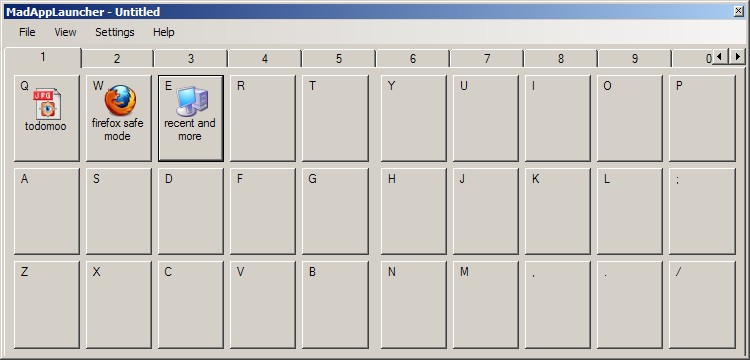
Other than using its File menu MadAppLauncher supports dragging and dropping anything (files, folders, programs, shortcuts, etc.) into squares to create a launch space. Its interface is divided into 10 tabs numbered one to 10 each with 30 spaces with their own letter or symbol. To launch any of the shortcuts start MadAppLauncher, either using the tray icon or by using a hotkey (assigned in the Settings menu) then click the number to activate the corresponding tab and then the letter (or symbol) assigned to the shortcut to launch it.

MadAppLauncher can stay open when working to add shortcuts but go into auto hide mode when in actual use. Another useful feature in its settings is the option to auto activate tabs by hovering the mouse over the tab numbers, this is probably most useful because it may be difficult to remember which tab contains which shortcut and it is a welcome feature to be able to more easily navigate tabs.

A more advanced feature is the ability to create what MadAppLauncher calls cascading groups. By creating a configuration file one can open any number of programs, files or folders at the same time. A somewhat incomplete but useful explanation is given on the author’s site. Don’t forget to save any current (*.mal file created by using the File menu’s save option) setup before proceeding to create another series of shortcuts or a cascading group. MadAppLauncher is also hosted on sourceforge but I was not able to find its source files. It requires Windows XP at a minimum and is in early stages of development, however it works well.


MemPad

MemPad calls itself a text outliner. It is more precisely a freeware 140KB download which is a notes organizer, one which stores notes in a tree structure.

It offers basic features for fonts and colors, auto save – in minutes increments and/or automatically as text is entered – search (and replace) across all notes and the ability to export notes. It does have some more advanced features like internal linking between notes (highlight and right click to create links) and linking to system files or programs which can be used to launch anything from web links to executables from within MemPad.

With a F6 click (or Page —>Diary Page) MemPad creates a diary page for the current day and therefore it can be used as a structured diary program. It is also possible to move nodes and child nodes or pages up and down to restructure the tree. Additionally a page can be locked to provide temporary protection against accidental edits, a sort of read only format. It is also possible to encrypt a page to keep it away from prying eyes.

MemPad can do more via the Lookup.txt and Launcher.txt files found initially in its Examples folder. The chevron button on the far right of MemPad’s toolbar can be turned into a launcher by populating the Launcher.txt file with statements like Calculator;calc.exe for example – to launch the system calculator. Lookups, done via right clicking highlighted text, can be added with entries like Wikipedia;http://en.wikipedia.org/wiki/$ for example – to look up the highlighted word in Wikipedia. Note that to use the lookups and the launcher the Lookup.txt and Launcher.txt files must be moved from the Examples folder to Mempad’s root folder.

MemPad is more powerful than its size or ‘text outliner’ description may indicate. Its help file has more, from how to modify text margins and date formats to how to more efficiently work with its launcher and lookup features.


Quick Cliq, packed into a single executable, is an interesting launcher and productivity tool. It incorporates launching files, folders, URLs and emails with an enhanced clipboard utility and the ability to keep text snippets as memos. It also supports a number of Windows manipulation features.

The program interface is launched by choosing the Add/Change item via its tray icon or via – the configurable – Win+Z keys. The options for configuring hot keys and mouse gestures are found under the settings menu. Other settings include enabling features such memos and setting colors and such things as adding the program to the Windows context menu.

The program is divided into four main sections or features each launched in it own configurable way. They are described below.

Accessing the Main menu: hold right mouse button and move mouse down or the aforementioned Win+Z if using the keyboard. Here you can create quick launches by adding folders, files, URLs, and email addresses in a sort of a list that will then be available for using the same mouse gesture or key combination.

Windows menu: hold right mouse button and move mouse right or Win+C keys. The Windows menus allows you to hide or show windows and a few others settings like choosing to keep a window on top. When windows are hidden any one of them can be previewed by hovering over their name in the windows list while pressing the Ctrl key.

Memos menu: hold right mouse button and move mouse left or Win+A keys. Add as many memos as you need and then send them to clipboard or automatically add them to the current open window.

Clips menu: hold right mouse button and move mouse up or Win+X keys. This is where the program is on the innovative side of things. In addition to holding up to nine clipboard items it is possible to append or add data to any one of the existing clips. As the tutorial video on the developer site shows suppose a user needs to copy only certain paragraphs from a long page or text into a new clip. Using Quick Cliq instead of repeatedly selecting the text and then pressing Ctrl+C and Ctrl+V while going back and forth between the long text and the new clip or document the user can press Ctrl+1 (the 1 represents the numbered clip item so it could be any of 1 to 9) to copy and then press Alt+1 to paste, all without leaving the original long page or text. Then to append or add to the clip (clip 1 in this example) other text can be selected and added to that clip or document simply and only by pressing Ctrl+Win+1.

Quick Cliq is in active development and in addition to the video tutorials it is also a good idea to follow the developer blog. It requires Windows XP as a minimum.


M3U Dropper is an open source offering from the maker of dirhtml. M3U Dropper not only creates the text based music playlist format (M3U) but does not restrict itself to media files. By Dragging and dropping any file (or folder) one can create and keep a launch or playlist file and use M3U Dropper as a portable launcher.
Eric, the author, develops actively. For example one of the latest changes or tweaks to the program is that while the program used to start with the first item at the top of the (play) list it now does so with the previously visible (last time the program was exited) top item. The order of items can be changed via the Item menu, selections can be checked, unchecked and sorted in various ways. Since the playlist format is essentially a text file it is possible to make text operations on any whole list or on individual entries. For example it is also possible to manipulate, edit or change sections of any folder path using M3U Dropper’s replace features (see the Misc menu). This is convenient when carrying a list from one computer to another and needing to accomodate for any differences in file paths.
M3U Dropper also generates a config file, with the *.m3udrop file extension, with such settings as ‘always_on_top=FALSE’. M3U Dropper is a simple useful program that can serve a useful purpose or two.


Trix is a lightweight and no-install program that acts much like other hotkey managers. It makes certain task easier and faster. Trix assigns, and lets the user choose, combination of hotkeys for some typical and often-used PC tasks. Combinations of Ctrl, Shift, Win and other letters or keys are assigned to and are configurable for the following tasks:

  • Export copied text to (default) email client, Word, Excel or Notepad. The copied text is automatically inserted into the applications.
  • Open Files, folders, websites or the terminal. In this case it is probably easier to do it the old fashioned way especially since trying to open multiple items at the same time is seemingly not possible.
  • Unzip and zip chosen or highlighted files.
  • Show brief computer specs, quote of the day, a timestamp with the current date and more, or stats on any highlighted text such as the number of characters. All these are shown in tooltip style.
  • Access power management tools such as hibernation, rebooting, or locking the computer.
  • Generate passwords. Encrypt and decrypt copied text. In the latter Trix will prompt for a passkey and allow the encryption level to be chosen and then asks what to do with the encrypted text (copy encrypted text to the clipboard for example).
  • Speak the highlighted text.
  • Control system volume.
  • Convert units of measurement. This works on a highlighted number.
  • Calculate highlighted expression. Here if “44+44″ is highlighted the tooltip will show “44+44=88″
  • Generate Lorem Ipsum text.
  • Translate highlighted text, either based on saved settings (one of the last items in Trix’s settings window) or by choosing languages on the fly.
  • Extract email, IP, links or file and folder paths from any copied text.
  • Transform text. Reverse case for example but perhaps most importantly strip formatting.
  • Adjust the focused window to fill the screen or maximize the focused window.
  • Open the system color picker.
  • Launch any one of web searches, from google to iconfinder and more.

The somewhat confusing nature of Trix is that some of the text tools seem to require a text highlight while in others the text needs to be copied. This along with the fact that to be really productive one must learn the assigned hotkeys makes Trix, or any other hotkey manager for that matter, useful for some and not for others.


Krento is described by its author as

Krento is an application manager and widget engine for Microsoft Windows

Krento is a lightweight launcher that is not too unlike Radian featured earlier here. Upon installation a circular set of ‘stones’ and a ‘pulsar’ appear on the desktop (see image above). The pulsar which fades into the desktop if the mouse is away from it offers one way to activate the stones or the main interface of Krento. By right clicking on each segment or stone of the program it can be changed to one of the pre-configured settings like the ability to show, in the center of the program interface, the current time, IP address or to shut down the computer. Alternatively stones can be configured to open programs with command line parameter support. Win+C is the default keyboard method of opening the program, this and other settings, for example to activate Krento via the mouse, are available in the program’s option (right click the tray icon). Using the Ctrl key with any one of F1 to F12 keys is the keyboard method of opening each of the 12 stone targets (the stones are numbered as seen in the image above).

Krento supports and includes many skins and is compatible with Rocket Dock and Object Dock skins as well, as explained here. One point to note is that as with any program with mouse and keyboard shortcuts this can interfere with other programs’ settings but since the defaults can change Krento of course remains useful.

Krento requires the .Net Framework (2.0) and works with Windows XP, Vista and 7.


myPortablePIM is a no installation Personal Information Manager that offers a chance to keep contacts, calendar and other information in one folder and carry data on a USB key or stick. Needing to keep everything in one folder means a newly unzipped myPortablePIM approaches 90MB in size.
myPortablePIM

myPortablePIM features include tasks and notes, alarms, a ‘gmail checker’, calendar – with support for both iCal and vCard – a RSS reader, a weather checker, an image viewer, an application launcher, a password manager and an address book.

Additionally the program can be protected with a password to make carrying it around safer and includes several themes (under the Preferences menu). The different features or ‘modules’ can also be viewed on their own. One can also add icons to use within the program and configure several options like using Fahrenheit or Celcius for the weather module. myPortablePIM runs on Windows 2000, XP, Vista or 7.


Quick Key Launch is a launcher that can be used to launch any file quickly. To set up new commands one must drag any file, program or shortcut to its run or command box style interface. After doing so a dialog box opens where one names the command or shortcut and optionally adds any parameters or arguments. It is also possible to associate a specific program in the ‘Start in’ box, although this did not work when I tried to associate an image with an alternative, non system default image editor. Perhaps I am not understanding its purpose as it seems to require folders and not executables or programs.

Quick Key Launch

When commands are saved one access them and the program by typing Ctrl+F10 (pressing the Esc key is one way to send the program back to the system tray) and then typing the chosen command. Once the command is visible and highlighted pressing enter will launch the file or program. If there is more than one similarly named command they are numbered (see image) and can alternatively be launched by using the corresponding number. The program’s page details a few other ways to work with commands and the visibility of the program and also a way to increase the horizontal size of the command or run box (Using Ctrl+mouse wheel)

One interesting tidbit about the program is that even though the home page and files are hosted on sourceforge there is no indication of it being open source software nor could I find any source files on its sourceforge downloads or files page. Quick Key Launch is a simple 74KB (unzipped) download and should run on any Windows computer including those with Windows 7.


Signo is described by its author as

…impressively complete hotkey manager…

Upon launch Signo slows the system (reviewed on a Windows XP computer) but then settles in the tray and provides a number of defaults hotkeys or what it calls actions to automate many tasks. Signo also provides the ability to add additional user defined actions. The hotkeys can alternatively be used and defined as the # key followed by a maximum of 10 letters, therefore it is possible to (for example) press Alt+Win+k to do an action or to set #awk to do the same.

The actions supported are Text, HTML, Open, Launch, MiniRAM, Windows, Grab and Auto. Text actions copy text into applications. It can be used to insert common snippets of text into focused applications without typing them every time. HTML is similar to text and also supports links and some other HTML elements.

Open and Launch are similar, both open files, websites or programs, but the latter supports DOS actions or command line parameters. In this case it is not really clear why they should be two separate categories.

Signo

MiniRAM optimizes RAM usage (see image) via user set priorities, a feature I did not attempt to use for this review as such tools are not always easy to manage.

Windows has a long list of pre-defined hotkeys with some applying to foreground windows and others to all open windows. These include quickly hiding a window (Ctrl+Win+H, toggle to hide and unhide foreground window) and sending it to the tray (Ctrl+Win+T). (Ctrl+Win+Up, down, left or right) snaps windows in the chosen position and (Ctrl+Win+S) makes the foreground window transparent are two of the other available actions.

Grab is screen capture tool, it can capture entire windows, specific areas and also provides options to choose where to send the resulting capture. A settings dialog box (to the right of eye (or execute) icon) lets the user change the target folder and other capture or grab settings.

Auto is somewhat more unique as it allows Signo to support abbreviations and to monitor typed words and correct their spelling. Abbreviations act as short forms so that one can type words faster. They are defined such that the desired entries are entered one per line with the abbreviated (or shortened) form being followed by a comma and the non-abbreviated (full) text. For the spelling feature Signo will look at user defined words (using the same format as abbreviations) and replaces misspelt ones with the correct version as defined in the ‘List of auto-corrections’.

Signo is powerful enough with its default set of tools and hotkeys but with user added entries it can be even more useful. It should run on all Windows from 2000 to Vista and requires the .NET framework 2.0 or later.

© 2012 RGdot Suffusion theme by Sayontan Sinha