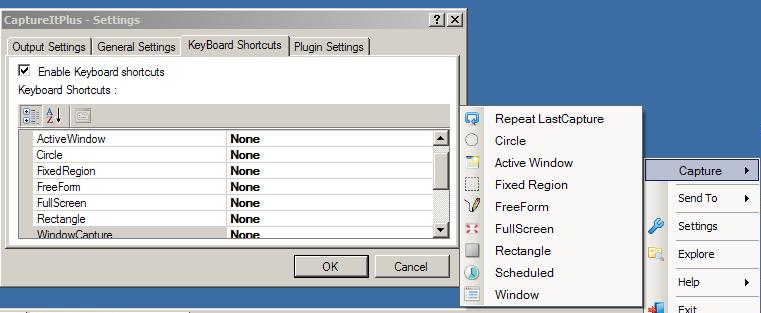
CaptureIt Plus is a simple and small screen capture or screenshot program. It sits in the system tray and can do one of nine captures modes. It can be used using the mouse or the keyboard. Right click on the tray icon to access one of capture options or set keyboard shortcuts or hot keys to take screenshots using the keyboard.

CaptureIt Plus

The capture modes are Scheduled, Repeat Last Capture, Active Window, Window, Circle, Fixed Region, Free Form, Full Screen and Rectangle. The Scheduled option doesn’t have a keyboard hot key setting, when it is chosen a window prompts for a delay – “Schedule capture after X seconds” – with a choice of any one of the windows open at the time or just full screen.

CaptureIt Plus’ output settings can be configured to save to another folder instead of the default Documents\My Pictures\CaptureItPlus location. The format and quality can be tweaked too. The output file name can be changed and there is an option to include the cursor in the capture.

Sound notification is available. CaptureIt Plus can send captures to the clipboard, default email program, editor or printer with hot key settings available for the clipboard, email and printer options.

CaptureIt Plus is licensed under GNU GPL and has plugin support which should be in development. The To Do section on the author’s site mentions Window scrolling – to capture webpages longer than the screen – support to come.


RightNote is a feature packed notes organizer that can take simple notes and do more like include workable Excel spreadsheets (in its professional version). A not so limited freeware version has been recently released that is missing only a few features.

RightNote

I have decided to to post the complete review on the DonationCoder Mini-Reviews section at http://www.donationcoder.com/forum/index.php?topic=29681.0

RightNote is a notes manager and organizer, it is also one able to import existing text (File—>Import). Each database is represented as a notebook, each notebook is then divided into pages (horizontally tabbed) and each page has its own notes structure within a tree…


Horizon33 is an easy to use screen capture or screenshot program. It has useful capture and save options.  Choose a combination of the options described below using the gear button to the left of the large capture button and then click the capture button itself to start taking screenshots.

Horizon33

There are six modes of capturing and Horizon33 can save the output in BMP, JPG, GIF or PNG formats. The capture options are full screen, active window, freehand, (configurable) fixed region, (selected) region and object. The output destination is also configurable. The options are save to file, save as, application (Microsoft Paint by default), clipboard, email, Microsoft Office (Word, PowerPoint or Excel) and upload to web (automatic saving to Imageshack). Multiple outputs is also an option with the capture ending up in more than one of the aforementioned destinations.

Additionally Horizon33 can automatically convert to grayscale, invert color, add watermark and resize too. Finally there is an option to include the cursor in the screenshot.

The program settings accessed via the top right button are divided into the following:

General for things like starting with Windows, delaying before capture, pressing X to close the application, staying always on top and others. Output to choose the default image format and destination for the multiple output operation. Effects has the options for color, resize and watermark. For example, here is the place to choose the file and position of the watermark or overlay image. Hotkeys lets the user assign keyboard shortcuts for any or all of the six capture options. File Name lets the user choose the output file name. Any combination of year to second is possible. A prefix and incremental numbering is available too. Dialogs includes JPG quality and fixed region options among others.

Horizon33 requires Windows XP and newer and is worth a download.

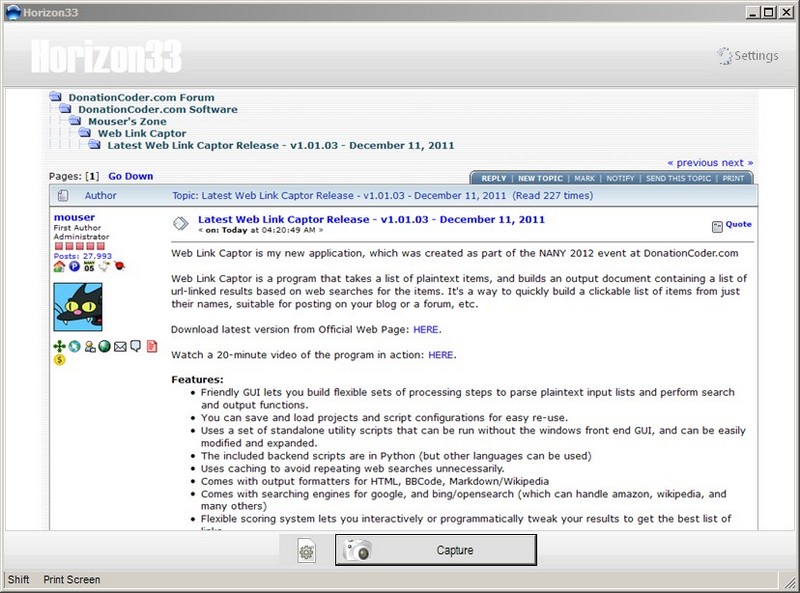
Note: In the image I used Horizon33 to capture this thread on the DonationCoder.com forum.


SnapShot (Version: 1.0.4 as of this post) is a lightweight screen shot program or screen capture tool. It can take full screen, active window or rectangular area screen shots. By default it will only present a preview of the screenshot which the user can manually save. Using its preferences (Capture —> Preferences —> Save & Edit tab) auto save can be enabled with an option to not only choose the destination location but also a prefix for the file name. SnapShot is capable of saving files in BMP, GIF, JPG (JPEG), PCX, PNG, PSD or TIFF formats. Also from the same Preferences tab the output JPG quality can be configured. A path to an external image editor can be saved in the preferences for SnapShot to send or open the capture using it or optionally send the screen shot to the system clipboard.

SnapShot

SnapShot also features email and FTP to automatically send or upload a screen shot. Use the Edit menu to configure the email SMTP server and even choose the subject and text of the email and separately the FTP details.

SnapShot supports multiple monitors and supports setting a delay for taking screen shots. It should run on all Windows versions dating back to Windows 98.


Capture View is a capture or screenshot taking program that looks slightly different than others of its kind. When opened the program looks like a transparent window opening to whatever is behind it, be it the desktop wallpaper or other open window. Capture View has several capture settings or methods and one of those is what is seen through the aforementioned interface. By moving or stretching Capture View’s own window the screenshot area can be adjusted.

To take other kinds of screenshots like the usual whole screen, individual window or others Capture View’s Type menu must be used. The same menu includes settings for automatically adding transparency, backgrounds, color invert and other effects to the captured screenshot. Delayed captures are also configurable here. The Alt+Q keys or the Capture button are two methods to take the screenshot itself.

Any thing captured, even if not yet saved, can be viewed using the Thumb Strip (accessed via the icon to the right of the small red square). Screenshots must be saved before the program is closed because captures are initially stored in a temp folder and are not automatically saved. The default image format can be changed from *.png to *.jpg, *.tiff or others. After a screenshot is captured one can resize it to preset sizes like wallpaper or any other arbitrary size – using the what the program calls a box to hover over the capture and keep only what the box sees – by right clicking on it inside the Capture View window or using the Crop menu.

Capture View does not have the most intuitive of work flows but does the job and with a few extras. The Description page on the program author’s site has a lengthy explanation of the more unusual features of Capture View.


Shotty strives to be an all in one screenshots program. It takes screenshots of whole screens, specified regions and windows. It has basic features to edit the captured shots and a few options for places to upload them too.

Left clicking the tray icon of Shotty presents you with capture options for the whole screen, region or specific window (for Windows Vista and 7 a high quality, aero enhanced option is given as well). After the capture a basic editor with a Microsoft paint like interface features things like cropping and adding text, highlights and shapes. A blur or diffuser can hide sensitive parts of the screenshot as well.

Further efficiency can be gained by using the default, but configurable, Ctrl + PrintScreen hotkeys in place of clicking the tray icon for the capture.

Finally the image can be saved or uploaded to one of the chosen locations online, Shotty in turn provides a window with the address of the uploaded image.

Right clicking Shotty’s tray icon exposes its other features:

The upload location can be chosen from one of Images.Devs-On.net (Shotty’s own hosting), ImageShack.us, DirectUpload.net, Imgur.com and UploadScreenshot.com.

The aforementioned hotkeys can be configured and assigned to save, copy or instant upload instead of the opening the capture or image editor.

A history of screenshots taken using Shotty can also be seen.

The optional delay – to take the screenshot – can be changed here as well.

Shotty requires the .Net Framework 2.0 and should run on Windows 2000 and newer versions.


Clipboard Master

Clipboard Master is a freeware Windows clipboard utility that enhances and makes copying and pasting more useful. Instead of the native Windows’ one clipboard item at a time Clipboard Master can hold up to 10,000 items, including images, and with a few key strokes paste them into any active application or program window. It uses the Windows + v keys to show a list of clipboard items it is holding, each identified by a number. For example to paste the 4th item into an active window press the Windows + v keys plus the 4 key (or alternatively use the mouse method, ie left click the program’s tray icon and navigate to the required clipboard and click on it). It can retain formatting or not when pasting text, the toggle being holding or not holding the Ctrl button when using either the keyboard or mouse methods just described.

Clipboard Master comes with a set of extra tools to insert date, remove spaces – clicking on a clipboard item presents this and other ‘convert’ features – and create folders to keep any number of clipboard items together as a related group. It also has what it calls collections, here when successive Ctrl + c clicks are done quickly – less than five seconds in between each by default – they can be added to one collection and pasted altogether using the Win + Alt + F1 keys or via the program’s tray icon.

Note that as of this review Clipboard Master is in beta (version 0.9.7) which will expire “3/2011″ and therefore is not fully complete and some features like creating folders and exclusion rules (in the program’s settings) seem to either be buggy or not ready yet. Clipboard Master runs on Windows 2000 and newer versions including 64 bit ones.


Screenshoter is a basic, no-install utility to take or capture screenshots quickly and easily. Double click the program executable, choose full screen or area – to capture an area click on the area button, after choosing the area radio button, then click and hold the left mouse button and drag to choose a rectangular area – and then simply click the screenshot button. The image’s format can be changed from the default *.jpg to either *.png or *.bmp and the destination directory can be chosen too. Screenshoter’s options include controlling the name of the captured image and the quality of the *.jpg.

Easy Image Modifier from the same author is also no-install and works by either dragging images into the program window or by using the load option from the File menu. Images can be realigned, that is they can be rotated 90 and 180 degrees or flipped horizontally and vertically and resized by pixels or by percentage. The out put format can be one of *.jpg, *.png or *.bmp. Output file name can be configured to include any combination of a numbered sequence, it’s original name or size. The destination or output directory is configurable as well. The settings menu includes options to exit the program after processing images or to load or launch the output images. There is also an ‘Additional’ option where one can choose to sort images by such criteria as date and file size. Plus other options to maintain aspect ratio when resizing, to remove meta information (such as EXIF) and to reduce or increase the output image quality.


ClipCube, until very recently known as Clipbox, is a small and minimalist clipboard utility that keeps an unlimited (?), until recently up to 2000, number of clipboard items for future use. The program runs in the system tray. ClipCube lets the user decide how long it keeps clipboards on file, this is set by right clicking the program icon and choosing the Keep Items entry. The available options are keeping the item(s) until the program is exited to keeping them indefinitely. The program window or interface has settings for pinning or keeping it on top and also choosing to show a full preview of a selected clipboard item or not (by toggling the eye icon on or off). One other option is showing a time stamp beside each clipboard item, this lets a user know when the clipboard was captured.

ClipCube also supports hotkeys (see http://clipcube.wikispaces.com/Changelogs for a full list of hotkeys as they are added to each version) that ease program usage such as Enter+Ctrl+C to copy a selected clipboard item and Ctrl+Numpad[1-9]  to choose the first to ninth entry in the listed clipboard history. The latter did not work in my test of the current version (0.2.2) and additionally brings up the question of how one may be able to choose the 10th, 11th or higher numbered items in the clipboard history list.

ClipCube is GPL licensed software and does not require installation. This program is in development and the interface and options have also changed recently so this review may be outdated in some respects by the time you read it.


Greenshot is a lightweight program to capture parts or all of the screen. When the program is running it will, optionally, take over the Print (or Print Screen) button of the keyboard. It also uses the Ctrl, Alt and Shift keys that when clicked in conjunction with the Print key capture the active window, the whole screen or repeat the last capture respectively. When the Print key is used on its own Greenshot presents the user with a cross hairs to capture, by dragging the mouse, any rectangular region of the screen. In the program’s Preferences one can toggle off the aforementioned hotkeys and therefore use Greenshot by right clicking its tray icon. It is also possible to ask the program to capture the mouse pointer (cursor) or not. There is also a setting called ‘Use interactive window capture mode’ however I did not see anything different when it is toggled on or off.
There are various ways to control the actions of Greenshot after the capture is done. The Output tab in the preferences lets the user choose

  • to open a capture in the program’s built-in editor,
  • to copy it to the clipboard,
  • to send it to printer,
  • to show the save as dialog box,
  • to save it without any dialog box or
  • to email it

The same tab has the pre-configurable settings for the ‘save it without any dialog box’ option where one can define the default location for saving, naming rules and image format and quality of the capture.

The preferences’ Print tab includes such options as fit to page, rotate to fit paper orientation and center image.

The built-in image editor (see image, captured using Greenshot itself) lets the user draw shapes (rectangle, ellipse, line, arrow, etc.), write text or to crop the captured image. The editor’s Object menu and option, which saves *.gst format files, works as a sort of template or snippet. These *.gst files can hold shapes, arrows or text which can then be overlayed on subsequent screen captures or screen shots.

Greenshot is fast and is a 550KB download and should work on all Windows versions.

© 2012 RGdot Suffusion theme by Sayontan Sinha