Bram stands for Batch Renamer and Mover. It is a simple tool that does what its name says.

Bram

It works both with folders (and optionally its subfolders with configurable depth) and if required with files alone skipping any folders that may exist along side them. Bram can also filter to specific file types and ignore others and one can also select only the files needed using the native windows’ method utilizing the Shift and Ctrl keys.

The renaming part can configured using the Parts button with any combination of sequential numbers, current file name, file extension, parent’s folder name and date format. The date format itself has many options accessed via the Change Date Format button and includes variations on how the date is written for the renamed files based on the files’ own created or last modified dates.

The user can preview the results and finally to complete the renaming to click Apply which has its own set of actions (click on the arrow to the right of apply to view and choose one.)  These actions are rename, copy and rename, move and rename, rename then copy, only move, only copy, and delete. The actions are explained on a dedicated page. Of them rename then copy might cause confusion and the aforementioned page describes it as “Rename then Copy renames the original items, then it copies them to a location you specify. (So both the originals and the new copies are renamed.)”

There is an undo feature to revert the last set of files to their original state and also a log file for review as well. Bram requires the .NET framework.


PasteCopy.NET (version: 0.9.8.10 as of this post) is a freeware and portable clipboard manager. Much like other clipboard utilities it expands the capabilities of Windows’ own clipboard.

PasteCopy.NET

PasteCopy.NET can handle rich text, html, comma separated values and images in additions to the usual plain text. Different clipboards or items can be assigned to categories so that reusing them is made easier. PasteCopy.NET also provides easy preview of clips via its system tray, just hover over the program icon, or within the program window itself. The size of the preview – number of lines or letters shown – is configurable. It also recognizes URLs and can provides full or  re-sized previews of the images stored in the clipboard.

Among its features is the ability to convert rtf and html clips to text before pasting them. It can also copy text automatically without the usual Ctrl-C keys if “Auto-copy on keyboard navigation” is enabled in the program settings (via the Preferences tab of its Settings which resides under the Options menu).

PasteCopy.NET weighs in at less than 1 MB, requires the .NET framework on host systems and should run on most Windows versions.


Read below and follow the link to download iMate, an iTunes alternative and more,  for free!

Wondershare is a maker of multimedia tools for both Macs and Windows. MobileGo, one of their newer and featured software, is a freeware for the PC. It can be used to manage Andriod devices using a PC. Everything from contacts to music and videos can be managed and backed up using MobileGo. It can even be used to manage SMS messages on your computer.

Besides MobileGo the company is promoting iMate. iMate is an iTunes alternative with more features. Using it you can copy and backup music from idevices to the PC but also, for example, do things like create ringtones from those songs for the iPhone. Additionally iMate lets you convert audio and video to formats that can be listened to and viewed on any one of iPod, iPhone or iPad plus the ability to extract audio from videos. Managing ebooks is also something possible using iMate.

Other Wondershare products include PDF Converter, Video Converter Ultimate, DVD Slideshow Builder Deluxe and others.

Click here to go to the giveaway link to get iMate free and check out Wondershare’s other promotions.


Clipboard Master

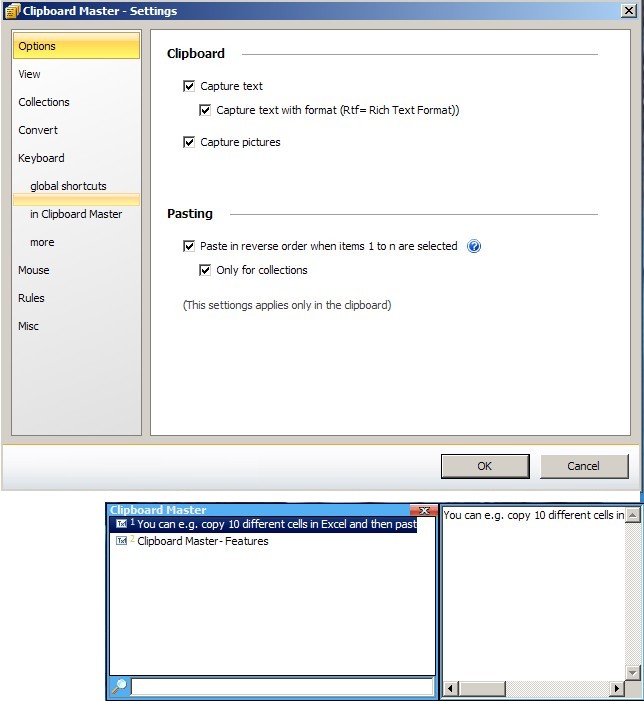
Clipboard Master is a freeware Windows clipboard utility that enhances and makes copying and pasting more useful. Instead of the native Windows’ one clipboard item at a time Clipboard Master can hold up to 10,000 items, including images, and with a few key strokes paste them into any active application or program window. It uses the Windows + v keys to show a list of clipboard items it is holding, each identified by a number. For example to paste the 4th item into an active window press the Windows + v keys plus the 4 key (or alternatively use the mouse method, ie left click the program’s tray icon and navigate to the required clipboard and click on it). It can retain formatting or not when pasting text, the toggle being holding or not holding the Ctrl button when using either the keyboard or mouse methods just described.

Clipboard Master comes with a set of extra tools to insert date, remove spaces – clicking on a clipboard item presents this and other ‘convert’ features – and create folders to keep any number of clipboard items together as a related group. It also has what it calls collections, here when successive Ctrl + c clicks are done quickly – less than five seconds in between each by default – they can be added to one collection and pasted altogether using the Win + Alt + F1 keys or via the program’s tray icon.

Note that as of this review Clipboard Master is in beta (version 0.9.7) which will expire “3/2011″ and therefore is not fully complete and some features like creating folders and exclusion rules (in the program’s settings) seem to either be buggy or not ready yet. Clipboard Master runs on Windows 2000 and newer versions including 64 bit ones.


Quick Cliq, packed into a single executable, is an interesting launcher and productivity tool. It incorporates launching files, folders, URLs and emails with an enhanced clipboard utility and the ability to keep text snippets as memos. It also supports a number of Windows manipulation features.

The program interface is launched by choosing the Add/Change item via its tray icon or via – the configurable – Win+Z keys. The options for configuring hot keys and mouse gestures are found under the settings menu. Other settings include enabling features such memos and setting colors and such things as adding the program to the Windows context menu.

The program is divided into four main sections or features each launched in it own configurable way. They are described below.

Accessing the Main menu: hold right mouse button and move mouse down or the aforementioned Win+Z if using the keyboard. Here you can create quick launches by adding folders, files, URLs, and email addresses in a sort of a list that will then be available for using the same mouse gesture or key combination.

Windows menu: hold right mouse button and move mouse right or Win+C keys. The Windows menus allows you to hide or show windows and a few others settings like choosing to keep a window on top. When windows are hidden any one of them can be previewed by hovering over their name in the windows list while pressing the Ctrl key.

Memos menu: hold right mouse button and move mouse left or Win+A keys. Add as many memos as you need and then send them to clipboard or automatically add them to the current open window.

Clips menu: hold right mouse button and move mouse up or Win+X keys. This is where the program is on the innovative side of things. In addition to holding up to nine clipboard items it is possible to append or add data to any one of the existing clips. As the tutorial video on the developer site shows suppose a user needs to copy only certain paragraphs from a long page or text into a new clip. Using Quick Cliq instead of repeatedly selecting the text and then pressing Ctrl+C and Ctrl+V while going back and forth between the long text and the new clip or document the user can press Ctrl+1 (the 1 represents the numbered clip item so it could be any of 1 to 9) to copy and then press Alt+1 to paste, all without leaving the original long page or text. Then to append or add to the clip (clip 1 in this example) other text can be selected and added to that clip or document simply and only by pressing Ctrl+Win+1.

Quick Cliq is in active development and in addition to the video tutorials it is also a good idea to follow the developer blog. It requires Windows XP as a minimum.


FileSieve 3 is a small program which organizes files and folders into highly configurable destination folders. As with software of its kind it is best used for organizing large amounts of files that accumulate on a system over many download and similar sessions.

The process or work flow of FileSieve 3 is well defined in a five numbered step process (see image). A profile and/or a list of directories can be created, saved and loaded for future sessions. These source folder(s) would contain all the files that will be sorted using FileSieve. Then a destination folder is chosen where the sifted and sorted files will be placed in. The third step is to choose method(s) and if applicable modifiers.

A method, one of 13 that FileSieve 3 supports, defines how the chosen files are sorted and processed. These methods are themselves very configurable and it is very easy to come up with complex criteria to operate on the chosen files. Methods include:

Sorting by attribute: Subfolders in the destination directory will distinguish files that are Read Only, Hidden, Temporary, Offline, Compressed, Normal and more.

Biggest: The biggest file from the source directory is placed in the destination directory.

Consolidate: All Files from the source directory are placed into the root directory of the destination folder.

Date Stamp: Files separated into dated destination folders.

Delimiter: Files sorted based on delimiter characters in their names, for example “-” in the file name.

Extension: Files are separated and sorted based on their extension. Likely the most used feature of the program.

MP3 Tag: MP3 files are sorted based on their tags such as album and song name.

Owner: Files are sorted based on the Windows account or domain they belong to.

Parent Rename: First or biggest file in the source directory is renamed after it’s parent directory name and placed in the destination folder.

Smallest: Opposite of Biggest!

A-Z: 27 directories are created (for file names starting with numbers and those starting with A to Z) and files are placed into them based on their names.

Substring: The user chooses which position of a file name is the ‘StartIndex’ and how many characters to read from there, files are then sorted based on ‘substring’ matches.

Word: Files are sorted based on words contained with their names.

Once method(s) are chosen modifiers can be added to change the way the path, file name or extension of files are written in the destination. These include all lower case, word capitalization and others. Step 4 is where the user chooses to move or copy the source files. Here one can also create a simulation and preview the results in the simulation window. Step 5, the final step, lets the user limit the sorting to files within the ‘root’ of the source directory, to all files or just folders residing in the source directory.

FileSieve 3 should run on all Windows systems, even Windows 95, but requires the .NET Framework 2.0.


File Bucket is one the many excellent programs and coding snacks from DonationCoder. File Bucket’s main purpose is to copy or move scattered files into one central or organized location. It was created because a user on the DonationCoder forums asked for a program to ease disc creation. The user wanted to automatically copy media files to one single folder and then burn them to a disc. In my opinion the same concept can be applied to backing up files. Working on my system I am using File Bucket and moving files that have been created in various My Documents and other folders into one location so subsequent system backups are easier and cleaner.

File Bucket is divided into four panes or areas, the top left hand side shows all systems drives and below it the folder tree. Highlighting a folder in the tree will show its files in the upper right hand pane. The lower right hand pane is the bucket or list of files and folders that will be moved or copied.

The three buttons on lower left side of the interface act as aids or shortcuts for adding files or folders to the bucket. “Add folder’s file to list” will add only files – from the folder selected in tree – to the bucket, ignoring any subfolders. “Add folder & subfolder’s files to list” will add all files including those in subfolders. “Add to list as a folder” will add the selected folder as is to the bucket thereby moving or copying it as a folder and not only the individual files that are within it. The “Add selected to list” and “Add all to list” buttons work on the folder(s) and file(s) visible just above them. After the bucket is populated the destination folder can be configured and the option to move or copy – or “Delete items to Recycle Bin”, “Save list with absolute paths” and other – chosen.

One other feature that adds another degree of usefulness to File Bucket is the filter (middle right of the program interface). Using the filter one can specify the file formats that will end up in the bucket. For example one can only move *.mp3 or *.jpg files. Any number of formats can be defined in the filter list which pops up when clicking the filter button. The filter(s) must be defined before any files are added to the bucket and in that sense the location of the filter button – and its associated dropdown – is perhaps not the best as one can mistakenly add files to the bucket before ‘reaching’ or getting to the filtering part on the right hand side of the program.

Once used it becomes clear that File Bucket is more difficult to describe than to use and it joins a long list of very useful utilities coded at DonationCoder.


ClipboardFusion is a freeware clipboard utility. I think good and easy ways of managing text copied to the Windows clipboard often leads to a better Windows experience and ClipboardFusion does its part.

Text Scrubbing is the main feature of the program. In the program’s settings (accessed by right clicking its tray icon) one can set all copies to be ‘scrubbed’ or only those which are copied by clicking the native Windows Ctrl+C twice. Some of the things scrubbing can do is to remove or strip any white space from the beginning of the copied text or remove all HTML code from the copied text. The Text Replace feature automatically replaces character(s) with others in any copied text. For example one can replace all instances of double quotes (“) with single quotes (‘). ClipboardFusion gives the user the option to use hotkeys to enable or disable its features, for example to temporarily disable any text replace rules one can assign a combination of keys to toggle it on or off.

A more advanced feature is Macros, one can write and test one’s own in the included C# or Visual Basic editor and also assign hotkeys to them. A selection of pre-written macros are also available for download from within the program, these include ‘Convert Text to Upper Case’ and ‘Search For Copied Text using Google.com’ just to name two.

Another feature concerns colors and images. Copying a HTML color hex value (say #FFFFFF for white) will trigger a small popup in the far right of the system tray with a preview of the color and also its RGB value ((255,255,255) for white). The same applies if an image is copied, in this case a small preview of the image will be shown. One can also set ClipboardFusion to ignore certain programs, when this is done text copied within those specified programs is not operated upon by ClipboardFusion.

The author also offers, for $24/year, the ClipboardFusion online or ‘on the cloud’ version for sharing clipboards and macros across computers and the ability to pin a clipboard item for repeated use. ClipboardFusion runs on all post 2000 versions of Windows and requires .NET Framework v2.0.


Trix is a lightweight and no-install program that acts much like other hotkey managers. It makes certain task easier and faster. Trix assigns, and lets the user choose, combination of hotkeys for some typical and often-used PC tasks. Combinations of Ctrl, Shift, Win and other letters or keys are assigned to and are configurable for the following tasks:

  • Export copied text to (default) email client, Word, Excel or Notepad. The copied text is automatically inserted into the applications.
  • Open Files, folders, websites or the terminal. In this case it is probably easier to do it the old fashioned way especially since trying to open multiple items at the same time is seemingly not possible.
  • Unzip and zip chosen or highlighted files.
  • Show brief computer specs, quote of the day, a timestamp with the current date and more, or stats on any highlighted text such as the number of characters. All these are shown in tooltip style.
  • Access power management tools such as hibernation, rebooting, or locking the computer.
  • Generate passwords. Encrypt and decrypt copied text. In the latter Trix will prompt for a passkey and allow the encryption level to be chosen and then asks what to do with the encrypted text (copy encrypted text to the clipboard for example).
  • Speak the highlighted text.
  • Control system volume.
  • Convert units of measurement. This works on a highlighted number.
  • Calculate highlighted expression. Here if “44+44″ is highlighted the tooltip will show “44+44=88″
  • Generate Lorem Ipsum text.
  • Translate highlighted text, either based on saved settings (one of the last items in Trix’s settings window) or by choosing languages on the fly.
  • Extract email, IP, links or file and folder paths from any copied text.
  • Transform text. Reverse case for example but perhaps most importantly strip formatting.
  • Adjust the focused window to fill the screen or maximize the focused window.
  • Open the system color picker.
  • Launch any one of web searches, from google to iconfinder and more.

The somewhat confusing nature of Trix is that some of the text tools seem to require a text highlight while in others the text needs to be copied. This along with the fact that to be really productive one must learn the assigned hotkeys makes Trix, or any other hotkey manager for that matter, useful for some and not for others.


plaintext

PlainText is another alternative lightweight and no install software to make copying and pasting text more efficient and useful.

In much the same way as PureText featured earlier on RGdot.com PlainText removes formatting from text copied from such sources as the web. This includes removing the likes of font sizes, colors, images, tables and borders. The program let the user choose any combination of the Windows, Shift or Ctrl keys along with any one letter or number to use for pasting the text unformatted. This key combination would be used as an alternative to the traditional and standard Ctrl and V keys.

PlainText sits in the system tray, consumes less than 5MB of memory, is a 486KB download and is GPL GNU General Public License v3 software.

© 2012 RGdot Suffusion theme by Sayontan Sinha