Tag: image

  • PDF To JPG: Convert Your PDF Files (Free Until July 1!)

    PDF To JPG is simple shareware. It does a task that is sometimes done to avoid using pdf readers and it does it well. The program interface and startup are as simple as the function it performs. When launched the program gives the user the option to choose the conversion type. The options, which are also available within the main window are pdf to jpg, pdf to tif (almost always referred to as tiff), pdf to bmp, pdf to png and pdf to gif.

    PDF To JPG

    Once open file(s) or folder of files can be added. The program will list the pdf files that are to be converted and presents the option to narrow down or choose pages to be converted. If needed one can change the dots per inch or resolution for the images.

    PDF To JPG runs on Windows 2000 and newer and its regular current price is $29.95 but it’s free from the publisher’s site until July 1st.
  • BImageStudio: Freeware Simple Image Editor

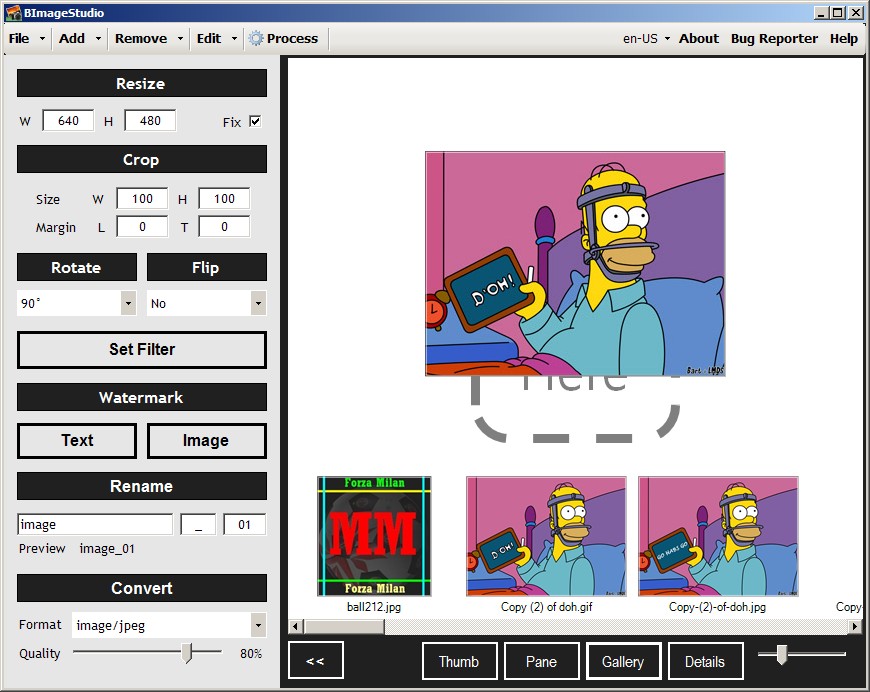
    BImageStudio (Version: 1.2.1 tested) is a freeware and simple image editor with some basic tools and an unusual method of working with images.

    BImageStudio

    Features or tools that are included are edit, resize, crop, rotate, flip, watermark (image and text), rename and convert. BImageStudio can work in batch as well. What is somewhat different about BImageStudio is how this is done. One must add individual or folder of images using the add button or drag and drop them. The black and white interface and larger than usual interface of the program shows thumb previews of the image(s) and the buttons under the preview(s) allow the user to view them in pane (like windows explorer), gallery (like windows’ flimstrip) and details (like an explorer list).

    When one or more image is selected the operations are chosen from the left hand side. Everything can be done from this left hand side, however to ‘set filter’ – use the brightness, contracts, saturation, hue and gamma sliders –  is left to a separate window.

    The watermark is also added in a separate window and lets the user choose a position for the watermark, either set to a corner or a custom one. Renaming is basic and simple using a file name, separator and increment or counter.

    Finally one must click the process button to start the operation. BImageStudio prompts the user to choose which operation to do first, second and later. For example if images are being renamed and resized the user must choose which of the two BImageStudio processes first.

    BImageStudio works on Windows XP and newer.

  • Freeware, Useful Image Editor: PicEdit

    PicEdit is a useful image editor with a ribbon like menu.

    PicEdit

    It features the typical brightness, contrast, hue and saturation sliders to the left of its interface. Also on the left are the image effects mosaic, blur, sharpen, noise, invert, and grayscale. Canvas resize, rotate, copy, paste (from file or clipboard), watermark (image) and stamp (an extensible clipart library) are the other options available.

    Shapes such as polygon, rectangle, ellipse, arrow and line are also available along with others like fill and highlighted rectangular area. Each with their own relevant settings. For example if the line tool is chosen the options for thickness, opacity and style (dotted, solid, etc.) appear in the ribbon-like menu.

    Text and balloon text are also available in different styles but as may be obvious in the image it is not clear how to apply or finish inserting them on an image.

    PicEdit has a restore button that acts as multiple undos to reset the image to its initial state. However this didn’t work when I applied several random lines to an image.

    PicEdit does not write to the system registry and should run on Windows XP and newer.

  • Switch Banner Maker: Free Online Service

    Soon after I wrote about MP3 Toolkit  I was contacted by the people behind it,  they pointed me to an online service they run and wondered if I would write about it.

    It is the Switch Banner Maker and it is a free service that creates rotating or switching banners and generates the code to insert in web pages. It is a simple service that outputs nice and professional looking banners or images (see sample made below.)


      The user inputs up to 10 images, these must be hosted by the user. Each image can then be hyperlinked individually. The width and height is also required. For best results these values should be consistent across all images. The user has the option to choose the color for the number button and to position it on the lower right or lower left of the generated banner. Delay between images can be set and the image number's visibility can be toggled off as well.

      The output code featuring a hosted javascript is then inserted into any page.

    • Freeware multi-platform image viewer: nomacs

      nomacs image lounge (all lowercase? ) (Version: 0.3.2.5828 beta tested) is an open source image viewer for Windows, Linux, and Mac machines. It supports the most common image formats from jpg to gif (no animations however) and xmp to pgm and others including the raw format. It is capable of  reading and displaying exif metadata. It offers faster than most thumbnail view of images in a folder and a player to view a folder ala a slideshow.

      nomacs

      The program can also be viewed in full screen or various levels of transparency and in frameless mode where the image only is shown, floating over the background. The toggle between frameless and normal view is not exactly obvious but a quick search revealed it to be F10.

      On the image editing side there is crop, resize and a ‘pseudo color function’ where one can play with hue, saturation and RGB color values using a slider.

      nomacs also features a synchronization feature that will work on computers on the same network or LAN.

      nomacs does indeed seem faster than most. It can be found in various Linux repositories and there is a Mac port as well. Its Windows version runs on Windows 2000, XP, Vista and 7 and is available in both portable and installer versions.

    • PearlMountain Image Converter Giveaway

      PearlMountain Technology have provided a giveaway in time for mother’s day. Comment below to win a copy of PearlMountain Image Converter, worth $29.90!

      PearlMountain Image Converter is an all in one solution for working with images. It does more than just batch image conversions.

      PearlMountain Image Converter

      The workflow is similar to other PearlMountain software. Images are added individually, several from a folder or via URL. The left hand side of the interface lists the program features. The first is the conversion itself, formats supported here are jpg, gif, bmp, pdf, tga, tiff, psd, pcx,  ico and many more listed on http://www.batchimageconverter.com/image-formats/index.html. It is possible to preserve exif or iptc metadata when processing conversions.

      The second set of features is the resize option. Here the usual by size, by percentage, custom and dpi resolution is possible. There are also presets for best fits on devices like iPhone, Sony PSP and others. Additionally there is a resample setting and the option to switch width and height to match image orientations.

      Image or text watermark is next with all the flexibility of positioning the watermark. These include alignment, rotation, opacity, offset, shadow, edge, font and more.

      The rename option is equally flexible with many options for the renaming. These include having file date, exif and other file info in the output file name.

      Corrections has the brightness, contrast, saturation and sharpen/blur sliders.

      Border can add borders along the images with varying thickness and in advanced mode the border can be applied to any of top, right, bottom and left sides of the image leaving the other sides borderless.

      Crop features more advanced options. Automatic crop cuts the images in preset sizes and manual mode cuts images by percentage.

      The final step is to optionally change the output folder and then click the large Start button. A profile can be saved to re-use the same chosen options later. PearlMountain Image Converter works on Windows 2000 and newer and offers to add itself to the context menu as well. One minor oddity is that it required a reboot after install on a XP machine but it also used the browser to open a thank you page at the same time.


    • PhoXo: Freeware Mini Photoshop

      PhoXo (Version: 7.1 tested) is a lightweight but capable photo or image editor. It packs a good set of features into its 4MB download. One of the ways the developer describes it is that is a  ‘mini Photoshop’ and that is not far from the truth.

      PhoXo

      Going through its menus it is easy to see that PhoXo is  easily adequate for most uses.

      The Select menu features all, none and invert selections and options for selecting with rounded corners and expanding, shrinking a selection.

      The Image menu has the brightness, contrast, hue, saturation, color tone (like sepia), black white (like grayscale), glow, self portrait (like old photo) plus options for gamma, different color palettes and auto levels. There is also size, adjust border, auto trim, flip, mirror, rotate. Finally soft edge, shadow, blur and sharpness effects are here as well.

      Effects has the filters which include the usual noise, emboss, posterize, bulge, twist, wave, ripple, sunshine, glass tile, blinds, solarize, threshold, halftone, grid and the video effect, among others.

      Tools menu’s interesting feature is create an ascii image and a batch watermark tool.

      PhoXo also includes a clipart collection and frame library to add to images. Other tools available  – again much like Photoshop – are magic wand, shape, color picker, clone, stamp, gradient fill and others. The website has many tutorials and an additional library for use with PhoXo.

      PhoXo is freeware and available in 11 languages. It runs on Windows XP and newer.

    • Giveaway: Picture Collage Maker Pro Easter Edition

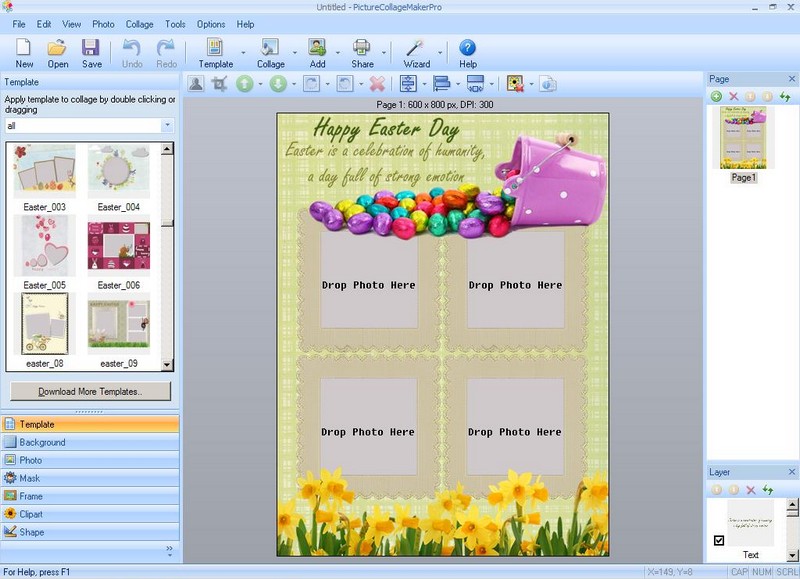
      Comment to win a copy of the Picture Collage Maker Pro Easter Edition!

      Picture Collage Maker Pro has been reviewed here on RGdot.com (Here, here and here!), along with giveaways, before and the folks at PearlMountain Technology are back again with another giveaway.

      Picture Collage Maker Pro Easter Edition

      This time Picture Collage Maker Pro is ready with the Easter Edition which comes with 16 templates to use to create photo collages, scrapbooks or greeting cards for the Easter holiday.

      As noted in previous reviews and giveaways Picture Collage Maker Pro makes it pretty easy to create everything from collages to calendars to posters for many occasions, and not just for Easter. It supports the drag and drop of photos into templates with customizable shapes, cliparts, masks, frames and backgrounds to share via email, print or set as wallpaper.

      To use the Easter Edition templates simply click the Download More Templates button and download the Easter pack and run the downloaded exe.


    • PearlMountain Photo Watermark Review And Giveaway

      PearlMountain Technology Co. has generously provided a number of Photo Watermark licenses, valued at $19.90 each, comment below to win one!

      PearlMountain Photo Watermark is one of the more advanced watermark tools available. It features several ready made text or image watermark templates for protecting photos or images. The user can also create others with one of the many options available.

      PearlMountain Photo Watermark

      On startup the user can decide to use a template or just click the Load button to go straight to the main program interface. The first step would be to add or drag and drop an image into the image area or alternatively use the Add drop down to add an image, folder of images or to import an image from the web.

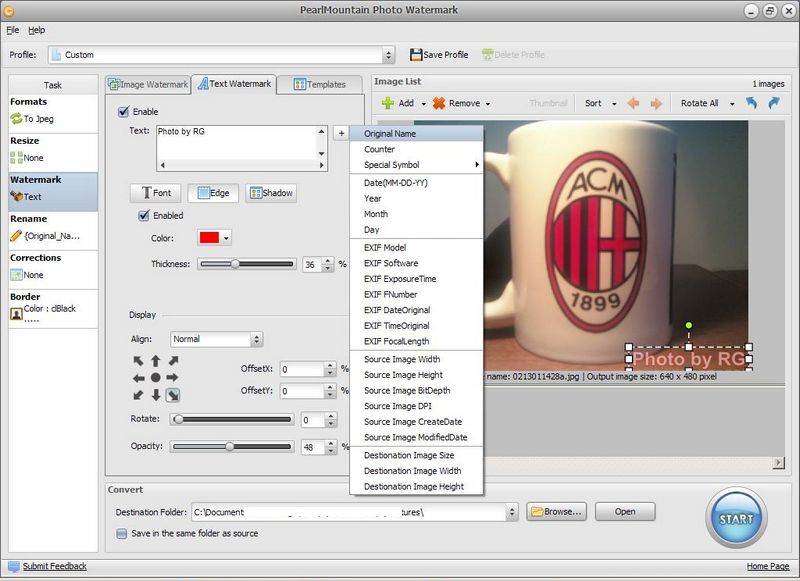
      The first options are to configure text watermarks. Here any text can be added and fully configured in position (on the image), offset from that position, color, font, justification, edge or border, shadow, opacity and rotation. The text can be anything of course but the program offers lots of options for automatically adding text ranging from special symbols, EXIF meta data, date and source or destination folder path (see image above).

      The image watermark tab can be used to add an overlay image instead of text and offers the same flexibility for position, opacity and rotation as the text option. The image watermark can also be tiled to fill the whole photo. The program also comes with a set of 77 images to use for this purpose (see image below).

      PearlMountain Photo Watermark

      The task area to the left has options to modify the output image(s) to .jpg, .bmp, .tiff, .png, .gif, .pdf, .tiff or .psd. The original image can be resized and renamed. When working with a set or folder of images the output file name can be in the form of increasing increments (image1, image2, etc.) or similar to those offered for the text watermark, as mentioned earlier. Corrections has setting for brightness, contrast, saturation and sharpen/blur. Finally a border can be added to the original image.

      The workflow concludes by clicking the Start button and optionally configuring the output folder. PearlMountain Photo Watermark works on Windows 2000 and newer and is good for both 32bit and 64bit systems.

    • My ViewPad Is A Simple Graphics Viewer

      My ViewPad (Version: 4.1.0 build 16212 tested) is a freeware image or graphics viewer that is also available for Mac and Linux. It supports over 100 formats, many of them both read and write. These include the common .jpg, .psd, .tiff, .raw, .ico and .gif formats to less common ones like .tga (Targa), .wmf (Windows Metafile), .pict, .psp (Paint Shop Pro) and others.

      My ViewPad

      The interface is simple and straightforward. The image area includes right click support for Copy, Rename, Delete, Properties, and somehow oddly Open With and Preview. The latter two are for opening the images using another image viewer and Windows’ own picture viewer.

      The menus on the right hand side of the program window are as follows:

      File menu features Open, Reopen, Open Recent, Open Image Folder, Next Image, Previous Image, Save, Save As, Save As Wallpaper (centered, tiled, stretched, fit and clear desktop), Print, Acquire and Delete Image.

      Info presents basic info like path, size, dpi, (jpg) mode, color space, compression and similar info depending on the image format.

      Edit features Undo, Redo, Flip, Rotate, Scale, Crop, Color Corrections (Gamma, Brightness, Contrast, Auto levels and Auto contrast), Copy, Copy Full Path, Paste, Clear and Change Checksum.

      View features Zoom in, Zoom out, Actual size, Best fit, Full screen and EXIF or Page options relevant to the various formats.

      Tools includes settings and associations. The former features Rendering quality and Raw interpolation, among others. My ViewPad should run on all Windows versions.