Tag: image

  • Clipjump Does The Clipboard Well

    Clipjump

    Clipjump is a very capable freeware clipboard manager. It , of course,  holds many clipboard items and does its job without disturbing familiar Windows routines such as Ctrl+C, V and X. It provides a tool tip like confirmation and visual, for example one that confirms that it has copied items.

    Clipjump captures all data types, when Ctrl+C is used it captures text, images (through the PrintScreen key) and other data such as Excel cells and when Ctrl+V is used to paste repeated V clicks cycles through clipboard items with a preview so it is very easy to paste any previous items. There is an incognito mode to temporary disable captures, right click tray icon—>Options. Windows+C pops up the clipboard history window to view and work on captured clips. It is possible to ‘fixate’ items to make them stay on top or first in the history and therefore being the first when using paste mode or when clicking Ctrl+V. Clipjump also supports ‘channels’ to keep items separate, the default channel is zero. The channel name in use is shown when Ctrl+V is clicked and channels can be changed by using the up and down arrow keys in the aforementioned paste mode. No Formatting is also a very useful feature and when in paste mode (after clicking Ctrl+V) clicking on the Z key readies the chosen item without formatting.

    The Action Mode, activated via the tray icon or Ctrl+Shift+A, provides one click access to program features.

    The Class Grab Tool which is supposed to grab Windows classes is also interesting. It allows Windows classes to be added to its settings.ini’s ignoreWindows option so that Clipjump will not be used when items are copied from those programs. Lots more settings are configurable through settings.ini such as windows_copy_shortcut and windows_cut_shortcut that ‘create unique shortcuts in Clipjump to copy/cut data only to System Clipboard and not Clipjump’.

    The program settings have a ‘one time stop’ option whose shortcut is configurable which when used bypasses Clipjump for only one time.

    The usefulness of Clipjump lies in the fact that it can be used to naturally replace the native Windows clipboard but also really extend it with additional features beyond simply storing multiple items. It is very lightweight, portable and at version 9.8.8 (there are frequent updates) it is very solid.

    The online manual and internal help are detailed if not exactly very well organized.

  • ImBatch Version 2.0 Released

    ImBatch

    ImBatch is one of the better rated freeware image editors. As its name and tagline imply it makes it easy to work on a number of images. This latest version 2.0 adds to its power with a folder monitor, what it calls ImageMonitor, and a ContextMenuEditor. These new features can be accessed from the Tools menu. The first makes it easier to automatically work on images added to any chosen folder and the second makes it easy to apply ‘tasks’ or edit images via a right click.

    Both of the new features work by reading a .bsv file. The .bsv file is created by adding tasks in the program’s main interface and saving them using the big save button. Then in the  ImageMonitor and/or ContextMenuEditor loading and setting the saved .bsv file.

    imbatch2

    ImBatch has some of the more common and useful filters and edits for images. These include rotate, resize, shadow, crop, flip, round corners, remove exif, shift time, gaussian blur, 3D effect, watermark, color balance, rename and more.

    It supports 100+ image format, some read only, and it has a few command line parameters too. It runs on Windows 2000 and newer.


  • iPhotoDraw: Freeware Image Annotations

    iPhotoDraw (Version: 1.6 Build 4837) is a freeware image editor. Its main feature or purpose is to make it easy to add objects to images.

    iPhotoDraw

    Open an image and the ruler is on by default, optionally add grids and guidelines from the View menu to be able to place objects more accurately. Beside adding text  iPhotoDraw features all kinds of shapes. Shapes can be arrows, dimension lines, straight lines, arcs, curves, circles, rectangles, callouts and virtually any type of polygon. Polygons can be simple like a triangle or not like an ‘explosion’ or a 32 point star. Using the Polygon tool one can create any random shape by clicking (end of) line points and double clicking to finish.  There is also pixelation and blur tools that can be rectangular, oval or polygon shaped.

    Any shape or image will have its own properties, accessed via right click or double click. These include adding text to them, aligning them, adding fill color, changing opacity or line thickness, among others. Drag the mouse over several objects and they can be grouped so they move together for example.

    Objects or annotations added are flattened into one image when it is exported. Simple saving a file doesn’t destroy the original. Unlimited undo is available to make it even easier to play with an image.  iPhotoDraw requires the .Net Framework 3.0 and runs on XP and newer.

  • pViewer: Another Minimalist Image Viewer

    pViewer (Version: 1.6) is a minimalist open source image viewer. It has no menu and little distraction.

    pViewer

    pViewer’s options are available via right click and there are keyboard shortcuts for its features. These features are Send To Dropbox Public folder, rename, slideshow, rotate, flip, resize and read exif data. It supports effects such as invert, grayscale, sharpen, blur, brightness, contrast, tint, black border, white border and red eye correction. Additionally there is support for .zip, .rar, .cbz, .cbr archives with Manga and Comic mode displaying two images side by side.

    The batch operations – resize, rotate, convert, rename, grayscale, invert white or back border – work on all images in the current directory and sometimes even without any additional prompts. For example Add White Border just goes to work and creates a subfolder containing the output.

    pViewer

    The program settings has options for drawing and text color and fonts. These are not accessible via the right and looking at the keyboard shortcuts one sees the following

    Crop: Ctrl+Click to make a selection, release the mouse button while still pressing Ctrl. Writing on the image: press Shift+Click on the picture to add text, write what you want, move it wherever you want with the mouse, press Ctrl+Enter.
    Drawing a rectangle: Alt+Click and drag to draw, then you can save the edited image. Filling the rectangle: After drawing a rectangle you can fill it with the same color by pressing TAB

    It is less than 1MB unzipped, doesn’t require installation and should run on Windows XP and newer.
    Thanks to commenter andy for pointing out that it requires the .NET framework 4.0

  • Saint Paint Studio: Simple Freeware Image Editor

    Saint Paint Studio (Version: 18.0) is a freeware image editor. It offers many features that are comparable paid or shareware image editors. Input formats supported include bmp, jpg, gif, ico, cur, png, pcx, tiff, tga, wbmp, sps (its own native format) and perhaps interestingly avi.

    Saint Paint Studio

    The program toolbars offer the mostly standard like red-eye filter, blur, sharpen, gamma, emboss, dilate and others but with a few additions like the Symmetry Pattern that, for example, applies the Spray tool to symmetrical positions on an image with one click or drag – remember to press the Symmetry Pattern button before applying the Spray (see image)

    Paste image from clipboard, gif animation, a color palette that can be navigated through using the keyboard and reordered by RGB values, light to dark and dark to light colors are some of the other features of the program.  Various brushes can be constructed freehand and then resized, deformed, continuously applied by single clicks, rotated and converted to frames for animation. It is also possible to grab a whole image to use as a brush to apply on another.

    Saint Paint Studio also features layer and print support. It should work on all Windows versions.

  • Vieas: Image Viewer And Editor

    Vieas (Version: 5.1.5.2) is a freeware image viewer with some editing features, it can be considered a lightweight alternative. The image formats it can can read or open are gif (including animated), jpg, png, bmp, tiff and it can read from zip (and other archive formats via plugins). There are no plugins currently available (?). The output or save formats are the same with few exceptions such as animated gifs.

    Vieas

    The program’s interface is not a typical one because by default it opens without a menu or toolbar and they are only shown when the mouse is moved to the top of the program window. A menu is also shown with a right click. Vieas remains an image viewer until the ‘Change to edit window’ button (or Tab key) is pressed.

    Vieas features crop, resize, canvas resize, rotation, mirror, flip, equalize, gamma, brightness, contrast, highlight, shadow, color balance, hue, saturation, replace color, negative, blur and a few others. It can also print, stay on top, show exif info, set images as wallpaper and features multi-monitor support.

    Vieas

    The program’s options are available when right clicking or when in the edit window, they include the following.

    Choosing how the program starts, with its main window, edit window or full screen. Toggling the ‘Change the window size to fit a displayed image’ and slideshow interval. Various zoom options that control quality and size of the image and window. Various options for mouse controls such as what double click, left click, mouse wheel and other combinations do. For example double click to full screen. Up to eight placeholders to launch external files or folders. These will be available via right click —> Tools. A plugins tab to add any of the aforementioned plugins. Finally the option to associate various image formats with Vieas and add it to the Send to menu.

    Vieas is available in both installer and portable versions and requires Windows XP and newer.

  • SnapCrab: Freeware Screen Capture

    SnapCrab is a feature rich screenshot capture program. Other than the various capture options one can send screenshots directly to Twitter, Facebook or Evernote.

    SnapCrab

    SnapCrab’s interface is a simple bar. Various capture options and program settings – the gear button – are accessed on the bar or by right clicking the program’s tray icon. From left to right the bar buttons are Capture window, Capture top level window, Capture whole desktop, Capture selected area, Post (to Twitter, Facebook or Evernote), Get color code under cursor (by default RGB and Hex values are copied to the clipboard but this can be changed) and Settings. The settings include back ground options such as transparency and fill color and others like inclusion of cursor and disabling hot keys. The hot keys are Alt+Print Screen for Capture Window and Print Screen for Capture whole desktop. Settings for all other actions such as Capture selected area, Post to Facebook, Save a capture in, Post image and tweet can be configured via Details –>Hotkey.

    SnapCrab’s other settings, found by clicking Details, are configuring capture output location, (image) format, name, sound, timer, ‘capture the active monitor’ and automatic shrinking or resizing of the capture.

    Captures can be named in various ways. SnapCrab comes with  “SnapCrab_{title}_”yyyy”-“m”-“d”_”h”-“n”-“s”_No-“vv, “SnapCrab_”gge”-“m”-“d”(“ddd”)_”h”-“n”-“s”_No-“vv, “SnapCrab_”yy”-“m”-“d”_”h”-“n”-“s”_No-“vv, “SnapCrab_”yyyy”-“m”-“d”_”h”-“n”-“s”_No-“vv, “SnapCrab_”yyyy”-“mm”-“dd”_”hh”-“nn”-“ss”_No-“vvvv and “SnapCrab_No-“vvvv. These are listed as such with the quotes creating confusion. Most are likely obvious however v represent increments starting from 0 and gge is year.

    SnapCrab

    The post to Twitter option requires authenticating from within the program. Facebook and Evernote also require authentication of course however SnapCrab opens a browser instance to prompt for details.

    SnapCrab hot keys can be disabled and the program can remain open but hidden by unchecking the Use Hotkeys option. In this case the program’s tray icon turns gray. SnapCrab is brought to you by the developers behind the Sleipnir browser and runs on Windows XP and newer.

  • Wolfcoders ScreenSnag: Freeware Screenshot Grabber

    Wolfcoders ScreenSnag is an attractive freeware screenshot grabber.

    Wolfcoders ScreenSnag

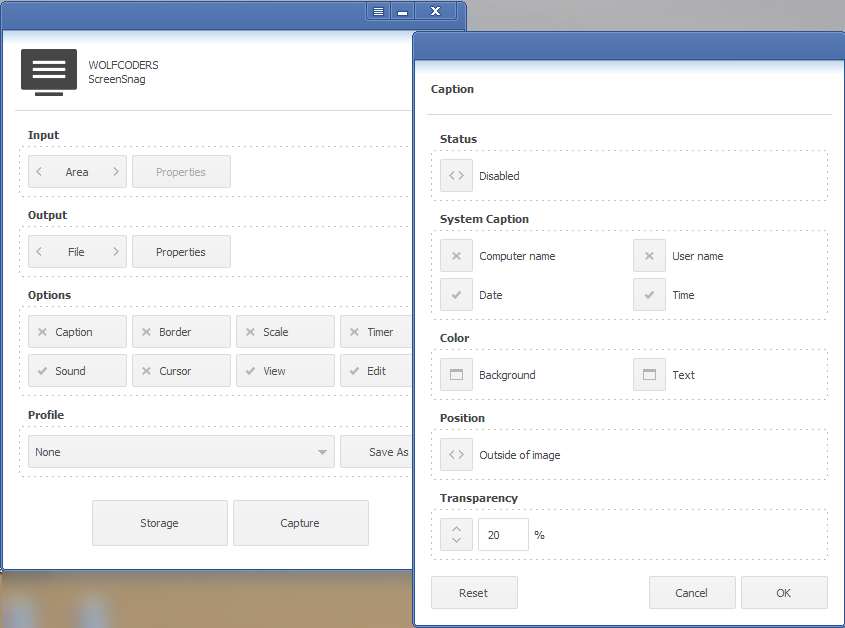
    Wolfcoders ScreenSnag works by enabling or disabling a number of options via its window and then proceeding to capture. The first option is to choose the ‘Input’. Here choose one of capture window, full screen or area. The corresponding properties button is for choosing a transparency – current or clean – for the capture. The ‘Output’ is a choice between a file and the clipboard. The file option has properties for choosing the file format – png, bmp or jpg – file name and quality.

    More options are available to customize the screenshot. Caption is like watermark and includes automatic text in computer name, user name, date and time. Colors and transparency for the same text as well. The caption or watermark can be placed outside or inside the screenshot.

    Border and scale customize the size of the output further. The cursor can be visible or not. Timer adds a delay to complete the capture. Sound – to remind that the capture is complete – can be turned off and ScreenSnag can automatically open the capture in the default image viewer or editor.

    Wolfcoders ScreenSnag

    The Storage button opens the output folder and the Capture button does the actual task of grabbing the screenshot.

    The program’s settings (the button to the left of  minimize) includes starting the program with the system and enabling global hotkeys, among others. The hotkeys are limited and are not configurable however (see image.)

    ScreenSnag runs on XP or newer.

  • ToolWiz Pretty Photo: Fun, Feature-Packed Freeware Image Editor

    ToolWiz Pretty Photo (Version: 1.5) is a freeware image editor with lots of features that place it very high when compared to other free, shareware and expensive editors.

    ToolWiz Pretty Photo

    ToolWiz Pretty Photo supports the more common picture formats and can also do screen captures. Screen captures, available from the File menu, are rectangular ones created with click and drag of the mouse. When an area is chosen a mini toolbar offers to save the capture, open or return to ToolWiz Pretty Photo’s window or add any of a collection of shapes, lines or text immediately.

    ToolWiz Pretty Photo can merge layers, when objects are added to an image for example. It can rotate, crop and move layers to the back or front.

    The Add Objects menu has a large collection of symbols in addition to lines and shapes such as rectangle and ellipse and others like cloud popups.

    The Adjust Picture menu features the common resize, hue/saturation, color balance, curves, levels, brightness/contrast and invert. Additionally Add Frame adds a (configurable thickness) border that can be filled with a solid color or another image. A shadow can be added in a similar manner and the Picture Selection option allows the user to select and crop any part of an image. The cropped section can be a rectangle, ellipse, round rectangle or lasso (free form.)

    ToolWiz Pretty Photo

    The Beautify menu is the fun part of ToolWiz Pretty Photo. Available options include Add Wig, Blush, Eyebrows, Necklace, Glasses, Mask, Hat, Pupils and more. Various other effects are also available and include adding Mosaic Paint to an image. Color Paint is another which turns an image into grayscale and then allows the user to color section(s) of the image. Soft Focus Paint (shown in the image above) is another useful feature to blur out an image and then only reveal a part of it.

    Image Filter includes 39 “art filters” such as Gothem, Kelvin, Nashville, Toaster, Lomo, Polaroid, Sunshine Beach, Old Photo, Early Bird, Brannan, White and Black, Closer Black and White, Emboss, Happy Tone, Color Emboss, Diabolical and others. Emboss, AntiAlias, Add Noise, Pencil, Split Blur, Motion Blur and Fill Light are here as well.

    ToolWiz Pretty Photo requires Windows XP or newer, it is available in a portable version as well.

  • ClipMon: Freeware Clipboard Monitoring

    ClipMon (Version: 1.0.1.1) is a freeware clipboard monitoring tool with an aim to improve on the drawbacks of the Windows’ single clipboard feature.

    ClipMon

    The first and obvious feature is that ClipMon can remember and store more than one clipboard item. The second is that it keeps and categorizes them into text, images and files. It comes with history browser, a separate process (HV.exe) on its own, where clipboard items can be viewed and also edited. ClipMon also features a floating and resizable sticky note look-a-like window where the latest clipboard item is displayed.

    Text items can be edited inside the program and using available scripts text items can be opened in Notepad or Wordpad (with a double click), converted to numbered or bullet lists and encrypted/decrypted. The latter option didn’t work using the portable version of the program. Image files can be previewed and re-copied. Double clicking images shows them in the internal viewer. The viewer has a selection tool (drag the mouse to draw a rectangular selection) to be used to crop images. External programs to open images with can be added as well.

    Use the Send This Clip To to email or save an item outside of ClipMon’s history. Configure a recipient and then email items to him or her or send and save a copy of an item to a directory outside of ClipMon’s. The send to feature is rather non intuitive as ClipMon seems capable of sending any item in its history but it is not immediately obvious how to send the non current clipboard.

    The program’s options (accessible from the history browser window) include assigning hotkeys for opening the history browser window or the right click menu and defining the maximum number of text, image and file items ClipMon remembers.

    ClipMon works on XP and newer and is available in both installer and portable versions.