Tag: image

  • Easy Photo Effects At Your Fingertips

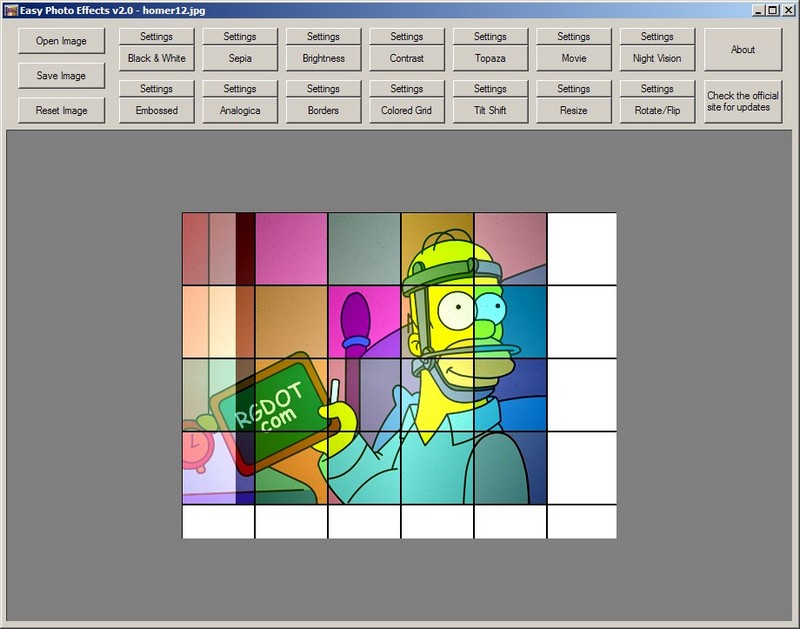
    Easy Photo Effects (Version: 2.0 as of this post) is a photo or image editor that presents all its settings or features in one screen, a departure from the usual or traditional design. It is very easy to work with, however the undo function – named ‘reset image’ – is somewhat less user friendly in that it asks for confirmation every time and as implied by its reset name is not a step by step undo, all applied effects are undone at once.
    Easy Photo Effects

    Each effect comes with its own settings button to control transparency, thickness, contrast, colors, editable night and sepia colors, preset and arbitrary resize and others that belong to the effect being used. These Easy Photo Effects effects or features are as follows: Black & White, Sepia, Brightness, Contrast, Topaza (yellow, blue mix), Movie, Night Vision, Embossed, Analogica (horizontal and vertical vignette), Borders, Colored Grid, Tilt Shift, Resize and Rotate/Flip. The image above has analogica and colored grid applied to it.

    Easy Photo Effects is true to its name and a good lightweight freeware alternative for fast image manipulation. It is a single executable file and runs on XP and newer versions of Windows.

  • Giveaway: Picture Collage Maker Pro With Christmas Pack

    Earlier RGdot.com brought you two chances to win Picture Collage Maker Pro, once by itself and another with a thanksgiving pack. Now PearlMountain Technology Co. are back with another giveaway and extra offer. This time Picture Collage Maker Pro is ready with a Christmas pack.

    Picture Collage Maker Pro Christmas Pack
    Follow the download links to get Picture Collage Maker Pro or if you have Picture Collage Maker Pro installed click the Download More Templates button (see image). Alternatively go straight to http://picturecollagesoftware.com/resources/christmas-pack.html to download the all new Christmas pack.

    Run the .exe and (re-)open the program. You will have 26 additional Christmas templates.

    Comment below to win a copy of Picture Collage Maker Pro and the Christmas pack. Happy Holidays!

  • Freeware Shorts: Horizon33 (Screen Capture)

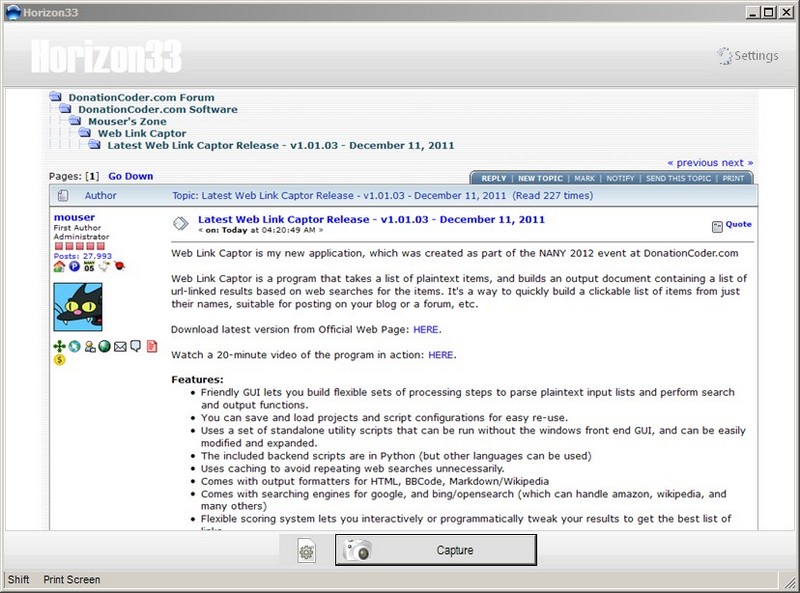
    Horizon33 is an easy to use screen capture or screenshot program. It has useful capture and save options.  Choose a combination of the options described below using the gear button to the left of the large capture button and then click the capture button itself to start taking screenshots.

    Horizon33

    There are six modes of capturing and Horizon33 can save the output in BMP, JPG, GIF or PNG formats. The capture options are full screen, active window, freehand, (configurable) fixed region, (selected) region and object. The output destination is also configurable. The options are save to file, save as, application (Microsoft Paint by default), clipboard, email, Microsoft Office (Word, PowerPoint or Excel) and upload to web (automatic saving to Imageshack). Multiple outputs is also an option with the capture ending up in more than one of the aforementioned destinations.

    Additionally Horizon33 can automatically convert to grayscale, invert color, add watermark and resize too. Finally there is an option to include the cursor in the screenshot.

    The program settings accessed via the top right button are divided into the following:

    General for things like starting with Windows, delaying before capture, pressing X to close the application, staying always on top and others. Output to choose the default image format and destination for the multiple output operation. Effects has the options for color, resize and watermark. For example, here is the place to choose the file and position of the watermark or overlay image. Hotkeys lets the user assign keyboard shortcuts for any or all of the six capture options. File Name lets the user choose the output file name. Any combination of year to second is possible. A prefix and incremental numbering is available too. Dialogs includes JPG quality and fixed region options among others.

    Horizon33 requires Windows XP and newer and is worth a download.

    Note: In the image I used Horizon33 to capture this thread on the DonationCoder.com forum.

  • Freeware Shorts: PixBuilder Studio (Image Editor)

    PixBuilder Studio (Version: 2.1.1 as of this post) is a capable image editor. It has many features of those much more expensive than it.

    PixBuilder Studio’s features include the typical brightness, contrast, hue, saturation, color balance, auto levels, (background and foreground) fill and more but also support for layers (including rasterize and combine), gradients, masks and even more that elevates it to Photoshop levels. Transform, flip, drop shadow and filters like Gaussian blur, sharpness, emboss and dithering are worth mentioning in terms of the Photoshop comparisons but it doesn’t end there.

    Its tools are also numerous. They are pencil, line, brush (configurable type and sizes), eraser, healing brush, clone stamp, ellipse, rounded rectangle, eyedropper, 8BF plugin support and more. The select menu has many of the options one would expect. Lasso, magic wand and magnetic lasso make image and layer manipulation easy and convenient. Color selection and range make working with specific colors within images easier as well.

    PixBuilder Studio
    The browser panel (Tools—>Browser Panel) eases navigation, a full screen mode (View—>Full screen mode) cleans up the interface, Rulers (View—>Show Rulers) aid in image creation and sizing, multiple undo covers up mistakes, Palettes add many coloring modes and options.

    Much like its expensive counterpart and lookalike there is also web preview for JPG, GIF and PNG formats. It can read JPEG, GIF, PNG, BMP, PCX, PSD, TGA, ICO and PBS formats and save to all except PSD. PixBuilder Studio is optionally installed in portable mode and requires Windows XP or newer.

  • Freeware Shorts: WildBit Viewer (Image Viewer)

    WildBit Viewer (Version: 5.9 as of this post) is an image viewer complete with support for many image formats. Its interface is divided into a explorer type tree, a file list and the thumbnail or single image view.

    WildBit Viewer

    WildBit Viewer supports EXIF data and formats like the usual JPG, PNG, GIF, RAW and others but also Photoshop formats like PSD. The thumbnail viewer can be configured to show different sized thumbnails, sorted by name, size and date and any image meta data such as the aforementioned EXIF. There is also the image histogram and zoom via scrolling and geo information for viewing images using Google maps. Not forgetting animated GIF support and the ability to export image info to CSV files.

    Via the Add Button button or by dragging folders to the ‘shell toolbar’ at the bottom of the interface favorite folders can be saved for future use. WildBit Viewer also has image compare – two images side by side – and slideshows with many transition effects. Images can be set as wallpaper and edited (Tools —> Editor) as well. The editing features include most of the usual in rotate, flip, adjust, transform, remove red eye, annotate (add text or shape), acquire (from scanner), filter (lens, morph, etc.) and some more.

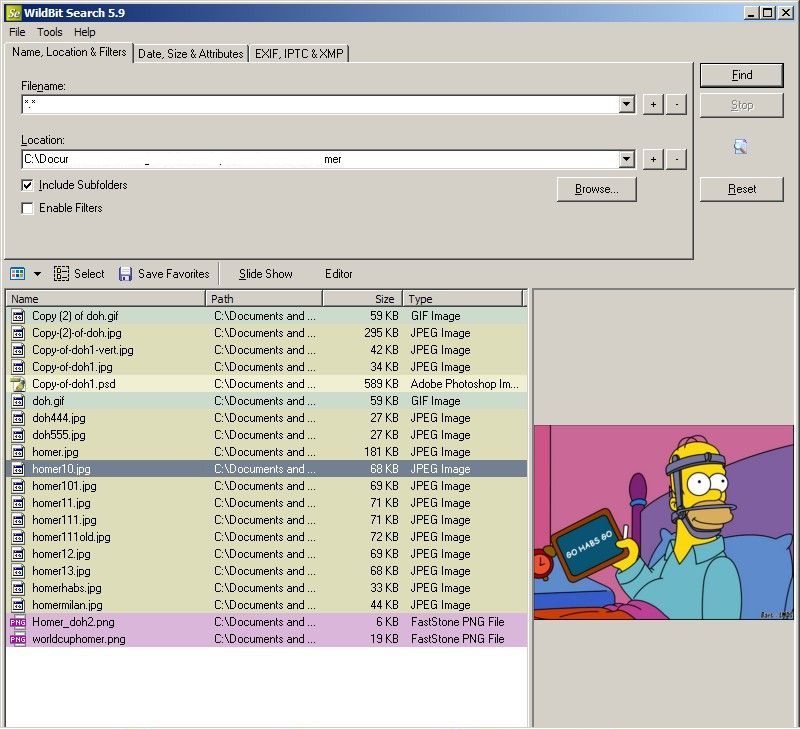
    Search is another noteworthy feature (see image below). Files within folders and optionally its subfolders can be searched by type (when Enable Filters is checked), name, location, date, size, attribute, EXIF, IPTC or XMP data. Note that the Filename text box must not be empty so use “*.*” (without the quotes) at least to start a search.

    WildBit Viewer

    WildBit Viewer works on Windows 2000 and newer and is available in both portable and installer downloads. It is free for personal use. A pro version with multimedia support and a profile switcher is available as well.

  • Freeware Shorts: M8 Free Clipboard

    M8 Free Clipboard (Version: 16.12.1 as of this post) is a clipboard enhancement program that also captures images. It can hold up to 25 clipboard items. Hovering over any item pops up a preview (see image). Items can be dragged or copied to the right hand – white – cells to be kept permanently and not be lost when the 26th item is added. There is more than one way of re-using an item. One is to maximize the program and click on the item, when it will be automatically pasted to the active window, another is to assign hot keys via the preferences.

    M8 Free Clipboard

    Items in the permanent area can be renamed, sorted A-Z and highlighted to ease later use. Both text and graphic items can be edited (via right click). The text tools available are making upper case, removing blank lines, HTML, leading spaces and more. The image tools include adding text, shapes, lines, resize (including increase!), crop, clip art, overlay with other image and more. There are several sheets that at first seem to make M8 hold more clipboard items but that doesn’t seem the case with each being a different view, certainly confusing. The program has two options menus (via Tools menu), one controls the aforementioned views with settings like ‘keep on top’ and others (see image) and another general one with settings for start with windows, start minimized, hot key activation, remind when clipboard full, screen edge activation, delays in bulk pasting, image pasting options – numbered methods that paste images reduced in size or not, supposedly dependent on the program the image is being pasted into but I could not see a difference in tests –  and many more. Other features or extras include Pictures —> Browse Picture Clips on this Sheet that turns M8 into a sort of image viewer and also a calendar (Tools —>Year Planner) where items can be added via right click and edit.

    M8 Free Clipboard

    M8 Free Clipboard does not win any ‘intuitive’ awards, and needs a look through the local help file (Help —> Main Help Index) to make some sense but is nevertheless useful as a clipboard program and should run on most Windows versions.

  • Freeware Shorts: Keepboard (Cross Platform Clipboard Manager)

    Keepboard (Version: 2.1 as of this post) is a simple, light weight clipboard manager. It supports both text and images. Unzip the 1.5MB download and double click on the Start.vbs file to run the program.

    Keepboard

    Using the default Ctrl + C keys Keepboard collects items and keeps them in Clipboard History, clicking on an item presents a preview which is most useful in the case of image items. To further ease of use Keepboard can save items to groups and keep up to 2000 items in each group. Right click on any item to send it to a group, existing or create a new group on the fly, then using the Saved Items tab view those permanently organized. Within the saved items each item can be named as well. Right click, choose Open selected item, type a name and click OK. Later you can narrow down or filter all saved items by choosing a group and typing in the Name field to find items as you type (see images).

    Keepboard

    Keepboard can be paused to not collect any clipboard content via its Clipboard menu. It is cross platform (runs on Linux and Windows machines) and requires Java.

  • Freeware Shorts: SnapShot (Screen Capture)

    SnapShot (Version: 1.0.4 as of this post) is a lightweight screen shot program or screen capture tool. It can take full screen, active window or rectangular area screen shots. By default it will only present a preview of the screenshot which the user can manually save. Using its preferences (Capture —> Preferences —> Save & Edit tab) auto save can be enabled with an option to not only choose the destination location but also a prefix for the file name. SnapShot is capable of saving files in BMP, GIF, JPG (JPEG), PCX, PNG, PSD or TIFF formats. Also from the same Preferences tab the output JPG quality can be configured. A path to an external image editor can be saved in the preferences for SnapShot to send or open the capture using it or optionally send the screen shot to the system clipboard.

    SnapShot

    SnapShot also features email and FTP to automatically send or upload a screen shot. Use the Edit menu to configure the email SMTP server and even choose the subject and text of the email and separately the FTP details.

    SnapShot supports multiple monitors and supports setting a delay for taking screen shots. It should run on all Windows versions dating back to Windows 98.

  • Picture Collage Maker Pro Thanksgiving Pack Giveaway

    Comment below for your chance to win Picture Collage Maker Pro with the thanksgiving pack from PearlMountainSoft!

    Picture Collage Maker Pro was reviewed (along with a giveaway) here on RGdot earlier in the year. We are now back with another giveaway.

    To celebrate US thanksgiving the newest edition of Picture Collage Maker Pro comes with a thanksgiving pack which adds eight additional items to the greeting card templates to use for the holiday. Download and run Picture Collage Maker Pro, enter the program using the “Create From Template” or any other button. On the left hand side choose a template to start with. To add the thanksgiving pack click the ‘Download More Templates’ button (see image below) or go straight to the PearlMountainSoft site to download the special pack, download and run the executable file and it will automatically add the pack to the program.

    Picture Collage Maker Pro

    Choose the photo tab on the bottom left and then drag and drop your photos into the template, then further customize using mask, backgorund, clipart, frame, shape or even with a calendar (Collage —> Add Calendar). Remove any items by highlighting and deleting them or unchecking them from the layers panel in the bottom right. Click on any object to move it, use the menu or buttons immediately above the collage preview area to align, rotate, add shadow, crop or do more with each individual item on the collage. When satisfied with your creation use the Share button to email, set as wallpaper, save as picture or print the collage. It is also possible to create templates (Collage —> Save As Template) for future use or to put the collage on a t-shirt or other merchandise online (Collage —> Create Custom Collage Product).

    Picture Collage Maker is available for $29.90 and Picture Collage Maker Pro, which adds the Shape, Color Frames and support for multiple page collages, for $39.90 .

    Comment below to win a Picture Collage Maker Pro plus thanksgiving pack license!

  • Freeware Shorts: Imagine (Image Viewer)

    Imagine (Version: 1.0.8 as of this post) is a full featured image viewer and thumbnail browser. It features rotate, flip, negative and other common effects and filters. Support for plugins and command line parameters as well. It also supports animation creation, a feature less common in image viewers.

    Imagine

    Via Tools —> Animation Factory one can create animations.  It supports setting delays between frames, setting transparency, resizing the animation, fliping frames horizontally or vertically and even manipulating the colors of the images. It is also possible to extract frames from an existing animation.

    Another feature often missing or incomplete in many image viewers is to not only be able to open archive files but to be able to get proper thumbnail views of the images inside. Imagine supports this in ZIP, RAR, 7Z, ALZ, HV3, CBZ, CBR and CB7 formats and in my tests supports them well.

    Imagine supports EXIF data and their retention when re-saving images. Shell extension support is here too. Via Options —> Shell Extension the preview of an image will be available when right clicking it.

    Imagine can create multiple page images, do batch conversions, show slideshows and take screenshots. The latter was a bit different as it somehow proceeded to take many screenshots, not just one, when the trigger method was set to ‘automatically after X seconds’, it thus behaved as ‘automatically after every X seconds’.

    Unicode and 64-bit versions are also available, it should run on all Windows versions and doesn’t write to the registry.

    Imagine is highly recommended.