Category: Software Reviews

  • Capture2Text: Quick OCR And Speech Recognition

    Capture2Text (Version: 2.4) is an open source program that can help a user capture text seen on the screen or transcribe speech.  It supports multiple language for Optical Character Recognition (OCR) and recognizing speech. In limited tests it did a decent job of capturing the correct text and speech but it is never really 100% accurate. For OCR it supports 50+ languages and 15 for speech.

    Capture2Text

    Capture2Text does not requires installation. Download and run it. The default way for starting (and ending) text capture is Win+Q keys. There are other configurable key combination for ending captures, dismissing the program and others. Press the start capture keys, right click and move the mouse over an area, left click to end the area. Capture2Text will present a preview of the text on the top left of the screen and when the capture is finished presents a popup window with the captured text. The program site claims that the text is also sent to the clipboard by default but I noticed that in the preference this is unchecked. It is also possible to send the text to the cursor (ie another program) or a named external program (see last images below.)

    Capture2Text

    For speech recognition Win+A are the default keys for starting and the program will analyze the speech after it senses that there is no sound coming through the microphone and present the user with possible transcriptions.

    Capture2Text

    There is a subtitutions.txt file in the program folder which can be used to make automatic substitutions if the program seems to mistake a certain letter consistently. Languages not part of the download can be added and it is also possible to switch language on the fly using the program’s tray icon. Capture2Text also supports a set of command line options.

  • DDownloads For Safe Downloads

    Note: DDownloads is currently at version 0.9.3 and it is always a good idea to check for updates as it seems to be in a rapid update cycle.

    DDownloads (Version: 0.6.0) is a download helper. It can be used to download software directly without having to search for programs’ download links online. In theory DDownloads makes downloading safer as it makes it less likely to grab a program or update from an infected source.

    DDownloads

    DDownloads is divided into different sections, the Home tab has links to Must-Have Apps (in this version, 322 programs in 41 categories), Portable Apps (112 in 27), Slim and Toolbar free Apps (4 in 2), Windows Starter Kit (16 must have tools including the likes of Adobe Acrobat Reader, Windows Essential Codec pack, .Net Framework 4.5, Firefox, 7-Zip and others), Recommended Apps (Firefox, Opera, Jdownloader, Revo Uninstaller Free, CCleaner, Recuva, Truecrypt and others)

    The other sections are Get Safe Download Link on the quick to search for programs that DDownloads has in its lists. Send App Suggestions, Make Snapshot of Installed Apps and finally the Get Direct Help which includes links to blog, software review, hardware, malware, programming, tutorial, download portal, online virus scanner and other sites.

    Right clicking any program name provides extra options like ones to add the program to its download manager queue, check whether it is installed, check if a portable version is available, search for an alternate download link, show screenshot of app and more (see image below.)

    DDownloads
    The program can be updated via its options or the buttons to the right and left of the Home section. The program options also include a section to ‘Block direct download if the following string(s) is found in download URL’. Admittedly I am not sure why this list includes the likes of softpedia, palemoon, piriform, details.aspx, % and other strings especially since the program does feature download and ‘alternate download link’ in its lists which do include the likes of softpedia.

    All in all a useful tool. DDownloads has potential for a solid and growing reference, if nothing else.

  • Create Videos With Easy Screencast Recorder

    DonationCoder’s NANY (New Apps for the New Year) 2013 is well under way, have a look at a roundup of programs created for the 2013 edition at http://www.donationcoder.com/forum/index.php?topic=33518.0 and consider joining the forum for access to discounts and giveaways too. Read below about one of this year’s entries, the Easy Screencast Recorder.

    Easy Screencast Recorder

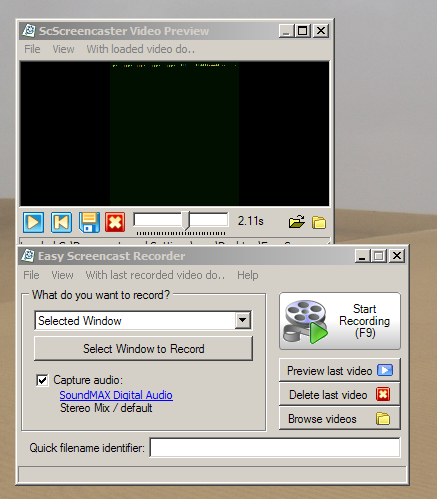
    Easy Screencast Recorder (Version: 1.07.02) from DonationCoder is a simple yet powerful tool to record short videos. It can record the entire screen or specific regions whether they are pre-defined sizes or specific windows that it automatically discovers – and the user confirms by clicking the right Ctrl key.

    The program comes with a preview window – which can be toggled on and off – to view the captured video. It also comes with a reasonable number of options and preferences that make it both easy and feature rich at the same time. The preferences include the global hotkey setting to start and stop video captures, F9 by default, and a place to see common region sizes and add one’s own if necessary.

    Settings for frame rate, countdown before recording starts, maximum file size before recording is terminated are in the Capture Options. Audio Settings let the user choose the input source and recording format. In my case I was interested in capturing system sounds, a seemingly rarer feature compared to mic, CD or other input sources and ‘Audio Input Line: Stereo Mix’ does that. Video Settings comes with advice for which format to choose and the recommended ASF/WMV9 is accompanied by other choices like FLV, MKV, WebM, Mpeg and others. Most require installed codecs. There are additional options for compression mode and quality which are dependent on the file format chosen. One can also set or change the directory videos are saved in and set a file naming template. The Tweaks and Kludges tab of the options includes additional ‘power user’ options (see image below) and the Operations Log can be set to include debug info in case of problems.

    Easy Screencast Recorder

    After a video is done Easy Screencast Recorder can copy its path to the clipboard, open it in the default video player or perhaps use one of the other tools that one can add in its list of external tools.

    Easy Screencast Recorder integrates automatically into Screenshot Captor. Question about it can be asked at http://www.donationcoder.com/forum/index.php?topic=32759.0

  • Siren: Infinite Ways To Rename And Organize Files

    Siren (Version: 3.01) is a freeware file renamer, it features many ways to rename, move and copy files using expressions to create renaming rules.

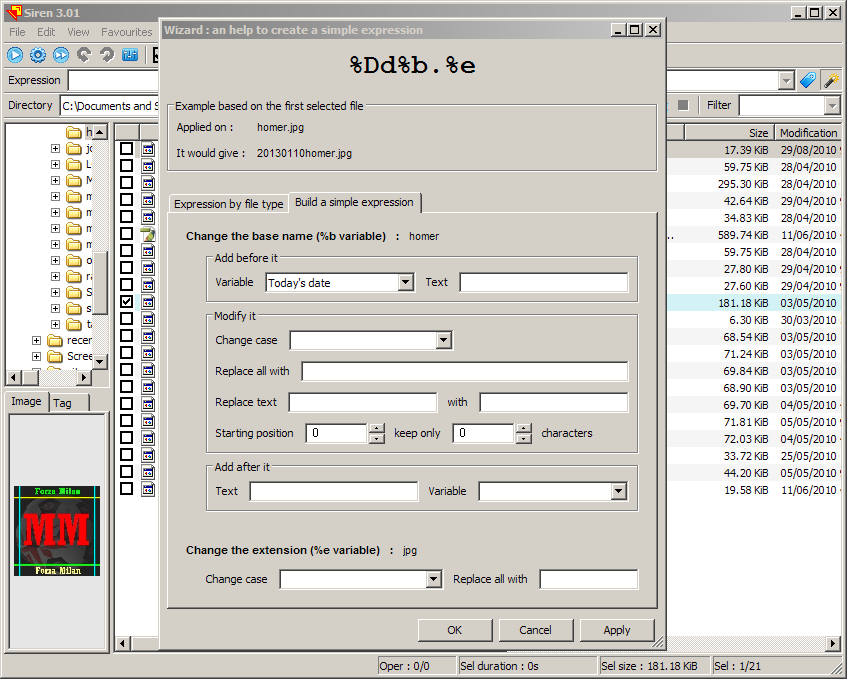
    The expressions can be any in number or combination and use almost any file attribute one can think of. One can change the case, remove parts of the file name, use file paths, extensions, audio file tags, modified dates, checksums and lots more. It can use and read attributes belonging to many audio, video, image and other kinds of files.

    Siren works by loading a folder and checking off or selecting files to work on or alternatively work on all files and subdirectories. The next step would be to click on the right hand side of the Expression text field to add rules. The first (tag icon) presents all the options available, the second (magic wand icon) helps test and build expressions. When done the new file name(s) will be shown and one can click Rename (play icon) to rename the files. The Create copies (fast forward icon) button will create copies first then apply the rename rules.

    The filter option at the top right lets the user filter visible files. Filters can be any combination of file types and regular expressions too. For example to filter down to “jpg”, “bmp” or files beginning with a letter use *.jpg;*.bmp;[A-Z]*

    The Favourites menu lets the user save expressions or rules to re-use later. It is also possible to test the expressions and renaming rules with a “testbed” that is available under the ? menu, the same menu also includes Siren’s detailed help file which includes examples.

    Siren has some command line support, works on Windows XP and newer and doesn’t require installation.

  • Vieas: Image Viewer And Editor

    Vieas (Version: 5.1.5.2) is a freeware image viewer with some editing features, it can be considered a lightweight alternative. The image formats it can can read or open are gif (including animated), jpg, png, bmp, tiff and it can read from zip (and other archive formats via plugins). There are no plugins currently available (?). The output or save formats are the same with few exceptions such as animated gifs.

    Vieas

    The program’s interface is not a typical one because by default it opens without a menu or toolbar and they are only shown when the mouse is moved to the top of the program window. A menu is also shown with a right click. Vieas remains an image viewer until the ‘Change to edit window’ button (or Tab key) is pressed.

    Vieas features crop, resize, canvas resize, rotation, mirror, flip, equalize, gamma, brightness, contrast, highlight, shadow, color balance, hue, saturation, replace color, negative, blur and a few others. It can also print, stay on top, show exif info, set images as wallpaper and features multi-monitor support.

    Vieas

    The program’s options are available when right clicking or when in the edit window, they include the following.

    Choosing how the program starts, with its main window, edit window or full screen. Toggling the ‘Change the window size to fit a displayed image’ and slideshow interval. Various zoom options that control quality and size of the image and window. Various options for mouse controls such as what double click, left click, mouse wheel and other combinations do. For example double click to full screen. Up to eight placeholders to launch external files or folders. These will be available via right click —> Tools. A plugins tab to add any of the aforementioned plugins. Finally the option to associate various image formats with Vieas and add it to the Send to menu.

    Vieas is available in both installer and portable versions and requires Windows XP and newer.

  • SnapCrab: Freeware Screen Capture

    SnapCrab is a feature rich screenshot capture program. Other than the various capture options one can send screenshots directly to Twitter, Facebook or Evernote.

    SnapCrab

    SnapCrab’s interface is a simple bar. Various capture options and program settings – the gear button – are accessed on the bar or by right clicking the program’s tray icon. From left to right the bar buttons are Capture window, Capture top level window, Capture whole desktop, Capture selected area, Post (to Twitter, Facebook or Evernote), Get color code under cursor (by default RGB and Hex values are copied to the clipboard but this can be changed) and Settings. The settings include back ground options such as transparency and fill color and others like inclusion of cursor and disabling hot keys. The hot keys are Alt+Print Screen for Capture Window and Print Screen for Capture whole desktop. Settings for all other actions such as Capture selected area, Post to Facebook, Save a capture in, Post image and tweet can be configured via Details –>Hotkey.

    SnapCrab’s other settings, found by clicking Details, are configuring capture output location, (image) format, name, sound, timer, ‘capture the active monitor’ and automatic shrinking or resizing of the capture.

    Captures can be named in various ways. SnapCrab comes with  “SnapCrab_{title}_”yyyy”-“m”-“d”_”h”-“n”-“s”_No-“vv, “SnapCrab_”gge”-“m”-“d”(“ddd”)_”h”-“n”-“s”_No-“vv, “SnapCrab_”yy”-“m”-“d”_”h”-“n”-“s”_No-“vv, “SnapCrab_”yyyy”-“m”-“d”_”h”-“n”-“s”_No-“vv, “SnapCrab_”yyyy”-“mm”-“dd”_”hh”-“nn”-“ss”_No-“vvvv and “SnapCrab_No-“vvvv. These are listed as such with the quotes creating confusion. Most are likely obvious however v represent increments starting from 0 and gge is year.

    SnapCrab

    The post to Twitter option requires authenticating from within the program. Facebook and Evernote also require authentication of course however SnapCrab opens a browser instance to prompt for details.

    SnapCrab hot keys can be disabled and the program can remain open but hidden by unchecking the Use Hotkeys option. In this case the program’s tray icon turns gray. SnapCrab is brought to you by the developers behind the Sleipnir browser and runs on Windows XP and newer.

  • Giveaway: Tenorshare Data Recovery Standard

    The giveaway has now ended, winners will be contacted shortly, thanks for participating.

    Comment below to win a copy of the Tenorshare Data Recovery Standard valued at $29.95!

    Tenorshare Data Recovery Standard is a straightforward tool to recover deleted files and not only files – documents, photos, video or music in 100s of formats –  from an internal hard drive but also from USB flash drives, media cards and any FAT or NTFS system. It also supports recovering damaged or formatted partitions and files in them.

    Tenorshare Data Recovery Standard

    Tenorshare Data Recovery Standard has four methods or modes of recovering data. The first three do a specific job and a fourth uses a deep scan algorithm that is often more successful in recovering lost data. The modes are Deleted Recovery, Format Recovery, Partition Recovery and Raw Recovery.

    They are described as follows:

    Deleted Recovery: Recover any deleted data
    Format Recovery: Recover formatted files or partition with original file name and path.
    Partition Recovery: Backup, restore and recover partition table
    Raw Recovery: Perform data recovery with deep scan.

    The first mode is relatively quick and presents its findings – with preview where possible – and the option to choose which ones to recover.

    The second will try to recover files from formatted partitions and external drives and cards.

    The third, the Partition Recovery, will rebuild damaged partition tables. It will also back up and restore partition tables and scan for data in them.

    The fourth and final mode, the Raw Recovery, is for ‘seriously’ damaged files and is mainly meant to be a last resort. This will take longer. For example the raw mode found over 4000 files to recover (see image below) and much like other modes categorized them by format.

    Tenorshare Data Recovery Standard

    A complete help page with many more screenshots can be found at http://www.any-data-recovery.com/screenshot/datarecoverystandard.html

    Data Recovery Standard should run on all Windows versions.

    Activation will be handled by the software author and the cnet download version should be used.

  • Wolfcoders ScreenSnag: Freeware Screenshot Grabber

    Wolfcoders ScreenSnag is an attractive freeware screenshot grabber.

    Wolfcoders ScreenSnag

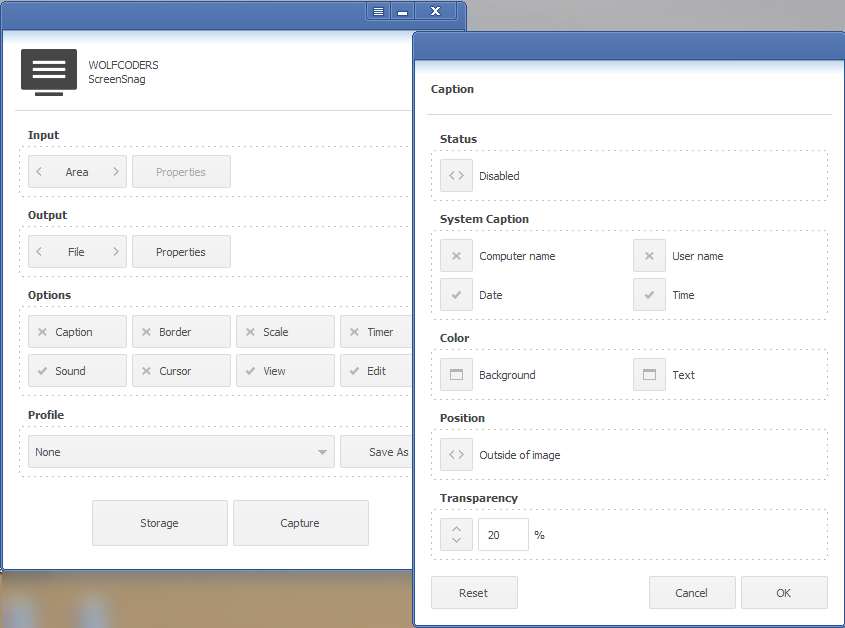
    Wolfcoders ScreenSnag works by enabling or disabling a number of options via its window and then proceeding to capture. The first option is to choose the ‘Input’. Here choose one of capture window, full screen or area. The corresponding properties button is for choosing a transparency – current or clean – for the capture. The ‘Output’ is a choice between a file and the clipboard. The file option has properties for choosing the file format – png, bmp or jpg – file name and quality.

    More options are available to customize the screenshot. Caption is like watermark and includes automatic text in computer name, user name, date and time. Colors and transparency for the same text as well. The caption or watermark can be placed outside or inside the screenshot.

    Border and scale customize the size of the output further. The cursor can be visible or not. Timer adds a delay to complete the capture. Sound – to remind that the capture is complete – can be turned off and ScreenSnag can automatically open the capture in the default image viewer or editor.

    Wolfcoders ScreenSnag

    The Storage button opens the output folder and the Capture button does the actual task of grabbing the screenshot.

    The program’s settings (the button to the left of  minimize) includes starting the program with the system and enabling global hotkeys, among others. The hotkeys are limited and are not configurable however (see image.)

    ScreenSnag runs on XP or newer.

  • Freeware Launcher: Mouse Extender

    Mouse Extender is a freeware launcher for mouse users, it seems that its development has stopped but at its last or current version (1.9.9.3) it is still a useful tool.

    Mouse Extender

    The default method of opening the program is the middle mouse button (or the F4 key) but this can be changed via the program’s settings.

    Mouse Extender can launch files, folders, programs or web sites – it features proxy support for the latter. It also comes with (double click) buttons for the system control panel, reboot, shutdown, hibernate or sleep.

    Right click on the program’s interface to add shortcuts or to add a tab (see image) to organize shortcuts. Right click on an icon to edit its target – to add arguments, to change its icon or working directory. The same right click can move or send shortcuts to different tabs to reorganize them. The option to ‘Add Running Program’ makes it easy to add a shortcut from a list of open windows, to save clicks.

    The exclude option is also very useful, for example adding Firefox to the exclusion list frees the middle mouse button for Firefox’s use.

    If the program was being further developed one suggestion would be add captions to shortcuts since in the case of a folder one must rely on its tooltip to remember which is being launched.

    When starting the program’s its update check fails, presumably because the program is not active, but this can be ignored. Mouse Extender does not require installation, it does however require .NET Framework 3.5 SP1. Works on XP and newer.

  • Ultimate Calendar Is Now Freeware

    Recently site visitor Asen (thanks Asen) alerted me that Ultimate Calendar is now freeware.

    Ultimate Calendar (Version: 1.5.1.5) at its basic level is simply a calendar display – with a monthly or yearly view – but it has a fair of number settings that make it more than that. The program’s settings are accessible from the right hand side of the program with holidays and user added events, notes or ‘personal dates’ also listed under the calendar.

    Ultimate Calendar

    Events can be added and a sizable set of country specific holidays can be toggled on and off via ‘Dates sets’. ‘Displaying’ offers several configurable methods of showing dates, one can choose to show four digit year with %Y or numeric month with a leading zero with %M for example.

    Use ‘Calendar’ to set the first day of weeks,  if needed change the weekend days from the default Saturday and Sunday, change the three row display or display weeks vertically instead of horizontally.

    ‘Dates list’ changes the number of rows of holidays and events on display under the calendar and can filter them from all available to those within X number of days from today’s date.

    To set what is shown when the mouse hovers over Ultimate Calendar’s tray icon change the ‘Popup window’ settings. Transparency and the aforementioned events within X number of days are available here too.

    ‘Face’ is the place to change the theme of the program and separately colors, fonts and alignment of the events list.

    It is not very obvious why ‘Priority’ is useful, when two events coincide on the same date one can change which is shown first or given priority. In my tests I added a note for a day (see November 11th in the screenshot above) and then changed the priority of ‘Notes’ to the highest level. The note I had added just showed one cell above others of the same date and when I hovered over a date on the calendar itself. ‘Limitation’ works in the same vein and lets the user hide certain elements from the events list or calendar display.

    ‘Plugins’ adds Julian dates and Sun and Moon information and can be configured by location, country, town, latitude and longitude.

    ‘Export’ has several options that include ‘Export to Excel’, ‘Save as bitmap’ and ‘Save dates list as’ Text, RTF or Text UTF-8 (Unicode). Finally ‘Program’ has the autostart with system and minimize to tray settings and ‘Language’ is the place to override the default system language. Ultimate Calendar should work on Windows 2000 and newer.