Category: Software Reviews

  • dnGREP: Content Search And Replace For Windows

    dnGREP

    In an earlier review  for FileSearchy commenter smaragdus wondered out loud if there are any utilities that support searching in epub (and fb2) files. Indeed the search for such a tool seems to confirm that it is a rare feature. I stumbled upon dnGREP, however.

    dnGREP searches inside most text files and some like pdf  require a plugin which come with the program and reside in the program’s folder. It integrates with the right click menu, can search plain text, Word documents, inside archives and more. It wasn’t clear at first if the latter includes epub files, then I found a support question or feature request that was answered:

    You can enable this by modifying C:\Program Files\dnGREP\Plugins\dnGREP.Engines.Archive.plugin file.
    Just add epub to the list of extensions.

    The result can be seen in the screenshot above. dnGREP provides a a preview and highlights results, supports regular expressions and xpath. The user can also filter the search (icon to the far right of the Search in section) to restrict the search to specific path or type of files. Replace is supported and the >> button to the right of the Replace button provides custom actions such as Copy files, Move files, Delete files and File names to clipboard, Save as CSV and CSV to clipboard to copy the result file names for use elsewhere. The bookmark saves search queries for the future.

    The program’s options includes such settings as Show file path in results, Show results tree expanded and Show result lines in context X before and X after.

    Version 2.7.1 beta 2 used for this review, version 2.6.3 stable is also available for both 32 and 64 bit systems. Unfortunately, because it is usually better but difficult to avoid, dnGREP requires the .NET framework 4.0. dnGREP can be launched via the command line.

  • FileSearchy For File Names And Content

    FileSearchy

    FileSearchy is a new beta software that searches and indexes Windows drives. It can also search in files including Office and pdf formats and present highlighted results. It features a tabbed interface to keep multiple searches open.

    FileSearchy indexes attached drives automatically unless this is unchecked in its options. The program has an Instant mode to show search results as you type but the Advanced mode – wait until Enter is clicked – is the default. Also by default is FileSearchy’s use of a built-in pdf converter that it uses to look in pdf files.

    FileSearchy

    The program interface is divided into searching for file names with support for substrings, dates, size, case restriction, whole words and regular expressions. There is support for ; to separate words or folders and ! to exclude them. FileSearchy supports a whole set of regular expression patterns to narrow down searches. Searches can be restricted to directories as well. For the In directory and In content options the right most buttons allow the user to exclude folders or words from the search via a pop up window.

    FileSearchy runs on Windows XP, Vista, 7 and 8. As of this 0.9 beta version I was not able to browse to a folder when using the In directory option, the program would browse to a file instead.

  • System Ninja: Info And Optimization

    System Ninja

    System Ninja (version: 2.4.4) is a freeware system tool that not only cleans and optimizes but also provides information about the PC.

    It includes a Junk Scanner and remover that looks for and cleans cache, history, log, dumps and other temporary or unnecessary files. The system tools section has a Startup Manager, App Uninstaller, Process Manager and additional tools with access to a very limited set of plugins that are currently FileRenamer, Windows Service Manager, FileAnalyzr and Registry Cleaner. The PC Analysis section, like most other system information tools, provides details on the operating system, hard drive, processor, disks, motherboard, bios, memory and network hardware.

    System Ninja

    System Ninja runs on XP and newer and is available as a portable download as well.

  • Sisma Password Manager

    Sisma

    Sisma (version: 4.1) is a lightweight freeware password manager that is encrypted using 256-bit AES and is a good alternative to the more popular KeePass and the famous web based LastPass.

    It of course features the familiar password grouping and also supports hiding and showing passwords. It also has options to lock the program to prevent edits and can also generate passwords with user set options for number of characters and exclusion or inclusion of lower, upper, digits and symbols.

    Sisma can separately copies account title, password or url to the clipboard and can also launch the default browser. Clipboard content can be cleared on program lock, exit or after a number of seconds. There is also a configurable – default is set to less than 8 characters – warning for weak passwords and a setting for a user determined password expiry. In addition to adding notes for each entry the user can also add custom properties. This may be best used for personal reminders(?)

    Sisma is available in both portable and installer versions, runs on most Windows versions and requires .Net Framework 2.0+

  • ImBatch Version 2.0 Released

    ImBatch

    ImBatch is one of the better rated freeware image editors. As its name and tagline imply it makes it easy to work on a number of images. This latest version 2.0 adds to its power with a folder monitor, what it calls ImageMonitor, and a ContextMenuEditor. These new features can be accessed from the Tools menu. The first makes it easier to automatically work on images added to any chosen folder and the second makes it easy to apply ‘tasks’ or edit images via a right click.

    Both of the new features work by reading a .bsv file. The .bsv file is created by adding tasks in the program’s main interface and saving them using the big save button. Then in the  ImageMonitor and/or ContextMenuEditor loading and setting the saved .bsv file.

    imbatch2

    ImBatch has some of the more common and useful filters and edits for images. These include rotate, resize, shadow, crop, flip, round corners, remove exif, shift time, gaussian blur, 3D effect, watermark, color balance, rename and more.

    It supports 100+ image format, some read only, and it has a few command line parameters too. It runs on Windows 2000 and newer.


  • KuKnet FileRenamer: Freeware File Renamer

    KuKnet FileRenamer (Version: 3.4) is a freeware file renamer. It is portable and does not require installation.

    KuKnet FileRenamer

    The first step in using KuKnet FileRenamer is to add files or folders to be renamed, click the upper add button and choose any files or folders. Move the files up and down or remove those not needed. The next step is to add renaming rules, click the lower add button and choose all those required. Multiple operations can be added, and rearranged, which will then be applied to file names in the order they appear.

    The renaming rules are divided into three categories. Text, Metadata and Other. The text operations available are Replace, File extension, Truncate, Numeration, Numeration (letter), Prefix/Suffix, Regular expression, Upper/Lower case, Insert and Delete. The metadata operations include Date/Time, MP3 ID3 tag, WMA tag, Vorbis comment, Exif and File size. The Other category adds hash or UUID info to renamed files.

    The text rules or operations each have their own options. For example Truncate can remove letter(s) from beginning or end of file names, Insert can add or insert text at any position in the file name, Delete can delete letters from and to any position in the file name, Numeration is similar to applying increments and Numeration (letter) can replace the file name with letters in upper or lower case.

    There are also variables that can be inserted into file names and they are available from the drop down in the different Edit Rule windows. These variables are %n% which is the ‘now’ file name, this is the equivalent of keeping the file name of the file at the time a rule is being applied to it. %o% is the very original, pre any renaming rules, file name. %d% is the name of the file’s parent folder and %p% is the file path.

    After done adding rules a preview is available as is an export feature to save a list of files (right click anywhere on the file list). Rules can be saved for re-use later.

    It requires the .NET Framework 4, KuKnet FileRenamer runs on XP and newer.

  • Note Shell: Simple Notes Manager

    Note Shell (version: 1.5) is an open source, multi platform notes manager or note keeper as its author describes it. It is bare bones with nodes and sub nodes holding text with only color and font size as options.

    Note Shell

    Create a new node or child node by clicking the add button and start typing. To make sure a child node – instead of a sibling node – is created click the check box to the right of the the add button. Click on the node name to rename it to something more descriptive. Note Shell does require using the Save button, text is not auto-saved.

    The button with the question mark on it is not only the help file for the program but also where the settings are found. The settings include the aforementioned color and font size settings and the option to change the default files location. Changing the files location comes with two warnings:

    when setting different path to folder, first copy folder to destination, then set the path in program, else you can destroy node structure

    and

    be careful when setting different path to folder don’t forget / at the end of line

    There are a few keyboard shortcuts as well, the most notable is Ctrl+F to search inside the current node.

    Every node is saved as a text file in the program’s files folder. Note Shell does not require installation and is available for both Windows and Linux.

  • iPhotoDraw: Freeware Image Annotations

    iPhotoDraw (Version: 1.6 Build 4837) is a freeware image editor. Its main feature or purpose is to make it easy to add objects to images.

    iPhotoDraw

    Open an image and the ruler is on by default, optionally add grids and guidelines from the View menu to be able to place objects more accurately. Beside adding text  iPhotoDraw features all kinds of shapes. Shapes can be arrows, dimension lines, straight lines, arcs, curves, circles, rectangles, callouts and virtually any type of polygon. Polygons can be simple like a triangle or not like an ‘explosion’ or a 32 point star. Using the Polygon tool one can create any random shape by clicking (end of) line points and double clicking to finish.  There is also pixelation and blur tools that can be rectangular, oval or polygon shaped.

    Any shape or image will have its own properties, accessed via right click or double click. These include adding text to them, aligning them, adding fill color, changing opacity or line thickness, among others. Drag the mouse over several objects and they can be grouped so they move together for example.

    Objects or annotations added are flattened into one image when it is exported. Simple saving a file doesn’t destroy the original. Unlimited undo is available to make it even easier to play with an image.  iPhotoDraw requires the .Net Framework 3.0 and runs on XP and newer.

  • Clover: Tabs For Windows Explorer

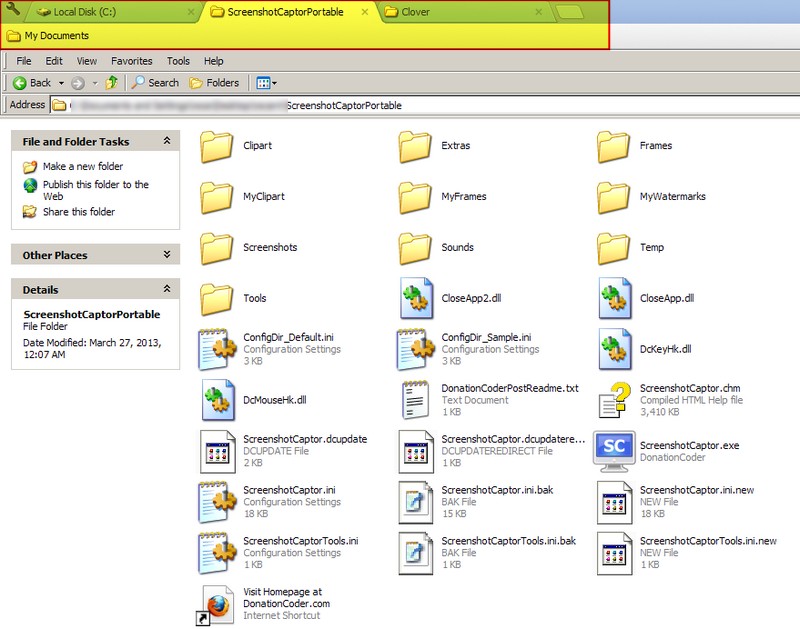
    Clover (Version: 3.0.258.0) is a freeware Windows Explorer extension that adds tabs to the explorer window.

    Clover

    Those who use Windows’ own explorer to navigate through folders know that it is cumbersome and not exactly efficient. Some use alternatives to Windows Explorer itself, XYplorer for example, and others use dock menus and shortcuts managers.

    Clover take a slightly different approach not as common as the aforementioned alternatives, docks and shortcuts. It adds a Google Chrome type layer to the top of the Explorer window. Much like Chrome there is the now familiar blank new tab button (one of Google’s more interesting ‘ideas’ outside of their annual Spring cleaning)  and the bookmark bar.

    The same Ctrl+T opens a new tab, Ctrl+Tab switches between open tabs, Ctrl+W closes a tab and Ctrl+D bookmarks a tab. It is also possible to drag a folder from Windows’ own Address bar to create a bookmark.

    The program settings include themes (downloaded crx files), import/export bookmarks (html file), warn before closing a tab and a toggle to always show the bookmark bar. Clover runs on XP and newer.

  • pViewer: Another Minimalist Image Viewer

    pViewer (Version: 1.6) is a minimalist open source image viewer. It has no menu and little distraction.

    pViewer

    pViewer’s options are available via right click and there are keyboard shortcuts for its features. These features are Send To Dropbox Public folder, rename, slideshow, rotate, flip, resize and read exif data. It supports effects such as invert, grayscale, sharpen, blur, brightness, contrast, tint, black border, white border and red eye correction. Additionally there is support for .zip, .rar, .cbz, .cbr archives with Manga and Comic mode displaying two images side by side.

    The batch operations – resize, rotate, convert, rename, grayscale, invert white or back border – work on all images in the current directory and sometimes even without any additional prompts. For example Add White Border just goes to work and creates a subfolder containing the output.

    pViewer

    The program settings has options for drawing and text color and fonts. These are not accessible via the right and looking at the keyboard shortcuts one sees the following

    Crop: Ctrl+Click to make a selection, release the mouse button while still pressing Ctrl. Writing on the image: press Shift+Click on the picture to add text, write what you want, move it wherever you want with the mouse, press Ctrl+Enter.
    Drawing a rectangle: Alt+Click and drag to draw, then you can save the edited image. Filling the rectangle: After drawing a rectangle you can fill it with the same color by pressing TAB

    It is less than 1MB unzipped, doesn’t require installation and should run on Windows XP and newer.
    Thanks to commenter andy for pointing out that it requires the .NET framework 4.0