Category: Software Reviews

  • Giveaway : SuperLauncher Program Launcher And Reminder

    Grab a copy of PCWinSoft’s SuperLauncher, normally $29.95. Click the link below, fill in your email and details to get the activation key.

    SuperLauncher (Version: 1.9.3.00) is a program launcher and also a task scheduler and reminder. It can help make computer usage somewhat more efficient.

    SuperLauncher

    After installation it can be accessed via its tray icon, or if enabled, its floating icon on the desktop. By default it includes some common shortcuts. These shortcuts include calculator, command prompt, recycle bin, notepad, restart computer, shut down computer and shortcuts to yahoo, msn, google and others. Most of these already have a hot key assigned to them, shown in the program’s Shortcut Manager. These hot keys are editable using the Edit button.

    New shortcuts are added by clicking the New button then typing a name, choosing one of application, file, folder, website, batch file, reminder message  or insert text and then setting parameters as applicable. When adding a file, folder, batch file or application shortcut use the Get button to browse to its path. Test any shortcuts with the Execute option (either right click on the entry to access the option or use the menu in the program’s Shortcut Manager ) and then set its hot keys, delete it and schedule it the same way.

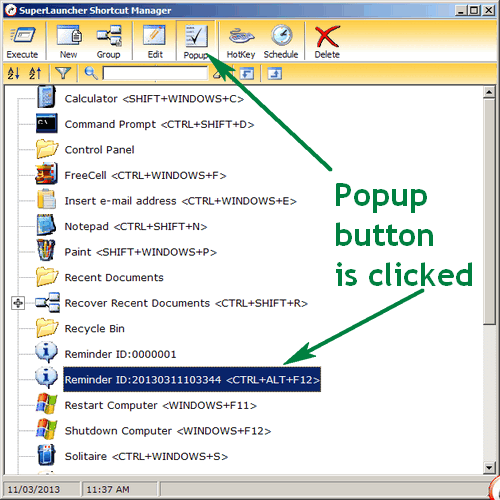
    The reminder message provides a pop up at the scheduled time if the Popup button is pressed or active when it is shown (see image below) . It can be set to a recurring reminder via the Advanced key in the scheduling window. When an insert text is created use the Ctrl+Win+left mouse buttons to activate a popup menu that lists the text configured with SuperLauncher.
    SuperLauncher

    There is brief tutorial available at first launch or anytime via its tray icon. SuperLauncher can export and import its database for backup and restore, is available in six languages and works on Windows 2000 and newer.

    Giveaway link:
    http://www.pcwinsoft.com/promotion/RGdotSP/registration.asp

  • A Note: Open Source Sticky Notes

    A Note (Version: 4.2.4) is an open source desktop sticky notes program. It is lightweight and a portable version is available via portableapps.com

    A Note

    By default a new sticky note can be created by a single click on the program’s tray icon or by right clicking it. Sticky notes resize automatically when text is added, they can have different background colors, text colors and fonts. By default every note has three buttons. From left to right the first is the slide or dock, this docks note(s) to either the right or left side of the screen. The second is the minimize or maximize button which in A Note’s case is like roll up and roll down. The third is delete. A-Note has a built-in recycle bin with restore so deleted sticky notes can be restored later. Right clicking inside a note one can change the note title – also possible by double clicking inside the title area – and also assign an (audio) alarm to the note.

    The program options include the following. Changing the default new note title and default note color. Altering the behaviour when tray icon is single clicked or double clicked. Setting a transparency for notes in normal and minimized states. Setting a hot key to show notes and setting a maximum number for notes held in the program’s recycle bin. Adding strikeout, bold, underline, italic and bullet point to the note toolbar is also possible and finally one can set the language and character set. A Note currently supports 16 languages.

    Notes can also be printed or emailed. A Note should run on all Windows versions.

  • Wordz: Freeware Word Processor

    Wordz (Version: 1.0) is a freeware word processor that is a lightweight and quick alternative for basic writing. Documents are saved in rtf or plain txt files and an export as pdf feature is available as well.

    Wordz, Word Processor

    Wordz comes with British English, American English, French, German and Spanish dictionaries and includes a live spell checker similar to Microsoft Word. The spelling options (Edit —> Spelling Options) let the user choose which dictionaries to load, disable the live spell checker or automatic corrector, ignore upper case words, ignore words containing numbers, prompt on repeated words and automatically correct dual capitals (For example HEllo is corrected to Hello). Image and object (clipart, scans, sound clips, etc.) inserts are supported. Additionally there are the usual formatting options like color, font, alignment plus insert date, line spacing, subscript, superscript, ordered list, paragraph spacing and paragraph margin.

    An useful additional feature is Additional Reading where a highlighted word can be looked up on Google, Wikipedia, YouTube, Thesaurus and Dictionary. Also if a highlighted word is linked (using the Link button) it will become link to its Wikipedia page. Highlight and right click the text to add any custom, non-wikipedia, link.

    Wordz comes with an installer but its folder can be copied for portable use. It should run on all Windows versions.

  • Black: Minimalist File Manager

    Black (Version: 1.40) is a no install, lightweight and less than 100KB unzipped freeware file manager. It is two pane and only supports a subset of features common to most file managers but at its size it’s a reasonable option.

    Black, File Manager

    Its basic features are copy, move, rename and delete. The rename operation can be applied to a group of files. This requires choosing the files by selecting them all (the red icon) or by right clicking a set – which turns the file names red. Rename rules include increment, counter, extension, size, time, date and case.

    The program’s search tool is not the fastest and seems to only find exact matches, including extensions, by default. See images below for search results when I searched for ‘homer’.

    Black, File Manager

    It includes shortcuts to few systems folders and the command prompt.

    Black, File Manager

    Black should run on all Windows versions.

  • Redhaven Outline: Freeware Notes Organization

    Redhaven Outline (Version: 2.3.6.3736) is a freeware (donationware) outliner. A repository to not only write information down but to have it organized as naturally as possibly. Outlining or organizing software, much like a traditional pen and paper method, work differently for everyone and the software created for such purpose may or may not suit everyone at first or at all. First use of a software like Redhaven Outline is not necessarily easy or intuitive. Admittedly writing about such software is not very easy either, as you will notice when I describe some of Redhaven Outline’s features below.

    Redhaven Outline

    Redhaven Outline can hold and keep open several outlines or databases. One can start a new outline via its file menu, start new nodes (via right click in the node tree area) and start typing or just bring in text written elsewhere. The first line of text written in a node becomes its title so the node title gives an indication of its content, this is one example of how Redhaven Outline manages organization. Nodes can be copied and moved across an outline to better organize thoughts and notes. Nodes can be colored and use different fonts to add emphasis. Child nodes are created from text and Redhaven Outline treats new lines and tabs as child nodes automatically.

    Redhaven Outline has a good search features to find any word or phrase anywhere and using the Summary and Key Words (much like tags) fields provide a better method for future information retrieval. Using key words inside nodes is perhaps another way of maximizing an outliner’s usefulness. Searches can be saved for future re-use (see the bottom of the search dialog). There is also a ‘Build Reference Search’ that saves a search inside a node. This is another feature whose usefulness is not necessarily apparent at first or may not work for everybody because one needs to be organized about creating them to be organized later!

    Redhaven Outline

    The program can also create reports or exports outlines for external viewing. External references can be added with links to sites, files, sounds or images. Add the link or path and when needed click the Reference button to launch the file.

    There is lots to be said about any outliner but probably the best way is to use it, read its tutorial and also in this case go to http://www.youtube.com/user/RedhavenOutline to watch tutorial videos (one can also launch the video tutorials within Redhaven Outline by following the external reference links.) Redhaven Outline runs on Windows 2000 and newer.

  • Easy Sticky Notes With Simple Sticky Notes

    Simple Sticky Notes (Version: 2.0.0.0) is a freeware and lightweight desktop sticky notes program.

    Simple Sticky Notes

    Double click its tray icon to create a new note. Double click in a note’s title area to roll it up, resize using its corner and hide it using the x button. The arrow button provides access to notes features such color, opacity, title edit (F2), share (on Facebook, twitter or via email), alarm, print, delete, minimize, and always on top. The Alt+N keys are another way to create new notes and there are several other shortcuts to work with and format text like bold (Ctrl+B), bullet list (Ctrl+Shift+L), double line space (Ctrl+2), Insert date and time (Ctrl+D) and others. Right clicking a highlighted text offers the same formatting options plus a search using google one.

    Simple Sticky Notes’ settings include options to show notes on program startup, changing the default new note appearance, configuring hotkeys which include interesting ones such Go to next note (Alt+G) and New note from clipboard (Alt+V), choosing a sound for the alarm, picking from one of 11 languages and importing, restoring, backing up and if required changing the default database location.

    Simple Sticky Notes runs on Windows XP and newer, including Windows 8.

  • Saint Paint Studio: Simple Freeware Image Editor

    Saint Paint Studio (Version: 18.0) is a freeware image editor. It offers many features that are comparable paid or shareware image editors. Input formats supported include bmp, jpg, gif, ico, cur, png, pcx, tiff, tga, wbmp, sps (its own native format) and perhaps interestingly avi.

    Saint Paint Studio

    The program toolbars offer the mostly standard like red-eye filter, blur, sharpen, gamma, emboss, dilate and others but with a few additions like the Symmetry Pattern that, for example, applies the Spray tool to symmetrical positions on an image with one click or drag – remember to press the Symmetry Pattern button before applying the Spray (see image)

    Paste image from clipboard, gif animation, a color palette that can be navigated through using the keyboard and reordered by RGB values, light to dark and dark to light colors are some of the other features of the program.  Various brushes can be constructed freehand and then resized, deformed, continuously applied by single clicks, rotated and converted to frames for animation. It is also possible to grab a whole image to use as a brush to apply on another.

    Saint Paint Studio also features layer and print support. It should work on all Windows versions.

  • FreeText: Freeware Notebook

    FreeText (Version: 1.1) is a lightweight, freeware notebook. It is somewhat basic and it is probably best suited for taking quick notes and be able to organize them on a simple page.

    FreeText
    FreeText offers the chance to create folders and subfolders or perhaps nodes in what it calls Logic Frames. A Logic Frame becomes a root node that can be expanded and collapsed and given a title. Inside the box that is then created one can start typing and also add comments anywhere by clicking Comment.

    Tables and images are supported. Tables are initially 4×4 but row(s) or column(s) can be deleted by highlighting and added by highlighting and using copy/paste. Images can be added from a file –  and saved to a file – and edited. The Edit button shows the list from the system’s right click context menu for images.

    FreeText does have basic find and replace and all notes are automatically saved and backed up with the frt extention in the system’s Document’s folder. Additionally they can be exported and imported via the File menu for use between machines although they still retain the same frt extension. FreeText works on XP and newer, including Windows 8.

  • 7 Sticky Notes: Probably The Most Complete Sticky Notes Program

    7 Sticky Notes (Version: 1.9.0) is an attractive, feature rich freeware desktop sticky notes program. When installing there is an option to run and use it in portable mode but it requires registering 3 files – ExTVwU.ocx, ExLVwU.ocx and EditCtlsU.ocx with the system – for it to work, this is done automatically if one chooses to proceed.

    7 Sticky Notes

    When first launched 7 Sticky Notes starts with a large note with an attached window to configure and customize it. Sticky notes like the default one and others can be customized with rich text features, background colors and transparency. There is also recurring alarms but also a sleep mode. The sleep mode lets the user hide a note for a set period or at a particular time and set an action too. It can shutdown, restart, log off, open a file (click the ‘Pick’ button and drag the mouse to a program window and 7 Sticky Notes will automatically enter it in the Action text field) or a command executed (anything that can be entered in Windows’ Run dialog).

    7 Sticky Notes has configurable hotkeys for creating new sticky notes, showing notes, hiding notes, switching desktops (see below for more) and opening its Notes Manager. Notes can be hidden and shown by clicking on the program’s tray icon as well.  It also features rollup and roll down, automatic sizing, note arrangements, file and image attachments (see below for more), themes, passwords for various actions such as opening the Notes Manager, unlocking notes, changing the program options and opening the program itself. There is also a restricted mode which locks all options and makes 7 Sticky Notes act like a static desktop. There is a backup feature and an online synchronization tool that works with DropBox, SkyDrive, Google Drive, SugarSync and basically any other service that syncs files. A full explanation is available at http://www.7stickynotes.com/help/onlinesync_whatis.php

    The file attachments feature has two modes. When a file is dragged over a sticky note an Attach pad becomes visible and a shortcut can be created to the file but also if the file is dropped into the Attach pad while holding down the Ctrl key it is added to the database and becomes part of it and is no longer just an external shortcut.

    7 Sticky Notes

    7 Sticky Notes has a notes manager where lots more than simple edits can be done to the notes. Notes can be imported, exported to files, locked, hidden, duplicated, searched, printed, copied, recycled and more.

    Others features different or unique to 7 Sticky Notes are multiple desktops, a desktop switcher and the Drop pad. Notes can be grouped and shown as desktops. Desktops are therefore basically categories or groups. Many desktops can be created, ordered, one chosen as the initial one or all shown together. Hotkeys and visual effects for switching between them are available in the program Options. The Drop pad to the right of the Notes Manager window is a sort of favorites area where sticky notes can be dropped into and batch operations such as search, print and move performed on them.

    7 Sticky Notes

    7 Sticky Notes deserves to be called impressive and should be highly rated. It runs on Windows 2000 and newer.

  • GloboNote: Desktop Sticky Notes

    GloboNote (Version: 1.3) is a sticky notes program that is based on Java and therefore multi-platform. It doesn’t require installation and adds a few features to make it a bit more than a simple collection of sticky notes.

    GloboNote

    Right click or double click the tray icon to create new sticky notes, the sticky note will use the current time as its title but the title can be changed with a double click on the title area – and requires the Enter key for the change to take effect. A single click on the title area rolls up the note up to minimize it.

    Right click within any note to access its features and customizations. The features include the ability to assign a note to a (recurring) alarm and reminder.  GloboNote also features some basic rich text options plus image and file attachments. Images and files can be local or web based and the web based can be saved locally if required. Notes can be assigned to groups and be in hidden, parked or visible states per group, individually or altogether. Parked status doesn’t seem to be different than any other user created group, they are probably meant as a temporary or already available group. There is a built-in calculator that will work when mathematical calculations are entered followed by the F2 key. Notes can be printed and exported into txt files. Each note can be individually colored as well using its own Prefereces (sic).

    An import option is listed when right clicking within a note but it seems to be missing as of this version. A look at the program preferences reveals more empty areas, perhaps reserved for future versions (The Security and Keys & Sounds tabs are two currently unavailable sections in the preferences). Other preferences include options to detect links, highlight the active note, change look and feel of the program much other Java based programs, change the date format, change the default note appearance, not use the time/date as the default note title and more.

    GloboNote

    Using the advanced tab of the preferences it is possible to change the location of the notes ‘repository’ to perhaps move it to the program’s own folder instead of burying it in system’s AppData folder. GloboNote works on any system that has Java 6 or higher installed.