Tag: image

  • kuView: The Lightweight Image Viewer

    kuView

    kuView is a free and opensource lightweight image viewer which tries to aid the user in collecting and managing photo and image collections. The version tested for this review, admittedly a ‘pre’ (1.7pre [178]) release, is not bug free and not the fastest. For example the thumbnail panel (available via the Panel menu) is not always populated with the images of a highlighted or chosen directory.

    kuView supports copying, moving, renaming and printing images. Re-sampling algorithms such as Lanczos and reading metadata and EXIF information associated with a photo. It can also rotate and set an image as wallpaper. One can also view directories as a slideshow, favorite a directory and move between directories, not only levels up and levels down but in ‘history’ mode as well, all using the Traverse menu.

    Two additional features less common to image viewers is the ability to manage a Picasa Web album or gallery from within kuView and also to view, complete with thumbnails, images inside an archive (*.zip, *.tar, *.gz). It also supports reading RAW images.

    kuView is unicode capable, has a set of command line interface options and is availabe either as an executable or a full blown installer. It should run on all recent Windows versions.

  • Freeware TSR Watermark Image Protects Your Images

    TSR Watermark Image is a freeware tool for adding text, images or watermarks to your images. TSR Watermark Image makes it easy to watermark a series of images because it works with a source folder – where the images may reside. The user can then configure the destination folder keeping the originals untouched.

    The output format, quality, transparency and – the preservation of – EXIF data can then be configured. The position of the watermark itself can also be configured from nine placement options like center, lower left and others. After placing it in one of the nine locations TSR Watermark Image also offers additional control over that location via the ‘relative offset’ settings.

    Finally one can choose to do watermarks by using or overlaying another image or to simply add a text watermark. One useful additional feature is that a user can change the size of the watermark relative to the original images’ sizes so that one can choose to watermark a smaller or larger portion of the images. When adding a text watermark the font, color and style of the text is configurable as well. Note that by default TSR Watermark Image adds the watermark at a 270 degrees angle (see image), this may or may not be the best angle but as with everything else this is also configurable.

    TSR Watermark Image is free for personal use and also available in a portable version.

  • Image Tuner Is Your Basic Image Editor

    Image Tuner Freeware

    Image Tuner is a lightweight freeware which works on images or series of images and applies a set of basic but simple and useful tasks to them. Pictures or a folder of pictures are added by dragging them into the program window or by using the Add Folder or Add Images buttons. The images will then be listed and previews of them can be seen on the top right. On the lower left a destination folder is chosen and any of the available options checked.

    Pictures can be resized to one of many preset sizes in the available drop down or to a custom size by clicking the icon immediately to the right of the drop down list.

    Images can also be converted to and from *.jpg, *.png, *.gif, *.bmp and *.tiff. The icon to the right opens up the program settings relevant to each format.

    Images can also be renamed. In the text area one can for example type “picture_” (without the quotes). This will produce output images named picture_1, picture_2 and so on.

    The Add Watermark option allows the user to browse to another image which will be overlayed or watermarked on top of the ones in the image list.

    The program settings include options for each image format such as out put quality and others, as mentioned earlier, relevant to the image format. The settings also include positioning and transparency settings for the watermark option and also the option to maintain the proportions of the original images when resizing. Additionally the choice of filters and interpolations used to generate out put images are listed and can be chosen, these include the default and common Lanczos3 and others.

    Image Tuner runs on Windows 98, ME, NT, 2000, XP, Vista and 7 including 32 and 64 bit versions.

  • Simple Freeware: Screenshoter And Easy Image Modifier


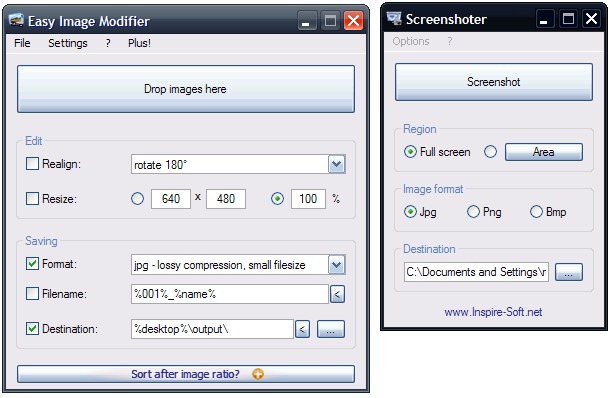
    Screenshoter is a basic, no-install utility to take or capture screenshots quickly and easily. Double click the program executable, choose full screen or area – to capture an area click on the area button, after choosing the area radio button, then click and hold the left mouse button and drag to choose a rectangular area – and then simply click the screenshot button. The image’s format can be changed from the default *.jpg to either *.png or *.bmp and the destination directory can be chosen too. Screenshoter’s options include controlling the name of the captured image and the quality of the *.jpg.

    Easy Image Modifier from the same author is also no-install and works by either dragging images into the program window or by using the load option from the File menu. Images can be realigned, that is they can be rotated 90 and 180 degrees or flipped horizontally and vertically and resized by pixels or by percentage. The out put format can be one of *.jpg, *.png or *.bmp. Output file name can be configured to include any combination of a numbered sequence, it’s original name or size. The destination or output directory is configurable as well. The settings menu includes options to exit the program after processing images or to load or launch the output images. There is also an ‘Additional’ option where one can choose to sort images by such criteria as date and file size. Plus other options to maintain aspect ratio when resizing, to remove meta information (such as EXIF) and to reduce or increase the output image quality.

  • Hornil StylePix: Feature Packed And Freeware Photoshop Alternative

    Hornil StylePix, Freeware Photoshop Alternative

    Hornil StylePix is an impressive Photoshop replacement that is not only freeware but is only 1.5MB in size. The layout is similar to that of the expensive Adobe product. Not unlike other free Photoshop alternatives it supports a lot of the features or functions of the much bigger product and does them reasonably well.

    Hornil StylePix’s features include the likes of lasso (free, polygonal and others and all with extra settings to increase, decrease, fill and generally work with the selected region), erase, spray and an easy way to draw shapes.

    Walking through the program menu, the following are also available.

    The file menu: Batch processing with control over output size, name, orientation and filter. Browsing, previewing and navigating folders from within the program. Setting images as wallpaper.

    The edit menu: The usual series of tools like brush, clone, fill, color drop, text, zoom, transform, fix red eye and others. Here is also where one can use Hornil StylePix’s support for multiple undo levels in addition to the histogram.

    The image menu: Rotate, resize, duplicate and crop.

    The object menu: ‘Inserting’ images into other images and working with them as groups and then aligning, blending and layering (the image shows two pictures ‘grouped’ together)

    The Filter menu features a list of filters including the likes of noise, sketch, glow, blur and others.

    The view menu : Grid, ruler, and zoom. Also full screen mode and slideshow for the current image’s folder. This is also where the program options reside where the slideshow, interface grid, program skin and other settings are configured.

    The Window menu arranges windows and preserves or saves the layout for future sessions.

    A pro version with layer styles such as emboss, shadow and glow is also available. Hornil StylePix runs on Windows XP and newer PCs.

  • Who Needs Photoshop When You Can Have Fotografix!

    Fotografix

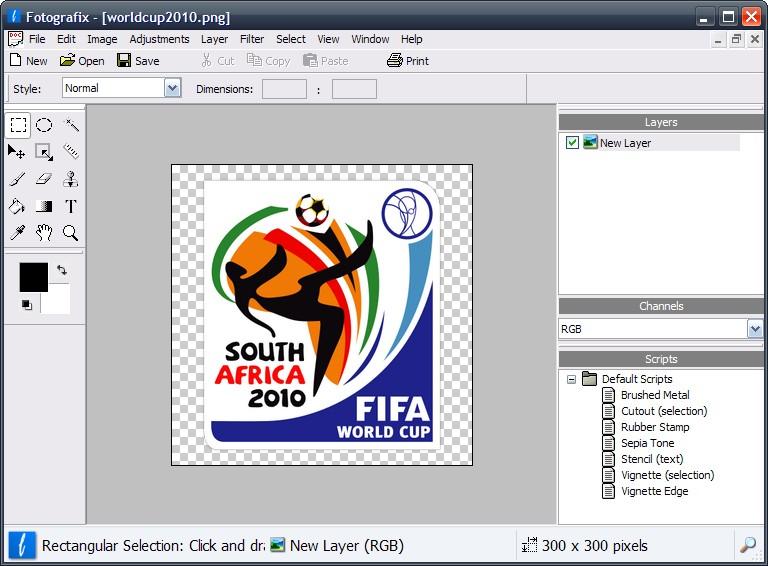
    Fotografix is very much a mini version of Photoshop with its similar menu structure and a good number of (perhaps more basic) features familiar to Photoshop users. It even supports Photoshop’s PSD image format and of course imports them with layers intact.

    Looking at its menu Fotografix’s features are as follows:

    The File menu contains the usual open, save and other operations with the addition of an icon extractor.

    The Edit menu includes the likes of cut, paste, purge (current session’s history for example) and fill color with a choice of background and foreground colors plus black, white and gray.

    The Image menu contains adjustments for image and canvas and also commands like crop, flip and rotate images or layers.

    The Adjustments menu contains the brightness, contrast, color balance, levels, desaturate, invert, posterize, and threshold options.

    The Layer menu is for adding new layers and layer masks, also duplicating, renaming, rasterizing and deleting layers.

    The Filters menu contains a set including blur, emboss, offset, noise and others.

    The Select menu is for selecting and working with specific regions within an image or layer or or inverting a selection.

    The View menu is for zooming in and out or activating full screen mode.

    The Window menu is for activating the colors, layers, tools and scripts ‘palettes’ within the program window and toggling the status bar on and off.

    Fotografix also features the likes of magic wand, clone, color dropper and also a few gradient options.

    All of the above work like Photoshop in a 355KB download. Advanced features may be missing and the result of the existing features may not always be the same but Fotografix is easily worth a download.

  • Freeware Modi Is Easy Image Processing

    Modi is described by it’s author as

    Modi is a powerful and flexible batch image processor freeware with an easy to use interface…

    Modi has a simple interface. Any number of images can be added via the ‘Add Files’ button or dragged and dropped into the program window. A preview of each image can be seen either on the top right hand side or by hovering over the file name (if the quick view box is checked). Then any number of ‘modifiers’ can be added. These include add frame, resize, crop, reduce noise, auto level, sharpen, convert to black and white and others. In addition to these print EXIF, add image or text watermark and print file name are available watermark options via the same Add Image Modifier window (see image), with each being very configurable in position and format. The output path and format can be configured in the bottom of the program and a preview is also available before proceeding with the modifications.

    It is possible to save multiple operations as a preset for quicker future (batch) image processing. Modi requires the .NET Framework, does not require installation and should run on all Windows versions.

  • Greenshot: Open Source And Easy Screen Capture

    Greenshot is a lightweight program to capture parts or all of the screen. When the program is running it will, optionally, take over the Print (or Print Screen) button of the keyboard. It also uses the Ctrl, Alt and Shift keys that when clicked in conjunction with the Print key capture the active window, the whole screen or repeat the last capture respectively. When the Print key is used on its own Greenshot presents the user with a cross hairs to capture, by dragging the mouse, any rectangular region of the screen. In the program’s Preferences one can toggle off the aforementioned hotkeys and therefore use Greenshot by right clicking its tray icon. It is also possible to ask the program to capture the mouse pointer (cursor) or not. There is also a setting called ‘Use interactive window capture mode’ however I did not see anything different when it is toggled on or off.
    There are various ways to control the actions of Greenshot after the capture is done. The Output tab in the preferences lets the user choose

    • to open a capture in the program’s built-in editor,
    • to copy it to the clipboard,
    • to send it to printer,
    • to show the save as dialog box,
    • to save it without any dialog box or
    • to email it

    The same tab has the pre-configurable settings for the ‘save it without any dialog box’ option where one can define the default location for saving, naming rules and image format and quality of the capture.

    The preferences’ Print tab includes such options as fit to page, rotate to fit paper orientation and center image.

    The built-in image editor (see image, captured using Greenshot itself) lets the user draw shapes (rectangle, ellipse, line, arrow, etc.), write text or to crop the captured image. The editor’s Object menu and option, which saves *.gst format files, works as a sort of template or snippet. These *.gst files can hold shapes, arrows or text which can then be overlayed on subsequent screen captures or screen shots.

    Greenshot is fast and is a 550KB download and should work on all Windows versions.

  • Freeware Classics From Snapfiles

    SnapFiles.com, formerly known – and still accessible via – WebAttack.com has a page it calls ‘Freeware Classics’. It contains a collection of freeware ‘that have remained free’. The list is worth checking out, some of the best freeware like Wireshark, UK’s Kalender and XnView are on the list along with many others. Take a look at the full list at http://www.snapfiles.com/features/ed_classic_freeware.html

  • Image Analyzer Offers More Image Editing Features

    Image Analyzer is described by its author as

    Advanced image editing, enhancement and analysis software…plus a number of advanced features not even available in professional photo suites


    Image Analyzer

    Indeed the strength of Image Analyzer is that it is somewhat more than an average freeware or shareware image editor. Its features include the likes of resize and crop but additionally also warp. Color correction, brightness and contrast tweaks are all included but again local contrast and statistical images enhancement provide more. A number filters are also available, some of which are specialized and require calculations that take more than a few seconds to complete on a relatively older XP install for example. Skeletonize, dilation and more fall under the morphing category or menu. There are other features that include yet more complex calculation like fourier and cosine transforms. Under the help menu an expression evaluator reads like a math calculator and allows the user to check values before using the update with expression option available for the transformations menu which is located like all other advanced features under the operations menu.
    Documentation is very sparse and this is admitted on the author’s page, therefore many may not even be aware of how some of the features work and only an image expert may understand all that is available. Image Analyzer is an 841KB zipped, no install download and is good both for the relatively novice and professional image editor, but perhaps more the latter. It is also worth noting that a number of plugins are available, 3D modeling just to name one, along with some documentation on creating new ones.