Category: Software Reviews

  • WinTray Saves Taskbar Space

    WinTray is a small and simple no install script or program built using the AutoIt scripting tool that works with Windows Vista and earlier Windows versions which allows programs to be minimized to the tray instead of the taskbar therefore saving taskbar space.

    wintray

    The icon used in the tray will be that of the minimized program’s executable. The default way of activating WinTray, after running it, is to hold the shift key while minimizing. Shift can be replaced by the Ctrl key as well.

    WinTray is one of many scripts written using AutoIt, a similar program to AutoHotKey.

  • Image Analyzer Offers More Image Editing Features

    Image Analyzer is described by its author as

    Advanced image editing, enhancement and analysis software…plus a number of advanced features not even available in professional photo suites


    Image Analyzer

    Indeed the strength of Image Analyzer is that it is somewhat more than an average freeware or shareware image editor. Its features include the likes of resize and crop but additionally also warp. Color correction, brightness and contrast tweaks are all included but again local contrast and statistical images enhancement provide more. A number filters are also available, some of which are specialized and require calculations that take more than a few seconds to complete on a relatively older XP install for example. Skeletonize, dilation and more fall under the morphing category or menu. There are other features that include yet more complex calculation like fourier and cosine transforms. Under the help menu an expression evaluator reads like a math calculator and allows the user to check values before using the update with expression option available for the transformations menu which is located like all other advanced features under the operations menu.
    Documentation is very sparse and this is admitted on the author’s page, therefore many may not even be aware of how some of the features work and only an image expert may understand all that is available. Image Analyzer is an 841KB zipped, no install download and is good both for the relatively novice and professional image editor, but perhaps more the latter. It is also worth noting that a number of plugins are available, 3D modeling just to name one, along with some documentation on creating new ones.

  • ScrapBook Captures It all

    ScrapBook is a Firefox addon that is perhaps the most useful written. Using ScrapBook it is possible to capture parts or all of a web page and to save it for future reference. It is also in one sense better than bookmarking a page because as much or all of the page is saved locally as it existed at the time of the capture. It is also an alternative to taking a screenshot because all the elements are saved in a text format and can therefore prove useful in the future.
    Using ScrapBook is as simple as right clicking any where on a page and choosing the Capture Page to save the page into the root of ScrapBook’s data folder or a subfolder within it. Choosing the other option, Capture Page As provides options to save or not save images, styles or javascripts that reside on the page. Additionally it is possible to save different files that are linked on the page or to even to follow links, meaning one has the ability to download elements that are on the linked pages as well or to essentially download or capture entire web pages.
    ScrapBook’s options don’t end there. Once a page is captured, certain portions can be highlighted, an annotation or note can be added to them to ease future reference or certain paragraphs or elements can be removed by clicking on the Dom button. A page can actually be bookmarked and reside in ScrapBook’s folder as a straightforward bookmark as well. When clicking Alt+k to load ScrapBook in the Firefox sidebar all captures can be searched, not only by title but by the text inside them. Notes, which can be added by right clicking a captured item in the sidebar, add further information for and to captured pages. The Tools drop down menu that resides in the top right hand corner of the ScrapBook sidebar includes additional features such as import/export that essentially makes a back up of captures, calculation of size that provides an overview of the size of captured pages and many more.
    As of this article the current version of this superior addon is 1.3.5 and works on Firefox 3.0 to 3.5.x.

  • esyPlanner Is A Useful PIM

    esyPlanner is a freeware personal information manager that provides calendars, reminders (which it calls popups), notes and password storage.


    esyPlanner

    The program doesn’t exactly have the best or cleanest of interfaces, which somehow mirrors the author’s website as well, however it is more than adequate as a PIM. Notes can be created by using the Microsoft outlook style side panel or bar. A note can be turned into an event so that a reminder can be set, they also include a number of fields to make categorization and future search useful, these include adding an attachment to a note as well. However there is kind of an overlap with what the program calls memo – accessible via its Windows menu. There is a similar confusion differentiating between the planner and the calendar. However after a few minutes of use esyPlanner does prove to be an acceptable and good alternative to the more known personal information managers. The strength of esyPlanner might actually lie in its search capability – accessible either via its Windows menu or by clicking F3. In my test the search provided quick results from all the notes fields that I had intentionally filled.
    esyPlanner uses the SQLite database engine therefore at the very least one is not stuck with proprietary information storage.

  • PlainEdit.NET Is A Complete Text Editor

    PlainEdit.NET is described by its author as

    PlainEdit.NET is a text editor for ANSI, UTF-8 and Unicode files


    PlainEditNET

    The list of features of PlainEdit.NET are impressive and it is a very complete text editor and notepad replacement. Its features include many of expected and common set like syntax highlighting for many languages and search and replace. But even those regular features are extended in that PlainEdit.NET suports find as you go style search ala Firefox – and only few other text editors. It has such additional features as the ability to choose text encased in HTML tags only. To bookmark a line to be able to return to it any time. To insert such things as the file path, date, special characters and the output of a command line argument. For the latter one can for example choose to output the dir (directory) command to get a list of files in a certain folder inserted into the document. PlainEdit.NET can also paste or input the current clipboard content in various positions in the open file. It can convert text to and from various formats including encoding and case conversion and even to join lines or to eliminate whitespaces and lines that match certain selectable criteria. Under the Extras menu the Configure Shortcuts submenu allows the user to edit or set keyboard shortcuts for such things as launching external applications.

    PlainEdit.NET is one of the most feature rich, even beyond those mentioned in this review, and impressive text editors I have reviewed and used, it works well with ANSI, UTF-8 and Unicode files and it requires the host system to be running the 2.0 .NET framework but it is a 526KB RARed portable download. The accompanying help file however is in German only while the product site itself is available both in German and English.

  • CubicExplorer Is The Simple File Manager

    CubicExplorer is described by its author as

    CubicExplorer is a file manager which is aimed to replace Windows Explorer. It’s goal is to be easy and pleasant to use but still have enough power for more advanced usage.

    CubicExplorer has an uncluttered interface with a relatively limited amount of features. It manages to give a clean look impression to the user and remains easy enough for simple use. It has the usual and needed features in the ability to set bookmarks and remember folders. Filters to show only certain files types within folders. A quick view for internal image previews and a built-in text editor. It is also possible to set transparency levels for the program and choose one of many themes included, both these settings and options are in the View menu. It is also possible to create one’s own theme and they can be featured on the app’s forum. CubicExplorer also supports many of the typical shortcut keys and command line variables in its address bar, however it also supports breadcrumb navigation.

    The author has set up a roadmap detailing some of the features in the works. It is a registry free program and can be used without an installer in zip format. A number of screenshots are available on the program’s home page.

  • Lunascape Is The Triple Browser

    Lunascape is described by its author as

    …the world’s only triple engine browser

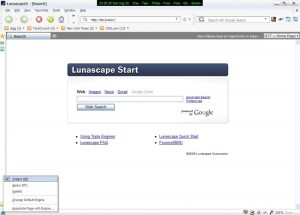
    As seen by the developers the main strength or selling point of the browser is that every page can be loaded and rendered properly without switching browsers, since 3 browser engines are available within the program. On first thought that is an excellent concept but the user may need more convincing to use Lunascape because switching between open windows of Internet Explorer, Firefox and Chrome, by pressing alt-tab for example, does not add significant time to the process of loading a page.

    Lunascape

    Probably needing to rely on different and interesting features the developers have tried to include some options and ease of use features in the default install. For example it is claimed that Internet Explorer toolbars will work without any problems, using the same browser engine as Microsoft’s browser that might seem obvious, but as with most software that may not always be the case. A set of mouse gestures are included with the ability to set one’s own. Different tabs can be loaded using different engines within the same window. The Bookmarklets located under the Tools menu offer many built-in capabilities. One can go one level up in the site’s structure, check the cookies set by the particular site that is loaded, translate pages, zoom in and out, get a tinyurl for the address, using the Webkit engine rotate the page 90 degrees and many more. Lunascape supports add-ons and a large number of themes or skins are also available. Lunascape comes with an auto hide sidebar that gives access to virtually all its settings by hovering the mouse on the left hand side of the window.

    It will likely find it difficult to compete with the browsers that everybody is more familiar with but Lunascape has most of the features users want or need.
    Another note or two of interest is that the Lunascape download is 9MB for its initial setup file and in the process of installation it downloads approximately 19MB more for the Webkit (the Chrome and Safari engine) and Gecko (the Mozilla/Firefox engine). Also as a sort of crude test I loaded the same page (only 1 tab open) using all engines and recorded the memory usage and they are as follows:

    23MB for Trident
    58MB for Gecko
    23MB for Webkit

    These results are in line with most memory use tests of Internet Explorer, Firefox and Chrome respectively. Requirements are Windows 2000 to Vista and Internet Explorer 6 installed.

  • Hyperwords Adds Even More Usability To Firefox

    Hyperwords is a firefox add-on that adds useful features and shortcuts to some common and may be not so common tasks. The default install available on the author’s website and via the Mozilla add-ons site presents a menu any time a word is highlighted or selected. Via the menu one can search google, Microsoft’s bing, the web page the word resides on, and others for the selected word. The search options do not stop there as share prices can be checked if the selected word is a stock symbol, the word can be searched for on wikipedia, wiktionary, urban dictionary and other places. A shop shortcut checks amazon, eBay and others. One can share the text via email, twitter, facebook, and other supported blogging platforms as well. In some cases even more useful is the option to copy the text as plain text or as link and send it to notepad for example. The translate option presents many languages to choose from and replaces the chosen words with the translated version, however it is not immediately obvious how the original text can be reset to its original language. The view option scans the page for occurrences of the same word, paragraphs with the same word and more.
    Hyperwords

    The settings of Hyperwords include some additional possibilities and advanced features and give a good amount of control over the appearance and behaviour of this add-on. The first and perhaps most important in terms of making Hyperwords less intrusive is the ability to make its menu not appear any time a text is selected but to use it via Firefox’s own right click context menu or to require the user to click enter after highlighting a text. The aforementioned options for this are not the only ones available as others can be chosen as the list of settings is rather extensive. The included currency converter, available when a number is highlighted, can be tweaked for example and shortcuts for its use edited. The shop services such as Amazon can be localized to search local shops. One can set how search results are presented as well with the default being a new tab in the foreground.
    Hyperwords is rather useful and the developers have provided its users ways to make it less intrusive and perhaps more interesting. Downloading it requires the acceptance of privacy policy that insists that no IP addresses or identifiable information are recorded but that stats are collected only to improve the add-on. A Windows application for use with software other than firefox is said to be in the works as well.

  • SE-Explorer Is A Sexy File Manager

    The not so clever article title aside SE-Explorer is a relatively new entry into the file manager/Windows Explorer alternative space. As of this date it is at version 0.0.30.600 and is not without its performance issues. The portable version tested on a XP computer is slow to start and the ever illusive zip or archive exploring or viewing seems to be a work in progress. I have tested and have looked for a file manager that handles archives well and have come up empty handed – with the possible exception of Ac Browser Plus featured here on RGdot – for the most part but SE-Explorer does come close in achieving it.
    SE-Explorer

    Feature-wise SE-Explorer is a good pick. Besides the aforementioned archive viewing it supports most image formats as well as viewing PDF, DOC, CHM help file and some other text based formats. Its built-in media player supports many audio and video formats which can be played as a whole folder or individually and also shuffled and repeated as a play list. A text comparer is also included as is syntax highlighting in its internal viewer, accessible by right clicking a document icon and choosing view. SE-Explorer also has a file search engine that can find files that satisfy a variety of criteria such as search ‘files by tags’ and others. The size scanner builds a drive summary and can classify or create reports based on largest files, folder sizes, file types and more. A task info tab keeps a record of file operations such as any moving and copying done and can be thought of as a log but it looks like it can include additional features in future versions of the program.
    SE-Explorer runs on Windows 2000, 2003, XP, and Vista and is one to watch out for. Many more screenshots are also available at the developer’s site.

  • Caderno Is Notepad Plus More

    Caderno is described by its author as

    Caderno is a remake of the common program “notepad”


    Caderno
    Another point the author likes to emphasis is that Caderno attempts to re-create a Firefox like experience. One important feature of Caderno that makes the aforementioned statement true, and the program very much Firefox-like, is that it comes with a ‘find as you type’ feature to search .txt or other files. It also features tabs for opening multiple documents. A session management console allows a user to work with a set number of documents and be able to reload them together. The revert feature – found under the file menu – can reload the last saved version of an open document. Caderno also supports PHP code completion, syntax highlighting for a growing number of languages and an improving though yet not full support for utf documents. A portable version is also in the works and should arrive after the author makes decisions on how to handle the program’s built-in crash recovery when working with a USB thumb drive.
    Caderno is a relatively young project and a very interesting one, it should run on all more recent versions of Windows.