Tag: capture

  • Clipboard Master: Freeware Clipboard Enhancement

    Clipboard Master

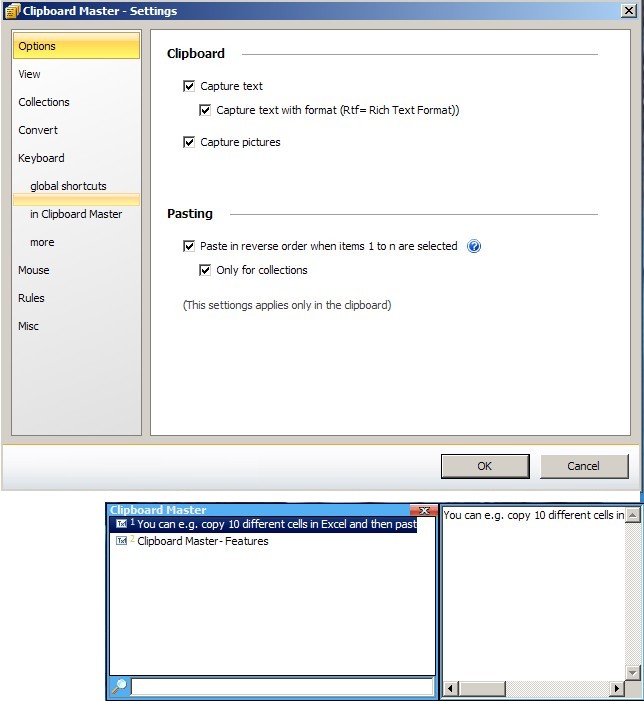
    Clipboard Master is a freeware Windows clipboard utility that enhances and makes copying and pasting more useful. Instead of the native Windows’ one clipboard item at a time Clipboard Master can hold up to 10,000 items, including images, and with a few key strokes paste them into any active application or program window. It uses the Windows + v keys to show a list of clipboard items it is holding, each identified by a number. For example to paste the 4th item into an active window press the Windows + v keys plus the 4 key (or alternatively use the mouse method, ie left click the program’s tray icon and navigate to the required clipboard and click on it). It can retain formatting or not when pasting text, the toggle being holding or not holding the Ctrl button when using either the keyboard or mouse methods just described.

    Clipboard Master comes with a set of extra tools to insert date, remove spaces – clicking on a clipboard item presents this and other ‘convert’ features – and create folders to keep any number of clipboard items together as a related group. It also has what it calls collections, here when successive Ctrl + c clicks are done quickly – less than five seconds in between each by default – they can be added to one collection and pasted altogether using the Win + Alt + F1 keys or via the program’s tray icon.

    Note that as of this review Clipboard Master is in beta (version 0.9.7) which will expire “3/2011” and therefore is not fully complete and some features like creating folders and exclusion rules (in the program’s settings) seem to either be buggy or not ready yet. Clipboard Master runs on Windows 2000 and newer versions including 64 bit ones.
  • Simple Freeware: Screenshoter And Easy Image Modifier


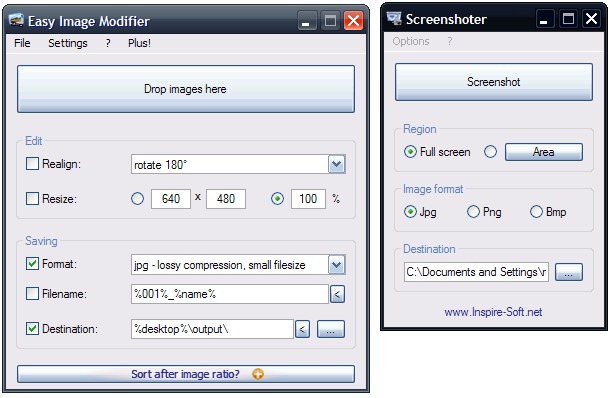
    Screenshoter is a basic, no-install utility to take or capture screenshots quickly and easily. Double click the program executable, choose full screen or area – to capture an area click on the area button, after choosing the area radio button, then click and hold the left mouse button and drag to choose a rectangular area – and then simply click the screenshot button. The image’s format can be changed from the default *.jpg to either *.png or *.bmp and the destination directory can be chosen too. Screenshoter’s options include controlling the name of the captured image and the quality of the *.jpg.

    Easy Image Modifier from the same author is also no-install and works by either dragging images into the program window or by using the load option from the File menu. Images can be realigned, that is they can be rotated 90 and 180 degrees or flipped horizontally and vertically and resized by pixels or by percentage. The out put format can be one of *.jpg, *.png or *.bmp. Output file name can be configured to include any combination of a numbered sequence, it’s original name or size. The destination or output directory is configurable as well. The settings menu includes options to exit the program after processing images or to load or launch the output images. There is also an ‘Additional’ option where one can choose to sort images by such criteria as date and file size. Plus other options to maintain aspect ratio when resizing, to remove meta information (such as EXIF) and to reduce or increase the output image quality.

  • ClipCube: Young And Easy Freeware Clipboard Utility

    ClipCube, until very recently known as Clipbox, is a small and minimalist clipboard utility that keeps an unlimited (?), until recently up to 2000, number of clipboard items for future use. The program runs in the system tray. ClipCube lets the user decide how long it keeps clipboards on file, this is set by right clicking the program icon and choosing the Keep Items entry. The available options are keeping the item(s) until the program is exited to keeping them indefinitely. The program window or interface has settings for pinning or keeping it on top and also choosing to show a full preview of a selected clipboard item or not (by toggling the eye icon on or off). One other option is showing a time stamp beside each clipboard item, this lets a user know when the clipboard was captured.

    ClipCube also supports hotkeys (see http://clipcube.wikispaces.com/Changelogs for a full list of hotkeys as they are added to each version) that ease program usage such as Enter+Ctrl+C to copy a selected clipboard item and Ctrl+Numpad[1-9]  to choose the first to ninth entry in the listed clipboard history. The latter did not work in my test of the current version (0.2.2) and additionally brings up the question of how one may be able to choose the 10th, 11th or higher numbered items in the clipboard history list.

    ClipCube is GPL licensed software and does not require installation. This program is in development and the interface and options have also changed recently so this review may be outdated in some respects by the time you read it.

  • Greenshot: Open Source And Easy Screen Capture

    Greenshot is a lightweight program to capture parts or all of the screen. When the program is running it will, optionally, take over the Print (or Print Screen) button of the keyboard. It also uses the Ctrl, Alt and Shift keys that when clicked in conjunction with the Print key capture the active window, the whole screen or repeat the last capture respectively. When the Print key is used on its own Greenshot presents the user with a cross hairs to capture, by dragging the mouse, any rectangular region of the screen. In the program’s Preferences one can toggle off the aforementioned hotkeys and therefore use Greenshot by right clicking its tray icon. It is also possible to ask the program to capture the mouse pointer (cursor) or not. There is also a setting called ‘Use interactive window capture mode’ however I did not see anything different when it is toggled on or off.
    There are various ways to control the actions of Greenshot after the capture is done. The Output tab in the preferences lets the user choose

    • to open a capture in the program’s built-in editor,
    • to copy it to the clipboard,
    • to send it to printer,
    • to show the save as dialog box,
    • to save it without any dialog box or
    • to email it

    The same tab has the pre-configurable settings for the ‘save it without any dialog box’ option where one can define the default location for saving, naming rules and image format and quality of the capture.

    The preferences’ Print tab includes such options as fit to page, rotate to fit paper orientation and center image.

    The built-in image editor (see image, captured using Greenshot itself) lets the user draw shapes (rectangle, ellipse, line, arrow, etc.), write text or to crop the captured image. The editor’s Object menu and option, which saves *.gst format files, works as a sort of template or snippet. These *.gst files can hold shapes, arrows or text which can then be overlayed on subsequent screen captures or screen shots.

    Greenshot is fast and is a 550KB download and should work on all Windows versions.

  • Signo: Freeware Hotkey Manager

    Signo is described by its author as

    …impressively complete hotkey manager…

    Upon launch Signo slows the system (reviewed on a Windows XP computer) but then settles in the tray and provides a number of defaults hotkeys or what it calls actions to automate many tasks. Signo also provides the ability to add additional user defined actions. The hotkeys can alternatively be used and defined as the # key followed by a maximum of 10 letters, therefore it is possible to (for example) press Alt+Win+k to do an action or to set #awk to do the same.

    The actions supported are Text, HTML, Open, Launch, MiniRAM, Windows, Grab and Auto. Text actions copy text into applications. It can be used to insert common snippets of text into focused applications without typing them every time. HTML is similar to text and also supports links and some other HTML elements.

    Open and Launch are similar, both open files, websites or programs, but the latter supports DOS actions or command line parameters. In this case it is not really clear why they should be two separate categories.

    Signo

    MiniRAM optimizes RAM usage (see image) via user set priorities, a feature I did not attempt to use for this review as such tools are not always easy to manage.

    Windows has a long list of pre-defined hotkeys with some applying to foreground windows and others to all open windows. These include quickly hiding a window (Ctrl+Win+H, toggle to hide and unhide foreground window) and sending it to the tray (Ctrl+Win+T). (Ctrl+Win+Up, down, left or right) snaps windows in the chosen position and (Ctrl+Win+S) makes the foreground window transparent are two of the other available actions.

    Grab is screen capture tool, it can capture entire windows, specific areas and also provides options to choose where to send the resulting capture. A settings dialog box (to the right of eye (or execute) icon) lets the user change the target folder and other capture or grab settings.

    Auto is somewhat more unique as it allows Signo to support abbreviations and to monitor typed words and correct their spelling. Abbreviations act as short forms so that one can type words faster. They are defined such that the desired entries are entered one per line with the abbreviated (or shortened) form being followed by a comma and the non-abbreviated (full) text. For the spelling feature Signo will look at user defined words (using the same format as abbreviations) and replaces misspelt ones with the correct version as defined in the ‘List of auto-corrections’.

    Signo is powerful enough with its default set of tools and hotkeys but with user added entries it can be even more useful. It should run on all Windows from 2000 to Vista and requires the .NET framework 2.0 or later.

  • ScrapBook Captures It all

    ScrapBook is a Firefox addon that is perhaps the most useful written. Using ScrapBook it is possible to capture parts or all of a web page and to save it for future reference. It is also in one sense better than bookmarking a page because as much or all of the page is saved locally as it existed at the time of the capture. It is also an alternative to taking a screenshot because all the elements are saved in a text format and can therefore prove useful in the future.
    Using ScrapBook is as simple as right clicking any where on a page and choosing the Capture Page to save the page into the root of ScrapBook’s data folder or a subfolder within it. Choosing the other option, Capture Page As provides options to save or not save images, styles or javascripts that reside on the page. Additionally it is possible to save different files that are linked on the page or to even to follow links, meaning one has the ability to download elements that are on the linked pages as well or to essentially download or capture entire web pages.
    ScrapBook’s options don’t end there. Once a page is captured, certain portions can be highlighted, an annotation or note can be added to them to ease future reference or certain paragraphs or elements can be removed by clicking on the Dom button. A page can actually be bookmarked and reside in ScrapBook’s folder as a straightforward bookmark as well. When clicking Alt+k to load ScrapBook in the Firefox sidebar all captures can be searched, not only by title but by the text inside them. Notes, which can be added by right clicking a captured item in the sidebar, add further information for and to captured pages. The Tools drop down menu that resides in the top right hand corner of the ScrapBook sidebar includes additional features such as import/export that essentially makes a back up of captures, calculation of size that provides an overview of the size of captured pages and many more.
    As of this article the current version of this superior addon is 1.3.5 and works on Firefox 3.0 to 3.5.x.

  • PicPick Tools Is The All In One Design Tool

    PicPick is described by its author as

    PicPick is an all-in-one software for software developers, graphic designers and home user

    and it packs a punch in a 942KB zipped download (an installer is available as well).
    Unzipping and running PicPick opens an initial window that writes to an .ini file. Here one chooses one of the many translations available, set it to start with Windows if needed and configure hotkeys for many of its operations. After that PicPick sits in the system tray and its every tool is a right click away.

    Whiteboard is a tool that uses the monitor space itself and is basically what it says. Using shapes, lines, arrows one can draw anything freehand and save the whole area which includes the desktop background. The Whiteboard also includes a screen magnifier. Show CrossHair displays the cursor position in x and y pixels on the screen. The interesting feature of this tool is that by clicking on one of point on the screen and then moving the mouse subsequent x,y positions are shown relative to the clicked point.
    Show Protractor, as its name suggests, uses reference points created by mouse clicks and movement to measure angles on the screen. Show Pixel Ruler allows vertical and horizontal screen measurements, right clicking on it brings up its options which in the case also includes the ability to change its transparency to be able to use it as unobtrusively as possible. Show Magnifier enlarges areas the mouse is hovering on between 2x to 10x.

    The color options includes Show Color Palette that acts as a reference for RGB, C++, Delphi and HTML color codes. With Open Color Picker colors are chosen and saved into the Color History where they can be saved in any of the aforementioned formats using the Copy Color As.

    PicPick

    Capture Settings sets the output type (to PicPick itself, to clipboard and others), the image format of the output (JPG, BMP and others) and includes support dual monitors and auto scroll to capture whole pages like those that are not fully visible on the screen and have scrollbars. Subsequent to choosing the settings a whole range of capture possibilities are included in Screen Capture. Those include active window, fullscreen, region, freehand and what is called window control that captures the aforementioned whole page. As interesting and useful as PicPick is perhaps the best part is that even at that small download it also includes an image editor with all the usual features one may needs. Invert color, blur, rotate, crop, zoom, draw shapes and many more are all here.

    An ongoing poll is running on the developer’s message board to vote for additional languages the program would be available in. PicPick is a very useful and lightweight image tool well worth a download.

  • RealWorld Paint.COM The Complete Image Editor

    A relative unknown amongst the image editing freeware choices RealWorld Paint.COM is a surprisingly powerful and useful application. It is described by its author simply as

    Web-graphic-master’s tool of choice

    RealWorld Paint.COM makes it easy, barring the advanced functions used by
    RealWorld Paint.COM
    true graphics professionals, to scale the heights of the standard Photoshop. RealWorld Paint.COM is more than sufficient for most purposes. On launch the options are to create a new raster image, open an existing image, capture the desktop or open the clipboard stored image.
    Going through the program one finds the usual requirements in crop, cut, zoom, rotate, mirror but also grid of various sizes that can be superimposed on images to make working on regions easier. Other necessities like border, transparency, color and brightness adjustment and not to mention bevel, drop shadow, fill, border, blur are all present and so is a good text editor with features like gradient text effects. The ability to import, export and use masks can be useful for organizing image editing tasks. Of course it is also possible to create layers with various filters and effect and import or export them. Of some importance is the multiple undo and redo available. Perhaps more notably it is also possible to work with photoshop compatible 8bf plugins (see images) and the ability to define, using an included editor (see images), plugins via the use of javascript. One can also use one of the few available or the one already included that takes screenshots. Perhaps a more unique feature to RealWorld is that 
    RealWorld Paint.COM
    by right clicking an image the user can define mouse gestures (up, down, cross, circle, arrow, hourglass and many more) to automate everything from saving a file to shifting its hue.

    More details can be read, discovered and seen by using this less than 7MB download and checking the software author’s wiki. Resulting images can be saved in the usual formats like JPG, GIF, BMP, PNG and others called ‘Layered image files’ and ‘RealWorld image files’ for images to be worked on later while preserving layers and effects much like other porfessional editors allow. RealWorld Paint.COM is compatible with Windows 2000, XP, Vista, or 7 and is also available in a very convenient portable download. It is not to be confused with the better known PAINT.Net application however. On the DonationCoder forums RealWorld’s author explains the choice of the name in the following way

    Yes, the Paint.COM name is controversial, a bit of a joke and something to counterweight the flood of .net apps. I am old school C++.

  • PhotoScape For All Your Image Editing Needs

    PhotoScape is described by its author as

    PhotoScape is the fun and easy photo editing software that enables you to fix and enhance photos.

    The opening screen is an attractive and clear division of functions and features that can also be accessed in tab like fashion on the top of the screen. The program also displays random flickr images but this can be turned off.
    PhotoScape

    The Viewer presents the well known explorer like interface with panes for navigation and preview. From there and via right click images can be set as wallpaper, become part of a slide show, rotated and double clicked to be viewed in full screen mode. In full screen mode a right click presents the aforementioned possibilities plus others like brighten, darken, zoom, and view EXIF info.
    The Editor presents an ever growing number of filters. Most filters, and other effects, can accessed either via the accompanying drop down or by clicking on their respective buttons. They include the very impressive ‘Bloom’ and ‘Blacklight’ filters that give life and clarity to images. Here one can also resize an image, frame it, add line, objects and shapes onto it, apply a mosaic effect, apply free and preset crops, reduce red eye, and even reduce the appearance of moles. The Batch Editor can do all of the above on a set of images.
    Page includes many templates to group a number of images into a page that can be saved. It is possible to drag and resize images to fit them within many sizes, mixes or shapes available. Frames and filters can be added as well to produce imaginative finished pages.
    PhotoScape

    Combine is another form of the Page funtion described above. Here images can be grouped vertically or horizontally to produce a strip or multipage effect. Again many sizing and framing options are available here.
    AniGif creates gif animations of course and with many required controls. Of course the delay between each animated frame can be controlled as well as the background color that fills any emtpy regions when the images are not exactly the same size. Additionally PhotoScape has 7 transition effects and crucially the ability to position images within the frames (center, top-right, etc.). The latter feature is important when the pictures are not the same exact dimensions and, when using some other animators, individual frames can be off relative to the next frame, but not with PhotoScape.
    Print is sort of an extension of Page and includes various forms that let the user visualize different layouts and print images with configurable alignment, brightness and dots per inches (dpi). The finished product can also include such things as the file name under each image.
    Splitter divides an image into different regions, be they configurable number of equal sized rows and columns or widths and heights.
    PhotoScape

    Screen Capture, captures windows, full screens, rectangular regions and copies them to the clipboard or opens them in the Editor. It is also possible to repeat the last capture.
    Color Picker provides the RGB or Hex value of any region via a zoomed and draggable ‘fountainpen’. PhotoScape also keeps a recent history of captured colors.
    Raw Convertor, useful for DSLR camera images, converts raw formats (DNG, CRW, TIFF, etc) to the web friendly JPG. And finally Rename batch renames files with several renaming templates such as including the EXIF date, today’s date, numbered increments and others in the output file names.
    PhotoScape, currently at v3.3, packs many features in a 14MB download and is one of the most complete freeware of any kind. It does not consume too much resources as it remained well under 40MB of RAM usage throughout extended use. As mentioned it is free, looking for donations, runs under all Windows from 98 to Vista, is actively developed and looking for translators as well.

  • Capture All You Want From The Internet Using Canaware NetNotes

    Canaware NetNotes allows the capture, organization and storage of whole webpages or excerpts directly from a browser. It is really easy to create a knowledgebase or simply a collection of text using NetNotes. The captured material can be categorized, highlighted and even edited using the built-in editor. The captures are organized and saved in folders that reside within libraries, all of which are fully searchable, movable and mergeable. It is further possible to email notes and captures and also to back them up in zipped format and since all are stored in HTML they remain usable even without the NetNotes application.

    netnotes

    Canaware NetNotes’ usage consists of highlighting the portion of a web page or just right clicking (Firefox requires the accompanying but optional Add-on) on an empty area of a page and choosing the Export To Canaware Netnotes option. The program then opens with the option of saving the capture and optionally editing its title and adding keywords. Prompt will be given to choose and download any attachments that are part of the capture as in elements that may exist within a webpage.
    Under the Tools—>Option menu such things as the default library, in which to automatically save new notes, is configurable but more importanly it is possible to make the captures safe by forcing NetNotes to filter out potentially dangerous elements and scripts. (see image above)
    Canaware NetNotes runs on Windows 2000 and up and requires Internet Explorer or Firefox and perhaps as a con the .Net framework. The limitation on browsers of either not being directly supported or needing an Add-on can be viewed as a negative, and when there is no support such as for Opera, to a positive because one is not forced into yet another download and can just launch the program directly to and paste the contents of the clipboard and use the program.