Category: Software Reviews

  • Freeware Notes And Clipboard Monitoring: NoteClip

    NoteClip (Version: 2.50 tested) has recently become freeware. It tries to be a clipboard monitor and note keeper in one. Using it requires a bit of getting used to because it may take time to feel comfortable with how, where and within which group (post, data, essay, etc.) a note or clipboard item is kept.

    NoteClip

    The clipboard function of NoteClip is not exactly emphasized as by default the clipboard monitoring is off (toggle it on by clicking  the ‘more’ dropdown near the top right of the program). However the program does have a secondary way of capturing text. The Ctrl+1 keys create a new note from highlighted text and Ctrl+2 appends highlighted text to the last note.

    Initially notes – captured via hot keys or created using the quick notes (Ctrl+Q) window – are sent to the draft group. New groups can be created by right clicking one of the existing groups and notes can be dragged from the draft or any other group to another.

    Various options are available when a note title is right clicked (see image). Notes can be edited by clicking on the Edit column beside them and either editing them within NoteClip or using an external editor. The program also has a search function which works across all notes and groups.

    NoteClip can read text files and create new notes using file names as their title,  this is done by choosing ‘Create from text files’ from the aforementioned ‘more’ dropdown menu. Additionally there is a built-in back up and restore tool (Accessed via the small arrow near the top right of the program.) NoteClip requires Windows XP and newer and does not write anything to the registry.

  • Giveaway: Create Movies With Wondershare Fantashow

    The giveaway has now ended, thanks everyone. Winners will be emailed soon.

    Comment below to win a copy of Wondershare Fantashow for Windows worth $49.95!

    Wondershare Fantashow is a movie or slideshow maker, with it you use your own videos, pictures and sounds to create a movie. It takes three steps to have a movie or slideshow done, viewed or shared online.

    Wondershare Fantashow

    First up is the Theme tab, here a movie or video background is chosen, either from the included sample or one downloaded from within the program. Preview each theme by clicking play. Once one is chosen the Apply button brings up the theme to the next step ready to be used.

    The Create tab comes next. Add media, either image(s), video(s) or a combination of both. Reorder them by dragging them in the timeline section. Add Subtitles too. The use of subtitles is somewhat confusing in this case, the common meaning for subtitles is different than how they are used in Wondershare Fantashow. Subtitles refer to simple text here, for example adding a title between two segments of a movie. Click on the top right of any segment within the time line to add a text directly over a video or photo. When a photo is chosen in the timeline it can be edited – button to the right of the Add Subtitles one – to add effects to it. The available effects are Invert, Equalize, BWFilter, Glow, Soble, Canvas, VignetteWhite, SquareBlur, VideoWall, TVWall, Emboss, Cartoon, Cool, Warm, Hot, Brown, Purple, MirrorLR, MirrorTB, Distort, Enlarge, Narrow, Whirl, Snow and more. It is also possible to customize the background music and one can use either the default or any locally saved audio file.

    The next and final step is the Export tab. The options are to save locally in avi, mp4, wmv or mov formats in HD or standard resolutions or save to Youtube where the program prompts for login details, category, title, description, tags and if the video is private or personal or burn to DVD where the TV standard (NTSC or PAL), disk type (D5 or D9) and video quality are chosen. It is also possible to burn an image file. Finally Wondershare Fantashow supports saving to mobile devices including iPod Touch, iPhone, iPad and HTC and Galaxy phones as well.

    Supported input formats are for images bmp, jpg, png, gif, tif, ico, dib, jpeg, jpe, jfif and tiff, for videos mp4, flv, avi, vob, 3gp, asf, mov, f4v, mpg, dpg, ts, trp, m2ts, mts, dat, wmv, mkv, dvr-ms, dv, tod and evo and for audio mp3, aac, ac3, m4a, mp2, wav, ra, ram, ape, au, aiff, aif, ogg and flac. Wondershare Fantashow requires Windows XP and newer and there is a Mac version available as well.

  • MyShelf: Multi-Platform All In One Organizer

    MyShelf (Version:1.0) is a newer software that is available for all operating systems, iDevices and Android as well. Information can be synced across devices and across a network. It strives to be both an organizer and central storage for text and images. Its interface fulfills at least one important requirement and that is notes, pictures and everything is saved using MyShelf is at least somewhat visible and in view when the program is open.

    MyShelf

    Use the Add tab to add text, image or alternatively import the current clipboard entry. A shelf or rectangular area is where items are saved, each can have a subject (type it in the yellow area when adding a shelf) and each can hold one or many text snippets or images. Tags are added via the tag tab. The tags can then be added to each shelf and will appear above them beside the shelf date.

    Editing or moving around shelves is done while in quick edit mode. Click the Quick Edit mode button and then click anywhere on any shelf. It can be dragged (move mouse over the red/black circle) elsewhere to change its order or it can deleted (button on bottom right of the shelf). Clicking the Open button that appears when hovering over a shelf opens a separate window to edit its contents. MyShelf also lets you save the file back to its original format. For example an image can be saved to any folder in its own format.

    MyShelf

    When in edit mode one can archive a shelf, this will remove it from view. Archived shelves can be viewed and if needed unarchived and brought back into the default view by switching the program view from Show Normal to Show Archived (drop down near top right of the interface).

    Shelves can have one of three sizes, click one of the three squares to the left of the aforementioned dropdown to resize them. MyShelf is java based and works on XP and newer, Mac OS, Linux systems and the aforementioned mobile devices (it is available in the App Store and Google Play).

  • FTPbox: Your Own Personal Dropbox

    FTPbox uses a hosting service you the user own to store and sync files instead of being a third party cloud service, so in this sense it is almost a self hosting Dropbox clone. It is an excellent concept but it seems that it is not the finished article.  Eventhough FTPbox is at version 1.8.5 now (a beta of the version) it is still missing some key ingredients and some that are not very clear.

    FTPbox

    FTPbox first requires the user to fill in FTP details. After the details are entered it checks the credentials and a window opens where the full path of the files can be chosen. By looking at the window one seems to be able to choose the root of a domain (for example / or www.rgdot.com) to store files. In my test this didn’t work, the files simply didn’t exist on the host side. It is perhaps only possible to create a (sub)folder on the host space (for example /ftpbox or www.rgdot.com/ftpbox).

    The options available are that a user can choose to access a file via a browser, copy its location to the clipboard or open the local version. The first didn’t work in my test therefore I am not sure what the browser interface looks like. On the local machine FTPbox creates a folder much like Dropbox, under the Documents folder. Files dropped into the folder are automatically synced.

    Right clicking on the program’s tray icon brings up a ‘Recent Files’ list, clicking on any of the listed files is the equivalent of the action or option chosen (open in browser, copy path to clipboard or open local version).

    Another issue with FTPbox is that many hosts do not allow the web space to be used for personal files. Many terms of service (TOS) only allow web site files to be stored.

    FTPbox is an open source project and should run on all recent Windows versions.

  • Aciqra : Open Source Planetarium

    Aciqra (Version: 2.2 tested) is an open source planetarium software. It is one of the more complete ones available. It features star catalogs and NGC and IC catalogs that include millions of stars and 1000s of deep sky objects such as galaxies. It offers corrections for atmospheric refraction and other enhancements to be as accurate as possible in tracking stars and other objects. It also provides extra information on objects such as asteroid and comets and events such as eclipses.

    Aciqra
    The interface of the program is not the best but it does try to stay true to the claim that it is made to be efficient. The color and contrast of the buttons is the first issue when using Aciqra. They almost mix into the sky image behind them.

    The bottom of the program from left to right features the buttons to exit, correct for refraction, track for earth’s rotation, toggle night vision mode (red color) and toggle current view information (universal time, location, field of view, right ascension, declination, azimuth and altitude).

    Aciqra

    The right hand side features the time control (view the sky in the past and future), label data which lets the user view very useful information on the objects in the sky like  magnitude brightness,  color (star temperature indicator), common name, scientific name and size. Object labels highlights constellations, stars, solar system and deep space objects. Further up the right hand side are toggles for the visibility of stars, deep sky objects, solar system objects and ground level.

    The program opens with a DOS window where it takes longer than one would expect to load the objects and other information. Also upon first install it opens with its configuration settings text file where default user location, font and many other settings can be viewed and edited. It has some of the mouse and keyboard controls to navigate and move within the sky but the scroll wheel does not zoom in and out as I expected. Aciqra includes an option to save the current sky view as an image. It is available for Linux as well.

  • PDF To JPG: Convert Your PDF Files (Free Until July 1!)

    PDF To JPG is simple shareware. It does a task that is sometimes done to avoid using pdf readers and it does it well. The program interface and startup are as simple as the function it performs. When launched the program gives the user the option to choose the conversion type. The options, which are also available within the main window are pdf to jpg, pdf to tif (almost always referred to as tiff), pdf to bmp, pdf to png and pdf to gif.

    PDF To JPG

    Once open file(s) or folder of files can be added. The program will list the pdf files that are to be converted and presents the option to narrow down or choose pages to be converted. If needed one can change the dots per inch or resolution for the images.

    PDF To JPG runs on Windows 2000 and newer and its regular current price is $29.95 but it’s free from the publisher’s site until July 1st.

  • EasyTournament: Freeware Multi-Platform Tournament Organizer

    EasyTournament aims to automate and organize sports tournaments. It is free software made to make it easier to set up and calculate games and points.

    Using EasyTournament, the user chooses a sport – soccer, football, basketball, hockey, floorball and handball are available – then defines tournament rules based on the presets made available depending on the sport chosen.

    Tournament details is first and it is where general information such as name, description, picture or logo are added. Based on the sport being played duration, rules and events can be edited or left as they are. For example changing a soccer win from 3 points to 2 or forcing away goals as the first rule to calculate group position. Teams are then entered, including players and staff. Referees details as well. The Designer tab allows the user to create a visual of the tournament and use lines and arrows to determine the structure of the tournament. Schedule can be added manually or generated automatically based on the groups and teams, here somehow one feels this step should be later in the list since next up is Group assignment where teams can be dragged and dropped into their respective groups. The Games tab does the explicit work of the earlier Schedule tab as it generates the actual schedule and shows the team names. Tables is up next and standings are generated based on the results entered in the Games tab. Finally Statistics works both automatically and manually to create stats for goals scored, penalties, assists and other combinations which can then be sorted by team or player.

    EasyTournament is both simple and complete, the tournament diagram can be exported into an image and tables and results into html and xml. It is java based and works on Windows XP and higher (available in both portable and installer) and on Linux. The download page includes a sample tournament using Euro 2008 stats. Online help is at http://easy-tournament.com/help/en/index.html


  • BImageStudio: Freeware Simple Image Editor

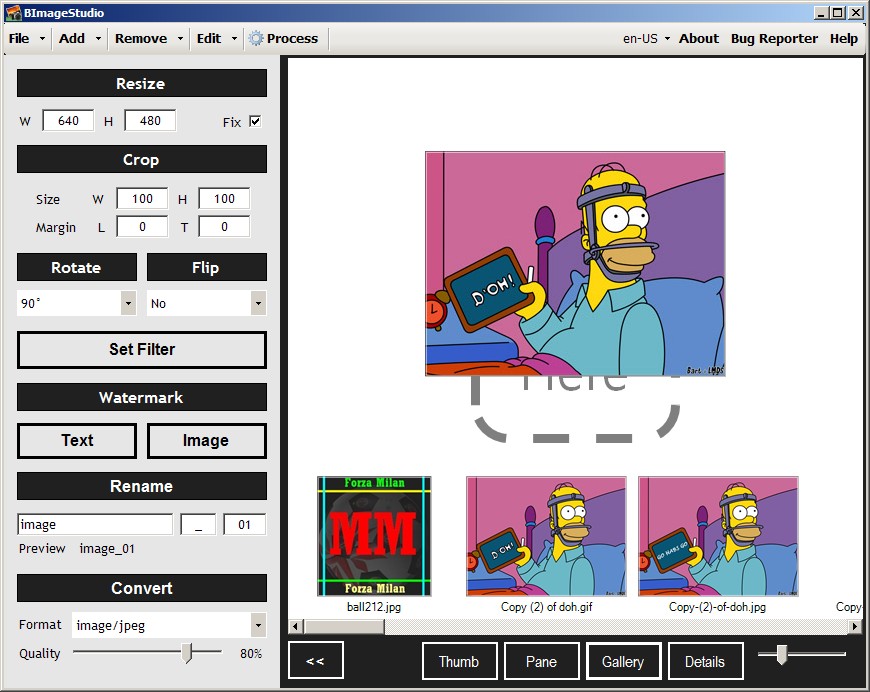
    BImageStudio (Version: 1.2.1 tested) is a freeware and simple image editor with some basic tools and an unusual method of working with images.

    BImageStudio

    Features or tools that are included are edit, resize, crop, rotate, flip, watermark (image and text), rename and convert. BImageStudio can work in batch as well. What is somewhat different about BImageStudio is how this is done. One must add individual or folder of images using the add button or drag and drop them. The black and white interface and larger than usual interface of the program shows thumb previews of the image(s) and the buttons under the preview(s) allow the user to view them in pane (like windows explorer), gallery (like windows’ flimstrip) and details (like an explorer list).

    When one or more image is selected the operations are chosen from the left hand side. Everything can be done from this left hand side, however to ‘set filter’ – use the brightness, contracts, saturation, hue and gamma sliders –  is left to a separate window.

    The watermark is also added in a separate window and lets the user choose a position for the watermark, either set to a corner or a custom one. Renaming is basic and simple using a file name, separator and increment or counter.

    Finally one must click the process button to start the operation. BImageStudio prompts the user to choose which operation to do first, second and later. For example if images are being renamed and resized the user must choose which of the two BImageStudio processes first.

    BImageStudio works on Windows XP and newer.

  • MyTetra: Cross Platform Notes Organizer

    MyTetra (Version: 1.30 tested) is an open source and cross platform note taker, notes organizer or PIM. It doesn’t have the most modern interface but it is a good option if looking for an organizer.

    MyTetra

    MyTetra is tree structured. Its structure is item (or sub item) with separate note(s) within each item or sub item (see image). It comes with a base item and sub items or siblings or other items can be added.  MyTetra has an unusual characteristic, it requires each item to be divided into notes, the nodes in the tree themselves don’t hold any text, just a list of notes that belong to them. Notes are added by clicking the Add Note (top middle of interface) button.

    Note content appear below the notes list. The note editor includes paragraph, justification, font, indent, list, table and image tools. Additionally there is an Edit HTML button to edit or work in pure HTML.

    Search is a strength of MyTetra. One can search within an open note, if necessary, by clicking the Find button to the right of the font selection dropdown but more usefully the find section occupying the lower part of the program can search across all notes and all fields (tag, author, url, title or content or text). If the find area is not visible it can be toggled on at Tools—>Find In Base. Tags belonging to an open note are visible under the note area and are clickable to aid in searching for other notes with the same tag.

    MyTetra supports copying and pasting nodes so one can create duplicates. It also supports encryption (Tools —>Settings —>Crypto) and Synchronization over a version control system like Git (Tools —>Settings —>Synchro). It is available for Linux, Windows, Mac OS X and FreeBSD.

  • Freeware, Useful Image Editor: PicEdit

    PicEdit is a useful image editor with a ribbon like menu.

    PicEdit

    It features the typical brightness, contrast, hue and saturation sliders to the left of its interface. Also on the left are the image effects mosaic, blur, sharpen, noise, invert, and grayscale. Canvas resize, rotate, copy, paste (from file or clipboard), watermark (image) and stamp (an extensible clipart library) are the other options available.

    Shapes such as polygon, rectangle, ellipse, arrow and line are also available along with others like fill and highlighted rectangular area. Each with their own relevant settings. For example if the line tool is chosen the options for thickness, opacity and style (dotted, solid, etc.) appear in the ribbon-like menu.

    Text and balloon text are also available in different styles but as may be obvious in the image it is not clear how to apply or finish inserting them on an image.

    PicEdit has a restore button that acts as multiple undos to reset the image to its initial state. However this didn’t work when I applied several random lines to an image.

    PicEdit does not write to the system registry and should run on Windows XP and newer.