Author: Reza

  • Freeware Shorts: PixBuilder Studio (Image Editor)

    PixBuilder Studio (Version: 2.1.1 as of this post) is a capable image editor. It has many features of those much more expensive than it.

    PixBuilder Studio’s features include the typical brightness, contrast, hue, saturation, color balance, auto levels, (background and foreground) fill and more but also support for layers (including rasterize and combine), gradients, masks and even more that elevates it to Photoshop levels. Transform, flip, drop shadow and filters like Gaussian blur, sharpness, emboss and dithering are worth mentioning in terms of the Photoshop comparisons but it doesn’t end there.

    Its tools are also numerous. They are pencil, line, brush (configurable type and sizes), eraser, healing brush, clone stamp, ellipse, rounded rectangle, eyedropper, 8BF plugin support and more. The select menu has many of the options one would expect. Lasso, magic wand and magnetic lasso make image and layer manipulation easy and convenient. Color selection and range make working with specific colors within images easier as well.

    PixBuilder Studio
    The browser panel (Tools—>Browser Panel) eases navigation, a full screen mode (View—>Full screen mode) cleans up the interface, Rulers (View—>Show Rulers) aid in image creation and sizing, multiple undo covers up mistakes, Palettes add many coloring modes and options.

    Much like its expensive counterpart and lookalike there is also web preview for JPG, GIF and PNG formats. It can read JPEG, GIF, PNG, BMP, PCX, PSD, TGA, ICO and PBS formats and save to all except PSD. PixBuilder Studio is optionally installed in portable mode and requires Windows XP or newer.

  • Freeware Shorts: WildBit Viewer (Image Viewer)

    WildBit Viewer (Version: 5.9 as of this post) is an image viewer complete with support for many image formats. Its interface is divided into a explorer type tree, a file list and the thumbnail or single image view.

    WildBit Viewer

    WildBit Viewer supports EXIF data and formats like the usual JPG, PNG, GIF, RAW and others but also Photoshop formats like PSD. The thumbnail viewer can be configured to show different sized thumbnails, sorted by name, size and date and any image meta data such as the aforementioned EXIF. There is also the image histogram and zoom via scrolling and geo information for viewing images using Google maps. Not forgetting animated GIF support and the ability to export image info to CSV files.

    Via the Add Button button or by dragging folders to the ‘shell toolbar’ at the bottom of the interface favorite folders can be saved for future use. WildBit Viewer also has image compare – two images side by side – and slideshows with many transition effects. Images can be set as wallpaper and edited (Tools —> Editor) as well. The editing features include most of the usual in rotate, flip, adjust, transform, remove red eye, annotate (add text or shape), acquire (from scanner), filter (lens, morph, etc.) and some more.

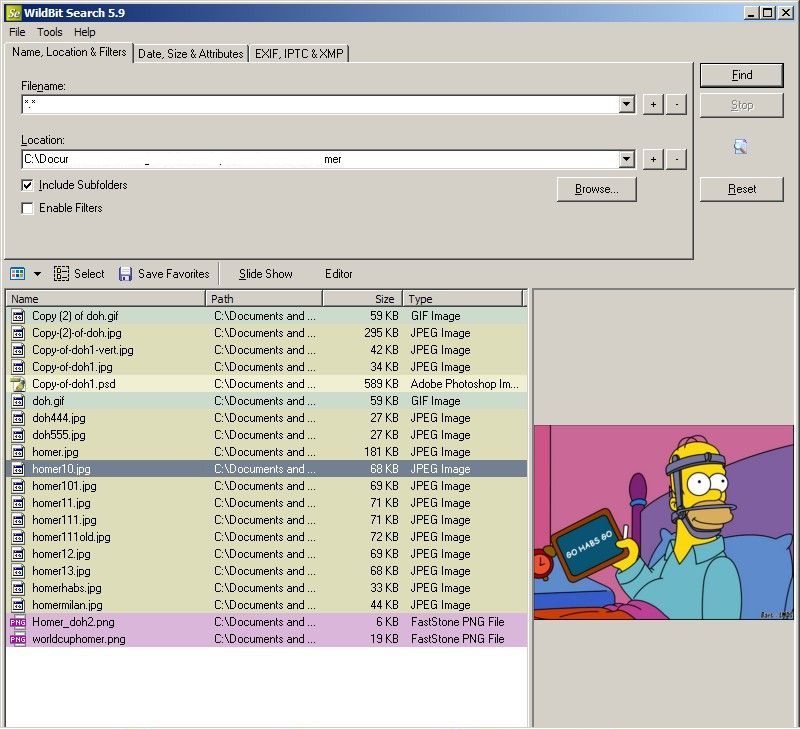
    Search is another noteworthy feature (see image below). Files within folders and optionally its subfolders can be searched by type (when Enable Filters is checked), name, location, date, size, attribute, EXIF, IPTC or XMP data. Note that the Filename text box must not be empty so use “*.*” (without the quotes) at least to start a search.

    WildBit Viewer

    WildBit Viewer works on Windows 2000 and newer and is available in both portable and installer downloads. It is free for personal use. A pro version with multimedia support and a profile switcher is available as well.

  • Freeware Shorts: Métamorphose (File And Folder Renamer)

    Métamorphose (Version: 2 (0.8.2 beta) as of this post. That is a beta of version 2) is a powerful, some may say somewhat complicated, renamer program. It works well whether working with few or thousands of files.

    The first step is to pick the files and/or folders to be renamed using the Picker tab. Here filters on file types (dropdown immediately below the browse dropdown), case sensitivity and unicode file names (right of the aforementioned file type drowdown) can be picked. Also the recursive option checked to work on subfolders to any number of depths.

    The Renamer tab can support any number of operations. Available renaming operations include putting the directory path into the file name, inserting text in any position in the files, replacing text, swapping text, modifying text (to upper case, removing certain characters, etc.) and more. Each time the operation can occur based on regular expressions, for example if a file name includes upper case it can be ignored.

    Métamorphose

    All operations can be sorted to occur in different sequences and also ‘destroyed’ to be deleted. There are options for incremental numbering and date based renaming as well (see image below). A preview is immediately shown when at least one operation is chosen.

    Métamorphose

    The Sorting panel or tab lets files be sorted manually or automatically, this basically lets the user choose to do the renaming operations in different order, for example in descending or ascending file name.

    The Help menu has examples, a help file and a page on regular expressions that may be used with the program. Métamorphose is cross platform, works on Windows 2000 and newer and is available via Ubuntu’s Update Manager among other places.

  • Freeware Shorts: M8 Free Clipboard

    M8 Free Clipboard (Version: 16.12.1 as of this post) is a clipboard enhancement program that also captures images. It can hold up to 25 clipboard items. Hovering over any item pops up a preview (see image). Items can be dragged or copied to the right hand – white – cells to be kept permanently and not be lost when the 26th item is added. There is more than one way of re-using an item. One is to maximize the program and click on the item, when it will be automatically pasted to the active window, another is to assign hot keys via the preferences.

    M8 Free Clipboard

    Items in the permanent area can be renamed, sorted A-Z and highlighted to ease later use. Both text and graphic items can be edited (via right click). The text tools available are making upper case, removing blank lines, HTML, leading spaces and more. The image tools include adding text, shapes, lines, resize (including increase!), crop, clip art, overlay with other image and more. There are several sheets that at first seem to make M8 hold more clipboard items but that doesn’t seem the case with each being a different view, certainly confusing. The program has two options menus (via Tools menu), one controls the aforementioned views with settings like ‘keep on top’ and others (see image) and another general one with settings for start with windows, start minimized, hot key activation, remind when clipboard full, screen edge activation, delays in bulk pasting, image pasting options – numbered methods that paste images reduced in size or not, supposedly dependent on the program the image is being pasted into but I could not see a difference in tests –  and many more. Other features or extras include Pictures —> Browse Picture Clips on this Sheet that turns M8 into a sort of image viewer and also a calendar (Tools —>Year Planner) where items can be added via right click and edit.

    M8 Free Clipboard

    M8 Free Clipboard does not win any ‘intuitive’ awards, and needs a look through the local help file (Help —> Main Help Index) to make some sense but is nevertheless useful as a clipboard program and should run on most Windows versions.

  • Freeware Shorts: HWM BlackBox (System Information)

    HWM BlackBox (Version: 2.3 as of this post) is a hardware or system information and profile builder. Much like others of its kind it takes a few seconds upon startup to gather information.

    The interface is tabbed and divided into Processor, Memory, Graphics, System and Benchmark. The Processor tab has information on number of cores, speed, cache and technology (90nm, etc.), bus speed, voltage, temperature and also live usage info. Memory has info on RAM slots filled or available, memory type, frequency, manufacturer, serial number CAS Latency and more. Graphics has GPU information like memory, temperature, max speed, DirectX version, raster operators and more. System has computer manufacturer, BIOS version, number of slots (PCI, etc.), fan speed and more, plus information on disc drives, optical drives and network devices. The Benchmark tab works only on Windows Vista and 7 machines. It will run various performance tests most likely only useful to gamers and overclockers.

    HWM BlackBox

    The arrow to the top right has options to save collected data to text or XML files, change refresh rates for the usage info, take screenshots of the program and a few other settings.

    Some specs may not be available depending on the hardware’s and/or BlackBox’s support to retrieve them. HWM BlackBox comes with an online upload tool (see About tab) to measure up benchmarks and system specifications with or against others. HWM BlackBox is a single exe file, exists for both 32 bit and 64 bit systems and and requires the .Net Framework 2.0.

  • Freeware Shorts: System Explorer (Everything About Your Computer)

    System Explorer (Version: 3.6.2 as of this post) bills itself as a system management tool and an explorer of system internals. It is more than just a system profile builder. System Explorer provides lots of, almost too much, information about many aspects of the system or computer in a tabbed interface. Some tabs are open and visible when starting the program, others can be opened in the Firefox new tab style by clicking the + button to the top right and choosing from the available sections. Most sections or tabs have additional capabilities via a right click. Examples include terminating processes, copying file paths to the clipboard, virus checking a file online on virustotal.com and many more.

    System Explorer

    System Explorer also has a status bar at the bottom with CPU, RAM, swap file and other usage information. A similar graphical overview is also available via the color of its tray icon or hovering over the icon itself.

    Tasks is like the windows task manager’s Applications tab, it provides a list of open programs. Processes list all running processes with process id (PID), CPU time, memory usage, ‘sub’ processes, parameters the process may be running with, online security check (click the security check icon and any details available in the system explorer database will be shown online) and more. Also like many other sections, System Explorer has a search feature near the top right.

    Modules lists the dll files the running programs are using, like some other sections this can be filtered to not show Windows’ own. Performance (see image) shows graphs for overall processor or CPU, page fault, swap, network connection, kernel and physical memory usage and lots more. Services list all services running with their driver type, name and startup type or mode (automatic, manual or disabled). Drivers lists all drivers running on the system including name, startup type and location/path. Windows is much like Tasks but has a list of all open windows, so if several instances of one program are open you see them here. Autoruns has a list of all processes or programs that run automatically on startup. Uninstaller has the shortcuts to uninstall programs. History is like an event viewer of sorts in that it contains a list of all recent actions, for example “New TCP/IP 127.0.0.1:1113 PID=3292 “Palemoon.exe””. Snapshot takes snapshots of the file system and registry and saves it for future comparison.

    System Explorer

    There are additional sections that list Users, Security Info with basic information on anti virus and Windows firewall states and Additional Info with lots of information on the system like Windows serial number, computer name, system folders, system date, audio and video codecs, fonts, file types and lots more.

    It is really necessary to explore the program or have a look at the online help to really discover all its features. System Explorer is free for personal use and runs on Windows XP and newer versions.

  • Freeware Shorts: Keepboard (Cross Platform Clipboard Manager)

    Keepboard (Version: 2.1 as of this post) is a simple, light weight clipboard manager. It supports both text and images. Unzip the 1.5MB download and double click on the Start.vbs file to run the program.

    Keepboard

    Using the default Ctrl + C keys Keepboard collects items and keeps them in Clipboard History, clicking on an item presents a preview which is most useful in the case of image items. To further ease of use Keepboard can save items to groups and keep up to 2000 items in each group. Right click on any item to send it to a group, existing or create a new group on the fly, then using the Saved Items tab view those permanently organized. Within the saved items each item can be named as well. Right click, choose Open selected item, type a name and click OK. Later you can narrow down or filter all saved items by choosing a group and typing in the Name field to find items as you type (see images).

    Keepboard

    Keepboard can be paused to not collect any clipboard content via its Clipboard menu. It is cross platform (runs on Linux and Windows machines) and requires Java.

  • Freeware Shorts: SnapShot (Screen Capture)

    SnapShot (Version: 1.0.4 as of this post) is a lightweight screen shot program or screen capture tool. It can take full screen, active window or rectangular area screen shots. By default it will only present a preview of the screenshot which the user can manually save. Using its preferences (Capture —> Preferences —> Save & Edit tab) auto save can be enabled with an option to not only choose the destination location but also a prefix for the file name. SnapShot is capable of saving files in BMP, GIF, JPG (JPEG), PCX, PNG, PSD or TIFF formats. Also from the same Preferences tab the output JPG quality can be configured. A path to an external image editor can be saved in the preferences for SnapShot to send or open the capture using it or optionally send the screen shot to the system clipboard.

    SnapShot

    SnapShot also features email and FTP to automatically send or upload a screen shot. Use the Edit menu to configure the email SMTP server and even choose the subject and text of the email and separately the FTP details.

    SnapShot supports multiple monitors and supports setting a delay for taking screen shots. It should run on all Windows versions dating back to Windows 98.

  • Picture Collage Maker Pro Thanksgiving Pack Giveaway

    Comment below for your chance to win Picture Collage Maker Pro with the thanksgiving pack from PearlMountainSoft!

    Picture Collage Maker Pro was reviewed (along with a giveaway) here on RGdot earlier in the year. We are now back with another giveaway.

    To celebrate US thanksgiving the newest edition of Picture Collage Maker Pro comes with a thanksgiving pack which adds eight additional items to the greeting card templates to use for the holiday. Download and run Picture Collage Maker Pro, enter the program using the “Create From Template” or any other button. On the left hand side choose a template to start with. To add the thanksgiving pack click the ‘Download More Templates’ button (see image below) or go straight to the PearlMountainSoft site to download the special pack, download and run the executable file and it will automatically add the pack to the program.

    Picture Collage Maker Pro

    Choose the photo tab on the bottom left and then drag and drop your photos into the template, then further customize using mask, backgorund, clipart, frame, shape or even with a calendar (Collage —> Add Calendar). Remove any items by highlighting and deleting them or unchecking them from the layers panel in the bottom right. Click on any object to move it, use the menu or buttons immediately above the collage preview area to align, rotate, add shadow, crop or do more with each individual item on the collage. When satisfied with your creation use the Share button to email, set as wallpaper, save as picture or print the collage. It is also possible to create templates (Collage —> Save As Template) for future use or to put the collage on a t-shirt or other merchandise online (Collage —> Create Custom Collage Product).

    Picture Collage Maker is available for $29.90 and Picture Collage Maker Pro, which adds the Shape, Color Frames and support for multiple page collages, for $39.90 .

    Comment below to win a Picture Collage Maker Pro plus thanksgiving pack license!

  • Freeware Shorts: Sys Information

    Sys Information (Version: 7.0 as of this post) is a system information or profile builder. Run it and after a few seconds it builds and presents a profile of the computer in a tabbed interface.

    The tabs are as follows:

    Overview tab includes operating system, edition, service pack, motherboard model and processor type. Also system uptime, (external) IP address and internet connectivity status. The check for the latter can be disabled using the program’s settings (gear icon on the top right).

    Sys Information

    Operating System has more information on the OS like system directory, install date, user and serial number or product key.

    Motherboard provides BIOS version, release date and manufacturer plus the motherbaord model and serial number.

    Memory shows live memory usage and information on the maximum RAM the system supports plus info on the RAM sticks already installed including the banks or slots they are installed on.

    Processor provides live processor usage and information on the architecture (32 bit or 64 bit), cache size, number of cores and clock speed among others.

    Graphic Card provides monitor and GPU info but in the case of the (somewhat older) system tested for this review the information was not available.

    Peripherals has information on mouse and keyboard including manufacturer, type and device ID.

    Installed Software shows a list, much like the one seen in the Add/Remove programs applet of the control panel plus a total number of programs installed. Click on a program and you can uninstall it from within Sys Information.

    Running Process is also a list of course, with a total memory usage of each process and the program or process ID. Surprisingly this requires a manual refresh (using the button on the top right hand corner).

    Harddisk shows a list of all physical, removable and CD/DVD drives attached to system, their size and device letter and using S.M.A.R.T. a temperature reading of the harddisk. Also a section on any partitions that may exist on the physical drives.

    Sys Information requires the .NET Framework 2.0 and is licensed under the GNU General Public License.