Author: Reza

  • QText For Quick Notes

    QText (Version: 2.50 as of this post) is a notepad alternative but it is best suited for quick note taking than anything else. It features a tabbed interface that saves each tab in a separate file. The notes are saved in individual txt or rtf files in the program’s application data folder but this is configurable in the Files tab of Tools—>Options.

    QText

    QText offers to create a new tab either in text or rich text with each having a slightly different toolbar. It features URL support, quick auto save and ‘regular’ auto save intervals that can be changed from the default 3 and 60 seconds.

    Hot keys Ctrl+Shift+Q (also configurable) bring up the program from the tray area and a carbon copy feature is available to keep a back up of the notes in another location, this is off by default but can be activated from the options. QText’s other features are zoom and formatting options (upper case, lower case and title case) plus sorting lines in ascending or descending orders.

    Version 3.0 in beta is coming soon with more improvements and changes to the portable version. It currently –  even in the portable version – saves notes in the application data (appdata) folder.

    QText is available in portable and installer versions and requires .NET framework 2.0.

  • System Information Is Another System Profiler

    System Information is a system profile and information utility. It presents the gathered information in a tabbed interface divided into System Info, Drive Info, Memory Info, Network Info, Installed Programs, Hardware Devices and Printers and Faxes.

    System Information

    System Info is an overview of the computer with Windows version, manufacturer, CPU type and speed and screen resolution. Drive Info has the specifications of the hard disk such as manufacturer, size, number of partitions, sector size and more. Memory Info has the RAM amount, total memory (including virtual) available and used. Network Info shows the network adapter type, machine name and MAC address. Installed Programs has a list of all programs, .NET framework, Adobe Acrobat and Internet Explorer versions installed. Hardware Devices is much like Windows’ device manager with a tree view showing processors, USB controllers and others (see image). Additional information on the devices is available when they are highlighted. Printers and Faxes provides information on peripherals and others like Microsoft XPS Document Writer and as the hardware tab before it additional info and properties are shown on the right hand side.

    The generic name of the program is sure to confuse. System Information requires .NET Framework 2.0 and should run on Windows 2000 and newer.

  • System Spec: Lots Of Information About Your PC

    System Spec (Version: 3.05 as of this post) is a system information utility that has some of the most comprehensive and complete set of information available. The initial screen provides a general system profile with the likes of Windows to BIOS version (see image) but there is lots more.
    System Spec

    System Spec divides the information it gathers into sections. These are, Personal Info, Memory Info, Display info, Disk Info, CD/DVD Info, CPU Info, BIOS Info, Internet, Installed Programs, Network, Printers, Sound, USB, Date and Time, Input Devices, Windows Version Info, Developer Info and USB Drives. A bit about the aforementioned sections follows.

    Personal Info. Windows username, install date, version, key and others.

    Memory Info. Total RAM, RAM speed, memory (RAM + virtual) totals, page file size and others.

    Display info. Monitor type, refresh frequency, GPU type, all resolutions supported by the graphics card and more.

    Disk Info. Hard disk size, (any) SMART info and file system flags.

    CD/DVD Info. Info on all optical devices installed including manufacturer, product ID and read and write speeds.

    CPU Info. A usage meter, CPU manufacturer, family, code name, voltage, clock speed, cache size and lots more.

    BIOS Info. BIOS identifier, version and date.

    Internet. Internet Explorer version, start page and other browsers detected. Explorer favorites and history.

    Installed Programs (see image below) is more impressive than most. A list of all programs installed, shortcut to uninstallers, installed location, date. Information on publishers and help info/URL if available.

    System Spec

    Network. A list of networks and network devices such as network adapter and if available a list of computers on the network.

    Printers. A list of attached printers.

    Sound. Sound card info and specs, a tone generator, shortcuts to system sounds, mixer settings and buttons to test speakers.

    USB. Number of USB controllers and info on any USB devices attached.

    Date and Time. Current time, time zone, system up time,  UTC (Coordinated Universal Time), daylight savings start and end dates and more.

    Input Devices. Information on the keyboard and mouse such as the type of mouse (number of buttons) and more.

    Windows Version Info. Root folder, service pack, 32 or 64 bit and a bit more.

    Developer Info. Java version, .NET version(s), ODBC drivers and IIS version among others.

    USB Drives. This section information that is already accessible in the section on attached devices.

    System Spec also features a whole set of commands and system shortcuts to control the system. Everything from shortcuts to safely remove USBs, start the run box, Windows Explorer, Task manager, Group Policy and hiding the taskbar (System menu). An on screen keyboard, System File Checker, Device Manager, Defrag, Scan Disk and Sys Edit (Programs menu). Standby Monitor, Eject CD and Mute Speakers and Microphone (Hardware menu).

    The File menu can save information to a CSV or HTML file and also print a selection. The Edit menu offers to save selected specs to the clipboard but this didn’t work in tests.

    System Spec is a freeware portable download and works on Windows versions going back to Windows 98.

  • KNote: Secure Note Keeping

    KNote (Version: 0.96 as of this post) is described as an advanced, secure note taking program. It is somewhat a mix of a blogging application and a wiki, borrowing a bit from the two in a password protected desktop-type interface. It is available in portable mode and optionally uploads notes into a private, unindexed webspace for sharing with others.

    KNote

    The note taking area is much like a blogging platform providing a TinyMCE toolbar that besides the usual formatting and other options includes a ‘KNote Link’ button to connect or link notes to each other similar to a wiki. KNote supports dragging or inserting links and images into notes, adding attachments to notes, tagging each note and creating journal type notes with dates as titles. Notes can also include portions of copied web pages with the format preserved pretty well. It can import notes from a TiddlyWiki HTML file.

    Log in to the program, click new note or new journal to start creating one, click done to finish and save and as mentioned optionally upload with any or all attachments intact. In the (Tiddly)Wiki tradition you can close other notes to view only the one needed and access all – including the tag list – from the right hand side list. The organizer panel on the left can group notes in their own virtual folders (right click—>add folder) and allows moving items or notes in between.

    KNote has a search function with results highlighted. KNote requires XP and newer and is free for personal use. To see a short demonstration two brief videos are available on knote.smartgoldfish.com.

  • Ethervane Echo: Multi-Featured Clipboard Manager

    Ethervane Echo is a full featured ‘keyboard centric’ clipboard extender or manager for Windows. It divides captured clipboard items into different categories based primarily on time captured and type, for example last hour and URLs and it can be tweaked for more advanced use. It does and should work when copying from most any source but it does not support images.

    The Win+Insert (can be changed in the Preferences (Tool—>Preferences—>Keyboard)) keys are the default way of bringing up the program and Esc the default way to minimize it back to the tray.

    Ethervane Echo
    Ethervane Echo’s interface is divided into views, these views can be hidden or others added (View —> Manage Quick Views). The intended features and strengths are to find the items after they have been captured using the keyboard and search (with wild card support). A good example of Ethervane Echo’s ease of use is that when the program is brought up just typing starts a search, there is no need to click in the search box, and if required pressing Esc clears the search box. The search box has basic and advanced modes, the former is search as you type and the latter requires pressing enter to start the search.

    The interface tries to give as much information as it can by showing the source, time of capture, size and type of a highlighted item and information on the total number of items in its database. Ethervane Echo has a status indicator – the little green check mark on the bottom of the interface – and it can be paused to not capture clipboard items by double clicking on that same icon.

    The basic usage uses the usual Ctrl+C keys for copying and then maximizing the program, choosing a clip using the arrow keys and then pressing Enter to paste the chosen – or even multiple clips – into the active window. Right clicking on each clip presents copy, pasting and editing options as well.

    An item can be made sticky to remain in the database forever, this can done via the right click menu, Ctrl+S or the Edit menu.

    Ethervane Echo
    The Database Maintenance section of the Preferences is important because here one can edit the program’s purging or automatic deleting schedule.

    Among other features Ethervane Echo is also capable of holding items in memory instead of on disk for privacy reasons (Preferences—>Database). It supports ignoring clips like those captured within an interval (Preferences—>Capturing Clips) of the last capture, from certain programs  (Preferences—>Application Filter), duplicates and passwords.  Setting minimum and maximum item lengths are also set in the Capturing Clips section.

    See the Keyboard Reference section of the help (or Shift+F1) for all available shortcuts. Ethervane Echo can import items from a text file or a Ditto clipboard database (Tools —> Import Clips). Ethervane Echo has been released as part of DonationCoder’s 2012 N.A.N.Y. (New Apps For The New Year) challenge, requires XP and newer and is available in both portable and installer versions.

  • Keep An Eye On System Changes With TheFolderSpy

    TheFolderSpy monitors folders so one can check for changes. The Spy in the name may conjure up a hesitation or two and the program doesn’t help the cause by having hidden and incognito modes.  In these modes the program runs in the background. However the hidden and incognito modes don’t really make the program invisible, both leave the program’s icon in the tray area, but notifications are disabled in the latter.

    TheFolderSpy

    Perhaps the best use for TheFolderSpy is to keep an eye on programs that add folders or files in places like the Documents folder when they are being installed.

    Using TheFolderSpy starts with adding an item. Choose the path to the folder – and optionally subfolders – to be monitored, if needed add file type filters and optionally execute a file when a change is detected. Created, changed, deleted or renamed are the file attributes that can be monitored.

    TheFolderSpy can be paused, made to save a log or start with Windows. It has a built-in feature to send emails when changes occur. The email feature is ready to use with gmail or any other SMTP server. The subject and content of the emails can also be set within TheFolderSpy.

    TheFolderSpy has command line parameter support to configure its modes, log file path and others. The email body has parameters as well. For example *f inserts the file name and *n the date and time of a change (See the accompanying readme.txt for others).

    TheFolderSpy is freeware, a single executable file, just over 60KB and runs on XP and newer versions of Windows. It requires .NET Framework 3.5.

  • Easy Photo Effects At Your Fingertips

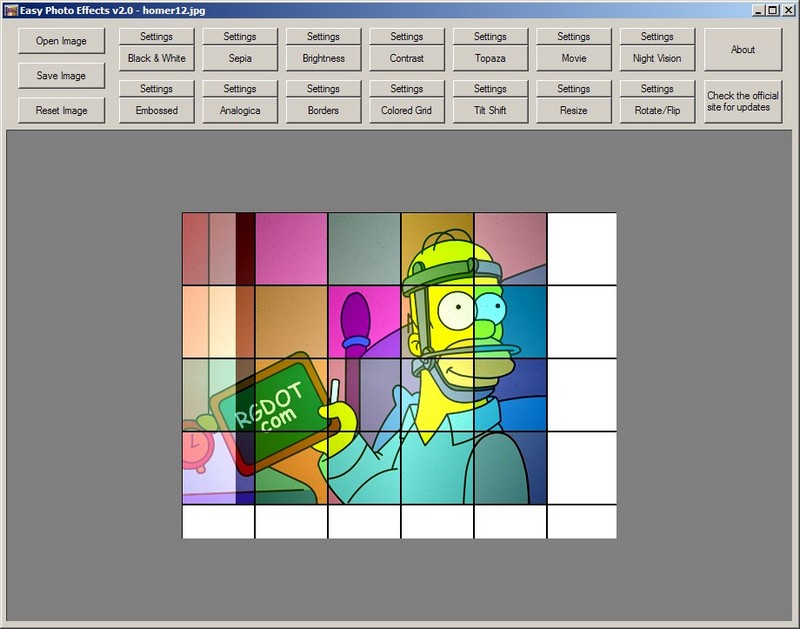
    Easy Photo Effects (Version: 2.0 as of this post) is a photo or image editor that presents all its settings or features in one screen, a departure from the usual or traditional design. It is very easy to work with, however the undo function – named ‘reset image’ – is somewhat less user friendly in that it asks for confirmation every time and as implied by its reset name is not a step by step undo, all applied effects are undone at once.

    Easy Photo Effects

    Each effect comes with its own settings button to control transparency, thickness, contrast, colors, editable night and sepia colors, preset and arbitrary resize and others that belong to the effect being used. These Easy Photo Effects effects or features are as follows: Black & White, Sepia, Brightness, Contrast, Topaza (yellow, blue mix), Movie, Night Vision, Embossed, Analogica (horizontal and vertical vignette), Borders, Colored Grid, Tilt Shift, Resize and Rotate/Flip. The image above has analogica and colored grid applied to it.

    Easy Photo Effects is true to its name and a good lightweight freeware alternative for fast image manipulation. It is a single executable file and runs on XP and newer versions of Windows.

  • Notepad Enhanced: Interesting Notepad Alternative

    Notepad Enhanced is a text editor, it does not have many outstanding features as it basically aims to be a better version of Windows’ own notepad. It supports file associations but that can be done within Windows as well. The main reason for it to be called ‘enhanced’ is its tabbed interface.

    Notepad Enhanced

    Notepad Enhanced does have a few additional features and they are contained within panels, activated using the View menu. The Document Info Panel has the word, charater and sentence count. The Preference Panel houses the program settings which among others lets the user choose how the program opens, with new blank tab or not, and also if more than one instance of Notepad Enhanced can be opened at the same time. The File View Panel is a bit more interesting or unusual though perhaps not so useful. Here Notepad Enhanced scans local drives, ‘common places’ or Windows’ recent files to load a list of text files it finds. This can be filtered and is presumably a part of the program to ease the search for files to edit.

    Notepad Enhanced requires the .NET Framework, is open source and is a simple addition to the list of many freeware text editors.

  • Giveaway: Picture Collage Maker Pro With Christmas Pack

    Earlier RGdot.com brought you two chances to win Picture Collage Maker Pro, once by itself and another with a thanksgiving pack. Now PearlMountain Technology Co. are back with another giveaway and extra offer. This time Picture Collage Maker Pro is ready with a Christmas pack.

    Picture Collage Maker Pro Christmas Pack
    Follow the download links to get Picture Collage Maker Pro or if you have Picture Collage Maker Pro installed click the Download More Templates button (see image). Alternatively go straight to http://picturecollagesoftware.com/resources/christmas-pack.html to download the all new Christmas pack.

    Run the .exe and (re-)open the program. You will have 26 additional Christmas templates.

    Comment below to win a copy of Picture Collage Maker Pro and the Christmas pack. Happy Holidays!

  • Freeware Shorts: Horizon33 (Screen Capture)

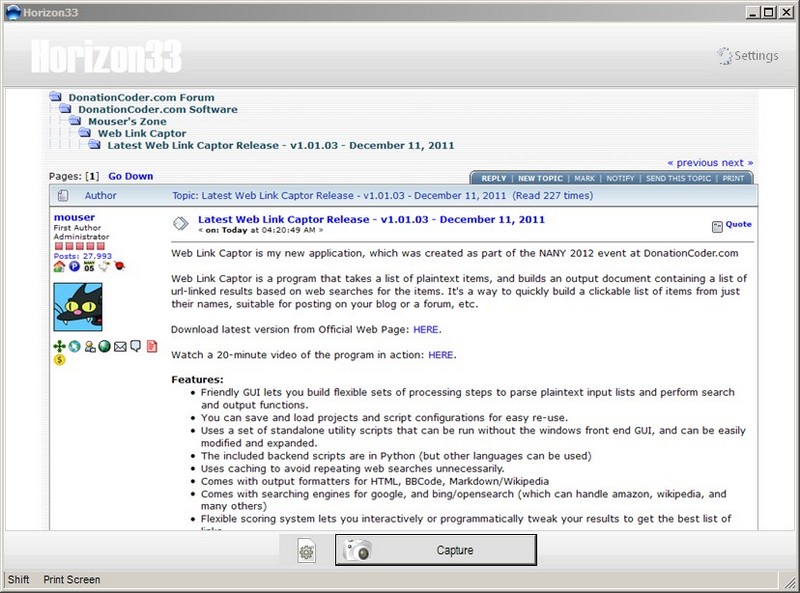
    Horizon33 is an easy to use screen capture or screenshot program. It has useful capture and save options.  Choose a combination of the options described below using the gear button to the left of the large capture button and then click the capture button itself to start taking screenshots.

    Horizon33

    There are six modes of capturing and Horizon33 can save the output in BMP, JPG, GIF or PNG formats. The capture options are full screen, active window, freehand, (configurable) fixed region, (selected) region and object. The output destination is also configurable. The options are save to file, save as, application (Microsoft Paint by default), clipboard, email, Microsoft Office (Word, PowerPoint or Excel) and upload to web (automatic saving to Imageshack). Multiple outputs is also an option with the capture ending up in more than one of the aforementioned destinations.

    Additionally Horizon33 can automatically convert to grayscale, invert color, add watermark and resize too. Finally there is an option to include the cursor in the screenshot.

    The program settings accessed via the top right button are divided into the following:

    General for things like starting with Windows, delaying before capture, pressing X to close the application, staying always on top and others. Output to choose the default image format and destination for the multiple output operation. Effects has the options for color, resize and watermark. For example, here is the place to choose the file and position of the watermark or overlay image. Hotkeys lets the user assign keyboard shortcuts for any or all of the six capture options. File Name lets the user choose the output file name. Any combination of year to second is possible. A prefix and incremental numbering is available too. Dialogs includes JPG quality and fixed region options among others.

    Horizon33 requires Windows XP and newer and is worth a download.

    Note: In the image I used Horizon33 to capture this thread on the DonationCoder.com forum.