Author: Reza

  • AstroGrep, Open Source Search

    AstroGrep is a simple search tool. It searches within files for matching text. The program supports regular expressions to search for near matches, it also supports searching within one of several files types only and has options to match whole words and within subfolders. It presents a preview of the line containing the match with the option to show line numbers and also a configurable number of lines above and below where the match is located. The Negation option reverses the search where the results are files that don’t have a match in them. AstroGrep also remembers recent paths and search queries.

    AstroGrep

    Program’s options (Tools menus) include file type exclusion and specifying an external text editor (default is Notepad) that will open when double clicking on a search result. A ‘plugin’ section enables searching within Microsoft Word (.doc, .docx) files.

    AstroGrep is open source, requires Windows XP, Vista or 7 and .Net Framework v3.5 SP1.

  • Screenshot Captor, For The Power User

    Screenshot Captor (Version: 3.00.00 portable tested for this review) is a feature rich and advanced screenshot program. Its main advantage is that it can do a lot of screenshots with minimum effort. It has eight capture modes, accessible using either the Capture menu, right clicking its tray icon or with select keyboard shortcuts. These keys (Configurable via Edit—>Preferences—>Hot keys) are for Entire workspace (Alt+PrtScr), Current screen (PrtScr), Active window (Ctrl+PrtScr), Selected region (Shift+PrtScr), Fixed size region (Ctrl+Alt+PrtScr), Windows object or scrolling window (Ctrl+Shift+PrtScr), Repeat last and finally Screen grab of Screenshot Captor’s own window. Screenshot Captor also supports delay and inclusion of the cursor in the screenshots.

    Screenshot Captor

    The program’s interface is divided into a thumbnail viewer on the left, (last) screenshot area in the middle and tools to the right (and more on top and bottom too). The tools include a slider to zoom in and out up from 0 to 1000%. Other tools include launching an external image editor, adding shapes, blurring regions, adding text, clipart, picture frame effects and many more. The filename area, at the bottom, has extra information such as the source of the captured image and a field to rename the image to something else if necessary.

    When an image is captured a dialog window lets the user take immediate action on the image captured with options to discard the screenshot, keep it, print it, save it elsewhere, copy it or its file name to the clipboard and more (see image below.)

    The Windows object or scrolling window capture mode presents a red box with keyboard shortcuts to either grab toolbars or section of windows and – this is where the advanced part comes in – have Screenshot Captor detect vertical regions, like in a long webpage, and try to capture it for you.

    Screenshot Captor

    Browse the program menu to get a feel of everything else Screenshot Captor offers. File menu has an option to add an image file as an object to an existing screenshot. Edit menu has a magic wand selection mode option to grab areas of matching color for example. SendTo menu can be configured to email a screenshot or to upload it using ZUploader. SpecialFX has watermark, splice out, glow and other enhancement features. Objects can add caption and merge or flatten images. Tools has a color picker with RGB and hex values. After browsing the menus look at the program Preferences and see the multitude of options and features available.

    Screenshot Captor is now available in a zip portable version in addition to its self extracting .exe version. It works on Windows 98 and newer. It is one program that can live up to the ‘power user’ phrase. Also see its DonationCoder forum thread.

  • Commands In Demand Delivers Lots

    Commands in Demand provides a collection of tools and shortcuts to make it a centralized all purpose utility.

    Commands in Demand

    Of note is that every time the program starts there is an error that it is “unable to add hot key Ctrl+Alt+S” (see image), in its help file this hot key combination is described as:

    …always reads the Clipboard contents (from any of its section you are working with, and even if its window is not visible), by pressing the Ctrl+Alt+S keys’ combination from your keyboard

    Going down the program’s sections Commands in Demand includes the following:

    It can kill unrepsonsive or other tasks, remove idle processes, copy text from any system error message, restart Windows Explorer, open task manager and kill a print job.

    Next is a section to manage Windows Explorer with buttons to open subfolders, go one level up or deeper, minimize or restore windows, keep the active window on top, resize the active window, add transparency to it and more.

    A Clipboard section that can read clipboard items, save them to a text file among others.

    A multi-page Desktop section to show or hide desktop icons, use a screen magnifier, an on screen keyboard, capture active or other areas of the screen and gain access to Windows 7’s GodMode control panel.

    The Devices section has shortcuts to Device Manager, open and close optical drives and safely remove USB.

    Files and Folder has a text file joiner, hash checksum calculator, a list alphabetizer tool ( that can import text files or work with manually entered  text) and a few more shortcuts.

    Graphics has a color picker, EXIF viewer and image convertor.

    Icons can extract icons from files, hide and show desktop icons and refresh them too.

    Internet has the shortcut to a translator, HOST file editor and additionally a shortcut to Google and Neave flash maps and another to search using any of 12 search engines.

    Memory and CPU has live CPU and memory usage meters and an ‘Instant memory cleaner’ button.

    Miscellaneous features a calendar that can calculate days between dates and a few ‘stress killing’ games.

    Network has the shortcut to the Network Connections window and a tool to create Network and TCP/IP statistics reports.

    System is another multipage section with shortcuts to the command prompt (normal and colored console), system folders plus an operating system ID report with common info like version, processor type, Windows product ID and more.

    SysTray can mute/unmute sound, hide/show clock and a few others.

    Taskbar can add transparency to the task bar and hide/show it.

    Text and Editing has the join files and online translation shortcuts and two potentially useful tools to separately convert Unicode and ASCII texts between upper and lower case.

    Windows Applications is simply a collection of shortcuts to things like Regedit, Task Scheduler, Character Map and others.

    The Shutdown Panel has the reboot, standby, logoff , hibernate, shutdown and monitor off buttons.

    Commands in Demand

    The Tools of Mine section is basically a launcher where the user can add any shortcut and run it (see image above).

    Commands in Demand (Version: 12.2 tested) is freeware, one zip file that doesn’t require installation and should run on Windows XP and newer.

  • Create Synchronicity: Complete Backup And Synchronization

    Create Synchronicity (Version: 5.2.1 tested for this review) is a very capable backup tool, it can synchronize and mirror folder structures. Creating a profile comes first along with choosing source and destination folders. The type of backup or synchronization can then be chosen and file types included or excluded, with regex support, if necessary. ‘Propagate Updates’ will differentiate between files updated and only those added or deleted. The Strict file time comparison check forces Create Synchronicity to check modified dates to the second so as to not miss often updated files.

    Create Synchronicity

    Right clicking on the profile name brings up options to edit settings, preview the synchronization, do the actual synchronization and also enable scheduling.

    There are three synchronization modes or types available, quoting from the developer site they are:

    Left to right (Mirror): New and modified files are copied from left to right. Deletions that occurred on the left are replicated (“mirrored”) on the right. In this case, the right folder becomes an exact copy of the left one, except that files updated on the right side are not reverted to their original state (Unless “strict mirror” is selected.).
    Left to right (Incremental): New and modified files are copied from left to right, but deletions are not. In this case, the right folder somehow keeps an incremental history of changes that occurred on the left.
    Two ways (Incremental): New and modified files are copied from left to right, and from right to left. No deletions occur. This is especially useful if changes occur also in the destination (eg. your documents on a USB stick)

    Create Synchronicity has an expert mode (enabled by adding Expert mode:True to mainconfig.ini or pressing Ctrl+Alt+E) that, among others, enables new variables and md5 integrity check on copied files.

    Create Synchronicity includes some command line support. It can also sync to network drives either by the user mapping network drives or using UNC (Uniform Naming Convention) paths.

    There are also some hidden settings available to for example create compressed (gzip or bzip2) backups.

    Every command line and every setting is fully explained on the detailed Help page. Create Synchronicity is open source, available in both portable and installer downloads. It requires Windows 2000 or newer and the .Net Framework 2.0.

  • CaptureIt Plus: Simple Screen Capture

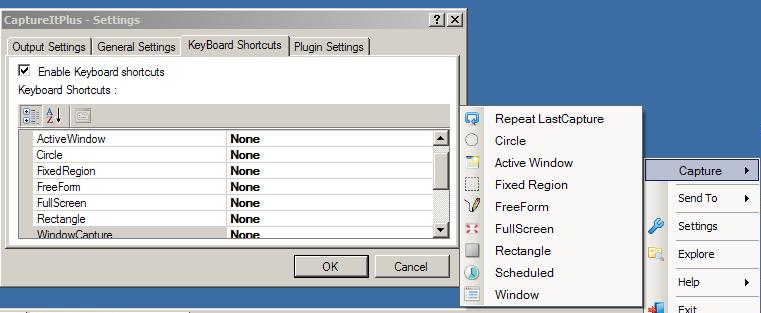
    CaptureIt Plus is a simple and small screen capture or screenshot program. It sits in the system tray and can do one of nine captures modes. It can be used using the mouse or the keyboard. Right click on the tray icon to access one of capture options or set keyboard shortcuts or hot keys to take screenshots using the keyboard.

    CaptureIt Plus

    The capture modes are Scheduled, Repeat Last Capture, Active Window, Window, Circle, Fixed Region, Free Form, Full Screen and Rectangle. The Scheduled option doesn’t have a keyboard hot key setting, when it is chosen a window prompts for a delay – “Schedule capture after X seconds” – with a choice of any one of the windows open at the time or just full screen.

    CaptureIt Plus’ output settings can be configured to save to another folder instead of the default Documents\My Pictures\CaptureItPlus location. The format and quality can be tweaked too. The output file name can be changed and there is an option to include the cursor in the capture.

    Sound notification is available. CaptureIt Plus can send captures to the clipboard, default email program, editor or printer with hot key settings available for the clipboard, email and printer options.

    CaptureIt Plus is licensed under GNU GPL and has plugin support which should be in development. The To Do section on the author’s site mentions Window scrolling – to capture webpages longer than the screen – support to come.

  • PC Wizard: Even More System Specs Than You Need

    PC Wizard (Version: 2010 1.961 as of this post) is a freeware from the same developers as CPU-Z, the popular CPU information utility. PC Wizard provides a lot of information about its host PC.

    PC Wizard

    Upon startup, which takes a few seconds, the Hardware section is first.

    Hardware has 12 sections for System Summary, Mainboard, Processor, Video, I/O ports, Drivers, Printers, Devices, Multimedia, Network, Power Status and finally Voltage, Temperatures and Fans. The information available are specs for system manufacturer, Direct X, PCI slot, Open GL, disk drives, Twain devices, UPnP, audio and video codecs, network card and connection, battery status, if applicable, and lots more.

    The Configuration section features information on Windows serial number, system uptime, default browser, default email client, control panel, desktop appearance, running processor and threads, DLL files, OLE applications, Microsoft components, fonts, Windows updates installed, uninstall info, startup info, file extensions, Window security status, services, .NET Framework and also a passwords section. Interestingly passwords detected one old and one current MSN (Live) Messenger password on the PC tested!

    The System Files section has viewers for boot.ini, system.ini, event logs, internet explorer cookies and history and a section on environment variables such as system paths, architecture and more.

    Resources section has IRQ info and a network sniffer with a list of IPs, ports and their state (listening, established, etc.)

    The Benchmark section has tools for various memory, processor and video tests and a global performance benchmark test to do them all together.

    Each section is printable and highlighted entries can be captured by the clipboard. The Tools menu has extras for enabling processor monitoring and gathering overclock information. PC Wizard is by no means the fastest program. Some info, like the DLL list for example, take a bit more than a few additional seconds to gather and present.

    PC Wizard

    PC Wizard is available in both portable and installer versions and should run on all Windows versions. As always with benchmark and system profile utilities some information may not be available if they are not supported either by the software or if they are not present on the host system.

  • Drag And Drop Notes: Freeware Notes Repository

    Drag And Drop Notes (Version: 1.1 as of this post) is a simple if somewhat unpolished note taker. Select any text in any application and drag and drop it in the program window to create a note.

    Drag And Drop Notes

    Drag And Drop Notes is basically a repository. There is no real organization in the way notes are saved, they are just added to a cell below others. It has a recycle bin (or is it history?) feature, one especially handy since a simple right click on a note deletes it. Clicking on the recycle bin icon brings up a window with deleted items ready to be restored. Double clicking a note brings up an edit window and notes can also be created manually using the + icon. Additionally images – local and web – are supported and so are local files. For images their ‘original’ location or path is saved as a note and a copy stored in the program’s Files folder (by default AgataSoft\AgataSoft Drag and Drop Notes\Data\Files) making Drag And Drop Notes a defacto document, but only image, manager.

    Notes are always saved automatically. Drag And Drop Notes works on Windows XP and newer.

  • RightNote: Powerful Notes Organizer

    RightNote is a feature packed notes organizer that can take simple notes and do more like include workable Excel spreadsheets (in its professional version). A not so limited freeware version has been recently released that is missing only a few features.

    RightNote

    I have decided to to post the complete review on the DonationCoder Mini-Reviews section at http://www.donationcoder.com/forum/index.php?topic=29681.0

    RightNote is a notes manager and organizer, it is also one able to import existing text (File—>Import). Each database is represented as a notebook, each notebook is then divided into pages (horizontally tabbed) and each page has its own notes structure within a tree…


  • iQ-Notes: Freeware Sticky Notes And More

    iQ-Notes (Version: 5.07 as of this post) is a freeware sticky notes program that has features that make it a good and fully capable notes taking one. It can create unlimited number of notes – and with a recent new feature up to 12 tabs inside each individual note.

    iQ-Notes

    iQ-Notes can back up and restore notes to and from an external source. Notes can be associated with a sound, each have their own colors and transparency, synchronized to a FTP server and sent encrypted over a network with a passphrase or password shared between the end users. A built-in clipboard manager can hold items and categorize items into URLs, email, IM and time based ones. Each clipboard item can then be saved as a note or made into a favorte clipboard item to remain there forever. iQ-Notes also features configurable hot keys for creating new notes, finding notes and hiding or unhiding all notes. It also keeps backups – daily – of all the data and has a built-in rollback feature to restore a backup.

    A new note is created via the tray icon or hot key and configured using the menu bar and drop down arrow to the top right of it. Colors, subject, title, alarm, tabs and password protection are just some of the available options. Furthermore each note can send and receive text from the clipboard, printed, emailed, saved as a text file, used as a contact list or expense entry and attached to a program window.

    iQ-Notes

    iQ-Notes also has a manage notes option which categorizes notes by date, changed date, subject and more. This window (see image above) includes a global search.

    iQ-Notes works on Windows 2000 and newer.

  • InDeep Notes: Unusual Freeware

    InDeep Notes (Version: 2.0 as of this post) is a somewhat unusual note taking application. The interface is not standard but beyond that it features some of the same minimalist aspects of a notepad type freeware. It saves notes in a ‘collection’ and each in a folder within its data folder keeping a tree like directory structure.

    InDeep Notes

    It has a search box, status bar and an action bar. The first requires a click to start a search and the latter has buttons to add empty lines, remove empty lines, export visible text as png and export note as png (both saved on the desktop). These final two features may not be the most common or useful and one created a very large non word wrapped png file that needed zooming to to be legible.

    Further options include changing the text encoding, changing the font for both the note area and the tree list and a toggle for word wrap.

    InDeep Notes is portable, runs on Windows XP, Vista and 7 and requires .Net Framework 2.0