Author: Reza

  • Freeware Xyvos System Explorer

    Xyvos System Explorer is a simple process viewer that provides potentially useful information. The information provided is divided into three sections or tabs.

    Xyvos System Explorer

    The first tab is the process explorer which is a simple version of the Windows’ task manager. It provides extra information about the processes. The path to the program, the process ID (PID), description, company name and whether or not it is digitally signed.

    The TCP/UDP Connections is perhaps more useful in providing a glimpse at which applications are accessing the internet. This may prove useful when trying to make sure malware is not attempting to dial out of a system. The path to the process, the protocol used and the local and remote addresses are given as is the state of the port or connection (listening, etc.)

    The AutoRun Entries tab is a look at startup processes and is a simple alternative to MSConfig or other startup viewers. The process path, again, is potentially useful information.

    Xyvos System Explorer should run on all Windows versions and is a single small executable.

    Note: You may notice 1e100.net addresses if you monitor your outgoing processes. It is “a Google-owned domain name used to identify the servers in our network.” that Google uses to monitor safe sites and warn you about potential attack sites. See http://support.google.com/bin/answer.py?hl=en&answer=174717

  • Dropf: Easy File Uploading

    Dropf (Version: 0.2.8.39926 Beta) attempts to make it easier to manage FTP accounts and share files. It places a box-like hovering icon on the desktop where files can be dragged and dropped into. From there they will be automatically uploaded to the user’s configured FTP space.

    dropf

    Setting up FTP account(s) comes first. Right click on the box, go to FTP Accounts and then Manage. Fill in the details and set the root and upload path or folder. The paths will be relative to the FTP login path. For example if after logging into your FTP you are at / and want the uploads to go to the root of the example.com folder add / and /example.com for root and upload respectively. dropf checks the connection and creates any folders (for example if the uploads path is example.com/uploads the uploads folder will be created) necessary. Drag and drop a file into the box, it will be uploaded and the url  copied to the clipboard automatically. Dropf also has a Take Screenshot and Upload option where it uploads the (active window) full screen. When uploading multiple files or a folder they will be zipped – if the zip option is checked in the settings – and the url of the .zip file will be copied to the clipboard.

    Right click the box to set theme (box shape), opacity and size. The program settings has options to add it to Windows’ Send To menu, make it start with Windows, auto copy uploaded files’ URLs to the clipboard and using one of goo.gl, 2d1.in or is.gd for URL shortening. The program offers to rename files to something ‘standard’, use time stamp naming, encrypt the multi-file zip upload and upload text clipboard items as a .txt file.

    A very useful feature of dropf is the upload history, a useful reference. Using the program’s tray icon the dropf box can be hidden. Dropf should work on Windows XP and newer versions.

    Note: The beta state of dropf is apparent as the box disappeared at least once when changing its size and opacity.

  • QT Writer Express: Light Freeware Word Processor

    QT Writer Express is a word processor from the makers of SSuite Office Suite. It is a simple and lightweight program that handles documents pretty well. It is perhaps best suited for simple text files but it can do more. It stands out from most of its kind in looks at least.

    QT Writer Express

    Most of QT Writer Express’ options are available to the left of the writing area. Changing font, color and size. Underline, bold and italic. Text justify, indent and zoom. List style and line spacing. All occupy a relatively large portion of the screen space.

    Additional features and options line up across the top of the program interface. These include print, print preview, find and replace, insert current date and insert special characters, images and emoticons.

    QT Writer Express supports .pdf (both read and save), .rtf, doc, .txt and SSuite’s own presentation format .ssp. The question mark button near the top left is a very short tutorial with a list of hot keys the program supports and a list of settings saved when the program is closed and reopened later such as font size and color.

    It is completely portable and the zipped download comes with MMMaster.exe, SSuite’s Mail Merge utility.

  • Kiwi System Info: Freeware Advanced System Specs

    Kiwi System Info (Version: 1.0.0 tested) is a small system profiler. It provides a lot of detailed and advanced information on the specs of a Windows PC. In addition to All and About it is divided into seven sections or groups, each with a drop down menu providing information and specs not often available elsewhere.

    Kiwi System Info

    The seven sections are Hardware Info, Data Storage, Memory, System Info, Network, User & Security and Developer. The aforementioned dropdowns are too numerous to name them all but a look at the above image gives an idea on the wealth of specifications Kiwi System Info provides.

    (Only) a few of the information available are (picked randomly):

    In Hardware Info … 1394Controller, DeviceBus, PnPEntity, PortResource, TemperatureProbe.

    In Data Storage … DiskPartition, LogicalFileGroup.

    In Memory … MemoryDeviceArray, SMBIOSMemory.

    In System Info … ProcessStartup, ProductCheck, ProtocolBinding, SystemBootConfiguration, SystemServices.

    In Network … NetworkClient, PerfRawData_Tcpip_ICMP, SystemNetworkConnections.

    In User & Security … NTEventlogFile, SecuritySetting.

    In Developer … ClassicCOMApplicationClasses, CodecFile, DCOMApplication, ODBCDriverAttribute, SoftwareFeatureParent

    Such is the detailed info that Kiwi System Info provides that it has a stop button and a timeout setting because retrieving and displaying some of the specs can and do slow the system temporarily. Kiwi System Info is a single executable only 360KB in size.

  • Ken Rename: Freeware Rename Utility

    Ken Rename (Version: 1.02) is a rename utility with a good number of features. It presents an immediate preview of renaming results. Choosing files or folders to be renamed can be done either by the buttons or menu near the top, drag and drop or selecting a folder from the explorer tree.

    Ken Rename

    The Macro tab is first and offers a bunch of options and actions to create very flexible renaming rules. The user can use the buttons to include original file name, a counter (by any starting point and increment), date, EXIF and folder name (1st, 2nd or 3rd parent folder) in the renamed files. File filtering is available to include or exclude system, archive, hidden, read only or folders plus the option to include or exclude subfolders and some file types.

    The Replace tab offers to replace matching letters in the original with something else, it has regex and match case support. It can save the replace/with combination to a preset to be re-loaded for use later on.

    The Change Case tab has options to capitalize, sentence, upper or lower case renamed files. It can be set to include or exclude either the file name or extension when it renames files.

    The Remove tab removes letters from file name and can again work on either or both the file name and extension.

    The Insert tab adds letter(s) to different positions within the file name or extension.

    The Script tab comes with several ready made (VBScript) ones to further customize renaming options. One can add other scripts as well and save them for future use. For example one of the included scripts is “reverse.vbs” to reverse the file name (eg. hello.jpg to olleh.jpg):

    Function Rename(strPath, strName, strExt, bIsFolder)

    If bIsFolder Then
    Rename = strName + strExt
    Else
    Rename = StrReverse(strName) + strExt
    End If

    End Function

    Code page and Decode work on Unicode and other formats to convert to different encoding and characters. This was not tested for this review.

    The Import list tab can import a text or list type file format (lst, txt, ini, wpl, m3u or pls). An existing file list can be loaded and worked on here.

    Ken Rename supports Unicode file names and reading ID3 tags, it has some command line support as well. It is available both in a zipped portable and installer.

  • PearlMountain Photo Watermark Review And Giveaway

    PearlMountain Technology Co. has generously provided a number of Photo Watermark licenses, valued at $19.90 each, comment below to win one!

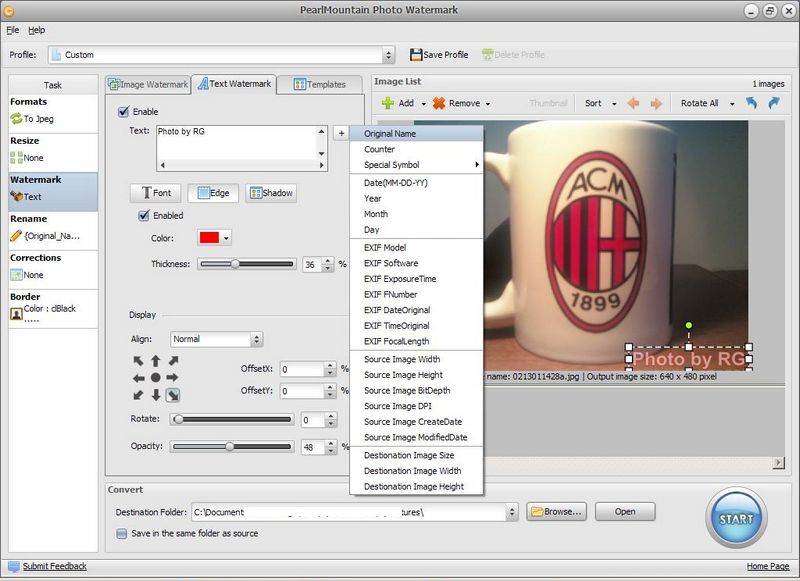
    PearlMountain Photo Watermark is one of the more advanced watermark tools available. It features several ready made text or image watermark templates for protecting photos or images. The user can also create others with one of the many options available.

    PearlMountain Photo Watermark

    On startup the user can decide to use a template or just click the Load button to go straight to the main program interface. The first step would be to add or drag and drop an image into the image area or alternatively use the Add drop down to add an image, folder of images or to import an image from the web.

    The first options are to configure text watermarks. Here any text can be added and fully configured in position (on the image), offset from that position, color, font, justification, edge or border, shadow, opacity and rotation. The text can be anything of course but the program offers lots of options for automatically adding text ranging from special symbols, EXIF meta data, date and source or destination folder path (see image above).

    The image watermark tab can be used to add an overlay image instead of text and offers the same flexibility for position, opacity and rotation as the text option. The image watermark can also be tiled to fill the whole photo. The program also comes with a set of 77 images to use for this purpose (see image below).

    PearlMountain Photo Watermark

    The task area to the left has options to modify the output image(s) to .jpg, .bmp, .tiff, .png, .gif, .pdf, .tiff or .psd. The original image can be resized and renamed. When working with a set or folder of images the output file name can be in the form of increasing increments (image1, image2, etc.) or similar to those offered for the text watermark, as mentioned earlier. Corrections has setting for brightness, contrast, saturation and sharpen/blur. Finally a border can be added to the original image.

    The workflow concludes by clicking the Start button and optionally configuring the output folder. PearlMountain Photo Watermark works on Windows 2000 and newer and is good for both 32bit and 64bit systems.

  • NoteItDown: Simple Notepad Alternative

    NoteItDown (Version: 1.2 as of this post) is a no-install, portable freeware Notepad alternative. Its features are basic and it is lightweight. It has the .rtf, rich text features such as changing text and (text and note) background color, adding or removing indent, aligning text and changing fonts.

    NoteItDown

    Notes are saved in a tree structure and while the global search (File—>Find notes or Ctrl+F3) displays results in a separate window the search function above the note area searches the current note and displays matches incrementally as in a search as you type. The Insert menu features Date and Time, Date and Time options.

    Links and email addresses are converted automatically and by default notes are saved automatically. On startup NoteItDown prompts the user to choose a location to save the notes or data, the three options available are the system application data, the program’s own or browse and pick any other folder. NoteItDown requires Microsoft .NET Framework 2.0.

  • My ViewPad Is A Simple Graphics Viewer

    My ViewPad (Version: 4.1.0 build 16212 tested) is a freeware image or graphics viewer that is also available for Mac and Linux. It supports over 100 formats, many of them both read and write. These include the common .jpg, .psd, .tiff, .raw, .ico and .gif formats to less common ones like .tga (Targa), .wmf (Windows Metafile), .pict, .psp (Paint Shop Pro) and others.

    My ViewPad

    The interface is simple and straightforward. The image area includes right click support for Copy, Rename, Delete, Properties, and somehow oddly Open With and Preview. The latter two are for opening the images using another image viewer and Windows’ own picture viewer.

    The menus on the right hand side of the program window are as follows:

    File menu features Open, Reopen, Open Recent, Open Image Folder, Next Image, Previous Image, Save, Save As, Save As Wallpaper (centered, tiled, stretched, fit and clear desktop), Print, Acquire and Delete Image.

    Info presents basic info like path, size, dpi, (jpg) mode, color space, compression and similar info depending on the image format.

    Edit features Undo, Redo, Flip, Rotate, Scale, Crop, Color Corrections (Gamma, Brightness, Contrast, Auto levels and Auto contrast), Copy, Copy Full Path, Paste, Clear and Change Checksum.

    View features Zoom in, Zoom out, Actual size, Best fit, Full screen and EXIF or Page options relevant to the various formats.

    Tools includes settings and associations. The former features Rendering quality and Raw interpolation, among others. My ViewPad should run on all Windows versions.

  • Search My Files Is Search Unlimited

    SMF or Search my Files is as its name indicates a search utility and a good one at that but the developer’s site mentions ‘duplicate files finder’ first. Of course that is not important as SMF does both and is also a copy and erase tool.

    After an initialization during startup one finds a busy interface. It presents one of the most number of options and checkboxes seen in one window. A search begins by choosing the desired search path in the tree and optionally including network drives. The search filters are then checked and include the common date modified, created and others, additionally one can use the ‘pre-filter files to search’ button to narrow these filters down further by size, attribute and specific date. Then come the almost dizzying number of options available for the results. The search results can include almost everything about the files or folders, for example if ‘file islocked’, ‘filepath is ansi’ or its ‘associated exe’ (see image).

    Search my Files

    The search itself is available for both files and folders and contents, with search string regex and wild card support. A check mark activates the duplicate search feature.

    The progress tab is visible when an operation is in progress and presents information about the directory being searched, number of files being worked on and a live match or results count.

    The show report window provides comprehensive information and is configurable to show as many as the information collected as possible, in columns (see image below). As SMF is SQLite based a lot can be done with the results. Right click on the results grid to send to clipboard, delete, copy, open with, create a zip file of and many more. SMF features third party tools to view files in a hex editor, split them using HJSplit or to rename them.

    Search my Files

    The results tab also shows some of the other features available such as export results to HTML or XML or save them in a SMF database.

    The settings tab has options to set CPU priority for the program, add IrfanView integration and more. There is also a pick of two file erase methods but, as with the copying feature, it is not very clear where the files to be deleted are chosen. There is really no indication if the results window (via right click) is the only place  or not.

    Search my Files is open source, should work on XP and newer versions of Windows.

  • Monitor Folders With Watch 4 Folder

    Watch 4 Folder (Version: 2.3 tested) is another freeware and useful utility from Leelu Soft. It is a folder and file monitoring program that can do a bit more.  It supports 12 types of events to monitor, they are File create, File Delete, File Change, File Rename, Association Change, Free Space change, Folder Create, Folder Delete, Folder Rename, Folder Change, Media Insert and Media Remove. After choosing a folder and optionally its subfolders any one or more of the events to monitor can be checked or chosen.

    Watch 4 Folder

    Watch 4 Folder can execute one of four types of programs when one of the events is triggered.  It support a .vbs, .exe, .bat or .cmd file chosen using the “Execute a program or batch file” field. The “Add changed object as argument” field is available to add an argument to the opened program. This means that, if “File Create – FileName” is selected, and a file is added to the monitored folder it will be opened using the program chosen in the Execute a program field before it.

    There are slightly more advanced uses for the argument field. A notable example is the “File Rename – NewFile OldFile” argument. If inside a monitored folder a file is renamed this will create a copy of that file with it’s original name.

    Watch 4 Folder has a Live Log tab to view events as they occur and additionally it can save them to a log file. Pop ups and alerts, triggered on events, are also available. Monitoring states can be saved as a configuration file and loaded to be used later. Watch 4 Folder has a command line option to load and run a configurations too.

    Watch 4 Folder only requires unzipping and should work on Windows XP and newer.