Author: Reza

  • Aml Pages: Feature Rich Notes Manager

    Aml Pages is described as a tree-structured notes manager. It supports plain and rich text as well as webpages, images and attachments. As a fan of such software, whether freeware or shareware as in the case of Aml Pages, here on RGdot I have reviewed and written about many notes managers or organizers.

    Aml Pages

    To start with Aml Pages begins by creating what it calls a document or perhaps re-using the sample that comes with Aml Pages. I believe the interface, especially when looking at the sample or demo is rather busy but if notes structure are convenient for the user this becomes easy to manage soon. Aml Pages probably meets many requirements if one is comfortable with a two pane tree system for keeping notes.

    Aml Pages can create nodes with different colors, fonts and icons to make each stand out if necessary. Each node can be tagged which often eases future retrieval. One interesting extra is the ability to not only sort (right click anywhere on the tree and choose sort) the notes tree by date, category, type, size, title and others but also filter (may need to expand the tree area to see the filter drowdown (see image above)) them to show those created/modified in the last 6 hours, today, yesterday, last week or those largest, smallest or created within the current Windows session.

    Styles and formats can be used and created (Format—>Styles) to give text different colors and fonts. Existing styles can be applied by using the drop down on the far top right of the text area. There is also Format—>Text Templates that can save highlighted text for future re-use. Aml Pages also supports syntax highlighting for the usual like C++, Visual Basic, Java, HTML and other languages. Some of the additional efficiency features include inserting dates (F5 or Insert—>Date and Time) and capturing screenshots (Insert—>Screenshot).

    Aml Pages opens with two processes, the second is the Aml Assist whose icon sits semi-transparent on the corner of the desktop. It’s main use is to be the drop for text and other media dragged from browsers or other programs such as Microsoft Word. Right clicking the Aml Assist icon provides settings for its use and a configurable hotkey for automatic text grabbing.

    The bookmarks feature adds more usefulness. Any part of a document can be bookmarked via a right click. The same right click gives additional ways to find, view, manage and a count of the bookmarks. For even easier later retrieval Aml Pages has tabs on the left hand side of interface to show all bookmarks in one view. The same area offers the different views available.

    Aml Pages

    There is also sticky notes support, most easily created via right clicking the Aml Assist icon. These will ofcourse stay on the desktop even if the program itself is minimized.

    The program’s search has a good number of options as well. The search can be restricted to selected nodes or folders, categories or tags, or creation or modification dates.

    Aml Pages has autosave options (Tool—>Settings—>Autosave) and keeps backups which are then visible in Backup Explorer (Tools—>Backup Explorer). From the same Tools menu one can setup encryption for opening the program or password for opening documents.

    On the program’s site there are many videos and a tips and tricks page highlighting more of Aml Pages can do. On that note I found two potentially useful features. File—>New has two extra options, one is creating a blank document with nodes named from A-Z (or other first and last letters) with optional prefixes or suffixes. The other is creating a diary sort of document with any start and end date as node titles. There are also plugin which include everything from Auto Completion to Spellchecker to Aml2Dropbox (for synchronization of documents) and to Aml Export to save a document in XML format.

    Aml Pages should work on Windows versions going back Windows 98 and it currently costs $19.50.

  • MP3 Toolkit: Freeware All In One Audio Utility

    MP3 Toolkit is a freeware utility with a useful number of tools for working with MP3s and audio files in general.

    MP3 Toolkit

    The welcome screen is a shortcut to all the tools. These are MP3 Converter, CD to MP3 Ripper, MP3 Tag Editor, MP3 Merger, MP3 Editor, MP3 Cutter and MP3 Recorder.

    The first, MP3 Converter, prompts the user to add individual or a folder of audio or music files and then the options to convert them to or from MP3s. Relevant settings for the conversion process are Bitrate (Kbps), Rate (Hz) and the option to output in either mono or stereo. It addition to WAV, FLAC, MP3 and OGG there is also FLAC, AAC, AC3 and AMR support.

    CD to MP3 Ripper simply prompts the user to insert a CD which is to be ripped and converted to MP3s.

    MP3 Tag Editor is more feature rich. Load MP3(s) to edit, add or remove tags. It is possible to clean file names for some naming consistency and to generate file names based on song, album, directory and other information. There is also support for ID3, v1.1 and v2.x.

    MP3 Merger can combine files into one and supports WAV, FLAC, MP3 and OGG files.

    MP3 Cutter is intended for creating ringtones. Load an audio file, press play, use the marked buttons to choose the start and end points. Finally click save to save the chosen section as MP3, WMA, AVI or AMR.

    MP3 Toolkit

    MP3 Recorder lets the user set a Sample Rate (32000, 44100 or 48000) and  Bitrate and then start recording. This works for voice recording and depending on the PC sound card for capturing system sounds as well.

    In addition to the audio formats listed above MP3 Toolkit can capture audio from other file formats such as FLV, MP4, M4V, M4P, MOV, M4A, MPG, RM, SWF and WMV. MP3 Toolkit should work on Windows 2000 and above.

  • Wondershare Software’s Mother’s Day DVD Slideshow Builder Giveaway

    Wondershare Software are giving away the DVD Slideshow Builder Standard to commemorate Mother’s Day.

    Wondershare Software's Mother's Day DVD Slideshow Builder Giveaway

    DVD Slideshow Builder Standard is an easy to use tool to burn not just DVDs but also to burn movies to keep on a hard drive in mp4, avi, wmv, 3gp, mov, mpeg, swf, flv and other formats, to create HD videos, for various Apple and mobile devices or of course to share on youtube.

    DVD Slideshow Builder is divided into three sections. These are Organize, Personalize and Create.

    The organize section imports photos or movies from a device and also offers to work with blank clip. Depending on the imported element there are various editing options like crop, brightness, filters (inverse, emboss, blur, etc.) and repair red eye. Plus there are options to add caption or text with various effects such as fade, wipe end, cut in, scroll and more.

    The personalize section is perhaps the most diverse part of DVD Slideshow Builder as it features a lot for one section.

    Styles can be added that fit various occasions such photo wall, rotating photos, action effects and lots more. Clip arts can be added or overlayed on the slideshow or film. Effects such firecrackers, hearts, stars and snow can be added as well. Subtitles (manually added text) and music is available in this section too. Some of these editing options are reserved for the Deluxe version however, this is documented at http://www.wondershare.com/pro/dvd-slideshow-builder-standard.html

    The Create section includes the final touches which includes DVD menu creation and editing with a lot of options for menu music, background, frame, the control buttons (play, back, forward, etc.). The output format and destination is also chosen here.

    Email is required to grab a code and you must do so before 12:00AM EST on May 14th. DVD Slideshow Builder requires XP and above.

  • PearlMountain Image Converter Giveaway

    PearlMountain Technology have provided a giveaway in time for mother’s day. Comment below to win a copy of PearlMountain Image Converter, worth $29.90!

    PearlMountain Image Converter is an all in one solution for working with images. It does more than just batch image conversions.

    PearlMountain Image Converter

    The workflow is similar to other PearlMountain software. Images are added individually, several from a folder or via URL. The left hand side of the interface lists the program features. The first is the conversion itself, formats supported here are jpg, gif, bmp, pdf, tga, tiff, psd, pcx,  ico and many more listed on http://www.batchimageconverter.com/image-formats/index.html. It is possible to preserve exif or iptc metadata when processing conversions.

    The second set of features is the resize option. Here the usual by size, by percentage, custom and dpi resolution is possible. There are also presets for best fits on devices like iPhone, Sony PSP and others. Additionally there is a resample setting and the option to switch width and height to match image orientations.

    Image or text watermark is next with all the flexibility of positioning the watermark. These include alignment, rotation, opacity, offset, shadow, edge, font and more.

    The rename option is equally flexible with many options for the renaming. These include having file date, exif and other file info in the output file name.

    Corrections has the brightness, contrast, saturation and sharpen/blur sliders.

    Border can add borders along the images with varying thickness and in advanced mode the border can be applied to any of top, right, bottom and left sides of the image leaving the other sides borderless.

    Crop features more advanced options. Automatic crop cuts the images in preset sizes and manual mode cuts images by percentage.

    The final step is to optionally change the output folder and then click the large Start button. A profile can be saved to re-use the same chosen options later. PearlMountain Image Converter works on Windows 2000 and newer and offers to add itself to the context menu as well. One minor oddity is that it required a reboot after install on a XP machine but it also used the browser to open a thank you page at the same time.


  • ClipTrap Watches The Clipboard

    ClipTrap is a simple clipboard watcher instead of a full blown clipboard manager. It is best suited for collecting text snippets, one after another perhaps, in one location to save and use later. Clipboard watching or monitoring can be toggled on or off. If it is toggled on ClipTrap will collect all copied text and append each new clipboard item to existing ones. The collected items can be separated by any number of – configured – blank lines.

    ClipTrap

    Additionally there are options to clear all the items from ClipTrap’s window and to also clear the item stored in the Windows clipboard itself. This handy little program is one of many created by ‘skwire’ on and for DonationCoder forum users. The download includes an ANSI version as well.

  • PhoXo: Freeware Mini Photoshop

    PhoXo (Version: 7.1 tested) is a lightweight but capable photo or image editor. It packs a good set of features into its 4MB download. One of the ways the developer describes it is that is a  ‘mini Photoshop’ and that is not far from the truth.

    PhoXo

    Going through its menus it is easy to see that PhoXo is  easily adequate for most uses.

    The Select menu features all, none and invert selections and options for selecting with rounded corners and expanding, shrinking a selection.

    The Image menu has the brightness, contrast, hue, saturation, color tone (like sepia), black white (like grayscale), glow, self portrait (like old photo) plus options for gamma, different color palettes and auto levels. There is also size, adjust border, auto trim, flip, mirror, rotate. Finally soft edge, shadow, blur and sharpness effects are here as well.

    Effects has the filters which include the usual noise, emboss, posterize, bulge, twist, wave, ripple, sunshine, glass tile, blinds, solarize, threshold, halftone, grid and the video effect, among others.

    Tools menu’s interesting feature is create an ascii image and a batch watermark tool.

    PhoXo also includes a clipart collection and frame library to add to images. Other tools available  – again much like Photoshop – are magic wand, shape, color picker, clone, stamp, gradient fill and others. The website has many tutorials and an additional library for use with PhoXo.

    PhoXo is freeware and available in 11 languages. It runs on Windows XP and newer.

  • Twitter Tool: Twitter Time Machine

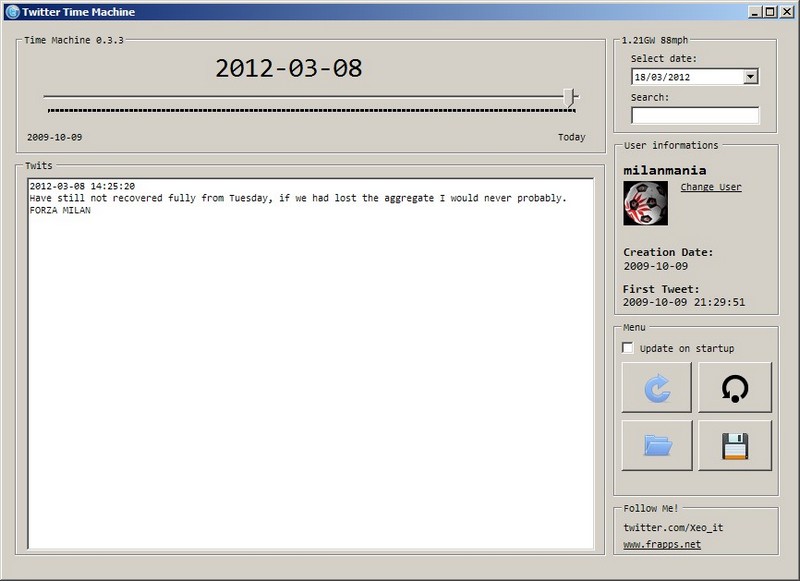
    Twitter Time Machine is a simple tool that can be fun or fill a need for those who are active on twitter. After connecting and authorizing this app it downloads (limited by the twitter API to 3200 tweets) the account’s tweets into a searchable database. Twitter Time Machine features a slider to move and back forth between dates to see tweets made on those days.

    Twitter Time Machine

    Four big buttons to the right of the interface refresh, download all, import or export the account’s timeline. The latter two use the ttm file format to save a file locally. It is also possible to change the user and authorize access to another account.

    The Search feature, for version 0.3.3 tested, didn’t always find a result for a – known to exist – query. Follow @Xeo_it, the developer, for updates and if a Milan fan feel free to follow @MilanMania and ofcourse @RGdot as well!

    Twitter Time Machine requires the .NET Framework 4.0 and should work on Windows XP and above.

  • Giveaway: Picture Collage Maker Pro Easter Edition

    Comment to win a copy of the Picture Collage Maker Pro Easter Edition!

    Picture Collage Maker Pro has been reviewed here on RGdot.com (Here, here and here!), along with giveaways, before and the folks at PearlMountain Technology are back again with another giveaway.

    Picture Collage Maker Pro Easter Edition

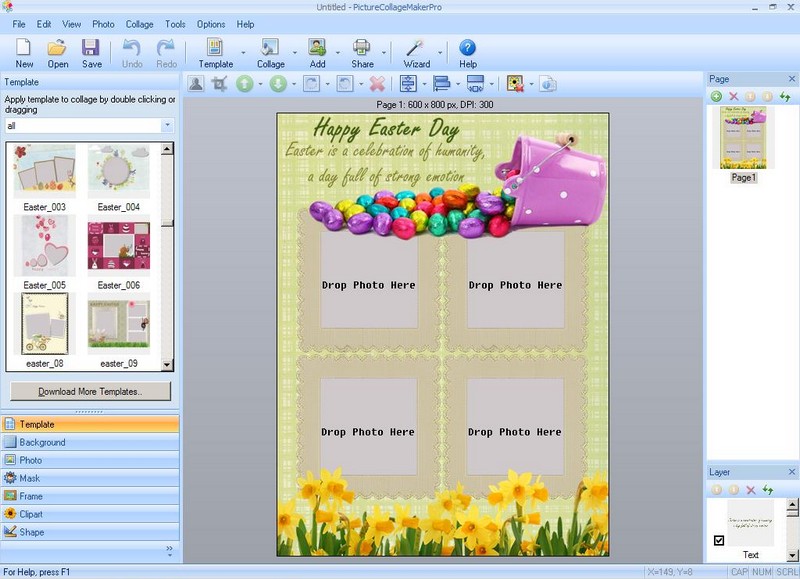
    This time Picture Collage Maker Pro is ready with the Easter Edition which comes with 16 templates to use to create photo collages, scrapbooks or greeting cards for the Easter holiday.

    As noted in previous reviews and giveaways Picture Collage Maker Pro makes it pretty easy to create everything from collages to calendars to posters for many occasions, and not just for Easter. It supports the drag and drop of photos into templates with customizable shapes, cliparts, masks, frames and backgrounds to share via email, print or set as wallpaper.

    To use the Easter Edition templates simply click the Download More Templates button and download the Easter pack and run the downloaded exe.


  • ControlPad: Freeware Launcher

    ControlPad is a launcher and command executor that uses the numeric keypad. It can execute or open documents and websites and send commands to a Windows computer. ControlPad is invoked by pressing the keypad key *, then typing a number using the keypad into the ensuing ControlPad window and then pressing enter.The program comes with a set of built-in commands. The list is available via a right click on the program’s tray icon or using the 902 code. These include reload (9998), Exit (9999), WinClose (9), WinMinimize (77), browser back button (222) and more.

    ControlPad

    Other codes or commands can be added by invoking the program, pressing *, typing a command (say 888) and pressing the / key on the numeric keypad. After doing so a window will appear (see image) where the user can browse to a program or file or press the {} button to choose from some of the built-in shortcuts. These include turning volume up, down or mute, playing media, launching the default mail program, going to browser’s home page, sending keys like F1, Ctrl and others to the system, sending the system to sleep or killing or closing processes. After doing so has been the number or command (888 in this case) will be associated with the chosen action. A virtually unlimited number of commands can be created to automate tasks.

    ControlPad also has a SpeedPad feature where, when enabled – via the tray icon for example –  single keypad keys, 0-9 and the dot (.), can be associated with commands. The only restriction is that these will work only when Numlock is turned off. ControlPad accepts anything that can be typed in the Windows’ own run box, “Notepad” (without the quotes) for example. Starting a command with + or ~ means sending keys to the system or one of the program’s internal commands respectively. These can all be found in the Help file’s Command section.

    ControlPad

    ControlPad’s options include a Laptop mode (Settings or Options —> Launch key) section where * is replaced by F12 and / by F10.

    ControlPad is useful for keyboard fans but as with any launcher type program requires getting used to.

  • AnyClient: Multi-protocol File Transfer Freeware

    AnyClient (Version: 4.2.1.57 tested) is a java based FTP client that also features some other not often supported protocols. These are FTP, SFTP, WebDAV, Amazon S3 and AFTP by JSCAPE, AnyClient’s own developers.

    AnyClient

    AnyClient features a standard two pane interface with an area to show or log transfers and a debug section. First thing to do, of course, is to set up login details by using the Site Manager (File —>Site Manager). The Site Manager features options to preserve time stamps when downloading and uploading, though this is often the case anyway. Here AnyClient also features settings and support for proxy servers and PGP decryption.

    Back in the main interface of the program there is one interesting feature that can prove useful. The right most icon under the local system pane is called ‘Zip upload’. Here AnyClient supports choosing several files from the local machine side (via Ctrl+Click) and creating a zip file within the program and uploading them compressed.

    AnyClient requires the Java Runtime Environment 1.5 or newer and it should run on all Windows versions.

    Have a look at the comments section of the recently reviewed dropf for some other possible file transfer options suggested by regular visitor Asen.