Author: Reza

  • FTPbox: Your Own Personal Dropbox

    FTPbox uses a hosting service you the user own to store and sync files instead of being a third party cloud service, so in this sense it is almost a self hosting Dropbox clone. It is an excellent concept but it seems that it is not the finished article.  Eventhough FTPbox is at version 1.8.5 now (a beta of the version) it is still missing some key ingredients and some that are not very clear.

    FTPbox

    FTPbox first requires the user to fill in FTP details. After the details are entered it checks the credentials and a window opens where the full path of the files can be chosen. By looking at the window one seems to be able to choose the root of a domain (for example / or www.rgdot.com) to store files. In my test this didn’t work, the files simply didn’t exist on the host side. It is perhaps only possible to create a (sub)folder on the host space (for example /ftpbox or www.rgdot.com/ftpbox).

    The options available are that a user can choose to access a file via a browser, copy its location to the clipboard or open the local version. The first didn’t work in my test therefore I am not sure what the browser interface looks like. On the local machine FTPbox creates a folder much like Dropbox, under the Documents folder. Files dropped into the folder are automatically synced.

    Right clicking on the program’s tray icon brings up a ‘Recent Files’ list, clicking on any of the listed files is the equivalent of the action or option chosen (open in browser, copy path to clipboard or open local version).

    Another issue with FTPbox is that many hosts do not allow the web space to be used for personal files. Many terms of service (TOS) only allow web site files to be stored.

    FTPbox is an open source project and should run on all recent Windows versions.

  • Aciqra : Open Source Planetarium

    Aciqra (Version: 2.2 tested) is an open source planetarium software. It is one of the more complete ones available. It features star catalogs and NGC and IC catalogs that include millions of stars and 1000s of deep sky objects such as galaxies. It offers corrections for atmospheric refraction and other enhancements to be as accurate as possible in tracking stars and other objects. It also provides extra information on objects such as asteroid and comets and events such as eclipses.

    Aciqra
    The interface of the program is not the best but it does try to stay true to the claim that it is made to be efficient. The color and contrast of the buttons is the first issue when using Aciqra. They almost mix into the sky image behind them.

    The bottom of the program from left to right features the buttons to exit, correct for refraction, track for earth’s rotation, toggle night vision mode (red color) and toggle current view information (universal time, location, field of view, right ascension, declination, azimuth and altitude).

    Aciqra

    The right hand side features the time control (view the sky in the past and future), label data which lets the user view very useful information on the objects in the sky like  magnitude brightness,  color (star temperature indicator), common name, scientific name and size. Object labels highlights constellations, stars, solar system and deep space objects. Further up the right hand side are toggles for the visibility of stars, deep sky objects, solar system objects and ground level.

    The program opens with a DOS window where it takes longer than one would expect to load the objects and other information. Also upon first install it opens with its configuration settings text file where default user location, font and many other settings can be viewed and edited. It has some of the mouse and keyboard controls to navigate and move within the sky but the scroll wheel does not zoom in and out as I expected. Aciqra includes an option to save the current sky view as an image. It is available for Linux as well.

  • PDF To JPG: Convert Your PDF Files (Free Until July 1!)

    PDF To JPG is simple shareware. It does a task that is sometimes done to avoid using pdf readers and it does it well. The program interface and startup are as simple as the function it performs. When launched the program gives the user the option to choose the conversion type. The options, which are also available within the main window are pdf to jpg, pdf to tif (almost always referred to as tiff), pdf to bmp, pdf to png and pdf to gif.

    PDF To JPG

    Once open file(s) or folder of files can be added. The program will list the pdf files that are to be converted and presents the option to narrow down or choose pages to be converted. If needed one can change the dots per inch or resolution for the images.

    PDF To JPG runs on Windows 2000 and newer and its regular current price is $29.95 but it’s free from the publisher’s site until July 1st.

  • EasyTournament: Freeware Multi-Platform Tournament Organizer

    EasyTournament aims to automate and organize sports tournaments. It is free software made to make it easier to set up and calculate games and points.

    Using EasyTournament, the user chooses a sport – soccer, football, basketball, hockey, floorball and handball are available – then defines tournament rules based on the presets made available depending on the sport chosen.

    Tournament details is first and it is where general information such as name, description, picture or logo are added. Based on the sport being played duration, rules and events can be edited or left as they are. For example changing a soccer win from 3 points to 2 or forcing away goals as the first rule to calculate group position. Teams are then entered, including players and staff. Referees details as well. The Designer tab allows the user to create a visual of the tournament and use lines and arrows to determine the structure of the tournament. Schedule can be added manually or generated automatically based on the groups and teams, here somehow one feels this step should be later in the list since next up is Group assignment where teams can be dragged and dropped into their respective groups. The Games tab does the explicit work of the earlier Schedule tab as it generates the actual schedule and shows the team names. Tables is up next and standings are generated based on the results entered in the Games tab. Finally Statistics works both automatically and manually to create stats for goals scored, penalties, assists and other combinations which can then be sorted by team or player.

    EasyTournament is both simple and complete, the tournament diagram can be exported into an image and tables and results into html and xml. It is java based and works on Windows XP and higher (available in both portable and installer) and on Linux. The download page includes a sample tournament using Euro 2008 stats. Online help is at http://easy-tournament.com/help/en/index.html


  • BImageStudio: Freeware Simple Image Editor

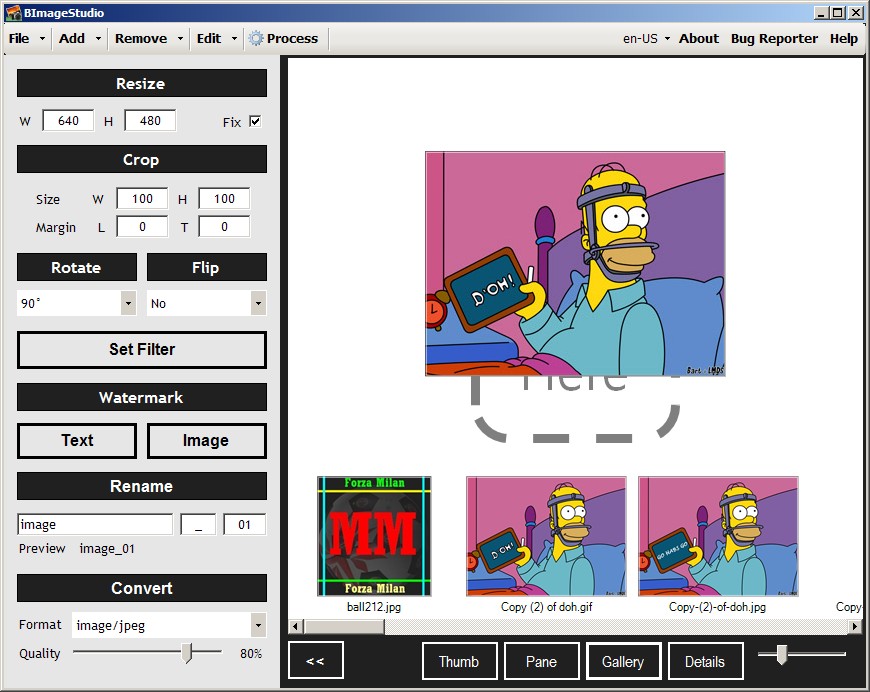
    BImageStudio (Version: 1.2.1 tested) is a freeware and simple image editor with some basic tools and an unusual method of working with images.

    BImageStudio

    Features or tools that are included are edit, resize, crop, rotate, flip, watermark (image and text), rename and convert. BImageStudio can work in batch as well. What is somewhat different about BImageStudio is how this is done. One must add individual or folder of images using the add button or drag and drop them. The black and white interface and larger than usual interface of the program shows thumb previews of the image(s) and the buttons under the preview(s) allow the user to view them in pane (like windows explorer), gallery (like windows’ flimstrip) and details (like an explorer list).

    When one or more image is selected the operations are chosen from the left hand side. Everything can be done from this left hand side, however to ‘set filter’ – use the brightness, contracts, saturation, hue and gamma sliders –  is left to a separate window.

    The watermark is also added in a separate window and lets the user choose a position for the watermark, either set to a corner or a custom one. Renaming is basic and simple using a file name, separator and increment or counter.

    Finally one must click the process button to start the operation. BImageStudio prompts the user to choose which operation to do first, second and later. For example if images are being renamed and resized the user must choose which of the two BImageStudio processes first.

    BImageStudio works on Windows XP and newer.

  • MyTetra: Cross Platform Notes Organizer

    MyTetra (Version: 1.30 tested) is an open source and cross platform note taker, notes organizer or PIM. It doesn’t have the most modern interface but it is a good option if looking for an organizer.

    MyTetra

    MyTetra is tree structured. Its structure is item (or sub item) with separate note(s) within each item or sub item (see image). It comes with a base item and sub items or siblings or other items can be added.  MyTetra has an unusual characteristic, it requires each item to be divided into notes, the nodes in the tree themselves don’t hold any text, just a list of notes that belong to them. Notes are added by clicking the Add Note (top middle of interface) button.

    Note content appear below the notes list. The note editor includes paragraph, justification, font, indent, list, table and image tools. Additionally there is an Edit HTML button to edit or work in pure HTML.

    Search is a strength of MyTetra. One can search within an open note, if necessary, by clicking the Find button to the right of the font selection dropdown but more usefully the find section occupying the lower part of the program can search across all notes and all fields (tag, author, url, title or content or text). If the find area is not visible it can be toggled on at Tools—>Find In Base. Tags belonging to an open note are visible under the note area and are clickable to aid in searching for other notes with the same tag.

    MyTetra supports copying and pasting nodes so one can create duplicates. It also supports encryption (Tools —>Settings —>Crypto) and Synchronization over a version control system like Git (Tools —>Settings —>Synchro). It is available for Linux, Windows, Mac OS X and FreeBSD.

  • Freeware, Useful Image Editor: PicEdit

    PicEdit is a useful image editor with a ribbon like menu.

    PicEdit

    It features the typical brightness, contrast, hue and saturation sliders to the left of its interface. Also on the left are the image effects mosaic, blur, sharpen, noise, invert, and grayscale. Canvas resize, rotate, copy, paste (from file or clipboard), watermark (image) and stamp (an extensible clipart library) are the other options available.

    Shapes such as polygon, rectangle, ellipse, arrow and line are also available along with others like fill and highlighted rectangular area. Each with their own relevant settings. For example if the line tool is chosen the options for thickness, opacity and style (dotted, solid, etc.) appear in the ribbon-like menu.

    Text and balloon text are also available in different styles but as may be obvious in the image it is not clear how to apply or finish inserting them on an image.

    PicEdit has a restore button that acts as multiple undos to reset the image to its initial state. However this didn’t work when I applied several random lines to an image.

    PicEdit does not write to the system registry and should run on Windows XP and newer.

  • Aimersoft DVD Creator Review And Giveaway

    Comment below to win a copy of Aimersoft DVD Creator for Windows worth $39.95!

    Aimersoft is an easy to use tool that makes the DVD burning process a simple one. The user can burn DVDs from downloaded or home movies or simply from photos – to create slideshows – or even a combination of photos and videos.

    Aimersoft DVD Creator

    The first step, the Source tab, is to import the media. Here as many videos or images that are needed can be imported. Aimersoft DVD Creator supports the AVI, MOV, MP4, M4V, FLV, VOB, WMV, MPEG, DV, 3GP, 3GP2, DAT, ASF, MOD, TOD and H.264/AVC formats. Use the Add Title button to burn separate movies onto a single DVD. Once the media is visible, hover over its title (in the menu structure section of the interface) and use the pencil button to trim it, enable subtitles for it, add watermarks to it, change its brightness, reduce its volume and more. All the while a preview of changes will be visible.

    The Menu tab features templates to use for creating the DVD menu, besides the few available by default other templates can be downloaded from the Aimersoft site using the Templates button on the upper right hand corner. This tab also includes options such as choosing either the 16:9 or 4:3 aspect ratios, moving and editing text and other objects, adding text, adding background music, touching up photos and customizing the background itself. The background customization button opens a dialogue window that allows the user to choose a frame of any video or any image to display as the menu background.

    The Preview tab shows the final output before the actual DVD burning process is started. The available options are NTSC or PAL and disc playback mode. The latter allows the user to choose how the DVD starts by default. The final product does have a good professional look to it, especially since the menu is not static and, similar to many feature film DVDs, shows a few seconds of the movie itself.

    Aimersoft DVD Creator works on Windows versions going back to NT4, a Mac version is also available.

  • Switch Banner Maker: Free Online Service

    Soon after I wrote about MP3 Toolkit  I was contacted by the people behind it,  they pointed me to an online service they run and wondered if I would write about it.

    It is the Switch Banner Maker and it is a free service that creates rotating or switching banners and generates the code to insert in web pages. It is a simple service that outputs nice and professional looking banners or images (see sample made below.)


      The user inputs up to 10 images, these must be hosted by the user. Each image can then be hyperlinked individually. The width and height is also required. For best results these values should be consistent across all images. The user has the option to choose the color for the number button and to position it on the lower right or lower left of the generated banner. Delay between images can be set and the image number's visibility can be toggled off as well.

      The output code featuring a hosted javascript is then inserted into any page.

    • Freeware multi-platform image viewer: nomacs

      nomacs image lounge (all lowercase? ) (Version: 0.3.2.5828 beta tested) is an open source image viewer for Windows, Linux, and Mac machines. It supports the most common image formats from jpg to gif (no animations however) and xmp to pgm and others including the raw format. It is capable of  reading and displaying exif metadata. It offers faster than most thumbnail view of images in a folder and a player to view a folder ala a slideshow.

      nomacs

      The program can also be viewed in full screen or various levels of transparency and in frameless mode where the image only is shown, floating over the background. The toggle between frameless and normal view is not exactly obvious but a quick search revealed it to be F10.

      On the image editing side there is crop, resize and a ‘pseudo color function’ where one can play with hue, saturation and RGB color values using a slider.

      nomacs also features a synchronization feature that will work on computers on the same network or LAN.

      nomacs does indeed seem faster than most. It can be found in various Linux repositories and there is a Mac port as well. Its Windows version runs on Windows 2000, XP, Vista and 7 and is available in both portable and installer versions.