Author: Reza

  • Umile Encoder: Freeware Multimedia Converter

    Umile Encoder (Version: 3.1.4.1) is a freeware multimedia converter. It can convert to (and from) 3gp, avi, mp4 and perhaps more rarely swf. Additionally it supports a multitude of formats specifically for mobile devices. These include the kindle, iPhone, iPad, iPod, Apple TV and similarly various specific Blackberry phones and the Zune too. The supported formats don’t stop there as there is support for sundry of Motorola, HTC, Samsung, Google and many other Android phones. Conversion specific to YouTube, YouTube HD and facebook  – picking the best possible dimensions – is available too.

    Umile Encoder

    Umile Encoder works in three steps and optionally offers a live preview too. First step is to add file(s), the second is to choose what it calls a profile. In this second step click the Settings button and choose the format to convert to and if needed change other settings too. Finally click Start to convert and open the file in the output folder.

    The settings include the aforementioned format choices and the relevant audio and video settings that go with them. The Advanced tab in the settings is where to enable the GPU accelerator (if available) and tweak encoding and the play speed. The screen tab has various options for crop and zoom, aspect ratio, rotation and color. Subtitle offers to customize any available subtitles. Font, size and overlay for example. Use the General to configure the default output folder, enable renaming for the output file(s) and if needed manage Umile Encoder’s CPU usage.

    Umile Encoder is surprising complete and easy to use, it works on Windows XP and newer. Do note that it asks to install extras as its own installer is running.

  • Giveaway: Watermark, Protect Images With BatchMarker

    Grab a copy of BatchMarker available for 24 hours only, see details below

    BatchMarker is a simple watermark program, it presents all its options and features together. It can work on one image or batch process a folder of photos and images.

    BatchMarker

    The steps required to finish protecting image(s) are indicated when the program opens. From the left hand side then to the right hand side all the while seeing a live preview in the center of the program window. A carousel of any other images chosen or within the same folder is available on the bottom as well.

    The first step is to add an image or folder of images, BatchMarker will automatically include images in subfolders. Watermark options include the copyright symbol, the registered symbol and the trademark symbol. The symbol can be accompanied by any text (see image). Position and font are fully configurable as is the option to add a ‘background box’ and to make the watermark size proportional or fit to the image. It is also possible to add a text watermark without the symbol with the same configurable options.

    Logo or image watermarks are also supported with an opasity (sic) slider. Finally one can add lines to an image too, only a cross or X is available in this case and it is configurable in color, position, thickness and what BatchMarker calls ‘Empty center’ where the center part of the X can be left out.

    The image and text watermarks can be dragged  and positioned using the mouse. BatchMarker can also erase any exif metadata, however this is set to stay by default. It can be turned off using the program’s options.

    The final options reside on the right side of the program window. A watermark template can be saved for future use, the destination folder can be changed and one can choose to convert all image(s) to jpg or preserve their original format(s)

    BatchMarker runs of Windows 2000 and newer and is normally $27.50

    Giveaway details:

    No support provided.

    Updates are not free but the downloaded version can be used indefinitely.

    The software must be registered with the giveaway name and code within one month of this date.

    Register BatchMarker with the following details:

    The giveaway period is now over. Thanks for visiting.

  • ScreenCamera Giveaway: Broadcast Video Straight From The Desktop

    Grab a copy of PCWinSoft’s ScreenCamera, normally $49.95. Click the link below, fill in your email and details to get the activation key.

    ScreenCamera is a program that records the desktop screen and makes it possible to share it live with others. Run the install, accept or deny the extras and the program’s small interface is presented on the screen with all its recording options.

    A user can record a section of the desktop, the whole desktop, the area around (and one that follows) the mouse cursor or an ‘exclusive window’. The exclusive window is where the program will continue capturing the chosen a Window even after it is not the active or the topmost one. ScreenCamera can also take snapshot images and it can also work as a normal screen recorder. To record a video to save locally – wmv by default – use the record, pause and stop buttons at the bottom of its interface. The video will be saved in the Videos (My Videos) subfolder of the system’s Documents folder.

    ScreenCamera

    ScreenCamera is compatible with and works with programs such as Skype, MSN Messenger, Yahoo! Messenger and others. Arguably the major benefit or feature of the program is that it can be used to show a live feed of desktop activity on any of the aforementioned instant messaging or other webcam broadcasting sites like UStream for example. For example in MSN Messenger’s (see image below) Tools —>Audio and video setup ScreenCamera will be available as a video or webcam option and with it one can broadcast the desktop, desktop and webcam or just the webcam to friends or contacts. The first will of course show your desktop to the person you are chatting with, in this case a webcam is not even required. The second a like picture in picture mode. The last just the webcam itself.

    ScreenCamera

    The program settings are divided into 5 sections. The Screen section or tab includes options and settings for video Frames Per Seconds and whether or not to include the mouse pointer in captures. The Webcam tab detects any available and connected webcam and lets the user connect to it. Video Output includes the setting for the dimensions of the output video, the default being 640×480, but many bigger and smaller options are available. Snap and Record is the place to choose the snapshot and ‘local’ video recording options. For the former bmp is the default format and the only other is jpg. The latter has wmv as default and only avi as the other option. There are configurable hotkeys for snapshot, record, pause and stop actions and the option to choose different locations for the output. Finally Startup of Windows lets the user choose to start ScreenCamera with Windows of course but also the option to start ScreenCamera ‘invisible’ or minimized.

    ScreenCamera works on Windows 2000 and newer.

    Giveaway link: http://www.pcwinsoft.com/promotion/rgdot/registration.asp

  • PNotes: Feature Packed Sticky Notes Freeware

    PNotes (Version: 9.0.110) is a sticky notes program, while cluttering the desktop with notes is not always the optimal method of keeping reminders and other text PNotes does it well and allows the user to easily hide the sticky notes and maintain a clear the desktop.

    PNotes

    PNotes’ features are accessible via a right click on its tray icon. To begin one can create a note, loads saved notes, create a note from the contents of the system clipboard or create a diary note. The latter features a configurable date format as its title. All note configuration options are accessible by right clicking inside a note or on its top or bottom section (title and toolbar sections respectively.)

    Notes can be favorited and assigned to groups so that they can be managed in batches, for example different colors or different visibility added to a more than one sticky note at a time. Notes can be rolled, unrolled, tagged and linked together as well. They can also include images.

    PNotes has extensive preferences, hotkey support and a control panel. The latter is like a central repository to manage the sticky notes. The preferences includes settings for transparency, font and the visibility of the toolbar – which include controls for text color, bullet lists and others – on the sticky note itself. Skin support is complete with width, height, color, padding settings just to name a few. Ready made skins can be downloaded as well.

    Sound or note centering (to bring a note to one’s attention) is part of PNotes’ scheduling or reminder feature, a reminder can be added by right clicking on the bottom or top section of the note. Docking is a useful feature to move notes into different sides of the screen and adjust their distance.

    PNotes offers extensive number of options in how notes behave and how to interact with the program. Forcing new notes on top, double clicking on the tray icon to create new note, using notes contents as its default name and many more. Protection is another important part of PNotes. Notes can be password protected either individually or as a group, they can be encrypted and automatically backed up. PNotes can also synchronize notes between a USB key and a local machine automatically. Notes can be pushed and pulled to and from a FTP server to be synchronized with local versions. The Misc tab in the preferences has option to launch a web search with a note’s text as the query or to open external programs.

    PNotes

    PNotes’ control panel shows or previews notes that are in the program’s database. Here one can create notes, change note group icons, launch the built-in back up or synchronization feature, export chosen notes as text files or search inside notes.

    Hotkeys can be applied to almost any action. The most important one for this user is the ability to quickly hide or show all notes. Of the many hotkey choices available the show/hide section is probably most useful.

    PNotes is available with or without an installer and should work on all Windows versions. Spell checking using the Hunspell library can be downloaded and used, the program as a whole can be password protected as well.

  • Password Recovery Bundle Review And Giveaway

    September 3 update: License keys were just emailed to the winners, congrats and thanks for participating.

    Comment below to win a license for Password Recovery Bundle Standard courtesy of Top-password.com worth $29.95

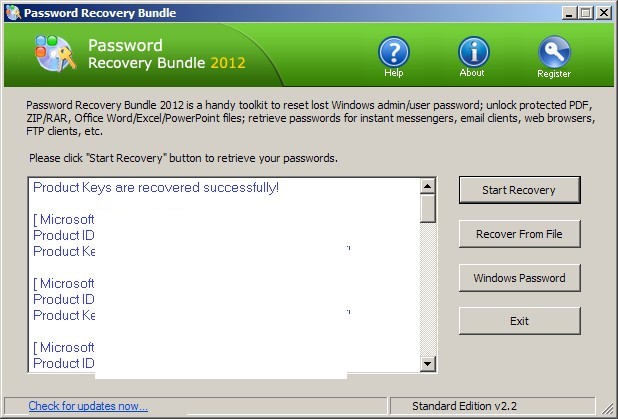
    Password Recovery Bundle (Version:2.2 tested) is a toolkit that can prove useful if program or system passwords are lost or forgotten. It is simple to use and has a simple interface to help any user quickly recover passwords. There are three different editions of the program and the standard one can recover all types of passwords but is missing features such as resetting passwords for Windows’ server editions or databases (MS SQL).

    Password Recovery Bundle

    The Start Recovery button will retrieve passwords for instant messaging programs such MSN, Google Talk, AIM, Miranda, Trillian, Paltalk, Digsby, Pidgin and others. Passwords for email programs are also retrieved including the likes of Outlook, Windows Live Mail, Incredimail, and The Bat! System product keys are also supported and this includes the ‘Product Key Advanced’ option that works on a non booting drive connected to a working system. The user navigates to the non working drive’s Windows directory where Password Recovery Bundle will look for and retrieve the key.

    Additionally there is support for recovering passwords from several FTP programs including FileZilla, CuteFTP, SmartFTP and many more.

    The Recover From File button prompts the user to navigate to target files as it attempts to recover passwords. The formats supported are PST, Reach-a-Mail, PDF, Word, Excel, Powerpoint, Access, ZIP and RAR files.

    Password Recovery Bundle

    The Windows Password button creates a ‘Windows password reset bootdisk’ – this feature was not tested. This requires setting the BIOS to boot from DVD or removable media, then burning the iso bootdisk and rebooting the system with it. After rebooting the PC Password Recovery Bundle will get to work and reset the password to blank for any one of Windows accounts on that machine.

  • Free Screenshot Capture: Freeware Screen Grabber

    Free Screenshot Capture (Version: 1.5.0 tested) is a freeware screenshot grabber that does a bit more. Upon install it presents a wizard (see image below) where its options and features are available at a glance. It also tries to register its default shortcuts to use. There is a likelihood that at least one (Ctrl+Shift+C for example) is taken by another application but the shortcut can be changed to something else via the Change Shortcuts options available by right clicking the program’s tray icon.

    Free Screenshot Capture

    Free Screenshot Capture can be invoked via its shortcuts and via right click and of course by clicking on the aforementioned wizard. It can capture the full screen, part of the screen,  full screen with delay, an elliptical region and also the webcam. Additional tools include a protractor, color picker, screen ruler, screen magnifier, screen brightness – to change screen brightness and gamma – and a whiteboard. The whiteboard is somewhat confusing, it prompts the user to choose one of the tools (text, rectangle or ellipse for example) and that tool is drawn on the screen to reserve that section of the screen for annotation or text to add to a screenshot. It seems that it works only for a full screen screenshot but that is not obvious.

    After a screenshot is taken the program tools become visible. They include blur, shape, line, arrow or text. These can  be added to the screenshot. An external editor or Microsoft Paint can be opened to edit the image as well. One can also directly save or copy the image.

    Free Screenshot Capture
    Free Screenshot Capture also features a touch mode for tablet devices, the user can switch to it by clicking on the hand icon on the far top right of the program. It runs on Windows 2000 and newer.

  • Freeware No Frills Clipboard Manager: ArchiveClipboard

    ArchiveClipboard (Version: 12.7.17 tested) is multi-platform open source and freeware clipboard manager. It doesn’t boast many features but it does one job and that is to keep more than one clipboard item stored or archived. When an item is copied it is kept in the top section of the program, subsequent clipboard items bump the previous ones to the lower section where they are archived to be kept forever.

    ArchiveClipboard

    ArchiveClipboard also supports images and file paths and they are archived in separate categories. Right clicking any item in the archived section presents options to preview it – where it can also be edited – to cut it , to copy it, to paste it or to remove it forever. It feels redundant to have cut or paste operations for an archived item but nevertheless the option is available.

    Mobile device apps and synchronization are on the roadmap. ArchiveClipboard is java based, runs on Windows, Mac and Linux systems and is available in both 32bit and 64bit versions.

  • Freeware Notes And Clipboard Monitoring: NoteClip

    NoteClip (Version: 2.50 tested) has recently become freeware. It tries to be a clipboard monitor and note keeper in one. Using it requires a bit of getting used to because it may take time to feel comfortable with how, where and within which group (post, data, essay, etc.) a note or clipboard item is kept.

    NoteClip

    The clipboard function of NoteClip is not exactly emphasized as by default the clipboard monitoring is off (toggle it on by clicking  the ‘more’ dropdown near the top right of the program). However the program does have a secondary way of capturing text. The Ctrl+1 keys create a new note from highlighted text and Ctrl+2 appends highlighted text to the last note.

    Initially notes – captured via hot keys or created using the quick notes (Ctrl+Q) window – are sent to the draft group. New groups can be created by right clicking one of the existing groups and notes can be dragged from the draft or any other group to another.

    Various options are available when a note title is right clicked (see image). Notes can be edited by clicking on the Edit column beside them and either editing them within NoteClip or using an external editor. The program also has a search function which works across all notes and groups.

    NoteClip can read text files and create new notes using file names as their title,  this is done by choosing ‘Create from text files’ from the aforementioned ‘more’ dropdown menu. Additionally there is a built-in back up and restore tool (Accessed via the small arrow near the top right of the program.) NoteClip requires Windows XP and newer and does not write anything to the registry.

  • Giveaway: Create Movies With Wondershare Fantashow

    The giveaway has now ended, thanks everyone. Winners will be emailed soon.

    Comment below to win a copy of Wondershare Fantashow for Windows worth $49.95!

    Wondershare Fantashow is a movie or slideshow maker, with it you use your own videos, pictures and sounds to create a movie. It takes three steps to have a movie or slideshow done, viewed or shared online.

    Wondershare Fantashow

    First up is the Theme tab, here a movie or video background is chosen, either from the included sample or one downloaded from within the program. Preview each theme by clicking play. Once one is chosen the Apply button brings up the theme to the next step ready to be used.

    The Create tab comes next. Add media, either image(s), video(s) or a combination of both. Reorder them by dragging them in the timeline section. Add Subtitles too. The use of subtitles is somewhat confusing in this case, the common meaning for subtitles is different than how they are used in Wondershare Fantashow. Subtitles refer to simple text here, for example adding a title between two segments of a movie. Click on the top right of any segment within the time line to add a text directly over a video or photo. When a photo is chosen in the timeline it can be edited – button to the right of the Add Subtitles one – to add effects to it. The available effects are Invert, Equalize, BWFilter, Glow, Soble, Canvas, VignetteWhite, SquareBlur, VideoWall, TVWall, Emboss, Cartoon, Cool, Warm, Hot, Brown, Purple, MirrorLR, MirrorTB, Distort, Enlarge, Narrow, Whirl, Snow and more. It is also possible to customize the background music and one can use either the default or any locally saved audio file.

    The next and final step is the Export tab. The options are to save locally in avi, mp4, wmv or mov formats in HD or standard resolutions or save to Youtube where the program prompts for login details, category, title, description, tags and if the video is private or personal or burn to DVD where the TV standard (NTSC or PAL), disk type (D5 or D9) and video quality are chosen. It is also possible to burn an image file. Finally Wondershare Fantashow supports saving to mobile devices including iPod Touch, iPhone, iPad and HTC and Galaxy phones as well.

    Supported input formats are for images bmp, jpg, png, gif, tif, ico, dib, jpeg, jpe, jfif and tiff, for videos mp4, flv, avi, vob, 3gp, asf, mov, f4v, mpg, dpg, ts, trp, m2ts, mts, dat, wmv, mkv, dvr-ms, dv, tod and evo and for audio mp3, aac, ac3, m4a, mp2, wav, ra, ram, ape, au, aiff, aif, ogg and flac. Wondershare Fantashow requires Windows XP and newer and there is a Mac version available as well.

  • MyShelf: Multi-Platform All In One Organizer

    MyShelf (Version:1.0) is a newer software that is available for all operating systems, iDevices and Android as well. Information can be synced across devices and across a network. It strives to be both an organizer and central storage for text and images. Its interface fulfills at least one important requirement and that is notes, pictures and everything is saved using MyShelf is at least somewhat visible and in view when the program is open.

    MyShelf

    Use the Add tab to add text, image or alternatively import the current clipboard entry. A shelf or rectangular area is where items are saved, each can have a subject (type it in the yellow area when adding a shelf) and each can hold one or many text snippets or images. Tags are added via the tag tab. The tags can then be added to each shelf and will appear above them beside the shelf date.

    Editing or moving around shelves is done while in quick edit mode. Click the Quick Edit mode button and then click anywhere on any shelf. It can be dragged (move mouse over the red/black circle) elsewhere to change its order or it can deleted (button on bottom right of the shelf). Clicking the Open button that appears when hovering over a shelf opens a separate window to edit its contents. MyShelf also lets you save the file back to its original format. For example an image can be saved to any folder in its own format.

    MyShelf

    When in edit mode one can archive a shelf, this will remove it from view. Archived shelves can be viewed and if needed unarchived and brought back into the default view by switching the program view from Show Normal to Show Archived (drop down near top right of the interface).

    Shelves can have one of three sizes, click one of the three squares to the left of the aforementioned dropdown to resize them. MyShelf is java based and works on XP and newer, Mac OS, Linux systems and the aforementioned mobile devices (it is available in the App Store and Google Play).