Author: Reza

  • DtPad: Interesting Freeware Text Editor

    DtPad (Version: 2.7.4.40) is a text editor with an interesting and potentially useful set of features.

    DtPad

    The file menu can open a new document and paste the contents of the clipboard into it automatically. It can open a web page source by typing the address inside DtPad. There are options to save file(s) in zip format, save one as pdf or get or save documents in Dropbox using DtPad’s internal browser.

    The edit menu can append text to existing files and ‘swap’ highlighted text with the contents of the clipboard. One can select text by multiple rows too.

    The view menu is the place to launch the command prompt, hide or show an annotation panel (see image), launch a hexadecimal viewer/editor or a Windows hosts file editor.

    DtPad also has a session feature that is not just save or restore but also can list ‘lost’ (those that were part of a saved session but may not exist anymore) files and more.

    The search feature is a powerful one, options like highlight results are there so are number of occurrences and  find or replace last and next occurrence. All come with regular expressions support. DtPad can also look for patterns like duplicate rows, capitalized words, html tags, IP addresses and email addresses. Not forgetting searching selected or highlighted words using google or wikipedia.

    The actions menu is where tabs (different open files) can be merged and compared, indentation added, rows moved up and down, case converted, html converted to text and vice versa, space converted to tab, date inserted and lots more. Other interesting features like validating html and translating selected text too.

    Options is the menu to toggle word wrap, choose file encoding and font plus export or import DtPad’s settings.

    Tools is the place for launching external programs. Notepad and Internet Explorer are available by default but others can be added.

    DtPad’s side panel has a notes section to keep text or notes that don’t belong in the files themselves, a tab explorer to move or sort open files, a file explorer to navigate and browse the system, a clipboard monitor, a calculator, a calendar, and another location for searching inside files.

    The program settings (Options—>Settings) include options for the looks and feel of the program and others to add DtPad to the Send To, Open With and Windows 7 jump list menus.

    DtPad requires Microsoft Windows XP or newer and the Microsoft .NET Framework 4. It is available in a portable version.

  • Link Manager: Freeware Bookmark And URL Manager

    Link Manager (Version: 2012.9) is a no-install light weight freeware. It can be used to collect, search and manage URLs or links. It features almost everything one can do with links.

    Link Manager

    The first screen or section is the Link Manager. Here links can be added manually by filling the Link Name and Link URL fields. Links can also be auto-completed from a link name. Type any site name into the Link Name and click the Get From Link Name button, Link Manager will  try to complete the Link URL field, it is also possible to auto-complete the name with .com, .net, .org or blogspot.com by clicking the small 1 to 4 buttons respectively. URLs can also be categorized by using the buttons above the URL list, by right clicking on them or alternatively have a category name highlighted when adding a URL. Links can also be added to Internet Explorer favorites or exported to json and html formats for Firefox and Google Chrome. URL lists can be edited with notepad or saved as an html file, additionally one can generate ‘scripts’, this includes bbcode for forums and bullet lists. Finally, URLs can be opened with the system’s default browser or others can be added to over ride the default. Other features, using the buttons above the link list, include shortcuts to Google Search, Google Translate and the PDFmyURL service.

    Link Searcher will search for links saved in Link Manager. Link Extractor browses html files and extracts links from them, it includes options to filter text and ignore links in img (image) tags. Links extracted can be saved to a text file or be moved to a new category named after the current date. Link Synchronizer can compare, mirror, synchronize or just show two separate Link Manager databases.

    Link Manager

    The Tools section encodes or decodes URLs. This is where, among others, dot is replaced by %2E, @ by %40 and colon is replaced by %3A. The encoding is useful for hiding email addresses from spammers or using the URL in a query string for databases. Access to URL shortening services are here as well with q.gs, adf.ly, bit.ly, cli.gs, dot.tk, is.gd, mo.by, NinjURL, ShortURL, Snipr, Tiny.pl or TinyURL being the available services.

    Link Manager packs a lot of features into a ~600KB download. It should run on all Windows versions.

  • XnConvert: Freeware Image Manipulation

    XnConvert (Version: 1.51), from the maker of the excellent image editor and viewer XnView, is a freeware multi-platform batch image converter for Windows, Mac and Linux.

    XnConvert

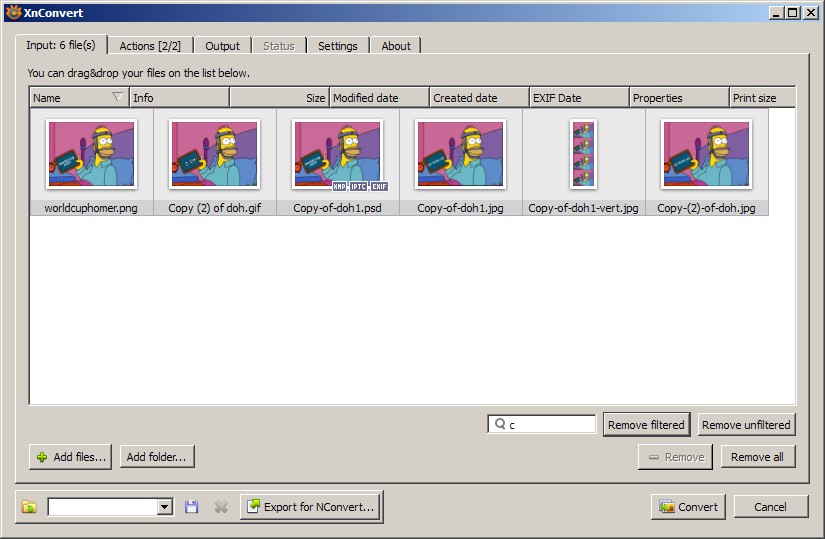
    Input or load file(s)/folder(s) and then if necessary filter the images to only work on a set of them.

    Next is the Actions tab, choose modifications or conversions required and see a preview on the right hand side. The actions available via the Add Actions button are extensive and are Add mask, Automatic crop, Canvas resize, Change color depth, Clean metadata, Crop, Extract channel, ICC convert, IPTC/XMP, Mirror, Replace color, Resize, Rotate, Set DPI, Text, Vignetting, Watermark, Adjust, Align histogram, Automatic contrast, Automatic levels, Color balance, Conbright, Equalize, Exposure, Gammasat, HLS, Levels, Logarithmic lut, Negative, Normalize, Normalize ex, Posterize, Saturation, Sepia, Shadow highlight, Solarize, Swap component, Temperature. Available filters are Average, Blur, Edge detect, Emboss, Emboss more, Enhance detail, Enhance edges, Enhance focus, Focus restoration, Gaussian blur, Maximum, Median box, Median cross, Minimum, Reduce noise, Sharpen and Soften. Others included are Add noise, Bloom, Border, Border 3-D, Crystallize, De-interlace, Fantasy, Halftone, Lens, Mosaic, Oil painting, Oil painting 2, Old camera, Photo spread, Pointillize, Retro, Shear, Slice, Spread, Swirl, Symmetry, Tile and Waves.

    XnConvert

    The output section has settings for choosing the output folder, format and an extensive number of options for renaming the image files. Everything from date to folder to increments and metadata can be selected and configured. XnConvert can delete the originals, keep any folder structures and keep multi-page files as multi-page and open windows explorer after conversion is complete.

    XnConvert

    XnConvert is complete and very easy to use, much like XnView itself actions can be saved as a script for future re-use. Both 32-bit and 64-bit editions are available as are installer and portable versions.

  • Alternate Pic View: Freeware Image Tool

    Alternate Pic View (Version: 1.424) is an image viewer and editor. It has features common to most image viewers. By default the Folder view (show thumbnails and explorer tree) and Allow multiple windows (view images in tabs) are toggled off or disabled. Click their respective icons to enable them (see image).

    Alternate Pic View

    Alternate Pic View does full screen capture (File—>Capture) and another more advanced method via its Tools menu called Capturer. Here all open windows are listed and the user can choose which to capture (see image). Under Tools there is a convertor and icon extractor as well. The former can convert to any one of bmp, gif, ico, tiff and others with any of resize, keep metadata, mirror, flip, swap colors, pixelize, sharpen, grayscale and alien effect.

    Alternate Pic View can resave image by adding increments, for example if image.jpg is open repeatedly clicking File—>Save numbered (F7) will save the image as image__0000.jpg, image__0001.jpg, etc. Copy, crop and paste operation are available, for both whole images and selections. Its collection of effects are rotate, mirror, invert alpha, sharpen, blur, contrast/brightness, adjust color, noisify, pixelize, relief, negative, grayscale, redeye reduction, swap colors, alien effect and random. Using the effects menu one can change the image size, extend the canvas size or more unusually split an image – either by image coordinates or by selection area.

    Alternate Pic View can also work straight from a scanner with Twain source and it can also do slideshows. In some instances Alternate Pic View is not the most intuitive. Two features only become apparent only when an image is right clicked in the thumbnail area. First there is an image compare feature which compares two images but it is not obvious how the second one can be chosen or if it works at all. Second there is the animated gif feature which again doesn’t seem to do anything other than let the user click forward or rewind to view each individual frame.

    On the editing side it has color picker, pen, pencil, brush, line, arrow, fill, brush, rectangle, round rectangle, ellipse and freehand. Of note is that Edit—>Find pictures will scan a folder for image files. Alternate Pic View should works on all Windows versions.

  • Chit Chat For Facebook 1.5

    Chit Chat for Facebook was first reviewed almost two years ago here on RGdot, now it is back at version 1.5 with more polish and features. Beside the chat or IM and status update options it now offers more control over looks and other features like pop up and other types of notification.

    Chit Chat for Facebook

    Changing colours, text size and font are just one of the tweaks and there are many others. These include audio notification and flashing taskbars for various events like new messages and friends logging in, saving a log of facebook messages, chatting in a tabbed interface and dividing friends in groups to more easily find them.

    Chit Chat features shortcuts like Ctrl+M to hide the program quickly, Ctrl+L to log out, Alt+C to show the buddy or friends list, Ctrl+W to write on a friend’s wall – which can also be done by right clicking the friend’s name – Alt+2 and Alt+1 to move to next and previous conversation tabs and more. These shortcuts can be viewed and changed in Tools—>Preferences—>Shortcuts. Setting up a proxy server to bypass workplace blocks is also available via the preferences.

    Chit Chat does have ads and asks for permission for other extras upon installation. It requires Windows XP and newer. A potentially useful feature is the option to export configured settings to use on a another installation.

  • Copy Contents: Fast Copy And Text Replacement

    Note: Copy Contents is in beta. Correction made to a screenshot that appeared earlier.

    Copy Contents is a new program. It copies the contents of text or rtf files to the clipboard without opening them. It also copies image files (jpg, bmp, gif, tga, png, tif, pcx) to the clipboard, also without opening them. Right click on the supported formats mentioned and choose Copy Contents, the (successful) copied message appears briefly on the screen, now open a blank file (either text or image) and Ctrl+V to paste.

    Copy Contents

    Copy Contents does (plain) text replacements to make better and more efficient use of the copied text. Click Ctrl while clicking on Copy Contents and set up or use text replacements. It comes with three default macros in #date#, #time# and #ask#:<default text>. If a text files written for repeated use has [[date]] and [[time]] in it they will replaced with the current date and time when pasted. The third macro generates a dialog window and the text in between < and > will be replaced with the word entered in the ‘Replace with’ box.

    Copy Contents
    Copy Contents can be set to always ask for replacements, use the included ones without prompt or not use them at all. The OFF setting can be overridden on a case by case basis by holding the Shift key when clicking on Copy Contents in the right click context menu. Copy Contents is by http://starpunch.net/ and is currently available at the DonationCoder forums.

  • LazPaint: Open Source Graphics Editor

    LazPaint (Version: 4.8) is open source and is a good and very capable alternative to any full featured image or graphics editors. Some of its features are listed below using its menu as a reference and the images attached to this review highlight a few of them.

    LazPaint

    LazPaint can do multiple undo and redos and paste as and paste as new image. Selections are available as rectangle, ellipse and polygon, these are complemented with curve that can create complex shapes or areas based on initial and end points. Selections can be edited, rotated and there is also the magic wand to automatically select objects within an image. Change canvas size and flip are available too as is zoom which includes a ‘Smart zoom’.

    LazPaint
    Shift colors (Colors—>Shift colors) and Deformation (Tool—>Deformation)

    Colorize and shift colors work really well and change an image smartly. Intensity, lightness, normalize, negative, linear negative and grayscale are equal or superior to other similar programs. Pen, color picker, eraser, gradient, fill, shaded shape (many available shapes with adjustable light sources), text, deformation (image is divided into any number of grids and then any section of the grid can be dragged to distort portion(s) of an image) and texture mapping take LazPaint into more advanced territory.

    Filter are mostly the common ones with different blurs (radial, motion, disk, fast, precise), sharpen, smooth, pixelate, cleartype, contour and emboss all there plus plane. The latter comes with a warning that it is a slow process (see last image for what the first image image is transformed into using plane). Finally render adds any one of various objects over a selection or the whole image.

    LazPaint
    Plane (Filter —>Plane)

    LazPaint is multi-platform written in Lazarus, has command line support and so can take advantage of the BGRABitmap library, read more at http://wiki.lazarus.freepascal.org/LazPaint and http://wiki.freepascal.org/BGRABitmap. Input file formats supported are bmp, jpg, png, gif, ico and Paint.NET’s pdn and it can save to bmp, png and jpg.

    Image in the screen shots is at http://www.flickr.com/photos/puksdesign/5896307147/in/photostream

  • ClipCube: Freeware Notetaker And Clipboard Manager

    ClipCube was reviewed while an old beta version here on RGdot, now it is back. The current version is 1.1 and comes with a new look and a new site. It is still freeware and still doesn’t require installation. With a new emphasis on being a note taker and keeper – complete with tags – in addition to its clipboard history feature it more useful than it has been.

    ClipCube

    After running it click the tray icon to show or hide its window. The left side of the program window is where you find the search box and tags. There are three default tags or categories and they are Clipboard, Links and Scratchpad. The notes are on the main or right side with the newest ones first on the list. In addition to automatically capturing the clipboard you can create a new note by clicking Ctrl+N, the + button or right clicking the tray icon. Edit a note with Ctrl+Space or the editor button (the keyboard looking icon). Select one or more items or notes and click the tag editor button to move a note to the Scratchpad category or other existing ones. Create new tags using the same tag editor, Alt+N or by right clicking in the tags area.

    ClipCube, via its tray icon, has another interesting feature called “Trim incoming text”. This trims white space from the beginning and end of any copied text.

    The preferences include toggling ‘system tray’ mode on and off – this is same as click close to minimize or click close to exit – stay on top, monitor the clipboard, clear clipboard on quit, show tooltips, edit a note on double click and others. By default ClipCube keeps 500 clipboard items or notes, this can be changed to 100, 2000 or 6000. This limit applies only to the notes tagged with Clipboard and not others like Scratchpad.

    Hotkeys are available at http://zodcode.com/clipcube/manual. A Mac version is in the works and depends on donations.

  • Freeware No Frills Clipboard Manager: anyClipboard

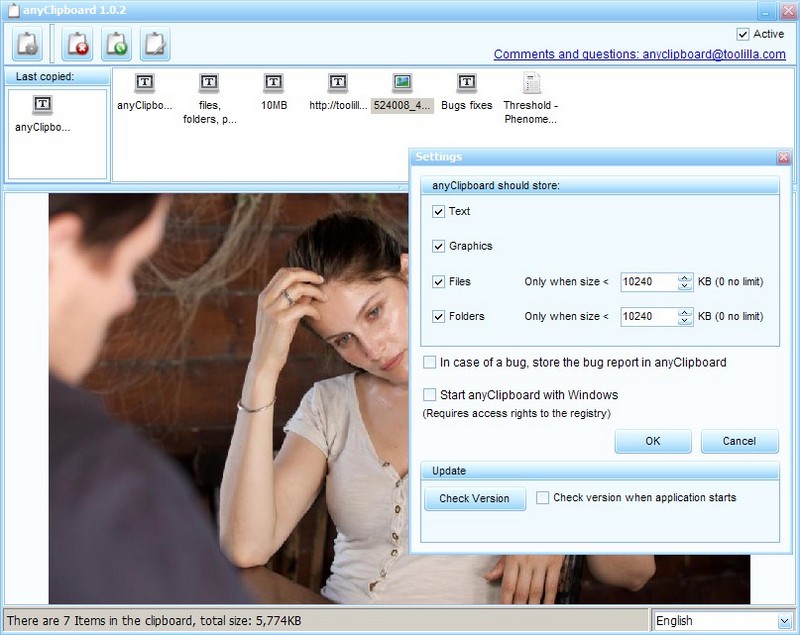
    anyClipboard (Version: 1.0.2) is a single executable, no install clipboard manager. It is virtually featureless and does one thing only. It helps the user keep copies of all clipboard items in the order they were captured. It captures everything – though one can disable captures by file type – be they files, folders, photos or text (with the promise of more to come).

    anyClipboard

    The program’s settings are accessed by right clicking the program’s tray icon. Since it copies everything to its data folder, created after first run, it can become large quickly. It does warn if the to be captured file is larger than 10MB and at that point it can be set to not create a copy of files larger than 10MB.

    To reuse a past clipboard item highlight it and recopy the preview, however since not all file types, mp3s for example, can be previewed inside anyClipboard it is less useful for media files. In this case one must open the program’s data folder and grab a copy there.

    anyClipboard should work on all Windows versions.

  • The Weather On Your Desktop with sWeather

    sWeather (Version: 1.3.2) is a simple and attractive tool to check the weather and 5 day forecast for any number of locations. Unzip and configure (Using the Options menu or tray icon right click) the program by entering one or more locations.  Current temperature and 5 day minimum and maximum forecasts are complemented by barometer, humidity, visibility, wind speed, sunrise, sunset, latitude and longitude values.

    sWeather

    Locations can be found using address, town, zip code, country and even by landmark and street. sWeather looks up the location and uses Yahoo! Weather’s WOEID location identifier. When more than one location is added you can cycle through them using the mouse wheel, Page Up/Down, arrow keys or buttons on the right side of the program window. The F5 key refreshes weather data, F2 opens an expanded view where all the weather information is made available in listview.

    The program options include using metric units (viewing the temperature in centigrade instead of fahrenheit among others), toggling the temperature tray icon’s visibility, starting sWeather with Windows, starting it minimized, changing the automated refresh time from the default 60 minutes and using different sets of icons.

    sWeather

    sWeather is freeware, works on Windows XP and newer and is portable. Don’t forget to click F4 to have some fun with the program. Support questions can be asked on its dedicated DonationCoder thread.