Locate32 is described by its author as

Locate32 is a file finder which works by indexing all your files on your hard disk drive…

When launching and using Locate32 for the first time the user creates a database which indexes all files on any drive. The indexing is relatively quick and can even be over in seconds depending on the number of files and folder on the system. Much like Unix systems it stores databases of directory structures and file names making post-indexing searches instant.

Much like the native Windows’ search Locate32 supports searching by extension, size, creation and modification date. It also supports such search queries as matching whole names only and searching by file and folder name only.

Locate32

Database Info can be accessed under the File menu and includes such info as the size of the database and number of directories and files indexed. File—>Update Database is the place to re-run the database indexing when a number of new files have been created and to therefore keep the index up to date. Automatic updating of the database is also schedulable via the program’s settings.

Additionally Locate32 has numerous settings that allows the user to tweak the program’s behaviour. It is possible to control such things as what happens when the program is closed (for example ‘minimized to tray’) and how the search results are sorted. The location of database(s) can be changed and database for separate searches, searching other drives for example, created. Keyboard shortcuts are also available for such things as activating controls (ie refining search or choosing a search criteria) and launching a database update. Finally the Advanced tab of Locate32′s Settings (see image) lets the user change such things as the Show As You Type behaviour, Logical Operations (inclusion of the + operator for example) and to things like setting another program to open folders. The latter is very useful when the native Windows Explorer is replaced by an alternative.

Locate32 is compatible with Windows 98, ME, NT4, 2000, XP and Vista, is available as both 32bit and 64bit versions and can be portable.


Shortly after I wrote about the dirhtml index.html generator I received an email from its developer. In part due to my confusion about the way the sorting options were presented and how the output listing was actually sorted Eric, the enware developer, had released a new, then beta, version. It has since gone out of beta and v4.833 presents a more intuitive sorting menu (see images below).

Older version of dirhtml

Older version of dirhtml

New version of dirhtml

New version of dirhtml

In my opinion it is now easier to visualize the output because the ‘Unsorted’ option is now in a column with all the primary choices that determine the shape of the output.

Two notable omissions in the original article were that at the ‘Input/Output’ and final tab it is possible to create a batch file by clicking the ‘Save Batch File’ button or F7. This will generate a batch file and an associated .ini file. Launching the .bat will use the .ini file, containing all the settings that have been gathered by going through the program, and this will then immediately generate the required output.  This is very useful as it makes subsequent uses much easier and faster. Also worth pointing out is the ‘div_recursive.txt’ script, one of the ‘Script’ choices in the initial ‘Folders, Files’ tab. This will generate an output with a recursive listing of the folders and files being worked on. It is a very useful way of presenting the results.

I also want to take this opportunity to write about the other freeware Eric is and has worked on.

First up is the Mp3 ImageMap. This is free for non-commercial purposes and portable. The developer, Eric, describes it as

…an attempt to bring back the shock value of music finding to people who know all their tunes and searches by heart, and incorporates a rather unique algorithm for dividing rectangles into N squares.

It works by the user specifying a folder (containing MP3 files for example), file extension(s)(MP3 and WMA for example), path to the output HTML file, image (GIF, JPG, JPEG or PNG) and choosing one of several sort types and then clicking ‘Build It’. The app will use the image to generate an image map with different areas linked to the different MP3 and WMA files. A nice and fun way to listen to music or simply launch files.

Next is the ScrapBook described as

ScrapBook is a freeware, unstructured database program that holds chunks of text.

A lightweight and only 252KB download, it is surprisingly useful. It is possible to save all sorts of text with the first line of the said text acting as an index. It is also possible to differentiate and separate different chunks by placing them in different ‘cards’. To navigate between cards one can, for example, use the left and right arrows or click Alt+L, F2. Even easier is finding text by using the ‘Find’ box. It is also possible to save shortcuts in ScrapBook and use it as a launcher by moving the cursor over the text or shortcut and clicking F12. One interesting feature is the ability to ‘tag’ cards, by clicking Ctrl+space, and therefore making an index or listing even more intuitive by then viewing a list of tags (Ctrl+T). As with dirhtml ScrapBook is filled with useful features.

Finally there is CopyDate, taking a further step in making tasks easier, described as

Copydate copies files, optionally inserting today’s date/time into the copied filename.


As a followup to my post on TreeSize here are some other downloads I have come across that let the user view or visualize space usage on a disk.

For this article I chose to analyze a folder that is approximately 945MB and has 28 subfolders and 170 files. Using a not so new Windows XP machine.

Free Disk Analyzer is described by its author as

The easiest tool for quickly finding large files and optimizing disk usage.


diskusage

Free Disk Analyzer comes in at 11.1MB, much larger than the others looked at in this article, and while having the most elegant or perhaps uncomplicated interface that is pretty similar to Windows Explorer it still difficult to understand the need for the program size. Free Disk Analyzer includes links to the system control panel and even a breadcrumbs style menu. It was slowest to analyze the chosen folder and provide the info seen in the image, it even went into a Windows ‘Not Responding’ state for a few seconds. But the results clearly and by default include analysis of the files and not just folders or subfolders being scanned. As mentioned, for a download its size it has surprisingly few options. One can filter result by the usual types like images or system files. It is possible to analyze the largest files or set a minimum file size for analysis and also to cache or save the results. After one analysis it took up about 25MB of memory. Supported Windows versions are not listed on the developer’s website.

OverDisk is described by its author as

OverDisk is a disk usage browser. It can be used to quickly find out how a partition’s space is distributed among the file system hierarchy.


diskusage

OverDisk, at a 502KB download, is much smaller. It generates an immediate graph of the space taken that can be configured for ‘Logical’, ‘Physical’ and ‘Wasted’ space taken by the operating system – as in taking into account the cluster size. One interesting tool is the Statistics under the Info menu which allows the user to check for such things as ‘Deepest’ and ‘Largest’ path names (see image). OverDisk took less than 5MB of memory during and after analysis was complete. Supported Windows versions are not listed on the developer’s website.

WinDirStat is described by its author as

WinDirStat is a disk usage statistics viewer and cleanup tool for Microsoft Windows
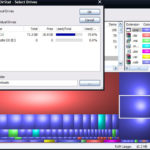

diskusage

WinDirStat, a 630KB download, at startup and by default will give an overview of the disk drives and if one doesn’t see the option and doesn’t choose the ‘A Folder’ radio button and just click OK it proceeds to fully analyze the whole drive without any further prompts. Subsequent to that but choosing a folder the stats are displayed pretty instantaneously. The rather strange and unusual map which is also color coded according to file types (see image) makes for a more detailed representation of the space the files take. It is possible to zoom on the map to get a close up if many subfolders or files are being looked at. Various disk cleanup options are included and one can configure more via the Options menu. Memory usage topped off at around 10MB. Runs on all versions of Windows including Windows 95 with Internet Explorer 5 loaded.

Folder Size is described by its author as

Folder Size helps you figure out where all that hard drive space has gone on your computer.


diskusage

Folder Size is a more basic analyzer with a basic option of visualizing the amount of space each folder or subfolder is taking. It is possible to filter the results but little else is included. At 333KB (unzipped) and not requiring installation it is good for quick reference. Supported Windows versions are not listed on the developer website.

Xinorbis is described by its author as

Xinorbis is a simple but powerful hard disk analyzer. Using a sophisticated mix of graphs, tables and tree displays, it gives the user a complete overview of the contents of a hard disk (or directory)


diskusage

Xinorbis, another available as a portable no-installation version is 4.64MB unzipped. Xinorbis provides a different and perhaps confusing GUI that packs its features in tabs. The tabs allows such things as keeping a folder history and also many different views of the results be they text, pie chart or table format. It also provides a ‘Top 101’ files table that lists the largest and smallest files in the disk or folder being analyzed. One additional filter that might be of interest is the ‘Null’ tab which lists any null files or empty folders. Xinorbis features four ways to export the results in HTML, XML, CSV and text. It used 15MB of memory. Of note is the shell support that makes it possible to scan a directory from the command line. It runs on Windows 2000, XP and Vista

For the simplest of all one can not forget Folder Size, an open source project that adds folder sizes right in the Windows Explorer details view, much in the same way as file sizes are displayed. It works on Windows 2000 and XP, and provides a features sorely missing in those and other Windows versions.


TreeSize is a small executable that lets the user visualize how much space a drive or a folder and its subfolders is taking. Opening the program and opening any directory or folder presents a windows explorer like and expandable list of folders.

The results can be viewed in KB, MB, GB, or even mixed units so that varied folder sizes can be more precisely accounted for. It is also possible to view the sizes in percentage, file count and cluster size.

It is also possible to enable or disable the bar that acts as a relative size indicator (see image below). Most interestingly perhaps are the options to add TreeSize to file and drive context menus accessible via right click and the ability to show tooltips when hovering over the results. The tooltips provide such info as Wasted space, in how data chunks are handled by the operating system, and such things as Creation Date, Average File Size and folder Permissions. Buried under View—>Options is File Filter which lets the user ‘Enter one of more file filters which should be included in a scan’, but it proves mostly useless since it seems to only be an indicator that an uncertain number of a certain file type exists within a folder.

treesize

The current version, 2.2.1 , is compatible with Windows 2000, XP and Vista but the last Windows 98 and ME compatible version, 2.1, is also available. TreeSize is freeware but a professional version with many more features, including the ability to export reports to formats other than a simple print job, is also available.


The dirhtml index.html generator is described by its author as

Dirhtml builds customizable html files from a folder branch using the gui or command line

Creating a file listing has been one of the oldest and sometimes most discussed implementations for any computer, it is obvious how to and may be even trivial to achieve a list via a search or the CLI (command line interface.)

One tool however, that offers a GUI (graphical user interface) for this task is dirhtml. The program’s options consist of 6 tabs that allow you to customize the input and output in many different and useful ways.

The first tab is called ‘Folders, Files’ and this is where the files or folder(s) the user needs to work on are chosen, those files can be filtered by type, name or even their location in subfolders. This is also the place where the output file template and/or location is chosen.

The second tab is called ‘Miscellaneous’  and offers many options all packed into one page (see below.) Here everything about the output can be customized. The user can choose to include file sizes in the output, change the date format, insert summary statistics and much more.

dirhtml

The third tab is the ‘Sorting’ options one and by comparison it is an empty tab. Two main choices are included here that allow the user to sort the way the files are listed in the output. One is ‘sort by’ where files can be sorted by filename, date, size, extension or random order and the other is ‘sort order’  where ascending, descending and unsorted order are listed. However I have not tried and am not sure how the two can work together, for example what happens if the ‘sort by’ is date and the ‘sort order’ is unsorted?

The fourth tab is ‘Default Words’ and here one can customize and include html tags (such as bold, italic, etc.) for the titles, headings and summary text of the resulting output.

The fifth tab is ‘Recursive’ options and here the user can divide the output. For example the user may want each subfolder worked on and presented separately or perhaps presented in a framed HTML page.

The final tab (see image below) gives the user the control of where the output is launched, what language or font is used and also the option to work with batch files and scripts to automate the process and even further customize every aspect of the resulting output file. Everything from working with alternate rows to using style sheets or validating the output is made possible here. The included help file has examples and a list of tags or words that can be used for the customization.

dirhtml2

All in all a very powerful program, dirhtml is now at version v4.832 and is a portable freeware. It runs under NT/2000/XP/Vista and a Windows 98 compatible version is also available at dirhtml.enware.info.

© 2012 RGdot Suffusion theme by Sayontan Sinha