Author: Reza

  • Freeware SE-DesktopConstructor Customizes Your Desktop

    SE-DesktopConstructor

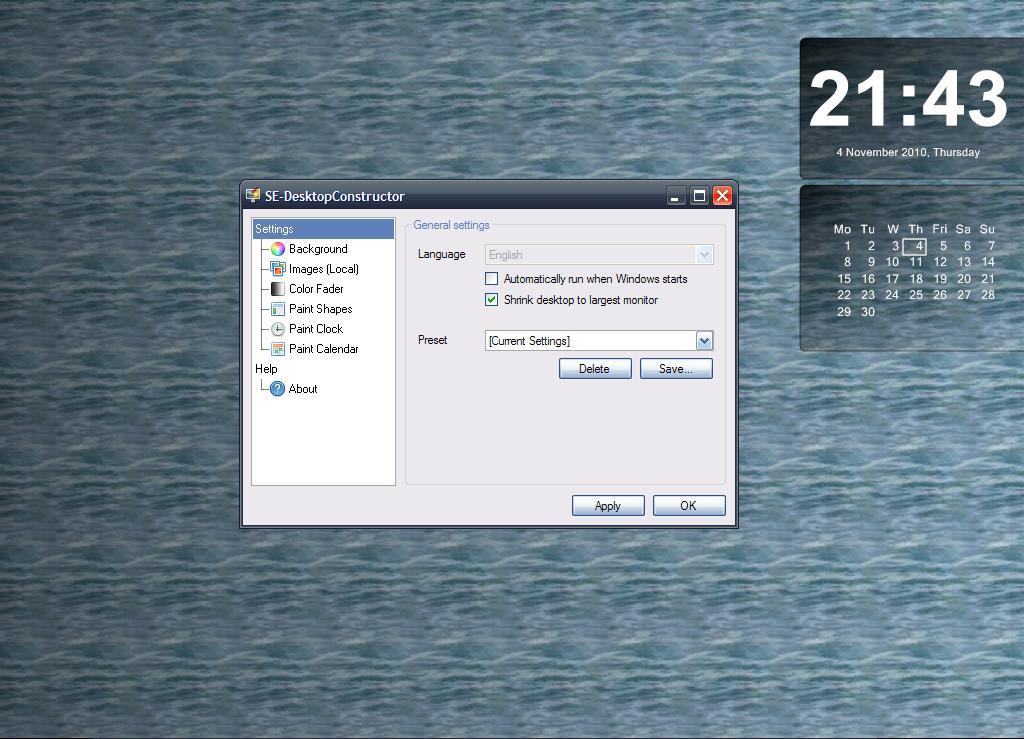
    SE-DesktopConstructor is a simple no-install tool that help you customize your desktop and add a few extras to it.

    SE-DesktopConstructor lets you to change your wallpaper in minute to day increments. A wallpaper folder comes with the program where one can use the default pictures or gradients that come with SE-DesktopConstructor, add one’s own pictures to that folder or just use another folder altogether. There is a color fader available to play around with the wallpaper and for example to make it seem brighter or dimmer in different regions. Using paint shapes one can add shapes (ellipse, rectangle or round rectangle) with customizable colors and borders to the wallpaper itself so as to create a virtual desktop area where a number of icons may be grouped together.

    SE-DesktopConstructor also features a set of clocks and calendars in different shapes and formats which can be positioned anywhere on the desktop with their own customizable colors and fonts.

    SE-DesktopConstructor is an attractive addition to a PC and runs on Windows 2000 and all later versions, it is also portable.

  • Freeware Quick Cliq Is An Innovative Launcher And More

    Quick Cliq, packed into a single executable, is an interesting launcher and productivity tool. It incorporates launching files, folders, URLs and emails with an enhanced clipboard utility and the ability to keep text snippets as memos. It also supports a number of Windows manipulation features.

    The program interface is launched by choosing the Add/Change item via its tray icon or via – the configurable – Win+Z keys. The options for configuring hot keys and mouse gestures are found under the settings menu. Other settings include enabling features such memos and setting colors and such things as adding the program to the Windows context menu.

    The program is divided into four main sections or features each launched in it own configurable way. They are described below.

    Accessing the Main menu: hold right mouse button and move mouse down or the aforementioned Win+Z if using the keyboard. Here you can create quick launches by adding folders, files, URLs, and email addresses in a sort of a list that will then be available for using the same mouse gesture or key combination.

    Windows menu: hold right mouse button and move mouse right or Win+C keys. The Windows menus allows you to hide or show windows and a few others settings like choosing to keep a window on top. When windows are hidden any one of them can be previewed by hovering over their name in the windows list while pressing the Ctrl key.

    Memos menu: hold right mouse button and move mouse left or Win+A keys. Add as many memos as you need and then send them to clipboard or automatically add them to the current open window.

    Clips menu: hold right mouse button and move mouse up or Win+X keys. This is where the program is on the innovative side of things. In addition to holding up to nine clipboard items it is possible to append or add data to any one of the existing clips. As the tutorial video on the developer site shows suppose a user needs to copy only certain paragraphs from a long page or text into a new clip. Using Quick Cliq instead of repeatedly selecting the text and then pressing Ctrl+C and Ctrl+V while going back and forth between the long text and the new clip or document the user can press Ctrl+1 (the 1 represents the numbered clip item so it could be any of 1 to 9) to copy and then press Alt+1 to paste, all without leaving the original long page or text. Then to append or add to the clip (clip 1 in this example) other text can be selected and added to that clip or document simply and only by pressing Ctrl+Win+1.

    Quick Cliq is in active development and in addition to the video tutorials it is also a good idea to follow the developer blog. It requires Windows XP as a minimum.
  • Freeware TSR Watermark Image Protects Your Images

    TSR Watermark Image is a freeware tool for adding text, images or watermarks to your images. TSR Watermark Image makes it easy to watermark a series of images because it works with a source folder – where the images may reside. The user can then configure the destination folder keeping the originals untouched.

    The output format, quality, transparency and – the preservation of – EXIF data can then be configured. The position of the watermark itself can also be configured from nine placement options like center, lower left and others. After placing it in one of the nine locations TSR Watermark Image also offers additional control over that location via the ‘relative offset’ settings.

    Finally one can choose to do watermarks by using or overlaying another image or to simply add a text watermark. One useful additional feature is that a user can change the size of the watermark relative to the original images’ sizes so that one can choose to watermark a smaller or larger portion of the images. When adding a text watermark the font, color and style of the text is configurable as well. Note that by default TSR Watermark Image adds the watermark at a 270 degrees angle (see image), this may or may not be the best angle but as with everything else this is also configurable.

    TSR Watermark Image is free for personal use and also available in a portable version.

  • Freeware Font Manager: dp4 Font Viewer

    dp4 Font Viewer

    dp4 Font Viewer is a small no-install utility that provides lots of information about the fonts (TrueType (TTF) and others) installed on a Windows system. When running the program provides a count of fonts installed on a drive, either in the default (for example C:\WINDOWS\Fonts) or other locations. It is possible to print a font list or a complete preview of a chosen font. In the latter either a full list of characters or one’s own text can be printed. The Font menu includes options to install or delete fonts from within dp4 Font Viewer, to view any fonts’ properties or even to generate a bitmap image of the font preview. The aforementioned install option also a includes ‘make available’ which lets the user work with fonts temporarily.

    Additionally dp4 Font Viewer has many filtering options to narrow down installed fonts by class (serif, sans serif, symbolic and others), weight class (bold, thin, light and others), width class (various condensed types) and monospaced fonts. Fonts can be previewed in different sizes from 7 to 144 pixels.

    dp4 Font Viewer is also available in a native 64bit version.

  • Texter: Freeware And Attractive Text Editor

    Texter

    Texter – not to be confused with Lifehacker’s text substitution and expander Texter – is a lightweight and attractive text editor with a few extras.

    Texter’s few extras are as follows:

    Encrypt a text file via the file menu.

    Zoom in and out via the view menu.

    Change the case to upper or lower and copy file name or file path to the clipboard via the edit menu.

    Access to clipart, symbols, images and text from external text files via the insert menu. Date can also be inserted from one of many formats via the insert menu.

    Change colors and fonts and create bullet points via the format menu.

    Preview text in browser mode. Load a XML file or open the document browser via the tools menu.

    The program options, accessible via the tools menu, include auto detection of URLs, configuration of the auto save setting, customization of the toolbar and others. A number of shortcut keys, such as InsertSymbol = Ctrl + F3, GoToChar = Ctrl + G and others are also available and viewable in the options.

    Texter supports *.rtf as well plain text files, should run on all recent Windows versions and is GNU general public license software.

  • Top 10 Must Have Windows Freeware

    top 10 freeware

    PowerPro

    powerpro.webeddie.com

    Briefly talked about at http://www.rgdot.com/bl/2010/03/16/powerpro-is-the-ultimate-freeware/

    Does it all and some more. Create a bar to do everything from launching programs to saving clipboard items and to scheduling systems task and lots more.

    Photoscape

    www.photoscape.org/ps/main/index.php

    Reviewed at http://www.rgdot.com/bl/2009/04/20/photoscape-for-all-your-image-editing-needs/

    Photo and image editor and viewer with many features on a clean interface.

    VirtuaWin or Dexpot

    virtuawin.sourceforge.net or www.dexpot.de/index.php?lang=en

    Dexpot reviewed at http://www.rgdot.com/bl/2008/12/17/dexpot-virtual-desktops/

    Virtual desktop manager to create different desktops with different applications open on each. Organize your oft used applications on different desktops.

    Dropbox

    www.dropbox.com

    Backup and store your files on the cloud, easily access them and their older versions on your computer and online anywhere.

    Clipboard Help+Spell

    www.donationcoder.com/Software/Mouser/clipboardhelpandspell/index.html

    Reviewed at http://www.rgdot.com/bl/2009/03/08/clipboard-helpspell-from-donationcodercom/

    Extend the capabilities of the Windows clipboard and keep unlimited number of clipboard and notes forever.

    Notepad++

    www.notepad-plus-plus.org

    The Notepad alternative and free source code editor of choice. Open source and a must for all who write code.

    CintaNotes

    www.cintanotes.com

    Reviewed at http://www.rgdot.com/bl/2009/03/22/easily-gather-and-collect-notes-with-cintanotes

    Grab text snippets, save and tag them for future reference.

    Writemonkey

    www.writemonkey.com

    Reviewed at http://www.rgdot.com/bl/2009/05/26/writemonkey-is-soul-food-for-the-modern-writer/

    Write without distraction and work with your writing in an efficient manner.

    Locate32

    www.locate32.net

    Reviewed at http://www.rgdot.com/bl/2009/04/07/locate32-quicker-and-easier-way-of-finding-files

    Quick and easy way to index a Windows drive to search for files within it.

    Stellarium

    www.stellarium.org

    Reviewed at http://www.rgdot.com/bl/2009/11/14/stellarium-is-astronomy-central/

    More than just a hobby software, a fascinating and feature rich look at the sky right from your desktop.

  • Image Tuner Is Your Basic Image Editor

    Image Tuner Freeware

    Image Tuner is a lightweight freeware which works on images or series of images and applies a set of basic but simple and useful tasks to them. Pictures or a folder of pictures are added by dragging them into the program window or by using the Add Folder or Add Images buttons. The images will then be listed and previews of them can be seen on the top right. On the lower left a destination folder is chosen and any of the available options checked.

    Pictures can be resized to one of many preset sizes in the available drop down or to a custom size by clicking the icon immediately to the right of the drop down list.

    Images can also be converted to and from *.jpg, *.png, *.gif, *.bmp and *.tiff. The icon to the right opens up the program settings relevant to each format.

    Images can also be renamed. In the text area one can for example type “picture_” (without the quotes). This will produce output images named picture_1, picture_2 and so on.

    The Add Watermark option allows the user to browse to another image which will be overlayed or watermarked on top of the ones in the image list.

    The program settings include options for each image format such as out put quality and others, as mentioned earlier, relevant to the image format. The settings also include positioning and transparency settings for the watermark option and also the option to maintain the proportions of the original images when resizing. Additionally the choice of filters and interpolations used to generate out put images are listed and can be chosen, these include the default and common Lanczos3 and others.

    Image Tuner runs on Windows 98, ME, NT, 2000, XP, Vista and 7 including 32 and 64 bit versions.

  • AH Note: Free And Simple Notepad Alternative

    AH Note Freeware Notepad Alternative

    AH Note is a young entry in the notepad alternative universe. AH Note’s capabilities are all visible via its icons around the program interface. Its features, those not common to all simple notepad alternatives are listed below.

    Copy options to copy the current file name and path. Indent selected text by 1 column increments. Add bullet points to selected text. Add images to any text document. Zoom in and out of pages. View the page in a browser and finally convert selected or all text to lower or upper case.

    AH Note can open many text files formats and save them in its own native *.aht format in addition to *.txt, *.rtf and others. AH Note is obviously a young project, one area which makes that clear is the tool tips (hover the mouse over menu buttons). As of this review – version 1.0 – some tool tips are not properly labeled and are still the likes of ‘ToolStripSplitButton’, a mark of the programming language used to code AH Note. AH Note is one self contained executable file that doesn’t require installation, just download it and run it.

  • A Nissan Leaf Ad And A Word On Clean Power

    Nissan Leaf

    Nissan Leaf (Leading, Environmentally friendly, Affordable, Family car) begins its US roll out very soon and it will be available in some other world wide markets before a more widespread roll out. It is Nissan’s all electric car with a range of 100 miles (160 km). It has a top speed of over 140 km/h (87 mph). Its motor is rated at 80 kW (110 hp) and 280 Nm (210 lbft).

    Some responses to electric cars can be paraphrased as such:

    The electricity you are using to charge your car is produced in a non environmentally friendly manner, such as coal, so you are still polluting

    That shouldn’t diminish the importance of electric cars and additionally it is the job of the consumer and the voter to make sure electricity comes from clean sources. That is done by voting for the politicians who would make sure clean energy happens and also those would make sure that electric cars, such as the Nissan Leaf, make it to dealerships near you in mass numbers and are not dismissed or removed from the market place altogether.

  • Simple Freeware: Screenshoter And Easy Image Modifier


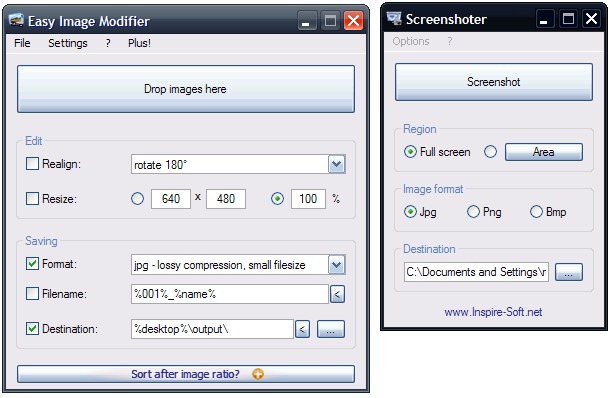
    Screenshoter is a basic, no-install utility to take or capture screenshots quickly and easily. Double click the program executable, choose full screen or area – to capture an area click on the area button, after choosing the area radio button, then click and hold the left mouse button and drag to choose a rectangular area – and then simply click the screenshot button. The image’s format can be changed from the default *.jpg to either *.png or *.bmp and the destination directory can be chosen too. Screenshoter’s options include controlling the name of the captured image and the quality of the *.jpg.

    Easy Image Modifier from the same author is also no-install and works by either dragging images into the program window or by using the load option from the File menu. Images can be realigned, that is they can be rotated 90 and 180 degrees or flipped horizontally and vertically and resized by pixels or by percentage. The out put format can be one of *.jpg, *.png or *.bmp. Output file name can be configured to include any combination of a numbered sequence, it’s original name or size. The destination or output directory is configurable as well. The settings menu includes options to exit the program after processing images or to load or launch the output images. There is also an ‘Additional’ option where one can choose to sort images by such criteria as date and file size. Plus other options to maintain aspect ratio when resizing, to remove meta information (such as EXIF) and to reduce or increase the output image quality.