Author: Reza

  • Clover: Tabs For Windows Explorer

    Clover (Version: 3.0.258.0) is a freeware Windows Explorer extension that adds tabs to the explorer window.
    Clover

    Those who use Windows’ own explorer to navigate through folders know that it is cumbersome and not exactly efficient. Some use alternatives to Windows Explorer itself, XYplorer for example, and others use dock menus and shortcuts managers.

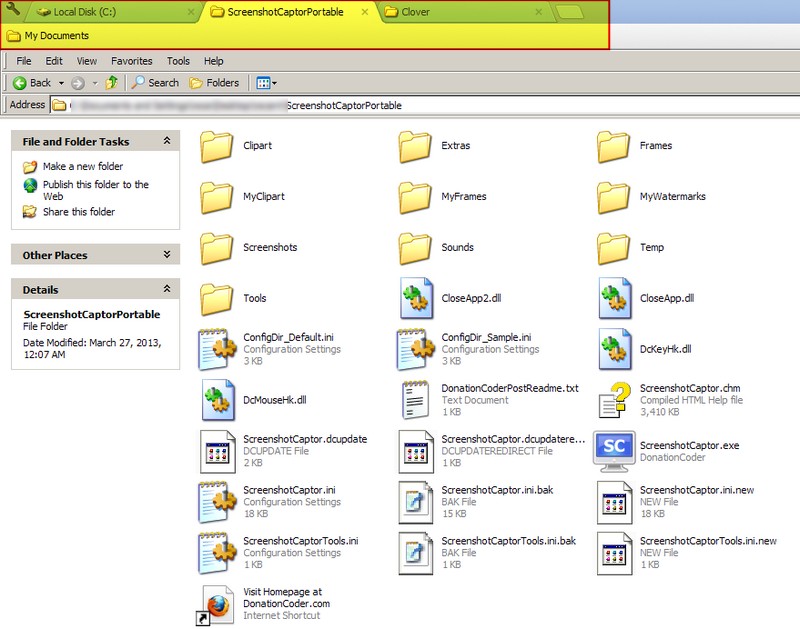
    Clover take a slightly different approach not as common as the aforementioned alternatives, docks and shortcuts. It adds a Google Chrome type layer to the top of the Explorer window. Much like Chrome there is the now familiar blank new tab button (one of Google’s more interesting ‘ideas’ outside of their annual Spring cleaning)  and the bookmark bar.

    The same Ctrl+T opens a new tab, Ctrl+Tab switches between open tabs, Ctrl+W closes a tab and Ctrl+D bookmarks a tab. It is also possible to drag a folder from Windows’ own Address bar to create a bookmark.

    The program settings include themes (downloaded crx files), import/export bookmarks (html file), warn before closing a tab and a toggle to always show the bookmark bar. Clover runs on XP and newer.

  • pViewer: Another Minimalist Image Viewer

    pViewer (Version: 1.6) is a minimalist open source image viewer. It has no menu and little distraction.

    pViewer

    pViewer’s options are available via right click and there are keyboard shortcuts for its features. These features are Send To Dropbox Public folder, rename, slideshow, rotate, flip, resize and read exif data. It supports effects such as invert, grayscale, sharpen, blur, brightness, contrast, tint, black border, white border and red eye correction. Additionally there is support for .zip, .rar, .cbz, .cbr archives with Manga and Comic mode displaying two images side by side.

    The batch operations – resize, rotate, convert, rename, grayscale, invert white or back border – work on all images in the current directory and sometimes even without any additional prompts. For example Add White Border just goes to work and creates a subfolder containing the output.

    pViewer

    The program settings has options for drawing and text color and fonts. These are not accessible via the right and looking at the keyboard shortcuts one sees the following

    Crop: Ctrl+Click to make a selection, release the mouse button while still pressing Ctrl. Writing on the image: press Shift+Click on the picture to add text, write what you want, move it wherever you want with the mouse, press Ctrl+Enter.
    Drawing a rectangle: Alt+Click and drag to draw, then you can save the edited image. Filling the rectangle: After drawing a rectangle you can fill it with the same color by pressing TAB

    It is less than 1MB unzipped, doesn’t require installation and should run on Windows XP and newer.
    Thanks to commenter andy for pointing out that it requires the .NET framework 4.0

  • Giveaway: 1AVCapture Capture Audio Video

    PCWinSoft brings you a unique time limited exciting offer to give away free licenses of 1AVCapture, the video and audio recorder and broadcaster software.

    The price of 1AVCaptue is $59.95 the software allows you to capture images, record video with audio, record audio alone and it can record and broadcast any possible combination of audio video sources your PC has.

    1AVCapture

    1AVCapture can record and broadcast from any audio video source combination including audio alone. 1AVCapture records audio to wav, wma and mp3, and it records video to avi and wmv.

    If you can hear and/or see and hear something on your computer then you can record a high quality copy of it with 1AVCapture.

    1AVCapture supports all Windows Media Encoder profiles including the newest Microsoft Express Encoder. So you can have full control over encoding properties and you an make tests quickly to the audio video compression choice.

    Whatever 1AVCapture can capture it an also broadcast it so you an use it to broadcast your screen or your webcam and even include the embed code inside your web page on your web site.

    1AVCapture is the ultimate audio video capture & broadcast solution. It will run on 2000/XP/2003/Media Center/Vista/Windows 7/Windows 8 and requires at least a 1.3gHz processor and 256MB of memory.

    To receive your free copy of 1AVCapture simply register here: http://www.pcwinsoft.com/promotion/RGDot1AVCapture/registration.asp

  • Giveaway : SuperLauncher Program Launcher And Reminder

    Grab a copy of PCWinSoft’s SuperLauncher, normally $29.95. Click the link below, fill in your email and details to get the activation key.

    SuperLauncher (Version: 1.9.3.00) is a program launcher and also a task scheduler and reminder. It can help make computer usage somewhat more efficient.

    SuperLauncher

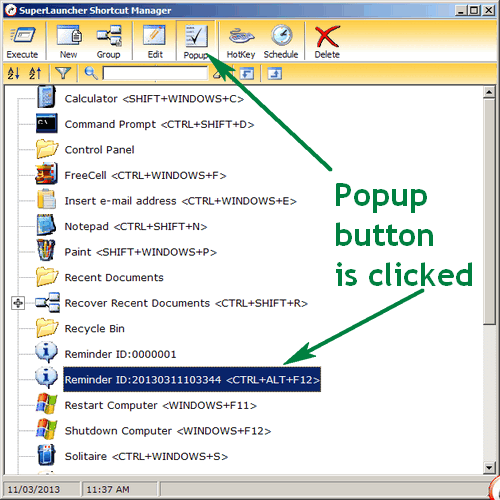
    After installation it can be accessed via its tray icon, or if enabled, its floating icon on the desktop. By default it includes some common shortcuts. These shortcuts include calculator, command prompt, recycle bin, notepad, restart computer, shut down computer and shortcuts to yahoo, msn, google and others. Most of these already have a hot key assigned to them, shown in the program’s Shortcut Manager. These hot keys are editable using the Edit button.

    New shortcuts are added by clicking the New button then typing a name, choosing one of application, file, folder, website, batch file, reminder message  or insert text and then setting parameters as applicable. When adding a file, folder, batch file or application shortcut use the Get button to browse to its path. Test any shortcuts with the Execute option (either right click on the entry to access the option or use the menu in the program’s Shortcut Manager ) and then set its hot keys, delete it and schedule it the same way.

    The reminder message provides a pop up at the scheduled time if the Popup button is pressed or active when it is shown (see image below) . It can be set to a recurring reminder via the Advanced key in the scheduling window. When an insert text is created use the Ctrl+Win+left mouse buttons to activate a popup menu that lists the text configured with SuperLauncher.

    SuperLauncher

    There is brief tutorial available at first launch or anytime via its tray icon. SuperLauncher can export and import its database for backup and restore, is available in six languages and works on Windows 2000 and newer.

    Giveaway link:
    http://www.pcwinsoft.com/promotion/RGdotSP/registration.asp

  • A Note: Open Source Sticky Notes

    A Note (Version: 4.2.4) is an open source desktop sticky notes program. It is lightweight and a portable version is available via portableapps.com

    A Note

    By default a new sticky note can be created by a single click on the program’s tray icon or by right clicking it. Sticky notes resize automatically when text is added, they can have different background colors, text colors and fonts. By default every note has three buttons. From left to right the first is the slide or dock, this docks note(s) to either the right or left side of the screen. The second is the minimize or maximize button which in A Note’s case is like roll up and roll down. The third is delete. A-Note has a built-in recycle bin with restore so deleted sticky notes can be restored later. Right clicking inside a note one can change the note title – also possible by double clicking inside the title area – and also assign an (audio) alarm to the note.

    The program options include the following. Changing the default new note title and default note color. Altering the behaviour when tray icon is single clicked or double clicked. Setting a transparency for notes in normal and minimized states. Setting a hot key to show notes and setting a maximum number for notes held in the program’s recycle bin. Adding strikeout, bold, underline, italic and bullet point to the note toolbar is also possible and finally one can set the language and character set. A Note currently supports 16 languages.

    Notes can also be printed or emailed. A Note should run on all Windows versions.

  • Wordz: Freeware Word Processor

    Wordz (Version: 1.0) is a freeware word processor that is a lightweight and quick alternative for basic writing. Documents are saved in rtf or plain txt files and an export as pdf feature is available as well.

    Wordz, Word Processor

    Wordz comes with British English, American English, French, German and Spanish dictionaries and includes a live spell checker similar to Microsoft Word. The spelling options (Edit —> Spelling Options) let the user choose which dictionaries to load, disable the live spell checker or automatic corrector, ignore upper case words, ignore words containing numbers, prompt on repeated words and automatically correct dual capitals (For example HEllo is corrected to Hello). Image and object (clipart, scans, sound clips, etc.) inserts are supported. Additionally there are the usual formatting options like color, font, alignment plus insert date, line spacing, subscript, superscript, ordered list, paragraph spacing and paragraph margin.

    An useful additional feature is Additional Reading where a highlighted word can be looked up on Google, Wikipedia, YouTube, Thesaurus and Dictionary. Also if a highlighted word is linked (using the Link button) it will become link to its Wikipedia page. Highlight and right click the text to add any custom, non-wikipedia, link.

    Wordz comes with an installer but its folder can be copied for portable use. It should run on all Windows versions.

  • Black: Minimalist File Manager

    Black (Version: 1.40) is a no install, lightweight and less than 100KB unzipped freeware file manager. It is two pane and only supports a subset of features common to most file managers but at its size it’s a reasonable option.

    Black, File Manager

    Its basic features are copy, move, rename and delete. The rename operation can be applied to a group of files. This requires choosing the files by selecting them all (the red icon) or by right clicking a set – which turns the file names red. Rename rules include increment, counter, extension, size, time, date and case.

    The program’s search tool is not the fastest and seems to only find exact matches, including extensions, by default. See images below for search results when I searched for ‘homer’.

    Black, File Manager

    It includes shortcuts to few systems folders and the command prompt.

    Black, File Manager

    Black should run on all Windows versions.

  • Redhaven Outline: Freeware Notes Organization

    Redhaven Outline (Version: 2.3.6.3736) is a freeware (donationware) outliner. A repository to not only write information down but to have it organized as naturally as possibly. Outlining or organizing software, much like a traditional pen and paper method, work differently for everyone and the software created for such purpose may or may not suit everyone at first or at all. First use of a software like Redhaven Outline is not necessarily easy or intuitive. Admittedly writing about such software is not very easy either, as you will notice when I describe some of Redhaven Outline’s features below.

    Redhaven Outline

    Redhaven Outline can hold and keep open several outlines or databases. One can start a new outline via its file menu, start new nodes (via right click in the node tree area) and start typing or just bring in text written elsewhere. The first line of text written in a node becomes its title so the node title gives an indication of its content, this is one example of how Redhaven Outline manages organization. Nodes can be copied and moved across an outline to better organize thoughts and notes. Nodes can be colored and use different fonts to add emphasis. Child nodes are created from text and Redhaven Outline treats new lines and tabs as child nodes automatically.

    Redhaven Outline has a good search features to find any word or phrase anywhere and using the Summary and Key Words (much like tags) fields provide a better method for future information retrieval. Using key words inside nodes is perhaps another way of maximizing an outliner’s usefulness. Searches can be saved for future re-use (see the bottom of the search dialog). There is also a ‘Build Reference Search’ that saves a search inside a node. This is another feature whose usefulness is not necessarily apparent at first or may not work for everybody because one needs to be organized about creating them to be organized later!

    Redhaven Outline

    The program can also create reports or exports outlines for external viewing. External references can be added with links to sites, files, sounds or images. Add the link or path and when needed click the Reference button to launch the file.

    There is lots to be said about any outliner but probably the best way is to use it, read its tutorial and also in this case go to http://www.youtube.com/user/RedhavenOutline to watch tutorial videos (one can also launch the video tutorials within Redhaven Outline by following the external reference links.) Redhaven Outline runs on Windows 2000 and newer.

  • Easy Sticky Notes With Simple Sticky Notes

    Simple Sticky Notes (Version: 2.0.0.0) is a freeware and lightweight desktop sticky notes program.

    Simple Sticky Notes

    Double click its tray icon to create a new note. Double click in a note’s title area to roll it up, resize using its corner and hide it using the x button. The arrow button provides access to notes features such color, opacity, title edit (F2), share (on Facebook, twitter or via email), alarm, print, delete, minimize, and always on top. The Alt+N keys are another way to create new notes and there are several other shortcuts to work with and format text like bold (Ctrl+B), bullet list (Ctrl+Shift+L), double line space (Ctrl+2), Insert date and time (Ctrl+D) and others. Right clicking a highlighted text offers the same formatting options plus a search using google one.

    Simple Sticky Notes’ settings include options to show notes on program startup, changing the default new note appearance, configuring hotkeys which include interesting ones such Go to next note (Alt+G) and New note from clipboard (Alt+V), choosing a sound for the alarm, picking from one of 11 languages and importing, restoring, backing up and if required changing the default database location.

    Simple Sticky Notes runs on Windows XP and newer, including Windows 8.

  • Saint Paint Studio: Simple Freeware Image Editor

    Saint Paint Studio (Version: 18.0) is a freeware image editor. It offers many features that are comparable paid or shareware image editors. Input formats supported include bmp, jpg, gif, ico, cur, png, pcx, tiff, tga, wbmp, sps (its own native format) and perhaps interestingly avi.

    Saint Paint Studio

    The program toolbars offer the mostly standard like red-eye filter, blur, sharpen, gamma, emboss, dilate and others but with a few additions like the Symmetry Pattern that, for example, applies the Spray tool to symmetrical positions on an image with one click or drag – remember to press the Symmetry Pattern button before applying the Spray (see image)

    Paste image from clipboard, gif animation, a color palette that can be navigated through using the keyboard and reordered by RGB values, light to dark and dark to light colors are some of the other features of the program.  Various brushes can be constructed freehand and then resized, deformed, continuously applied by single clicks, rotated and converted to frames for animation. It is also possible to grab a whole image to use as a brush to apply on another.

    Saint Paint Studio also features layer and print support. It should work on all Windows versions.