Tag: text

  • PearlMountain Photo Watermark Review And Giveaway

    PearlMountain Technology Co. has generously provided a number of Photo Watermark licenses, valued at $19.90 each, comment below to win one!

    PearlMountain Photo Watermark is one of the more advanced watermark tools available. It features several ready made text or image watermark templates for protecting photos or images. The user can also create others with one of the many options available.
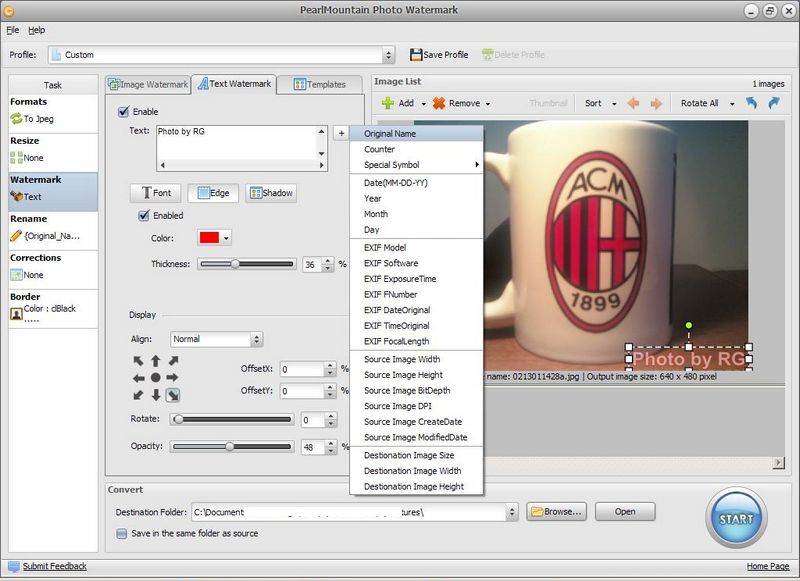
    PearlMountain Photo Watermark

    On startup the user can decide to use a template or just click the Load button to go straight to the main program interface. The first step would be to add or drag and drop an image into the image area or alternatively use the Add drop down to add an image, folder of images or to import an image from the web.

    The first options are to configure text watermarks. Here any text can be added and fully configured in position (on the image), offset from that position, color, font, justification, edge or border, shadow, opacity and rotation. The text can be anything of course but the program offers lots of options for automatically adding text ranging from special symbols, EXIF meta data, date and source or destination folder path (see image above).

    The image watermark tab can be used to add an overlay image instead of text and offers the same flexibility for position, opacity and rotation as the text option. The image watermark can also be tiled to fill the whole photo. The program also comes with a set of 77 images to use for this purpose (see image below).

    PearlMountain Photo Watermark

    The task area to the left has options to modify the output image(s) to .jpg, .bmp, .tiff, .png, .gif, .pdf, .tiff or .psd. The original image can be resized and renamed. When working with a set or folder of images the output file name can be in the form of increasing increments (image1, image2, etc.) or similar to those offered for the text watermark, as mentioned earlier. Corrections has setting for brightness, contrast, saturation and sharpen/blur. Finally a border can be added to the original image.

    The workflow concludes by clicking the Start button and optionally configuring the output folder. PearlMountain Photo Watermark works on Windows 2000 and newer and is good for both 32bit and 64bit systems.

  • NoteItDown: Simple Notepad Alternative

    NoteItDown (Version: 1.2 as of this post) is a no-install, portable freeware Notepad alternative. Its features are basic and it is lightweight. It has the .rtf, rich text features such as changing text and (text and note) background color, adding or removing indent, aligning text and changing fonts.

    NoteItDown

    Notes are saved in a tree structure and while the global search (File—>Find notes or Ctrl+F3) displays results in a separate window the search function above the note area searches the current note and displays matches incrementally as in a search as you type. The Insert menu features Date and Time, Date and Time options.

    Links and email addresses are converted automatically and by default notes are saved automatically. On startup NoteItDown prompts the user to choose a location to save the notes or data, the three options available are the system application data, the program’s own or browse and pick any other folder. NoteItDown requires Microsoft .NET Framework 2.0.

  • AstroGrep, Open Source Search

    AstroGrep is a simple search tool. It searches within files for matching text. The program supports regular expressions to search for near matches, it also supports searching within one of several files types only and has options to match whole words and within subfolders. It presents a preview of the line containing the match with the option to show line numbers and also a configurable number of lines above and below where the match is located. The Negation option reverses the search where the results are files that don’t have a match in them. AstroGrep also remembers recent paths and search queries.

    AstroGrep

    Program’s options (Tools menus) include file type exclusion and specifying an external text editor (default is Notepad) that will open when double clicking on a search result. A ‘plugin’ section enables searching within Microsoft Word (.doc, .docx) files.

    AstroGrep is open source, requires Windows XP, Vista or 7 and .Net Framework v3.5 SP1.

  • Drag And Drop Notes: Freeware Notes Repository

    Drag And Drop Notes (Version: 1.1 as of this post) is a simple if somewhat unpolished note taker. Select any text in any application and drag and drop it in the program window to create a note.

    Drag And Drop Notes

    Drag And Drop Notes is basically a repository. There is no real organization in the way notes are saved, they are just added to a cell below others. It has a recycle bin (or is it history?) feature, one especially handy since a simple right click on a note deletes it. Clicking on the recycle bin icon brings up a window with deleted items ready to be restored. Double clicking a note brings up an edit window and notes can also be created manually using the + icon. Additionally images – local and web – are supported and so are local files. For images their ‘original’ location or path is saved as a note and a copy stored in the program’s Files folder (by default AgataSoft\AgataSoft Drag and Drop Notes\Data\Files) making Drag And Drop Notes a defacto document, but only image, manager.

    Notes are always saved automatically. Drag And Drop Notes works on Windows XP and newer.

  • RightNote: Powerful Notes Organizer

    RightNote is a feature packed notes organizer that can take simple notes and do more like include workable Excel spreadsheets (in its professional version). A not so limited freeware version has been recently released that is missing only a few features.

    RightNote

    I have decided to to post the complete review on the DonationCoder Mini-Reviews section at http://www.donationcoder.com/forum/index.php?topic=29681.0

    RightNote is a notes manager and organizer, it is also one able to import existing text (File—>Import). Each database is represented as a notebook, each notebook is then divided into pages (horizontally tabbed) and each page has its own notes structure within a tree…


  • InDeep Notes: Unusual Freeware

    InDeep Notes (Version: 2.0 as of this post) is a somewhat unusual note taking application. The interface is not standard but beyond that it features some of the same minimalist aspects of a notepad type freeware. It saves notes in a ‘collection’ and each in a folder within its data folder keeping a tree like directory structure.

    InDeep Notes

    It has a search box, status bar and an action bar. The first requires a click to start a search and the latter has buttons to add empty lines, remove empty lines, export visible text as png and export note as png (both saved on the desktop). These final two features may not be the most common or useful and one created a very large non word wrapped png file that needed zooming to to be legible.

    Further options include changing the text encoding, changing the font for both the note area and the tree list and a toggle for word wrap.

    InDeep Notes is portable, runs on Windows XP, Vista and 7 and requires .Net Framework 2.0

  • QText For Quick Notes

    QText (Version: 2.50 as of this post) is a notepad alternative but it is best suited for quick note taking than anything else. It features a tabbed interface that saves each tab in a separate file. The notes are saved in individual txt or rtf files in the program’s application data folder but this is configurable in the Files tab of Tools—>Options.

    QText

    QText offers to create a new tab either in text or rich text with each having a slightly different toolbar. It features URL support, quick auto save and ‘regular’ auto save intervals that can be changed from the default 3 and 60 seconds.

    Hot keys Ctrl+Shift+Q (also configurable) bring up the program from the tray area and a carbon copy feature is available to keep a back up of the notes in another location, this is off by default but can be activated from the options. QText’s other features are zoom and formatting options (upper case, lower case and title case) plus sorting lines in ascending or descending orders.

    Version 3.0 in beta is coming soon with more improvements and changes to the portable version. It currently –  even in the portable version – saves notes in the application data (appdata) folder.

    QText is available in portable and installer versions and requires .NET framework 2.0.

  • Ethervane Echo: Multi-Featured Clipboard Manager

    Ethervane Echo is a full featured ‘keyboard centric’ clipboard extender or manager for Windows. It divides captured clipboard items into different categories based primarily on time captured and type, for example last hour and URLs and it can be tweaked for more advanced use. It does and should work when copying from most any source but it does not support images.

    The Win+Insert (can be changed in the Preferences (Tool—>Preferences—>Keyboard)) keys are the default way of bringing up the program and Esc the default way to minimize it back to the tray.

    Ethervane Echo
    Ethervane Echo’s interface is divided into views, these views can be hidden or others added (View —> Manage Quick Views). The intended features and strengths are to find the items after they have been captured using the keyboard and search (with wild card support). A good example of Ethervane Echo’s ease of use is that when the program is brought up just typing starts a search, there is no need to click in the search box, and if required pressing Esc clears the search box. The search box has basic and advanced modes, the former is search as you type and the latter requires pressing enter to start the search.

    The interface tries to give as much information as it can by showing the source, time of capture, size and type of a highlighted item and information on the total number of items in its database. Ethervane Echo has a status indicator – the little green check mark on the bottom of the interface – and it can be paused to not capture clipboard items by double clicking on that same icon.

    The basic usage uses the usual Ctrl+C keys for copying and then maximizing the program, choosing a clip using the arrow keys and then pressing Enter to paste the chosen – or even multiple clips – into the active window. Right clicking on each clip presents copy, pasting and editing options as well.

    An item can be made sticky to remain in the database forever, this can done via the right click menu, Ctrl+S or the Edit menu.

    Ethervane Echo
    The Database Maintenance section of the Preferences is important because here one can edit the program’s purging or automatic deleting schedule.

    Among other features Ethervane Echo is also capable of holding items in memory instead of on disk for privacy reasons (Preferences—>Database). It supports ignoring clips like those captured within an interval (Preferences—>Capturing Clips) of the last capture, from certain programs  (Preferences—>Application Filter), duplicates and passwords.  Setting minimum and maximum item lengths are also set in the Capturing Clips section.

    See the Keyboard Reference section of the help (or Shift+F1) for all available shortcuts. Ethervane Echo can import items from a text file or a Ditto clipboard database (Tools —> Import Clips). Ethervane Echo has been released as part of DonationCoder’s 2012 N.A.N.Y. (New Apps For The New Year) challenge, requires XP and newer and is available in both portable and installer versions.

  • Notepad Enhanced: Interesting Notepad Alternative

    Notepad Enhanced is a text editor, it does not have many outstanding features as it basically aims to be a better version of Windows’ own notepad. It supports file associations but that can be done within Windows as well. The main reason for it to be called ‘enhanced’ is its tabbed interface.

    Notepad Enhanced

    Notepad Enhanced does have a few additional features and they are contained within panels, activated using the View menu. The Document Info Panel has the word, charater and sentence count. The Preference Panel houses the program settings which among others lets the user choose how the program opens, with new blank tab or not, and also if more than one instance of Notepad Enhanced can be opened at the same time. The File View Panel is a bit more interesting or unusual though perhaps not so useful. Here Notepad Enhanced scans local drives, ‘common places’ or Windows’ recent files to load a list of text files it finds. This can be filtered and is presumably a part of the program to ease the search for files to edit.

    Notepad Enhanced requires the .NET Framework, is open source and is a simple addition to the list of many freeware text editors.

  • Freeware Shorts: M8 Free Clipboard

    M8 Free Clipboard (Version: 16.12.1 as of this post) is a clipboard enhancement program that also captures images. It can hold up to 25 clipboard items. Hovering over any item pops up a preview (see image). Items can be dragged or copied to the right hand – white – cells to be kept permanently and not be lost when the 26th item is added. There is more than one way of re-using an item. One is to maximize the program and click on the item, when it will be automatically pasted to the active window, another is to assign hot keys via the preferences.

    M8 Free Clipboard

    Items in the permanent area can be renamed, sorted A-Z and highlighted to ease later use. Both text and graphic items can be edited (via right click). The text tools available are making upper case, removing blank lines, HTML, leading spaces and more. The image tools include adding text, shapes, lines, resize (including increase!), crop, clip art, overlay with other image and more. There are several sheets that at first seem to make M8 hold more clipboard items but that doesn’t seem the case with each being a different view, certainly confusing. The program has two options menus (via Tools menu), one controls the aforementioned views with settings like ‘keep on top’ and others (see image) and another general one with settings for start with windows, start minimized, hot key activation, remind when clipboard full, screen edge activation, delays in bulk pasting, image pasting options – numbered methods that paste images reduced in size or not, supposedly dependent on the program the image is being pasted into but I could not see a difference in tests –  and many more. Other features or extras include Pictures —> Browse Picture Clips on this Sheet that turns M8 into a sort of image viewer and also a calendar (Tools —>Year Planner) where items can be added via right click and edit.

    M8 Free Clipboard

    M8 Free Clipboard does not win any ‘intuitive’ awards, and needs a look through the local help file (Help —> Main Help Index) to make some sense but is nevertheless useful as a clipboard program and should run on most Windows versions.