PC Wizard (Version: 2010 1.961 as of this post) is a freeware from the same developers as CPU-Z, the popular CPU information utility. PC Wizard provides a lot of information about its host PC.

PC Wizard

Upon startup, which takes a few seconds, the Hardware section is first.

Hardware has 12 sections for System Summary, Mainboard, Processor, Video, I/O ports, Drivers, Printers, Devices, Multimedia, Network, Power Status and finally Voltage, Temperatures and Fans. The information available are specs for system manufacturer, Direct X, PCI slot, Open GL, disk drives, Twain devices, UPnP, audio and video codecs, network card and connection, battery status, if applicable, and lots more.

The Configuration section features information on Windows serial number, system uptime, default browser, default email client, control panel, desktop appearance, running processor and threads, DLL files, OLE applications, Microsoft components, fonts, Windows updates installed, uninstall info, startup info, file extensions, Window security status, services, .NET Framework and also a passwords section. Interestingly passwords detected one old and one current MSN (Live) Messenger password on the PC tested!

The System Files section has viewers for boot.ini, system.ini, event logs, internet explorer cookies and history and a section on environment variables such as system paths, architecture and more.

Resources section has IRQ info and a network sniffer with a list of IPs, ports and their state (listening, established, etc.)

The Benchmark section has tools for various memory, processor and video tests and a global performance benchmark test to do them all together.

Each section is printable and highlighted entries can be captured by the clipboard. The Tools menu has extras for enabling processor monitoring and gathering overclock information. PC Wizard is by no means the fastest program. Some info, like the DLL list for example, take a bit more than a few additional seconds to gather and present.

PC Wizard

PC Wizard is available in both portable and installer versions and should run on all Windows versions. As always with benchmark and system profile utilities some information may not be available if they are not supported either by the software or if they are not present on the host system.


System Spec (Version: 3.05 as of this post) is a system information utility that has some of the most comprehensive and complete set of information available. The initial screen provides a general system profile with the likes of Windows to BIOS version (see image) but there is lots more.
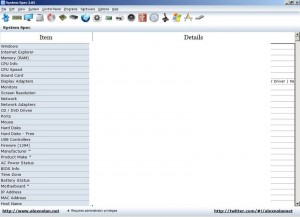
System Spec

System Spec divides the information it gathers into sections. These are, Personal Info, Memory Info, Display info, Disk Info, CD/DVD Info, CPU Info, BIOS Info, Internet, Installed Programs, Network, Printers, Sound, USB, Date and Time, Input Devices, Windows Version Info, Developer Info and USB Drives. A bit about the aforementioned sections follows.

Personal Info. Windows username, install date, version, key and others.

Memory Info. Total RAM, RAM speed, memory (RAM + virtual) totals, page file size and others.

Display info. Monitor type, refresh frequency, GPU type, all resolutions supported by the graphics card and more.

Disk Info. Hard disk size, (any) SMART info and file system flags.

CD/DVD Info. Info on all optical devices installed including manufacturer, product ID and read and write speeds.

CPU Info. A usage meter, CPU manufacturer, family, code name, voltage, clock speed, cache size and lots more.

BIOS Info. BIOS identifier, version and date.

Internet. Internet Explorer version, start page and other browsers detected. Explorer favorites and history.

Installed Programs (see image below) is more impressive than most. A list of all programs installed, shortcut to uninstallers, installed location, date. Information on publishers and help info/URL if available.

System Spec

Network. A list of networks and network devices such as network adapter and if available a list of computers on the network.

Printers. A list of attached printers.

Sound. Sound card info and specs, a tone generator, shortcuts to system sounds, mixer settings and buttons to test speakers.

USB. Number of USB controllers and info on any USB devices attached.

Date and Time. Current time, time zone, system up time,  UTC (Coordinated Universal Time), daylight savings start and end dates and more.

Input Devices. Information on the keyboard and mouse such as the type of mouse (number of buttons) and more.

Windows Version Info. Root folder, service pack, 32 or 64 bit and a bit more.

Developer Info. Java version, .NET version(s), ODBC drivers and IIS version among others.

USB Drives. This section information that is already accessible in the section on attached devices.

System Spec also features a whole set of commands and system shortcuts to control the system. Everything from shortcuts to safely remove USBs, start the run box, Windows Explorer, Task manager, Group Policy and hiding the taskbar (System menu). An on screen keyboard, System File Checker, Device Manager, Defrag, Scan Disk and Sys Edit (Programs menu). Standby Monitor, Eject CD and Mute Speakers and Microphone (Hardware menu).

The File menu can save information to a CSV or HTML file and also print a selection. The Edit menu offers to save selected specs to the clipboard but this didn’t work in tests.

System Spec is a freeware portable download and works on Windows versions going back to Windows 98.


HWM BlackBox (Version: 2.3 as of this post) is a hardware or system information and profile builder. Much like others of its kind it takes a few seconds upon startup to gather information.

The interface is tabbed and divided into Processor, Memory, Graphics, System and Benchmark. The Processor tab has information on number of cores, speed, cache and technology (90nm, etc.), bus speed, voltage, temperature and also live usage info. Memory has info on RAM slots filled or available, memory type, frequency, manufacturer, serial number CAS Latency and more. Graphics has GPU information like memory, temperature, max speed, DirectX version, raster operators and more. System has computer manufacturer, BIOS version, number of slots (PCI, etc.), fan speed and more, plus information on disc drives, optical drives and network devices. The Benchmark tab works only on Windows Vista and 7 machines. It will run various performance tests most likely only useful to gamers and overclockers.

HWM BlackBox

The arrow to the top right has options to save collected data to text or XML files, change refresh rates for the usage info, take screenshots of the program and a few other settings.

Some specs may not be available depending on the hardware’s and/or BlackBox’s support to retrieve them. HWM BlackBox comes with an online upload tool (see About tab) to measure up benchmarks and system specifications with or against others. HWM BlackBox is a single exe file, exists for both 32 bit and 64 bit systems and and requires the .Net Framework 2.0.


System Explorer (Version: 3.6.2 as of this post) bills itself as a system management tool and an explorer of system internals. It is more than just a system profile builder. System Explorer provides lots of, almost too much, information about many aspects of the system or computer in a tabbed interface. Some tabs are open and visible when starting the program, others can be opened in the Firefox new tab style by clicking the + button to the top right and choosing from the available sections. Most sections or tabs have additional capabilities via a right click. Examples include terminating processes, copying file paths to the clipboard, virus checking a file online on virustotal.com and many more.

System Explorer

System Explorer also has a status bar at the bottom with CPU, RAM, swap file and other usage information. A similar graphical overview is also available via the color of its tray icon or hovering over the icon itself.

Tasks is like the windows task manager’s Applications tab, it provides a list of open programs. Processes list all running processes with process id (PID), CPU time, memory usage, ‘sub’ processes, parameters the process may be running with, online security check (click the security check icon and any details available in the system explorer database will be shown online) and more. Also like many other sections, System Explorer has a search feature near the top right.

Modules lists the dll files the running programs are using, like some other sections this can be filtered to not show Windows’ own. Performance (see image) shows graphs for overall processor or CPU, page fault, swap, network connection, kernel and physical memory usage and lots more. Services list all services running with their driver type, name and startup type or mode (automatic, manual or disabled). Drivers lists all drivers running on the system including name, startup type and location/path. Windows is much like Tasks but has a list of all open windows, so if several instances of one program are open you see them here. Autoruns has a list of all processes or programs that run automatically on startup. Uninstaller has the shortcuts to uninstall programs. History is like an event viewer of sorts in that it contains a list of all recent actions, for example “New TCP/IP 127.0.0.1:1113 PID=3292 “Palemoon.exe”". Snapshot takes snapshots of the file system and registry and saves it for future comparison.

System Explorer

There are additional sections that list Users, Security Info with basic information on anti virus and Windows firewall states and Additional Info with lots of information on the system like Windows serial number, computer name, system folders, system date, audio and video codecs, fonts, file types and lots more.

It is really necessary to explore the program or have a look at the online help to really discover all its features. System Explorer is free for personal use and runs on Windows XP and newer versions.


XP Syspad from the very useful xtort.net site is described by its author as

Windows system monitoring utility that allows easy access to Windows system information and Windows system utilities


XP Syspad

Startup of XP Syspad is on the slower side, especially at first launch as it seems to be collecting relevant info including the running processes list that it present in its main window. Continuous run of the program is not at all memory intensive and it uses well under 10MB of memory. The main attraction of XP Syspad is that it presents over 250 utilities and functions in one central place. Some of the features worth mentioning is easy two click access to such things as the Windows’ HOSTS file, navigating to the Disk Partition Manager, getting an expanded list of recent items opened under My Menus—>Recent, recovering Window’s and Office product keys, finding out the Windows’ installation date and even a dynamic small calender under the ? menu.
Some functions did not work or not as intended on the tested system (Windows XP Pro SP3), for example System—>List Installed
XP Syspad
Drivers and the rather awkward (see image) Network—>Download Internet File. In the former case nothing happened and the latter case google.com’s homepage was the default download and action was taken even when the operation was cancelled.
Also of note is the list of programs installed (Programs—>List Installed Programs) because the list presented included things like Norton that have long been uninstalled.  XP Syspad must be reading the list or components from the registry, where programs such as Norton are notorious for leaving orphan entries, because certainly such entries do not exist in the Add/Remove Programs section of the system’s control panel.

Of most use to not so expert computer users but notwithstanding a few oddities XP Syspad an useful utility overall. Requires Windows 2000 or XP.

© 2012 RGdot Suffusion theme by Sayontan Sinha