Ethervane Echo is a full featured ‘keyboard centric’ clipboard extender or manager for Windows. It divides captured clipboard items into different categories based primarily on time captured and type, for example last hour and URLs and it can be tweaked for more advanced use. It does and should work when copying from most any source but it does not support images.

The Win+Insert (can be changed in the Preferences (Tool—>Preferences—>Keyboard)) keys are the default way of bringing up the program and Esc the default way to minimize it back to the tray.
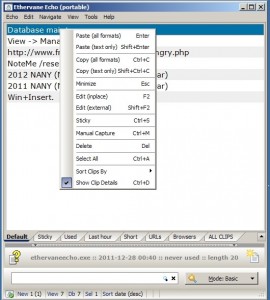
Ethervane Echo
Ethervane Echo’s interface is divided into views, these views can be hidden or others added (View —> Manage Quick Views). The intended features and strengths are to find the items after they have been captured using the keyboard and search (with wild card support). A good example of Ethervane Echo’s ease of use is that when the program is brought up just typing starts a search, there is no need to click in the search box, and if required pressing Esc clears the search box. The search box has basic and advanced modes, the former is search as you type and the latter requires pressing enter to start the search.

The interface tries to give as much information as it can by showing the source, time of capture, size and type of a highlighted item and information on the total number of items in its database. Ethervane Echo has a status indicator – the little green check mark on the bottom of the interface – and it can be paused to not capture clipboard items by double clicking on that same icon.

The basic usage uses the usual Ctrl+C keys for copying and then maximizing the program, choosing a clip using the arrow keys and then pressing Enter to paste the chosen – or even multiple clips – into the active window. Right clicking on each clip presents copy, pasting and editing options as well.

An item can be made sticky to remain in the database forever, this can done via the right click menu, Ctrl+S or the Edit menu.

Ethervane Echo
The Database Maintenance section of the Preferences is important because here one can edit the program’s purging or automatic deleting schedule.

Among other features Ethervane Echo is also capable of holding items in memory instead of on disk for privacy reasons (Preferences—>Database). It supports ignoring clips like those captured within an interval (Preferences—>Capturing Clips) of the last capture, from certain programs  (Preferences—>Application Filter), duplicates and passwords.  Setting minimum and maximum item lengths are also set in the Capturing Clips section.

See the Keyboard Reference section of the help (or Shift+F1) for all available shortcuts. Ethervane Echo can import items from a text file or a Ditto clipboard database (Tools —> Import Clips). Ethervane Echo has been released as part of DonationCoder’s 2012 N.A.N.Y. (New Apps For The New Year) challenge, requires XP and newer and is available in both portable and installer versions.


File Bucket is one the many excellent programs and coding snacks from DonationCoder. File Bucket’s main purpose is to copy or move scattered files into one central or organized location. It was created because a user on the DonationCoder forums asked for a program to ease disc creation. The user wanted to automatically copy media files to one single folder and then burn them to a disc. In my opinion the same concept can be applied to backing up files. Working on my system I am using File Bucket and moving files that have been created in various My Documents and other folders into one location so subsequent system backups are easier and cleaner.

File Bucket is divided into four panes or areas, the top left hand side shows all systems drives and below it the folder tree. Highlighting a folder in the tree will show its files in the upper right hand pane. The lower right hand pane is the bucket or list of files and folders that will be moved or copied.

The three buttons on lower left side of the interface act as aids or shortcuts for adding files or folders to the bucket. “Add folder’s file to list” will add only files – from the folder selected in tree – to the bucket, ignoring any subfolders. “Add folder & subfolder’s files to list” will add all files including those in subfolders. “Add to list as a folder” will add the selected folder as is to the bucket thereby moving or copying it as a folder and not only the individual files that are within it. The “Add selected to list” and “Add all to list” buttons work on the folder(s) and file(s) visible just above them. After the bucket is populated the destination folder can be configured and the option to move or copy – or “Delete items to Recycle Bin”, “Save list with absolute paths” and other – chosen.

One other feature that adds another degree of usefulness to File Bucket is the filter (middle right of the program interface). Using the filter one can specify the file formats that will end up in the bucket. For example one can only move *.mp3 or *.jpg files. Any number of formats can be defined in the filter list which pops up when clicking the filter button. The filter(s) must be defined before any files are added to the bucket and in that sense the location of the filter button – and its associated dropdown – is perhaps not the best as one can mistakenly add files to the bucket before ‘reaching’ or getting to the filtering part on the right hand side of the program.

Once used it becomes clear that File Bucket is more difficult to describe than to use and it joins a long list of very useful utilities coded at DonationCoder.


Donationcoder is an active and unusual website. It is a one where not only members get help on computer and programming issues but one where useful code and programs are being written and reviewed everyday. What makes donationcoder even more unusual is the section they call Coding Snacks. This is where you get ‘Tiny programs coded on demand while you wait’. Through this and other active members and authors donationcoder has, over the years, accumulated a vast array of programs made for a wide variety of useful tasks. Some minor and some pretty innovative and even more useful. Software creation challenges such as the yearly NANY (New Apps For The New Year) challenge have also added to the list of programs available.

Right now a 4th anniversary fundraiser has been setup with the aim of raising $8000 to cover all kinds of costs and any amount of money donated will entitle the donator to a non-expiring key to all the software created and even those that will be created in the future. Other benefits include full access to their shareware discount deals and more.

But most of all donating is a way to support donationcoder, a place where members are helping each other in very concrete means. For a fun, tongue in cheek calculation of how much a person can and should donate check out the Scientifically Proven Optimal Donation Amount Chart.

© 2012 RGdot Suffusion theme by Sayontan Sinha