Author: Reza

  • ClipMe To Manage The Windows Clipboard

    ClipMe

    A new entry in the clipboard management software category is ClipMe (not the first software or app to use that name?). It is currently at the 0.1.0 beta stage and there is potential for development and lots more to come. At this time ClipMe is basic and does not do all that much. However it is functional even as is.

    Use Windows’ usual Ctrl+C to capture text, files and images that are stored in ClipMe’s database. Bring up the manager (Ctrl+Shift+O by default, configurable via the Preferences) to view them and their size. Hover over any captured image in the list to get a preview, edit any text entry if needed.  Delete any entry by clicking on the X beside it. At the bottom of the manager window there is an option to change the number of items ClipMe keeps and remembers, the default is 30.

    Currently to reuse an item it is necessary to click on it in the manager window or on it via the program’s tray icon (right click the icon).

    The hot key to enable or disable ClipMe’s clipboard tracking is Ctrl+Shift+E, it can be configured to use another combination. ClipMe can be configured to ignore any of the types of captures it supports so, for example, it is possible to use ClipMe only to capture images. ClipMe should run on XP and newer.

  • Hddb: Search Done Quickly

    Hddb

    Hddb is another option for those seeking to have a lightweight search utility. Hddb stands for Hard disk database and similar to Locate32 in that it builds a database and uses it to present results. The program interface is similar to Everything however.

    At first start a database is built and this takes seconds only. There is an option to rebuild the database any time and also to clean it as if to start over. Folders can be set to be ignored by Hddb by adding an empty file called _hddbignore in them. In Tools —> Options —> Database there is an option to exclude files by name. The search itself supports searching paths (use \ to start a search) and using wild cards. Probably the most notable feature of Hddb is the Named Searches accessed via the Search menu. This narrows down the search to file, folder, picture, executable, office, book, video, audio, archive, code or text formats. For example a search for “@video milan” returns only video files which have milan in their title. These can be configured to add or include other file types and extensions.

    Hddb has options to show folder sizes and to show file info via a tool tip, see the Results List tab of the program options to enable these features.

    The program remembers recent searches. The non portable version of the program can add itself to the system’s right click context menu. Hddb is available in exe and portable versions for both 32 and 64 bit machines.

  • PhotoDemon Is A Full Featured Image Editor

    PhotoDemon

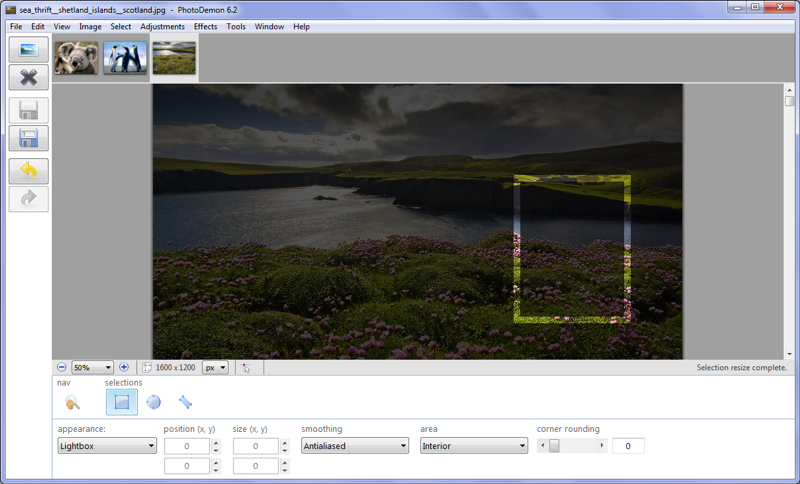
    PhotoDemon is a portable and relatively small – less than 17MB unzipped – image editor which happens to be open source too. Most, if not all, features expected when working with images are present here. Plus there is also a Batch process mode available via the File menu (or Ctrl+B). A film strip area shows all open images.

    PhotoDemon can import directly from the clipboard, cameras and scanners and also from URLs. Mouse and keyboard shortcuts for zoom make it easy to view details. The Image menu features most of what is expected like Resize, Crop, Rotate, and Flip plus a few others like Count unique colours and Transparency. The latter is a bit different because it can make specific colours transparent and leave other parts of an image untouched.

    The selection has some interesting extras. When making a selection various effects can be added to the selection instead of the whole image. For example the screenshot above, probably not the best image to illustrate this, shows a rectangular selection with a border (After making a selection click Select –>Border). The Adjustment options are Black and white, Brightness and contrast, Color Balance, Levels, Vibrance, White balance, Channel, Color, Histogram, Invert, Lighting and Monochrome. The Effects are also most of the typical ones expected like Artistic, Blur, Distort, Edge, Experimental, Natural, Noise, Sharpen and Stylize. There is also a Custom filter window which is a fun to play with if not necessarily needed for most. The Experimental and Natural filters include the likes of Underwater, Rainbow, Alien and Radioactive.

    The Tools menu is where macros can be recorded and plugins added, the included plugins are Exiftool, pngnq-s9, EZTwain, zlib and FreeImage. PhottoDemon offers a good solution for image editing beyond what is mentioned above and probably belongs high on the list of downloads to keep.

  • Notes Keeper: New Notes Organizer

    Notes Keeper

    Long time reader Asen alerted me to a relative new entry in the Notes Organizer category. Notes Keeper currently in Release Candidate or beta stage looks to have potential and already features a good set of useful features.

    On first start the user is prompted to create a new database (Ctrl+Ins or via the Note menu). The program interface is divided into cells listing the saved notes. The next step is no create a new note (Ctrl+N). Here a more familiar word processor type – with all the expected formatting options – window pops up. The note title can be edited, it can be added to a group and tags added. The group and tag can be created on the fly. Many other features are available such as inserting images, password protecting notes, using transparent mode, working in full screen, attaching files and always staying on top. There is also a search bar at the bottom of the main window which as of this review seems to search through note titles only.

    Notes Keeper

    Notes Keeper is portable and requires the .NET framework. At version 0.5 it is very interesting to see what the future brings and follow it to 1.0 and beyond.

  • Dukto: LAN File Transfer

    Dukto

    Sharing and sending files over the internet gets easier and more trivial with every passing year. The same is almost true when it comes to sharing files on a local area network, between two computers in a house for example. It is a waste of bandwidth and resources to use the internet for such a case. There are relatively complex solutions for transferring files in a home network, some require the same operating system and others fiddling with permissions and folder share settings. Dukto (version: R6) is one tool that reduces the effort and also happens to be multi-platform.

    Dukto does not write to the registry or pollute the system, its Windows, Linux and other versions can be downloaded and just executed.

    Dukto

    Just open the program on all installed devices and its discovery protocol should find the others. In most home cases there is nothing else to do but to choose a file, folder, text or clipboard content to send to another computer. There might be times when the discovery might not work and Dukto will attempt an IP connection – the IP address of every device is shown by clicking the bottom middle icon and can be entered manually for IP connection transfers. It is possible to configure where received files are stored by using the bottom right settings icon.

    If an error is seen it can be due to a firewall blocking Dukto. The program can be white listed pretty easily, for example in

    Windows XP:

    Start —> Control Panel –> Windows Firewall, Exceptions tab —> Add Program

    Windows 7:

    Start —> Control Panel —> Windows Firewall —>Allow a program or feature through Windows Firewall, Change Settings and Allow another program buttons

    Linux Mint 13 MATE edition:

    Menu —> Firewall Configuration. The Firewall is normally disabled when Mint is installed. If it is enabled for any reason Dukto may not work and allowing it will require a firewall that can add application rules and not port or IP address based rules. For example Linux-Firewall.org

    Dukto is available for Windows XP and newer, Mac OS 10.6 and newer and via repositories (or manually via deb or rpm files) for use on Linux computers. As tested on Linux Mint 13 the deb file downloaded from http://software.opensuse.org/download.html?project=home:colomboem&package=dukto was used – simply download and double click to ‘Install package’ and it’s ready to be used.

  • Process Liquidator: Kill Processes With One Click

    Process Liquidator

    Process Liquidator is a small utility that pretty much serves one purpose. This is to have have quick access to running processes and if needed terminate them easily.

    A right click on a process name terminates it. Process Liquidator displays process name and process id – and by left clicking on a name additional information about the process. Double click on any running process to see its child processes, if any, or click on the Childs button to see all. After clicking on a process name click on the Wins text to list Windows the process has open.

    Process Liquidator

    It is docked to the right side of the screen with an option to change docking position, it also auto hides by default and requires hovering the mouse on configurable edges of the screen to re-open. This and other options such as Warn before terminating and are available in the Config section (see images).

    Process Liquidator should work on Windows 2000 and newer.


  • Process Piglet: What’s Eating All The RAM?

    Process Piglet

    Process Piglet is a small tool released as part of NANY 2014. It monitors top memory consuming programs and warns of any large changes in RAM usage.

    Process Piglet is probably most useful for monitoring browser behaviour.  Of course there are programs that by nature require a lot of resources, those written poorly that have memory leaks and others that don’t release memory properly when different tasks are done or the program is closed. The more common culprits, however, are browsers. Also their add-ons and plugins (hint: Flash) are notorious for bringing even relatively powerful computers to their knees.

    Process Piglet provides a window showing top memory users. It generates an alert when memory usage for a process changes a lot and offers the user to terminate or restart it. The same plus other options like navigate to folder are available by right clicking the process name in the program window.

    The programs settings include an Exclusions option to ignore processes and by default only cares about processes using more than 50MB, this can be changed by right clicking the tray icon then Edit Options —> Memory Options.

    Process Piglet should run on Windows versions going back to Windows 2000 and since it is new is evolving quickly.


  • NANY 2014 Is Here

    epcheck-nany


    The latest edition of DonationCoder’s New Apps for the New Year is here. The programs shared this year include the following:

    •  ImgFloat – an app to overlay the desktop with a recently taken screenshot  [with Screenshot Captor]
    • Q-FlashCards – an Android program for learning (vocabulary, dates, whatever) using virtual flash cards. Perhaps a good option for learning a new language
    • Text Inspection & Manipulation Utility – an utility to inspect and manipulate text. Case conversion, encrypt, sort, search and more
    • Zeno’s Alarm – lets you set future events, and it will alert you every time you cover half of the remaining duration
    • Esc Close – close a program by just pressing the ESC key thrice … even close a tab by pressing ESC key twice.
    • epCheck – a  tool designed to let you easily track and view TV series data. Data provided by TheTVDB.com

    and many more.

    epcheck2-nany

    The latter retrieves information for just about any tv series for viewing on the desktop. Search, add a series and then view the information downloaded in a list and description format with number of episodes and seasons plus episode dates and summaries. Past and upcoming episodes are presented in a ‘weekly’ tab that can be configured to show X number of past and future days. epCheck also links to the series’ wikipedia page (Series —> wikipedia) and also includes links to various relevant pages on TheTVDB.com


  • Hornil Photo Viewer: New Lightweight Image Viewer

    Hornil Photo Viewer

    Hornil Photo Viewer (version: 1.0) is a new freeware for home use image viewer from the developer who brought us the very capable Hornil StylePix photoshop alternative.

    Hornil Photo Viewer is pretty much no frills and there are certainly many more better known alternatives available but it fills the need well enough for a basic image viewer. It features a file tree on the left, several ways to list or view images in the main section and a histogram, waveform, exif info (and the option to remove the info) and thumbnail viewer on the right.

    Other features included are full screen mode, view in slideshow, image zoom, flip, rotate and convert and a launcher for any external image editor. The familiar keyboard shortcuts are available too, for example Ctrl+PgUp and Ctrl+PgDn to navigate through images. The supported formatted are png, jpg, tif, bmp, ico, jpc, pcx, tga, tif, ico, jpc, jp2, pcx, pgx, pnm, pgm, ppm, ras, ska, wmf and tsp. Hornil Photo Viewer runs on XP and newer.

  • LolliPic: More Screenshots

    I have removed the link to the Lollipic site and modified/’trimmed’ its review. Why?
    Lollipic, as I mentioned when posting this review, is very obviously a clone of ShareX. ShareX is an open source software and it is possible to use its source code to create another program. However, one of the stipulations in the open source GPL license is that source code remain available by whoever uses it. As of the time of the review and this note the source code is not available on the Lollipic site.
    The developers of ShareX contacted me and kindly asked that I remove this review.
    Eventhough a mere review, my review, is not in any way a violation of any license I have decided to not support Lollipic and while a screenshot (and a sentence or two) remain there will not be a review or a link to its site.

    Lollipic

    The choices for taking screenshots and sharing them are numerous and some even look remarkably similar as to make a person wonder if he is experiencing deja vu.

    *Edited/removed*

    It is clear that LolliPic is a ShareX clone and naturally both are based on the same set of tools like GreenshotImageEditor.dll just to name one.

    LolliPic requires the .NET Framework.