Author: Reza

  • 70 Ways To Save The Earth

    70 Ways to Save the Earth

    As a follow up much earlier post here on RGdot I was contacted about an extended list that we can all use as reference. Some very simple like turning off lights when not in use to sometimes not so easy ones like using organic products the list includes 70 things we can all do. A few like using less packaging requires more consumers becoming conscious and vocal to influence change but doing even one or few of the list will help the environment.

    The full list, courtesy of Greenmatch UK, is at http://www.greenmatch.co.uk/70-ways-to-save-the-earth 

  • Notes With AnnoPad Google Chrome Extension

    AnnoPad

    AnnoPad (version:1.5.3) or URL Specific Notepad – AnnoPad to mention its full name is a Google Chrome extension that saves notes in a drop down accessible via its icon much the same way as many other extensions.

    The interface is simple, click on the icon and add a new note. The URL of the current page is automatically saved with the note. The note can be formatted in bold or italic and be an unordered or ordered numbered list. Notes are saved automatically and clicking the back button takes the user back to the notes list.

    It is possible to assign a category to a note however the notes list interface does not show the category. The category is therefore only currently useful in the as you type incremental search. The same search of course finds text in the notes’ content as well. When a page or site is open notes can be filtered to those with a matching address. Saved notes can also be displayed by newest, oldest, page ascending and page descending. The latter two refer to the URLs associated with saved notes.

    AnnoPad’s settings are Export to TXT, Export to PDF and Delete.

  • (Un)colored Is A Modern Text Editor

    (Un)colored

    (Un)colored (version: 0.9.1) is a cross platform open source freeware or donationware text editor. It is currently tagged as beta.

    It provides a distraction free interface with a toolbar or menu only becoming visible when the user hovers near the top of the window. It also features shortcuts to type or move through a document like Ctrl+1 for a XL header type text and Ctrl+Shift+C to clear formatting. A list of the shortcuts can be seen via the top menu.

    (Un)colored-AV

    Selecting any text will also highlight the toolbar to format the text. Clicking Alt is the alternative method of doing the same.

    What makes (Un)colored more modern is support for emojis and its embed feature. Youtube, SoundCloud and others can be embedded directly into a document.

    A document can be saved in HTML  or markdown format. The former supports themes, as in the saved HTML document can have different font sizes or colors. Currently there are four themes, Attitude, GitHub Style, Horizon and White Room.

    As the author warns that (Un)colored can trigger antivirus warning, it did so on the Windows 10 machine it was tested on. Avast Virus Lab analyzed and returned a false positive (see screenshot). The more people use it the less likely this will happen in the future.

    It is available for Mac OS X, Linux and Windows 7 (installer or portable) or newer and only in 64-bit format.

  • SaMotion: Minimalist To Do List

    SaMotion

    SaMotion (version: 1.11 Build 325) is a minimalist and portable task manager or more simply a to do list. Just download and extract the exe, then double click it.

    The program offers a dark or light theme and nothing else except categories and tasks indented. Hovering shows the + icon to add either a category or task, only one level deep. Clicking on an existing category or task makes its title or text editable. The other program settings are docking to the left or right and staying on top. The .sm file extension can be associated with the program as this is the format the lists are saved in. A task can be color coded to any one of green, orange or red colors by clicking immediately to the left of an item.

    Lists or projects as they are called are encrypted (Blowfish 448Bit) and the list can be exported to a password protected PDF.

    The program could use enhancements that still keep it minimalist. Two such features or improvements could be support for dates and better handling of longer text. In the screenshot above the longer item just disappears without any indication.

    SaMotion runs on Windows 7 and newer.

  • TreeProjects is now free!

    TreeProjects is a notes organizer, a very powerful one, that I became a fan of many years ago. It had started life as the free Smereka and grew to a full featured outliner and organizer. I wrote a brief review of it in 2011. It has many features that made and make it complete like tagging, linking nodes, global search and reminders.

    After years of no development Yaroslav has made the last version, 2.9.4, freely available and paying for a licence becomes optional, if you want to help him.

  • Light No Frills Clipboard Capture With clipLogger

    cliplogger

    At version 0.3 clipLogger is a new, beta software that takes a no frills approach to capturing and storing clipboard content.

    Download and extract contents to a folder, the program will create a clipLogger_settings.ini file in the same folder. Using the usual Ctrl+C text content is captured and listed with a time stamp. Files copied or dropped into the program widow will have their full paths captured. It is possible to uncheck one or the other so only text or file names are captured.

    The interface is very minimalist. The program settings include system settings like fonts and start up and close to tray behaviour. The program can also backup to a text file but that is of little use as the backup file resides in the same folder with no way to configure location or back up schedule.

    A bug seems to duplicate (or more) captured content and the developer does allude to it. clipLogger is one to follow and hope that it continues to be developed.

    clipLogger does not requires installation and is around 130KB unzipped. It requires .NET framework.

  • ZenR Notes: Simple Password Protected Notes

    ZenR Notes

    ZenR Notes (version: 0.2) is a recent entry in the note taking category. It presents mostly simple options for taking notes and securing them either individually or with a master password.

    By default ZenR Notes uses what it calls an immersive theme that uses Windows colours. New notes are added, along with other features using big buttons. The minimal formatting options like colours and fonts are available plus a few others like creating simple lists.

    Each note can be password protected (AES 256-bit) by clicking the down arrow to the top right of the note. The same menu features a reminder option to turn the note into a single non recurring reminder. The program notes that secured notes can not be reminders.

    Using the same menu, notes, and the program itself, can be turned into a ‘widget’, clicking that option is similar to minimizing the note into a post it note. While in widget mode clicking X reverts the view to the program window, clicking the left arrow shows the notes list and the down arrow provides options to increase the widget size or keep it on top of other windows.

    The hamburger menu present while looking at the notes list includes an option to set a master password, and to add enhanced security. The enhanced security feature acts as a complement to the ZenR Notes’ back up and restore feature also present under the same menu. The program can also be further secured by adding a recovery email. The latter makes the program look like a web app. The recovery email option was not tested for this review.

    The ‘Total words’ number under the notes seems to be a bug (see screenshot). ZenR Notes should work on Windows Vista and newer, including server editions.

  • Journaley: Simple Journaling

    Journaley

    Journaley (version: 2.1) is a simple yet unusual journaling program, it is freeware and hosted on GitHub.

    The unusual nature of the program is two fold, perhaps. The first is somewhat disturbing, the set up did not provide any prompts (tested on a Windows 10 64-bit computer) until the program shortcut was ready on the desktop, whether this is a bug or not is not clear and there is no mention of this behaviour on the developer’s GitHub page. The second unusual aspect of the program is that, at first launch, it suggests the dropbox folder as the location to save its database.

    Add an entry by clicking the blue + sign at the bottom left of the program, change the date, to any other date if necessary, and start typing. A word and character count is displayed as is the number of entries in th journal. Images can be added to an entry as can tags and stars. Starred entries will turn yellow in the left pane view

    The entry, calendar and tag views (above the + sign) provide different glimpses of the journals written. When editing an existing entry the edit button must be clicked before the text becomes editable.

    The program settings include (only three) different sizes for the font and only two, Noto Sans or Noto Serif, as fonts. The included spellcheck can be disabled and a password assigned to protect the entries.

    The target user for such a software may or may not be obvious but it is nevertheless one newer addition in the note keeping category. Journaley requires .NET framework 4.5 and therefore works on Windows 7 and newer.

  • jaBuT Backup: Simple And Useful

    jaBuT backup

    Update: The blank dialog window bug has been fixed in version 11 of jaBuT

    JaBuT (version: 10.0.39) is a simple but useful back up tool. It is free for non-commercial use and offers several methods to back up directories.

    On first use the program provides a step by step guide for creating a backup profile via an express or custom setup. The profile creation process prompts for source and destination directories. The profile can be set to run manually, every X minutes, hours or days or crucially only when the data changes. It is also possible to run a profile at the start or end of running jaBuT itself.

    The back up mode makes the program more useful, there are eight modes. Simple copy, Exact copy, Move, Exact move, Compress, Exact compress, Synchronize and Mirror copy. The difference between exact or not exact is that in exact mode any file no longer in the source directory will also be deleted in destination directory.  jaBuT backup error
    Users then name the profile and can view and search for profile names in subsequent uses. Multiple profiles can be created and grouped together to distinguish them. Profiles can also be exported and imported. The program provides a preview of each profile which includes the size of the backup.

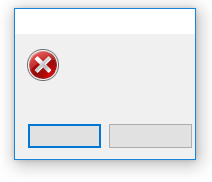
    JaBuT can also run in portable mode and this is an option either when running the installer or at the program’s first run. When tested on a Windows 10 64-bit computer the former option of choosing portable mode during install prompted the blank dialog window (right), however a full install works as expected.

    The program is available in both 32-bit and 64-bit at http://jabut.de/, check the author’s parameters page to see its command line options.

  • Back? Maybe!

    Every once in a while I come across a mention of this site and it encourages me to think about a return. Yesterday I noticed that MK of Taking note found my review of Minipad2 and had a look at it.

    In the recent past have been concentrating on other things, including maintaining the Milan (the football/soccer team) site, linked on the site’s front page if anybody cares.

    Perhaps it is time to return and post occasional reviews again. Maybe. If time allows. If so also consider changing the looks or theme of the site too.